
Sometimes you need the variant ID to do a deep linking to a product variant. For example, you have a setting in your theme that requires the product variant ID to create a link to the product variant.
There are three ways to get the variant ID: through your admin dashboard, on the storefront if you have the product published, or via the product XML file.
If you need the product variant ID in the code for theme customization, you should use the Liquid syntax: variant.id, which returns the variant's unique ID.
Get the variant ID through the admin dashboard
Login to your Shopify store. If you do not know how to do that please follow the How to login into your Shopify store tutorial.
Once you are logged inside, go to the products page:
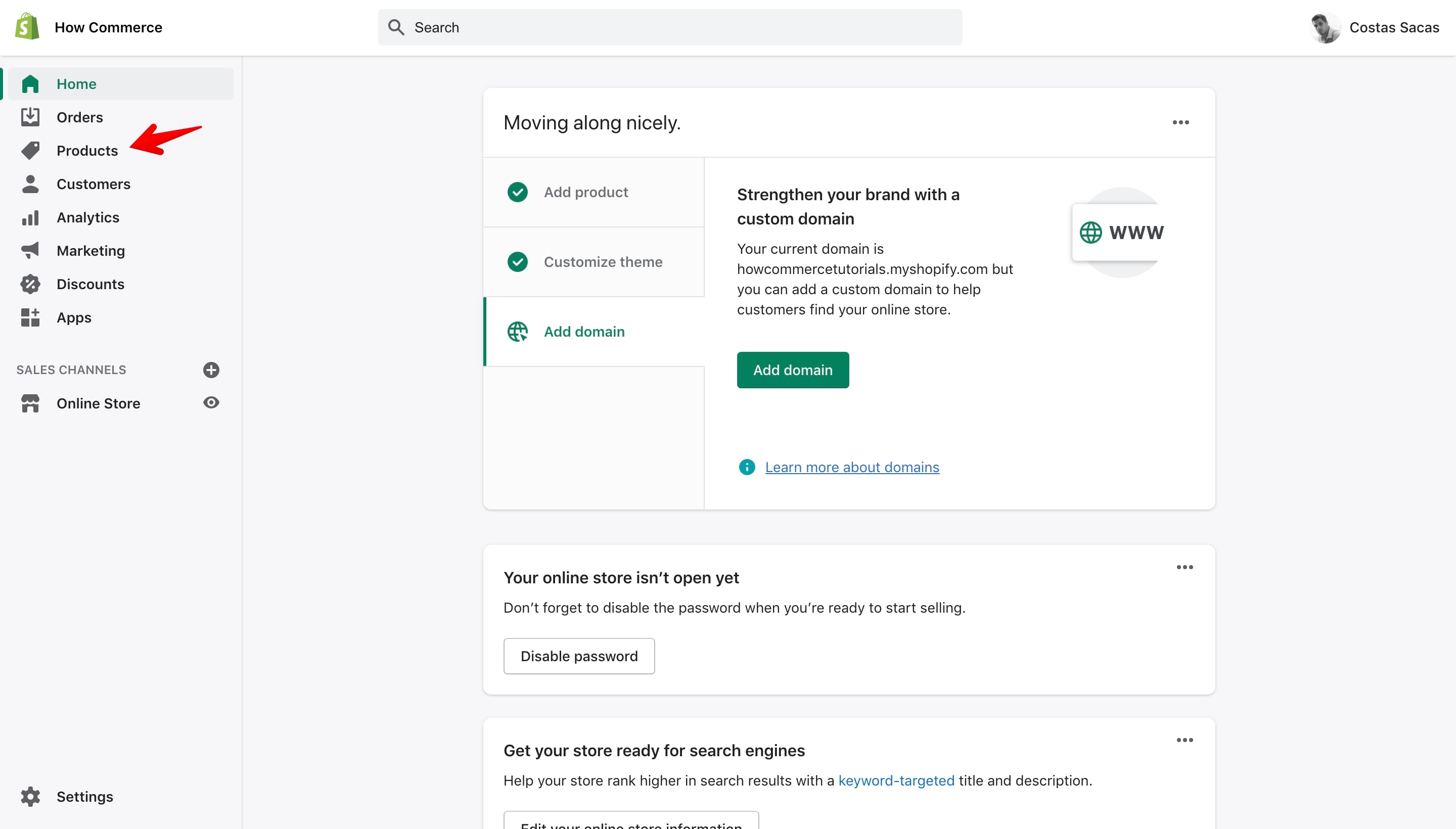
On the products page, select a product (marked with 1 in the image below) that contains variants (marked with 2 in the image below):
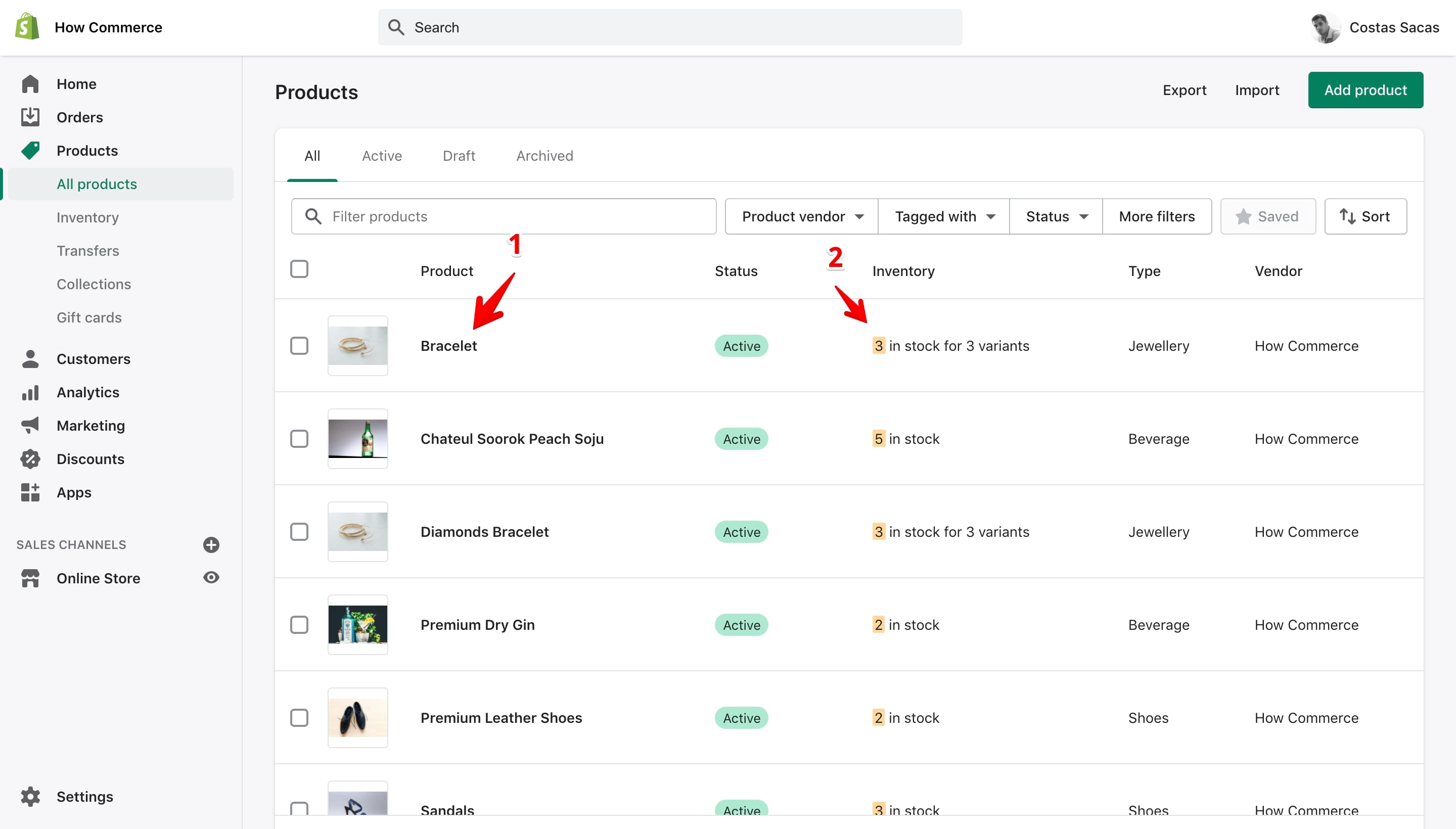
Now you should see the page where you can edit the product data. Click on the "Edit" button to open the product variant page as shown in the image below:
On the variant page, examine the URL in your browser's address bar and you'll see the variant ID:
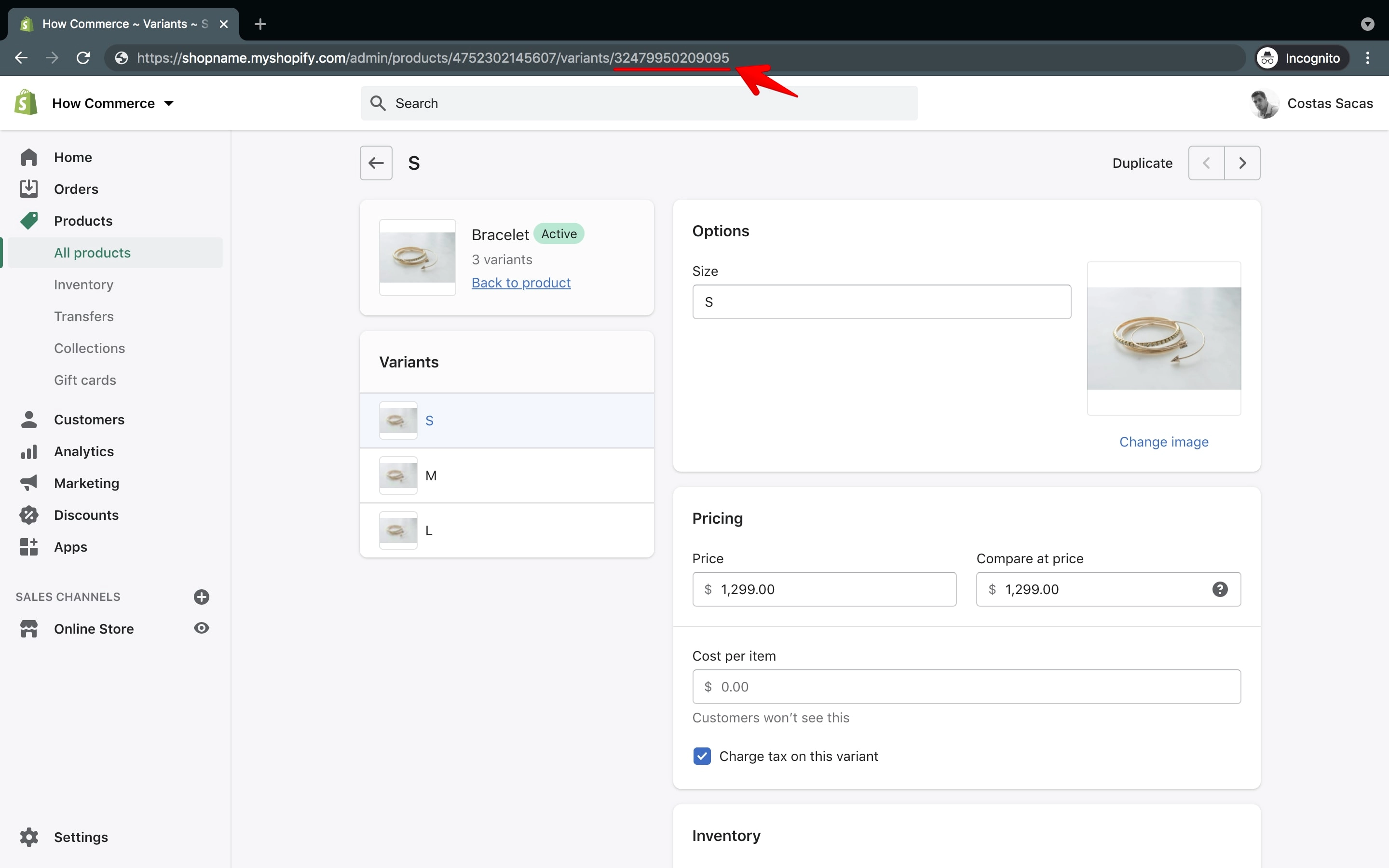
Your browser URL should be similar to the one in the image above and should look similar to this one:
https://shop-name.myshopify.com/admin/products/4752302145607/variants/32479950209095
The number after /variants/ is the product variant ID number. In this example, the variant ID is 32479950209095 but yours will be different.
Get the variant ID through the storefront
If your product is published, you can get the variant ID via the product page on the storefront.
Navigate to the product page on your Shopify store. The link for the product page should look similar to this:
https://shop-name.myshopify.com/products/product-name
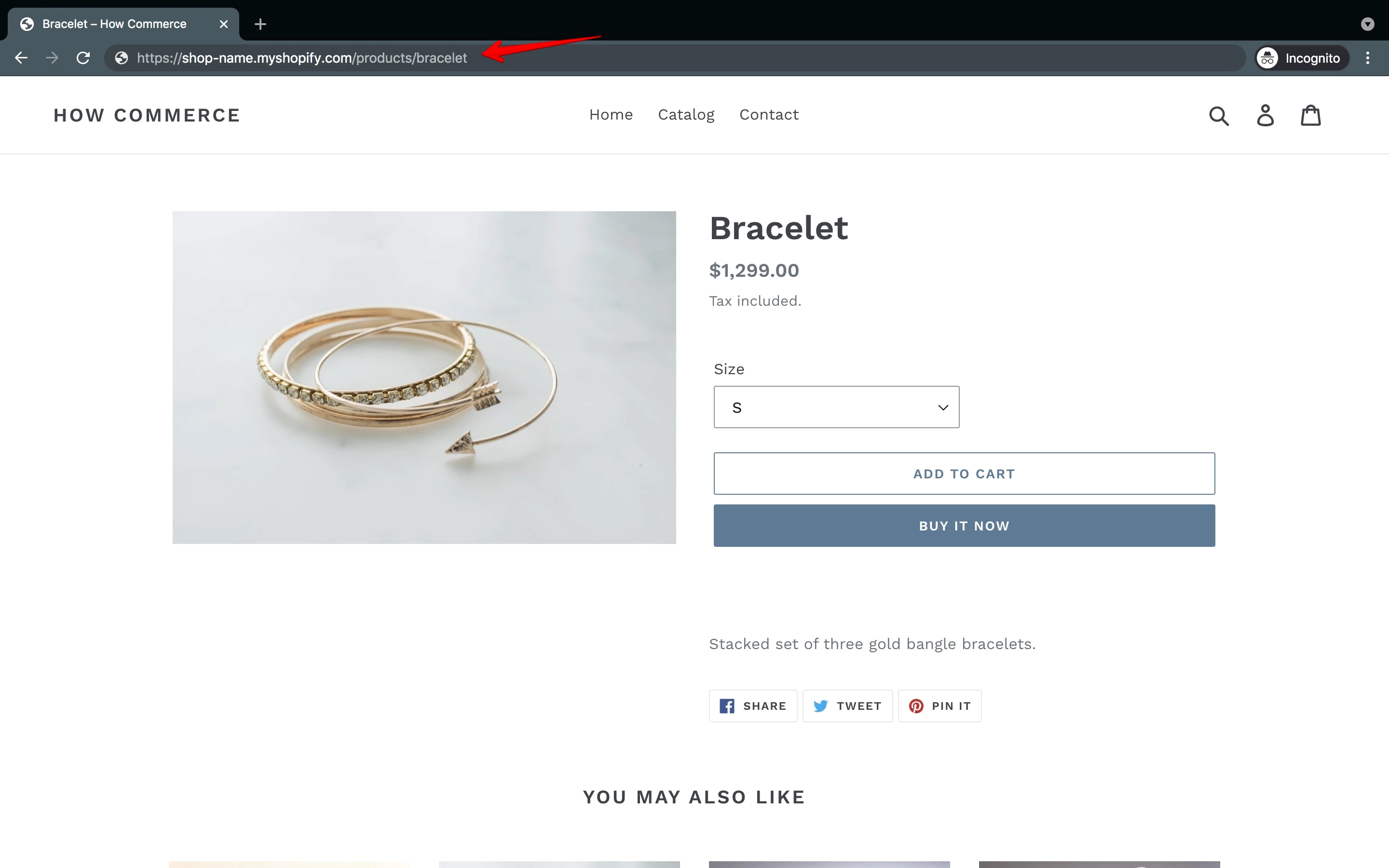
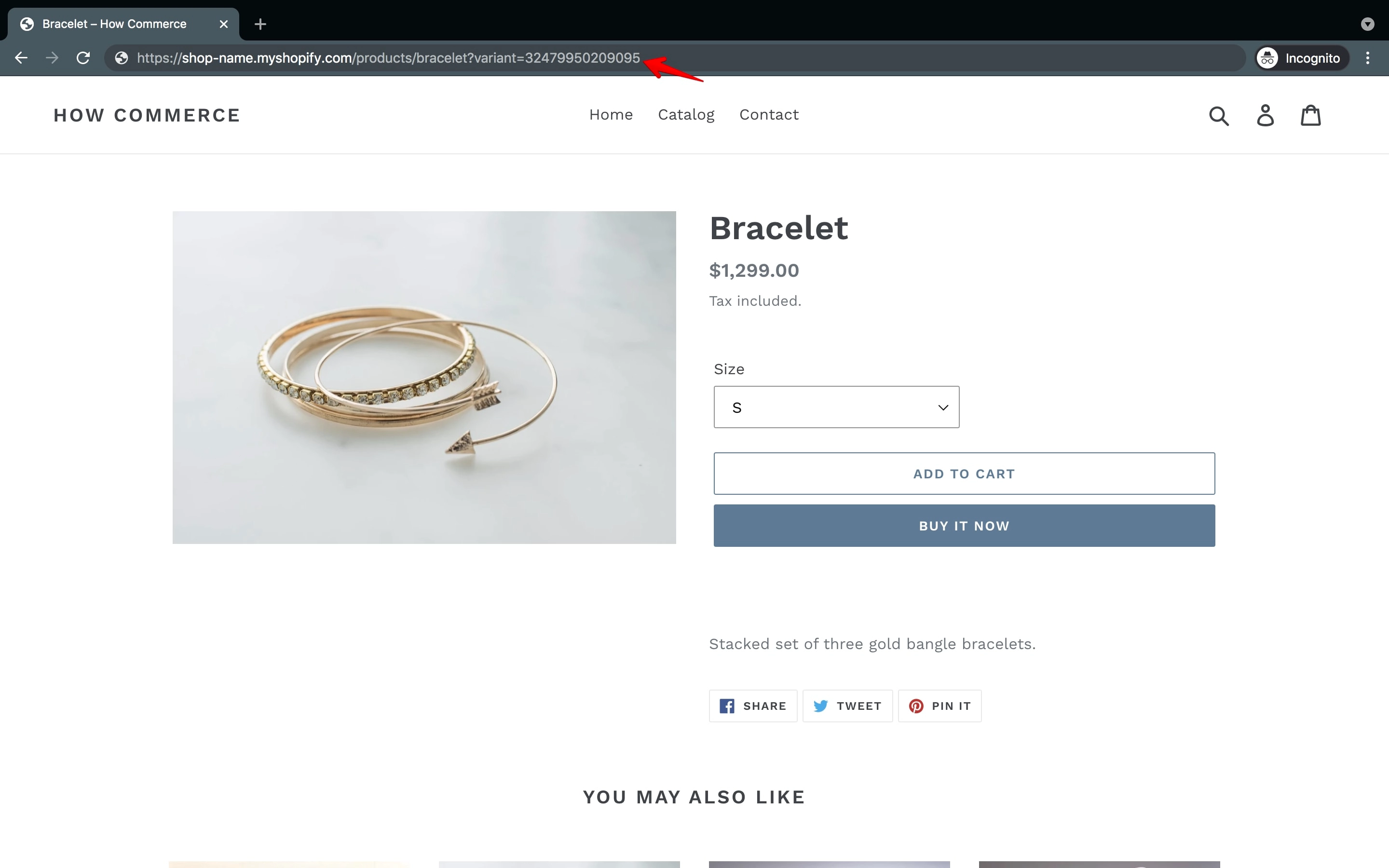
Now, to add the variant IDs into view, you need to select via the options select box the desired option for which you want to get the variant ID. In the image above, my option select box displays sizes for my product.
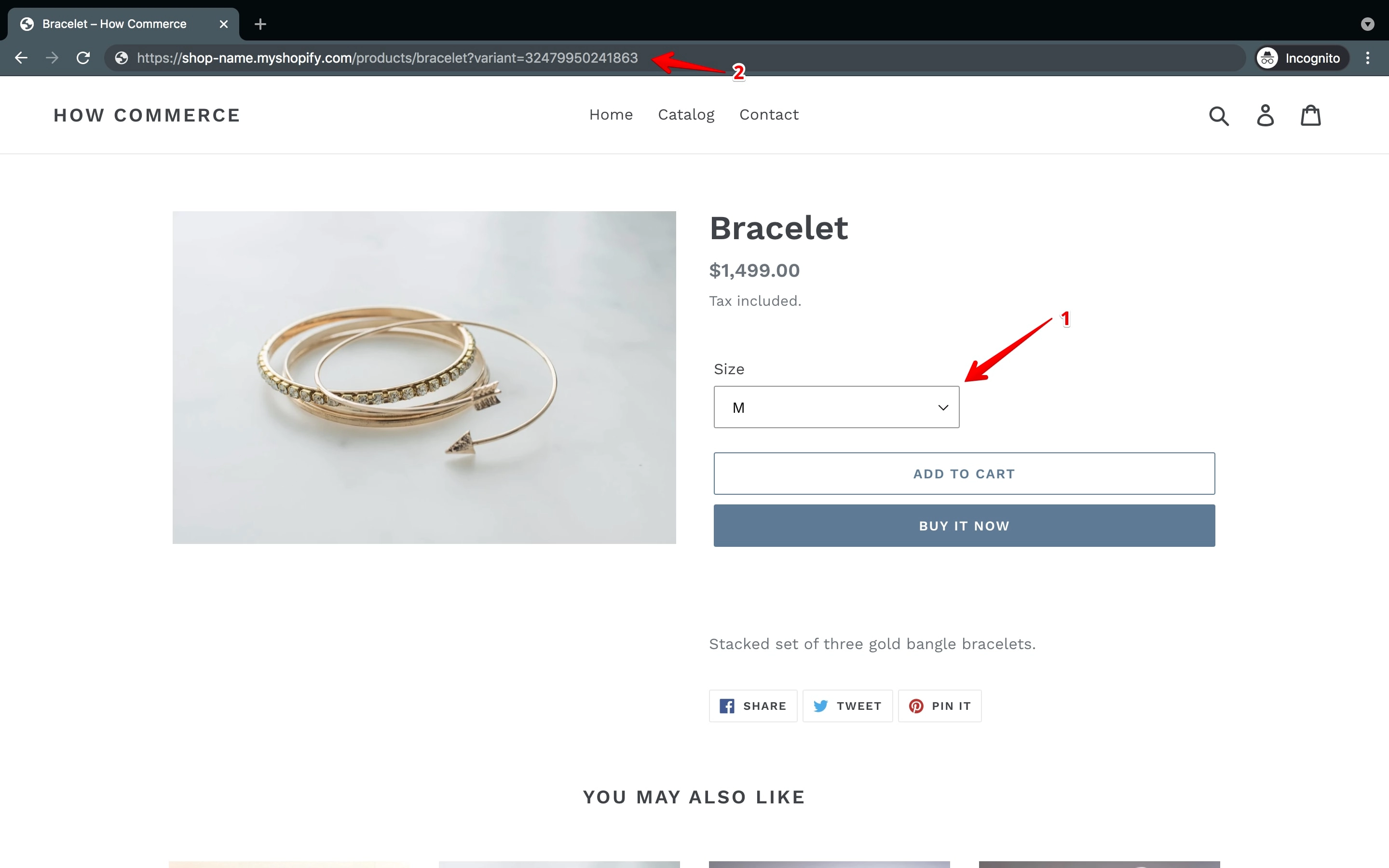
Let's say I want to see the variant ID for the "M" size on the product. You need to select the "M" size from the select box (marked with 1 in the image below) and then examine the URL in the browser (marked with 2 in the image below) to see the variant ID after variant=:
Once you access the product page, you already have a pre-selected option, which in my case is "S" size (marked with 1 in the image below). As you can see, there is no variant ID listed in the browser URL.
If you need the variant ID for the pre-selected option, you need to generate it by selecting another option available in the select box and then reverting back to the default option, which in my case is "S" size.
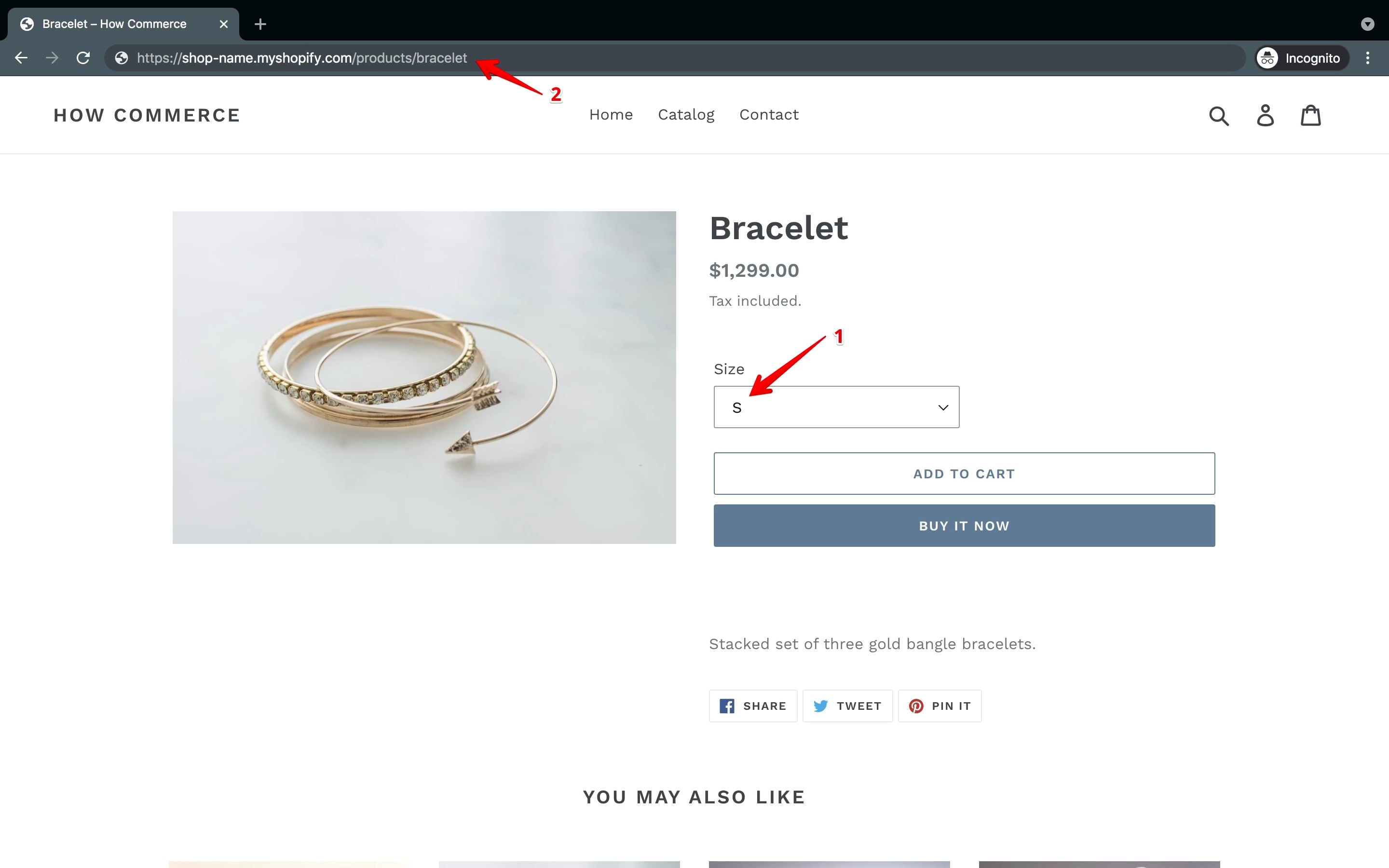
Once you do that, you'll see the variant ID for the pre-selected variant in the browser URL:
Get the variant ID through the product XML
This is a bit more complicated, but it will get you the variant ID plus a lot more data to view. This is recommended for developers who know how to read XML code.
Once you are logged into your store, go to the products page:
On the products page, select a product (marked with 1 in the image below) that contains variants (marked with 2 in the image below):
Now you should see the page where you can edit the product data:
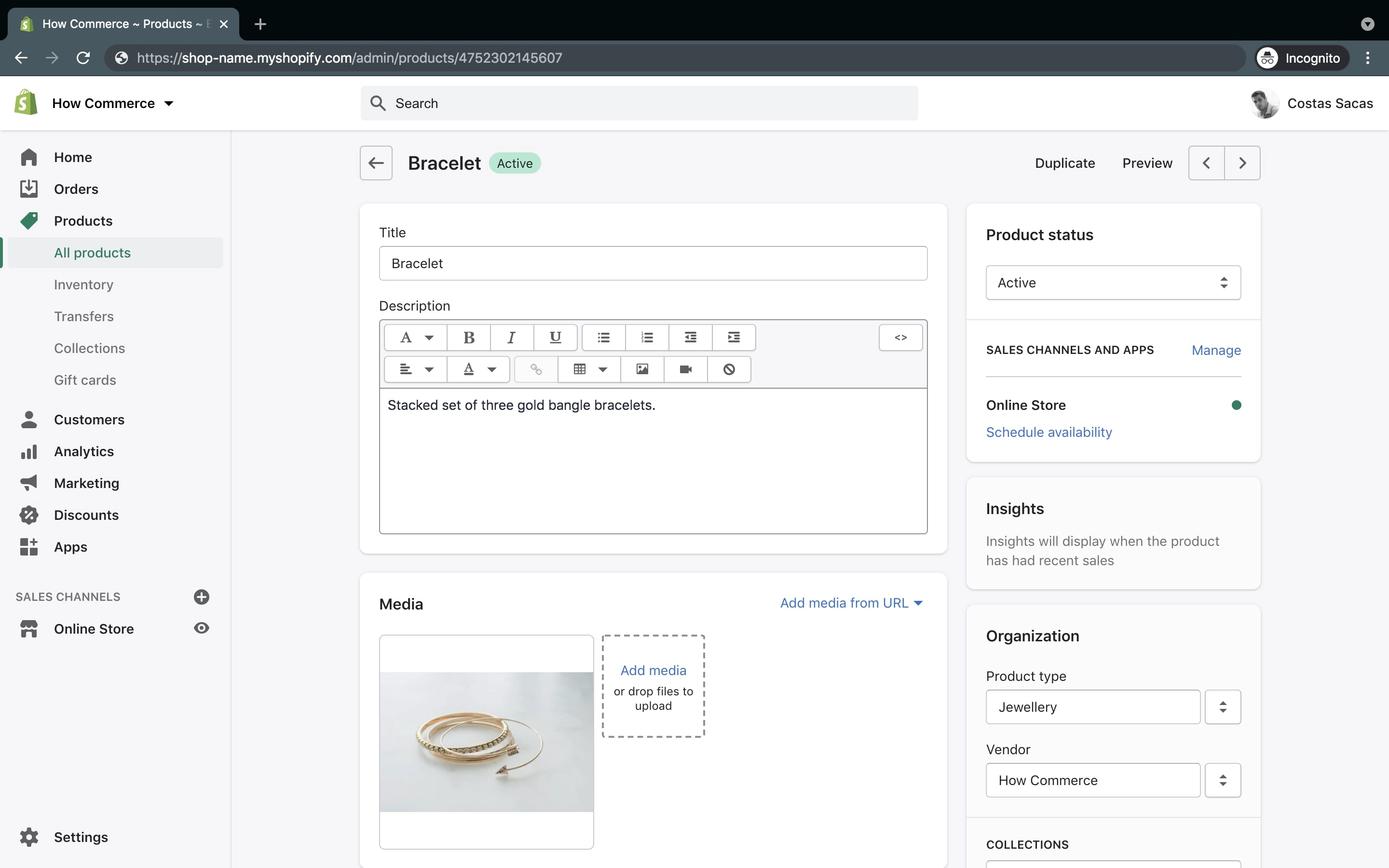
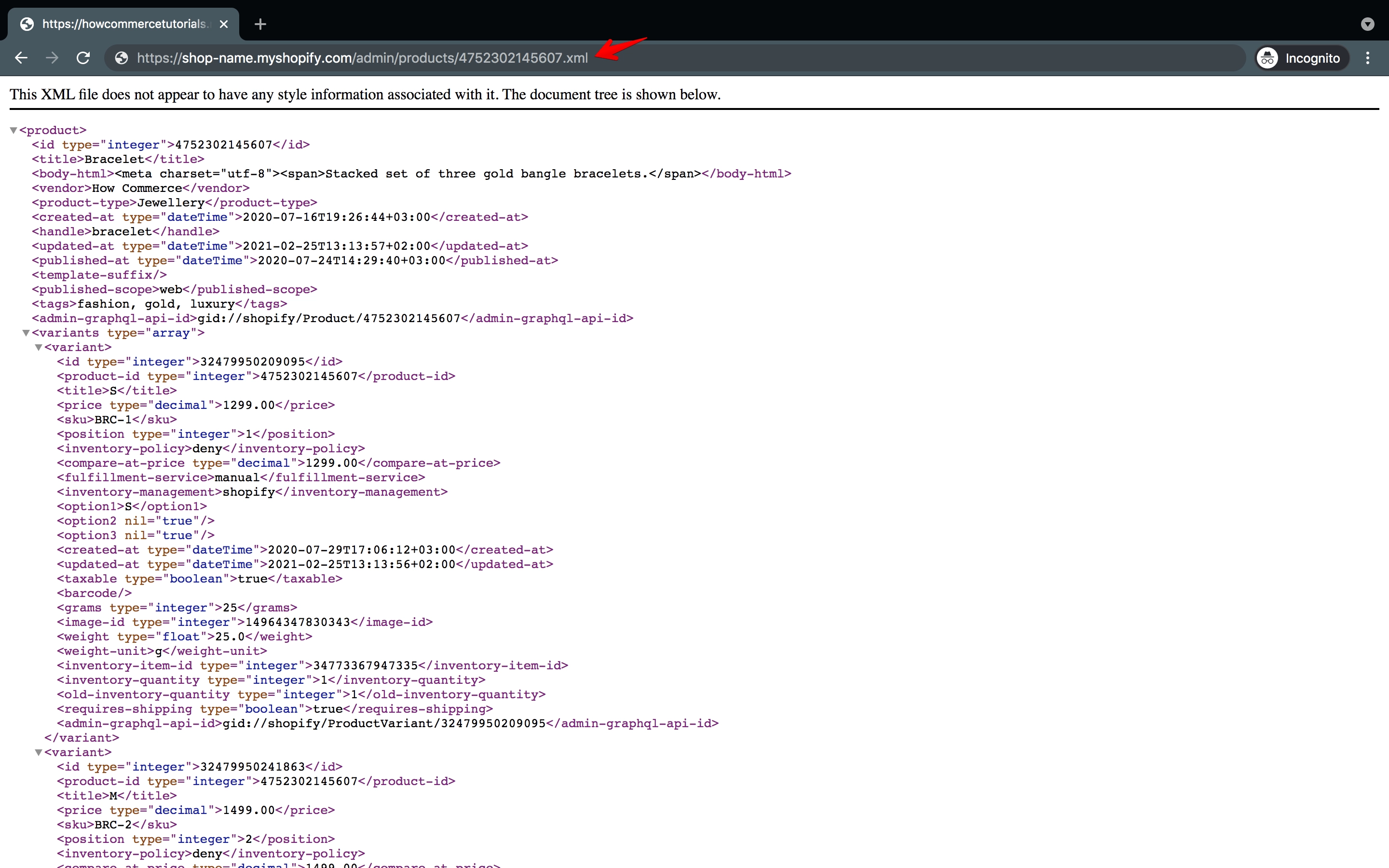
Please add .xml at the end of the URL. Your URL should look like this:
https://shop-name.myshopify.com/admin/products/4752302145607.xml
This is how it should look once the XML file is accessed via browser:
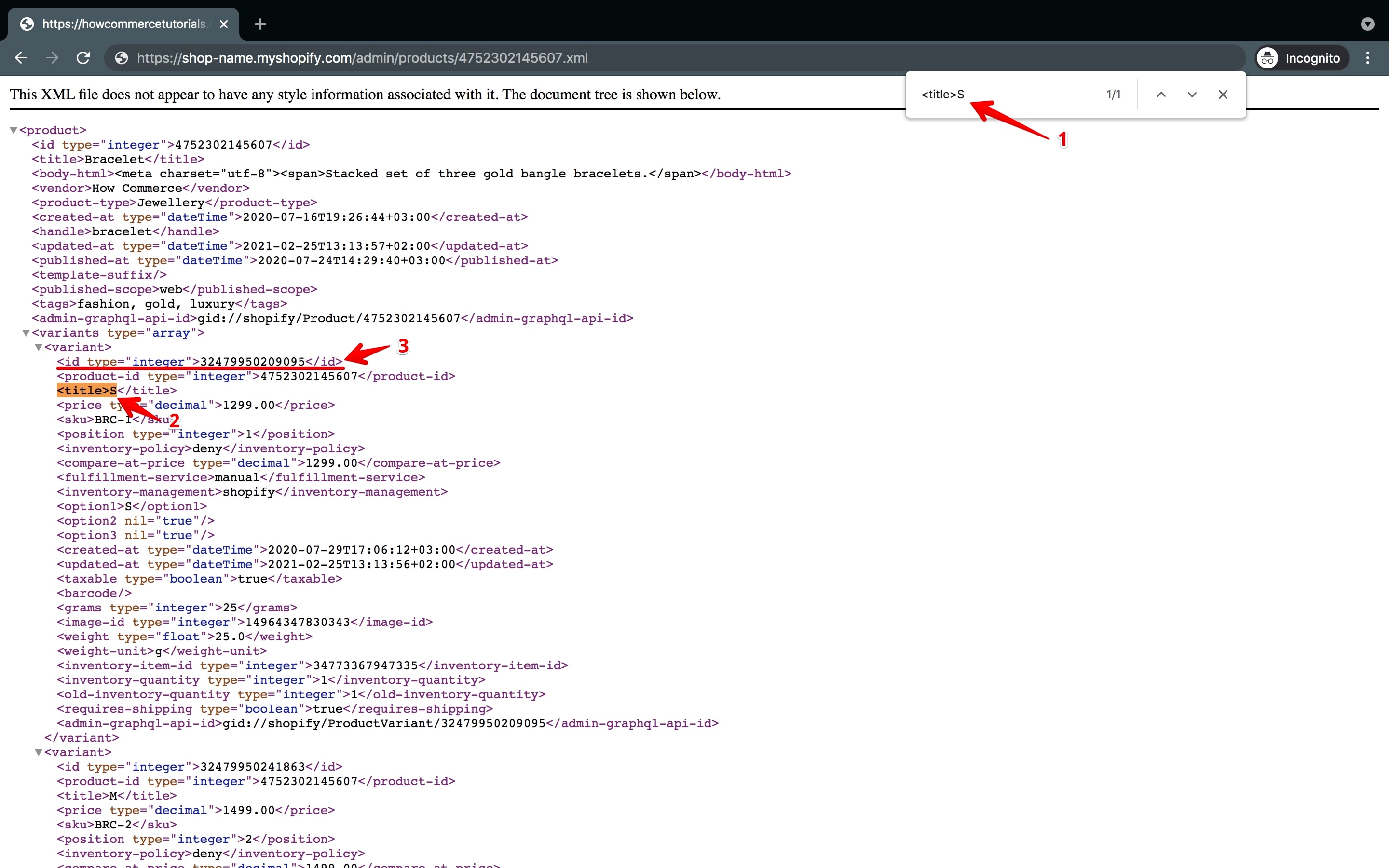
Now, to identify quickly the product variant ID, you need to open the browser search function by typing Ctrl + F (Windows/Linux) or ⌘ + F (macOS).
In the search box, type the <title> tag followed by the variant name (marked with 1 in the image below).
For example, I want to see the variant ID for the "S" size. For that, I need to type in the search box <title>S (marked with 2 in the image below).
Once you type it, press enter to perform the search, and you'll see the variant ID above the <title> tag (marked with 3 in the image below):
The XML file is also good if you want to have a quick glance at all IDs for variants without navigating to each variant on the backend or on the storefront, which takes more time.
I use this feature a lot when trying to extract variant IDs or any other product data that is listed in this file. As a developer, I find it much easier to do it this way.
Get the variant ID through Liquid
This is a property of the variant object.
Print to screen
{{ variant.id }}Outputs:
123456789
Condition example
 {%- if variant.id == 123456789 -%}
   <!-- Do something -->
 {%- else -%}
   <!-- Do something else -->
 {%- endif -%}
In this example, the {%- if -%} statement checks if the variant.id variable is equal to 123456789.
If it is, the code inside the {%- if -%} block is executed.
If variant.id is not equal to 123456789, the code inside the {%- else -%} block is executed.
You can replace 123456789 in this example with the variant ID that you want to check for.
This allows you to conditionally display content based on the variant ID of a product in your Shopify store. There are other use cases as well; this is just one example.
Conclusion
Whichever method you choose to get the variant ID for a Shopify product, you'll find that it's easy to do and should take you less than a minute.