

Overview
Shopify has made it easier for staff and customers to apply discount codes using QR codes.
Instead of manually typing long discount codes at checkout, staff can now scan a QR code and apply the discount instantly.
This is especially useful for busy retail environments, pop-up shops, events, or any situation where speed matters at checkout.
You can generate a scannable QR code for any discount code directly from the Shopify admin.
Once created, the QR code can be downloaded, printed, shared with customers, displayed in-store, or kept at the counter so staff can scan it when needed.
When a customer presents the QR code at your retail location, staff can scan it to apply the discount to the POS cart.
This small update can remove a lot of unnecessary friction from the checkout process.
For example, instead of asking staff to enter a code like PROMO-SALE-20-OFF manually, you can create a QR code for that discount and let them scan it in seconds.
What’s new
Shopify now allows merchants to generate QR codes for discount codes from the admin.
To do this, you can open an existing discount code and download a scannable QR code that can be used online or in-store.
In Shopify POS, staff can apply discount codes by scanning the QR code using the device camera or a connected hardware scanner.
This makes the process much faster than typing the code manually, especially when the discount code is long or used often.
The same QR code can also be shared with customers.
When customers scan it, they can use the discount while shopping online, making it useful for flyers, packaging inserts, event promotions, printed campaigns, or in-store displays.
The main benefit is speed.
Scanning a QR code is faster, easier, and less error-prone than typing a discount code by hand.
For staff, this means fewer mistakes at checkout.
For customers, it means a smoother buying experience.
This feature works with product-specific discount codes and order-level discount codes.
However, automatic discounts are not included because they do not use a discount code that can be scanned.
How Shopify QR code discounts work
Shopify's discount QR codes are based on the existing shareable discount link format. In fact, you can learn more about using shareable discount links in Shopify.
The QR code does not contain a new discount format or a GS1 Digital Link.
Instead, it encodes the same type of discount URL Shopify has already supported for shareable discount links:
https://{shop}.myshopify.com/discount/{CODE}
When the QR code is scanned, Shopify reads the discount code from the URL and applies it where supported, including Shopify POS.
This is important if your app or custom workflow generates QR codes for Shopify discount codes.
To make sure those QR codes are compatible with Shopify POS scanning, you should generate them using the same URL format.
For example, a discount code like:
SUMMER20
would use a URL like:
https://your-store.myshopify.com/discount/PROMO20
Then that URL can be converted into a QR code.
One technical detail to watch for is URL encoding.
Shopify’s route helper URL-encodes discount codes twice when the code contains special characters.
For standard alphanumeric codes, such as “PROMO20”, this does not change the final result.
However, if your discount code includes special characters, your app should match Shopify’s double-encoding behavior so Shopify POS can decode and apply the discount correctly.
In simple terms: use Shopify’s existing discount link format, avoid inventing your own QR structure, and be careful with special characters in discount codes.
Where you can use Shopify discount QR codes
Discount QR codes are not limited to the checkout counter.
You can also use them as part of your marketing campaigns.
For online promotion, you can place the discount link or QR code in social media posts, email campaigns, landing pages, printed receipts, store displays, packaging inserts, flyers, or event materials.
This makes it easier to connect offline promotions with your online store.
For online stores, Shopify lets the shareable discount link point customers to different parts of your store.
Depending on the promotion, you can send shoppers to your homepage, a specific collection, or a specific product page.
This matters because the destination should match the offer.
If the discount applies to one product, send customers directly to that product page.
If it applies to a seasonal collection, send them to the relevant collection.
Sending everyone to the homepage is usually weaker because it adds unnecessary friction.
When a customer opens the discount link or scans the QR code, the discount is saved for their next eligible checkout
It can also apply to active carts they already have open, as long as the cart qualifies for the discount.
There are a few important limitations to understand.
A shareable discount link or QR code can only carry one discount.
The discount also needs to be active.
If the code has expired, is disabled, or has not been saved yet, the link or QR code will not work as expected.
Before creating a shareable link or QR code, you need to create and save the discount code first.
This includes setting the products, collections, or order conditions that the discount should apply to.
Also, if multiple discounts exist for the same product, Shopify applies the most recent relevant discount to shareable links and QR codes.
This is worth checking before running overlapping campaigns, because the discount customers receive might not be the one you originally expected.
How to copy or download the QR code discount
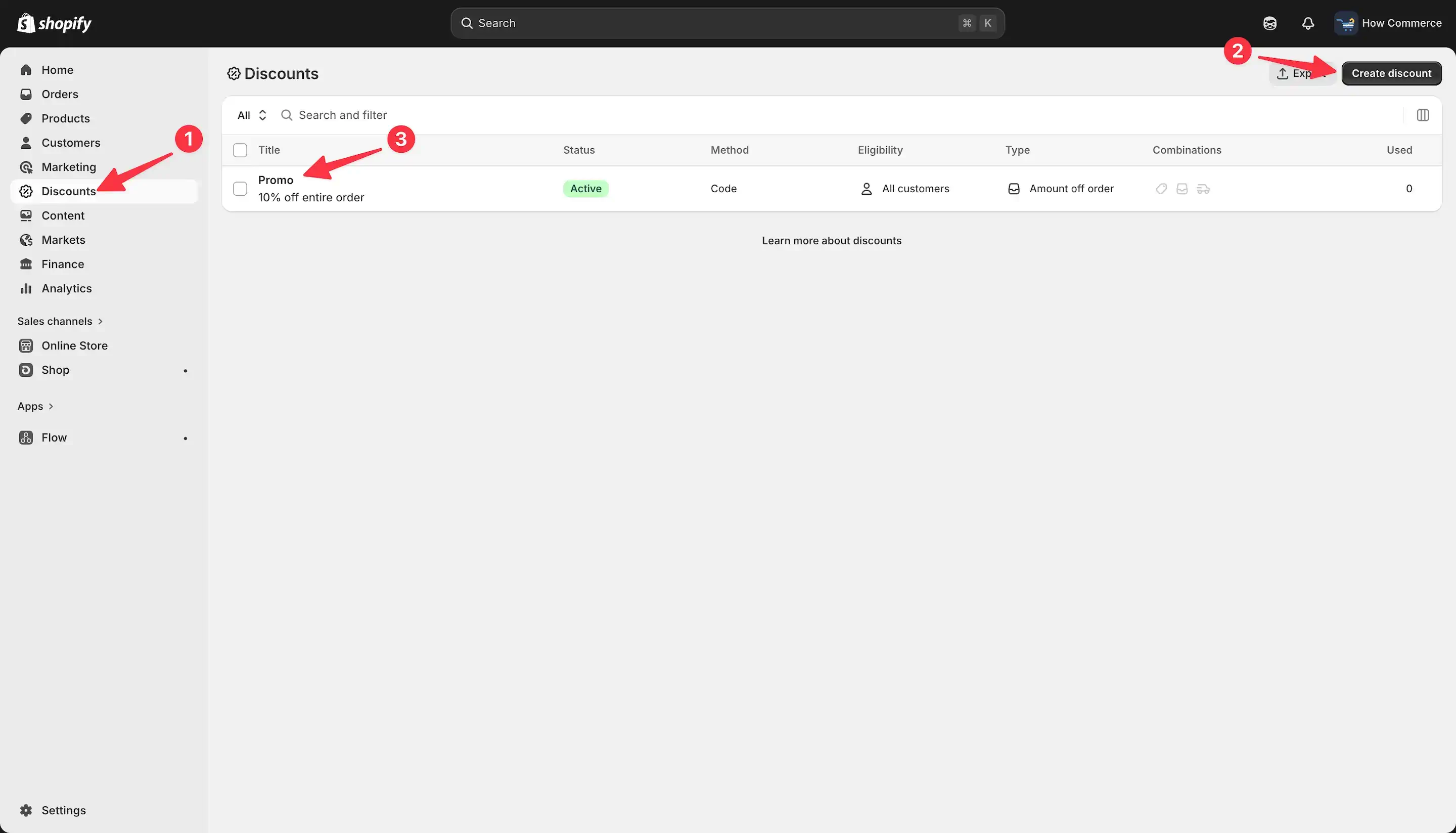
Go to the Discounts page in your Shopify admin (marked with 1 in the image below).
In this example, I already have a discount created.
If you do not have one yet, click the Create discount button (marked with 2 in the image below) and create your discount first.
Creating a discount code is outside the scope of this tutorial, so we will continue with an existing discount.
For this example, I will use a discount called Promo (marked with 3 in the image below).
Next, we will copy the QR code for this discount.
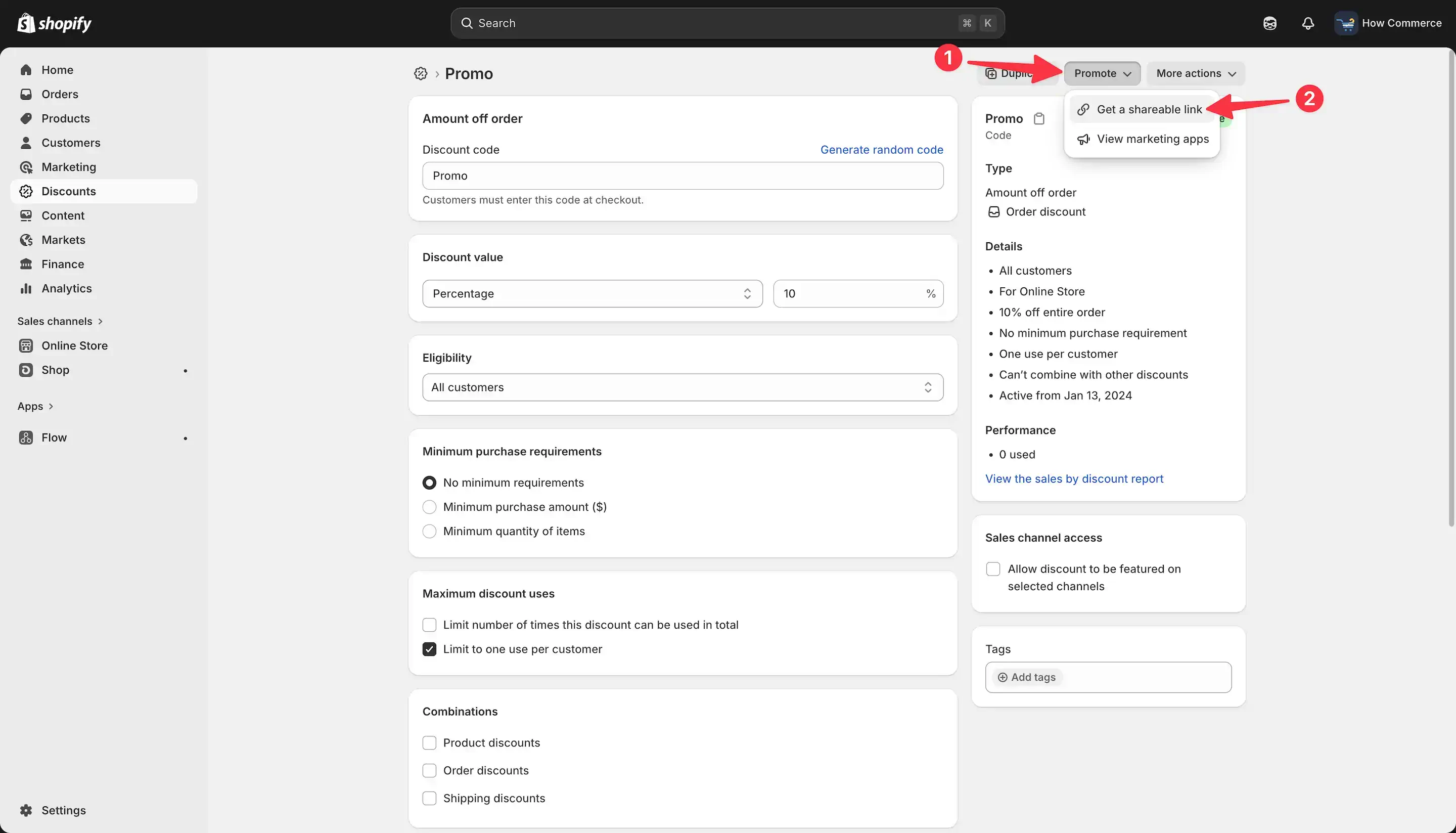
Click the Promote button (marked with 1 in the image below), then select Get a shareable link (marked with 2 in the image below).
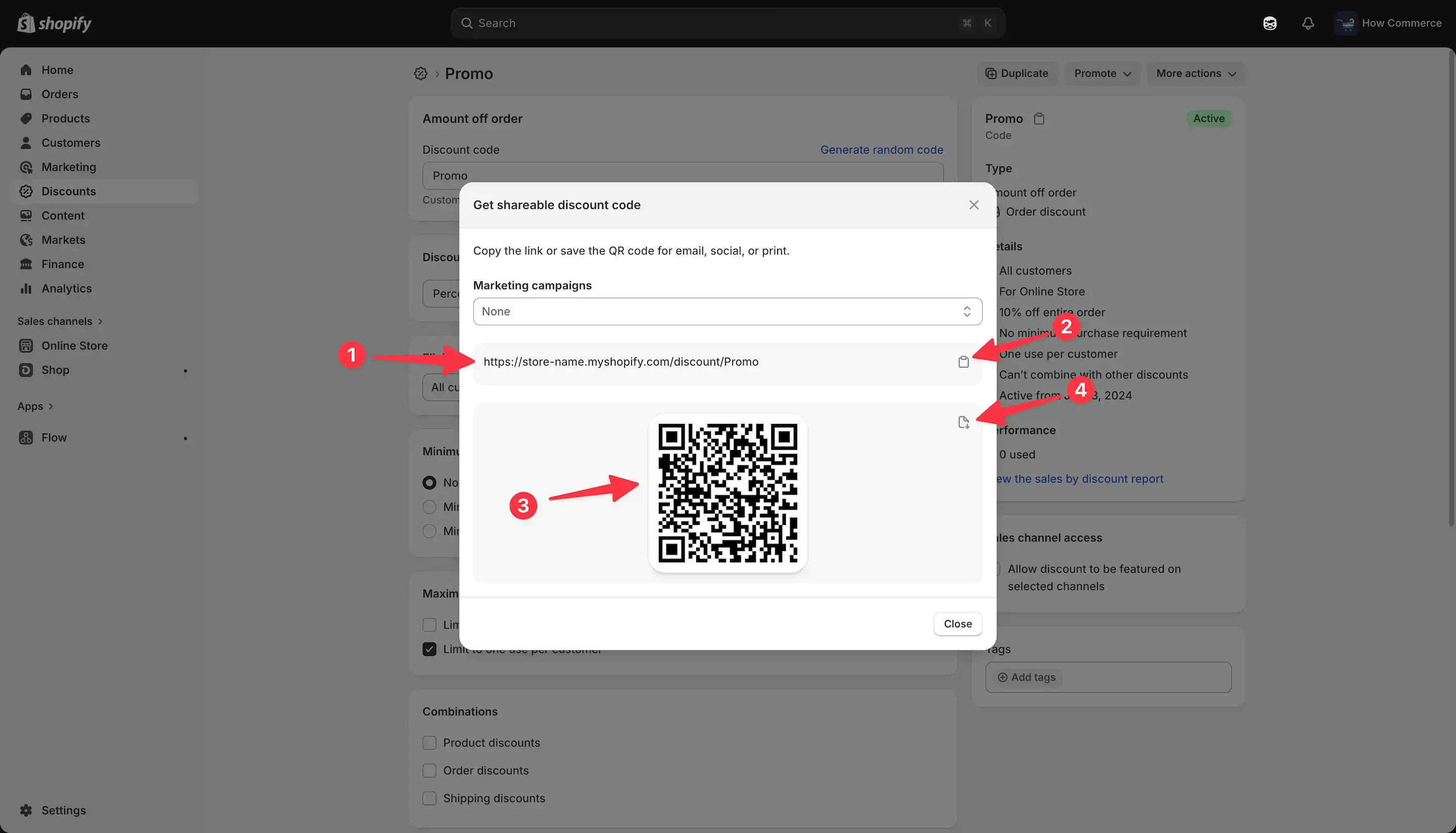
A modal will open showing the shareable URL (marked with 1 in the image below).
To copy the URL, click the copy icon (marked with 2 in the image below).
The QR code (marked with 3 in the image below) is also displayed in the modal, so you can preview and test it before using it.
You can scan the QR code with your phone or a QR code scanner. It should open the discount link for your store.
To download the QR code as a PNG file, click the download icon (marked with 4 in the image below).
After downloading the QR code, you can use it in your marketing materials.
For example, you can add it to emails, newsletters, landing pages, printed flyers, receipts, packaging inserts, or any other place where you can include an image.
POS scanner
To scan the QR codes for your POS you can use the Socket Mobile 2D scanner.
You can use the Socket Mobile S740, S720, or CHS 7Qi 2D scanners for scanning both digital and printed 1D and 2D barcodes with Shopify POS.
For merchants using Shopify POS, a compatible 2D barcode scanner can make QR code discounts easier to use in person.
The Socket Mobile 2D scanner connects to Shopify POS over Bluetooth, which makes it practical for both fixed and mobile retail setups.
You can use it in a physical store, at a market stall, during a pop-up event, or anywhere your team needs to process sales quickly.
The scanner can be charged using the included charging cable or cradle.
Once fully charged, it is designed to last through a full retail day, with battery life of up to 14 hours or roughly 15,000 scans.
That said, not every merchant needs a dedicated scanner.
If you only scan QR discount codes occasionally, the device camera on your POS hardware may be enough.
A separate scanner makes more sense when your team scans codes frequently, works in a fast-moving checkout environment, or needs a more reliable setup than pointing a tablet or phone camera at every QR code.
In short, the scanner is worth considering if QR codes are part of your regular in-store workflow.
For occasional campaigns, events, or low-volume use, start with the built-in camera first and only upgrade if scanning becomes a bottleneck.