

Why store passwords matter
When you open a store on Shopify for the first time it will be protected by a password page.
On Shopify themes this page usually contains a newsletter subscription box that collects customers' emails.
This page offers store protection from customers' eyes until the store is ready for launch.
Though you have the option to send a preview link to your client if you are a developer as seen in How to create a shopify preview link when your store is password hidden, in some cases you want to send the access password so they can pass the store password protection page and access the store and make tests.
We must keep in mind that in the preview mode with the preview link the checkout page is not accessible and the client can't run order tests.
Also the preview link is only available for 14 days and afterwards you need to generate a new one.
Of course when the website is live and you can no longer have a password protection page the preview link is a must have in order to send to your client different features that you developed on different staging theme environments.
The offline page can't be disabled until you have an active subscription plan with Shopify.
Shopify offline page
On this page you usually have in the top right corner a “Enter using password” link like in the image below (I’m using the Dawn theme in the example):
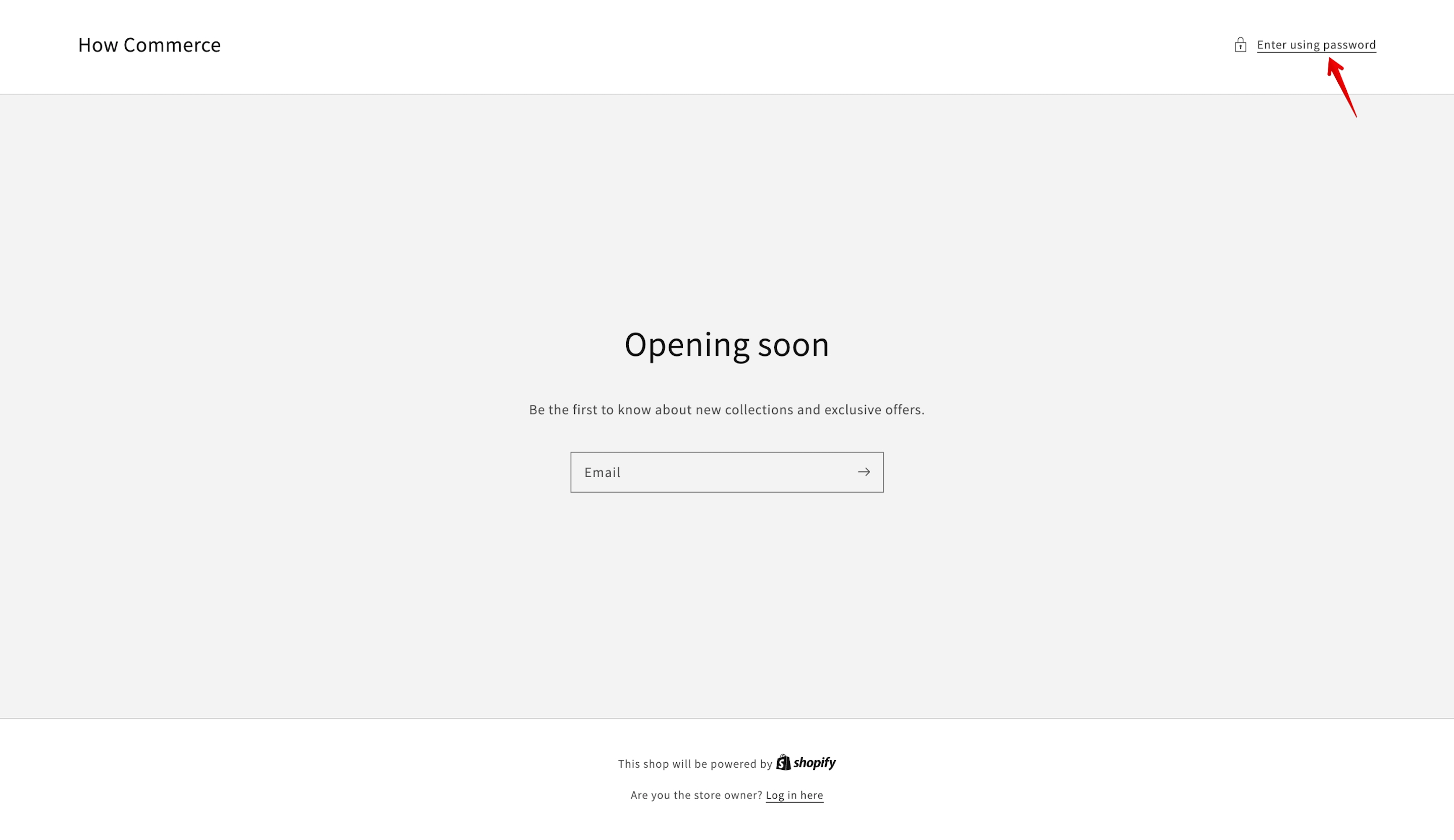
Shopify password page
Clicking on it will open a form which will require your store password:
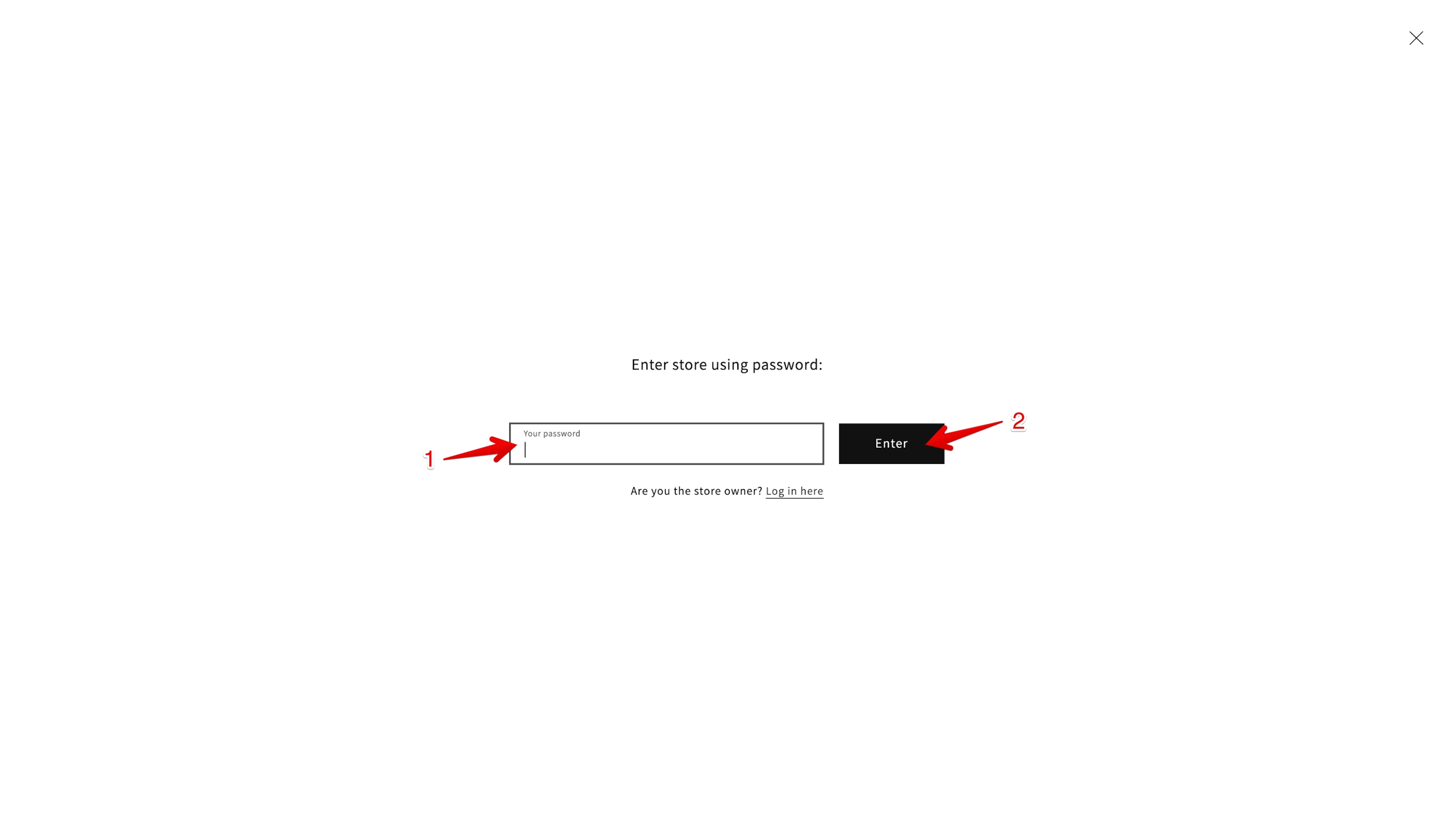
Type your password in the password field (marked with 1 in the image above) and click on the “Enter” button (marked with 2 in the image above) to access your store.
OK, now you know how to login inside your store and bypass the shopify store password page, but where do you get that password?
Well that password is generated randomly by Shopify once you set up the store but you can change it as many times as you want.
Finding your Shopify store password
To access your Shopify store password go to the "Online store" channel (marked with 1 in the image below), then go to "Preferences" (marked with 2 in the image below) and to the "Password protection" section (marked with 3 in the image below):
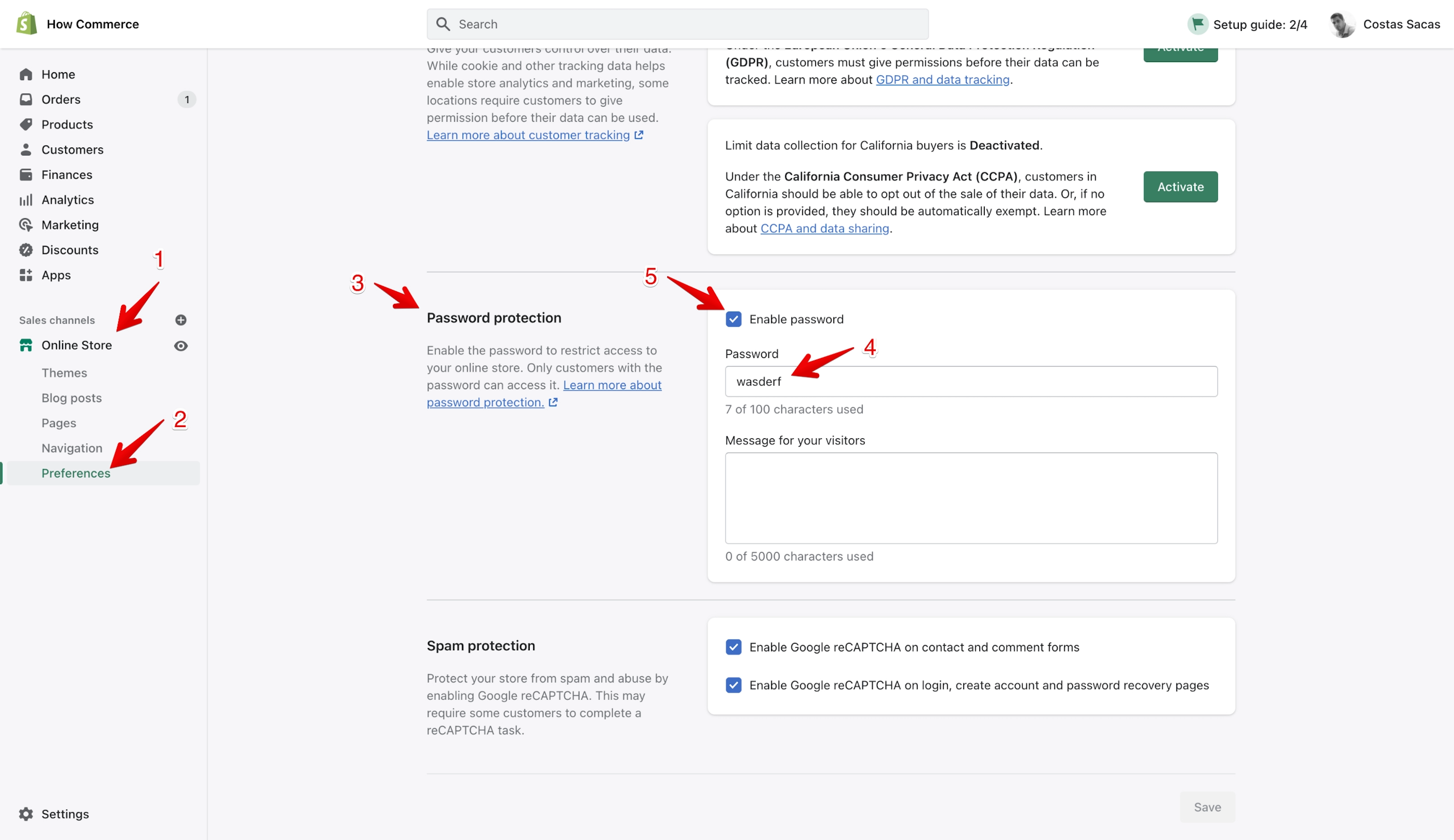
You can remove the password (marked with 4 in the image above) and add a new one if you want to change it.
To disable the password and the password page you need to uncheck it from the checkbox (marked with 5 in the image above). This checkbox is enabled only if you have an active subscription with Shopify.
Now that you have the password you can send it to your customer so they can see live what you work on in the store. As mentioned, this works only when the store is offline; if the store is live you need to use the preview link.
Conclusion
As with everything Shopify makes, it is easy to find the password, change it, or send it to your client for whom you develop the store.