

What is a Shopify sales channel?
Or better said what are sales channels in general, since a Shopify sales channel is an integration inside the Shopify platform of an outside sales channel which could be: offline, online and so on.
Sales channels could have many forms like:
- Online store
- Offline store
- Online marketplace
- Offline marketplace
- Wholesale
- Reseller
- Mobile apps
- Social media
- B2B sales
Relying on only one platform is not a good idea since you are prone to algorithm changes, TOS and privacy policy updates, and, worst of all, you could be banned from the platform without justification.
Depending on a single platform could destroy your business instantly if you are removed from it. Selling through traditional marketplaces means they control your branding, product uploads, and customer interactions.
Customers associate more with the marketplace than your brand, making differentiation difficult.
While these marketplaces attract buyers, sellers sacrifice decision-making autonomy.
Marketplaces prioritize their average seller or buyer experience, often at sellers' expense.
In summary, using traditional marketplaces involves tradeoffs: gaining a customer base but risking your brand identity without your own online presence.
In order to avoid all this, adopting an omnichannel strategy is your best bet and it’s the most wise business decision you could take in order for your business to grow and be protected.
With just a few clicks, Shopify lets you connect your store to multiple platforms.
Reach millions of potential customers by integrating these sales channels and unlock new growth opportunities for your business.
How to set up a Shopify sales channel in Shopify?
If your store is not eligible for a sales channel, it will be marked as “Unavailable” in your Shopify admin.
Click on "You can't add this channel" to understand the reasons for ineligibility.
Also before using any sales channels, make sure to review their terms of use.
Some channels have specific requirements or prohibitions for product listings and may mandate shipping within a certain timeframe.
I’ve seen a lot of complaints where Shopify store owners used a sales channel and the third-party platform banned or put their account under restriction and they put the Shopify integration at fault.
So be careful when you add a new sales channel and make sure you understand the platform requirements before doing that, and this will save you from future unpleasant surprises.
Each sales channel features a dashboard that provides a detailed summary of recent sales and traffic.
To assess the performance of a specific sales channel, select it from the drop-down menu on your Shopify Home.
One sales channel that is installed by default when you open a Shopify account is the “Online store”.
As you see this channel contains your store themes, blog posts, pages, navigation and the store preferences.
Every channel has different admin pages for different features for that sales channel.
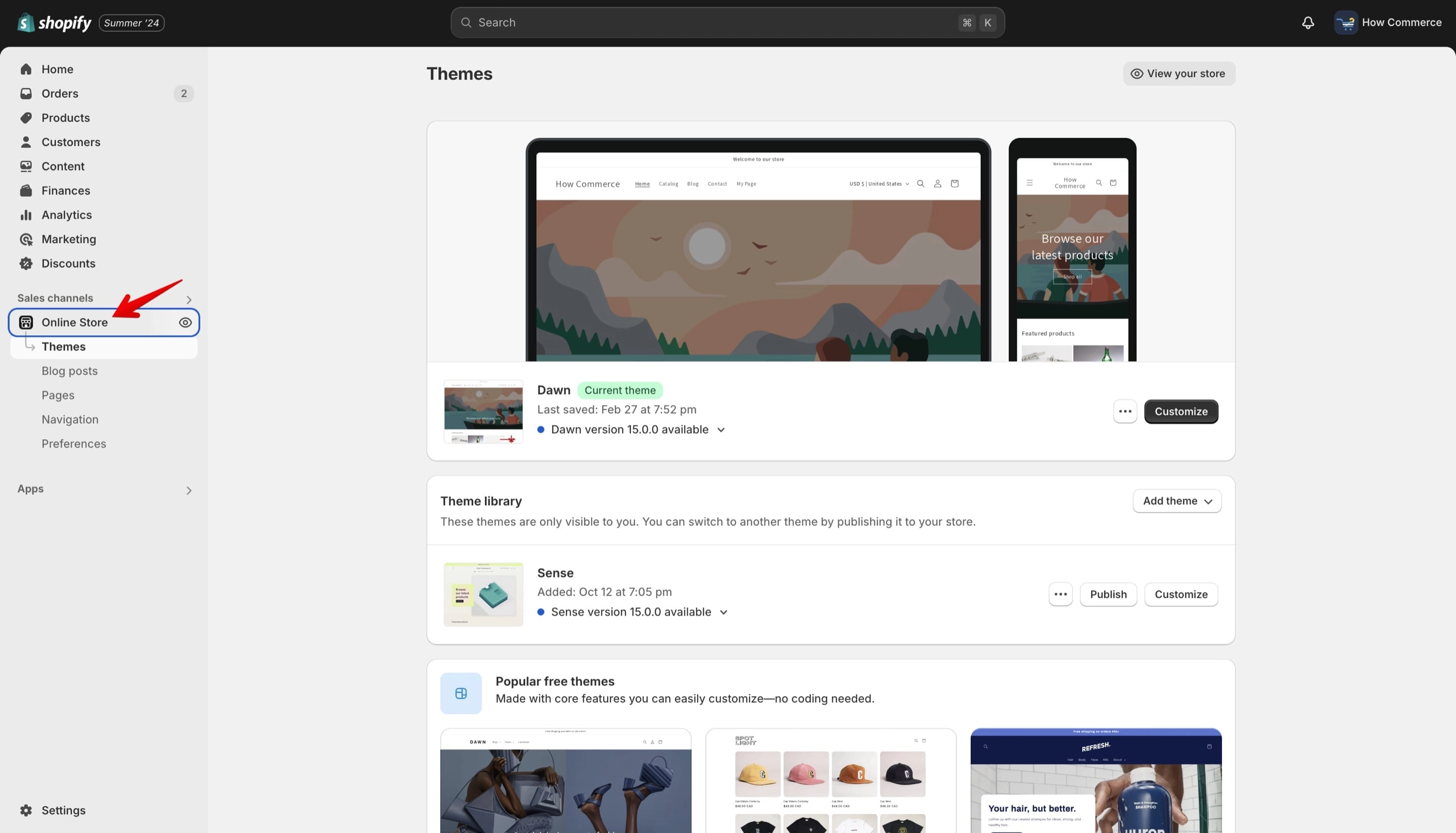
Adding a new sales channel on Shopify is very easy.
A sales channel is an app like any other app on Shopify and needs to be installed from the Shopify app store.
To reach the page from where you can install new sales channels, you can do it from 2 places on the Shopify admin dashboard.
One is via the “Sales channels” menu item or via “Settings” menu item.
Whichever you choose it will take you to the same page where you can add or remove sales channels.
How to install via the “Sales channels” menu item
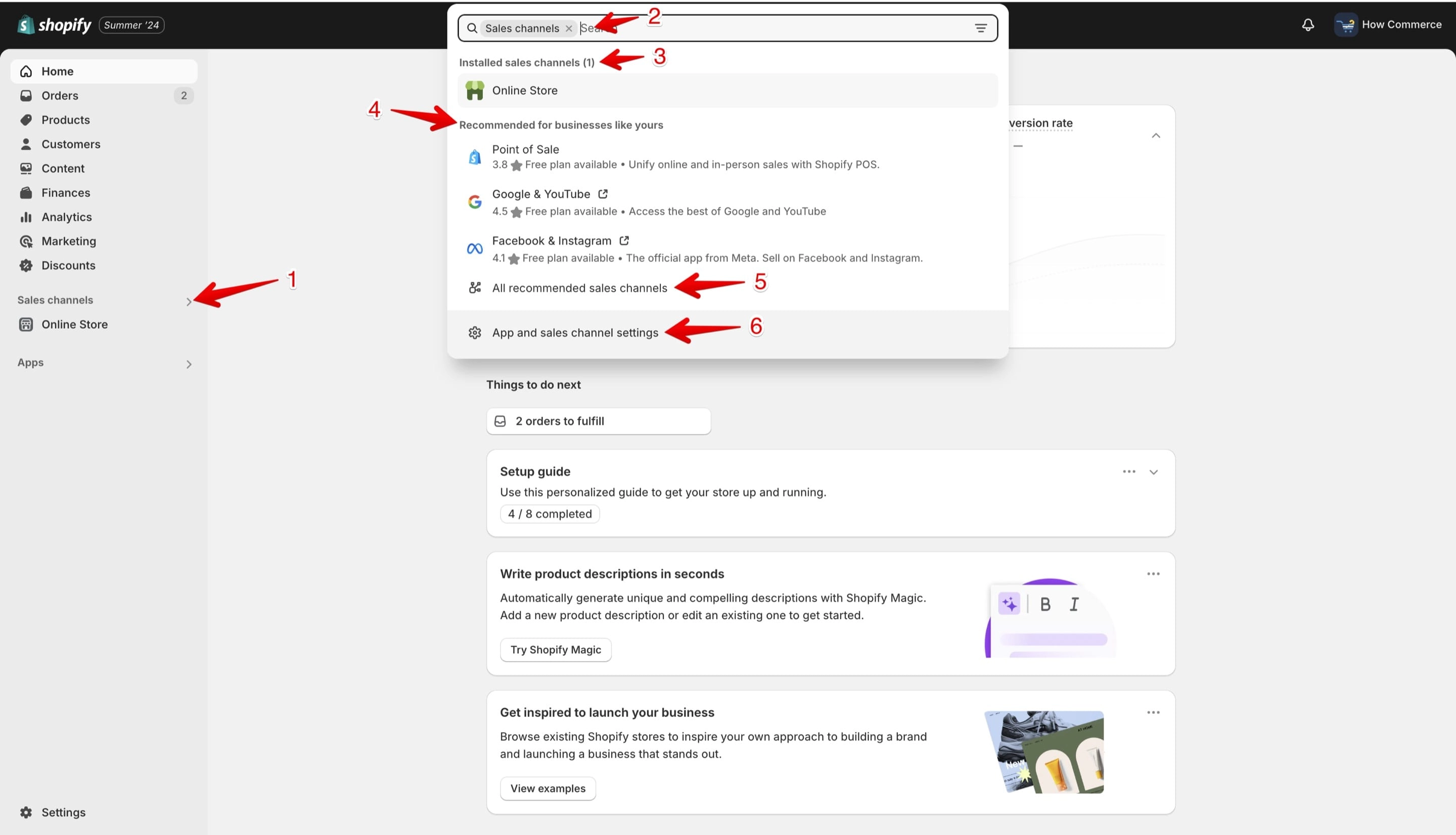
Go to the “Sales channels” menu item (marked with 1 in the image below). Once you click it a pop-up will open.
If you know the name of the sales channel you want to add, type it in the search box (marked with 2 in the image below). This will take you directly to the app installation page on the app store.
For the purpose of this tutorial I’ll install the “Shop” sales channel. This channel is listed below in the next chapter.
On this pop-up you can also see the sales channels that are installed on your Shopify store (marked with 3 in the image below).
In the image below you can see that in my store I have only the “Online store” channel installed which comes by default as I previously stated with the Shopify installation.
In this pop-up you can also see a short list of recommendations (marked with 4 in the image below) from Shopify regarding sales channels that are a good match for your store based on other stores that use them, similar to yours.
If you want to see the entire list of recommended sales channels click on the link (marked with 5 in the image below).
In order to install a sales channel you need to go click on the link (marked with 6 in the image below). This will take you to a page where you can see all the sales channels installed or uninstalled on your store.
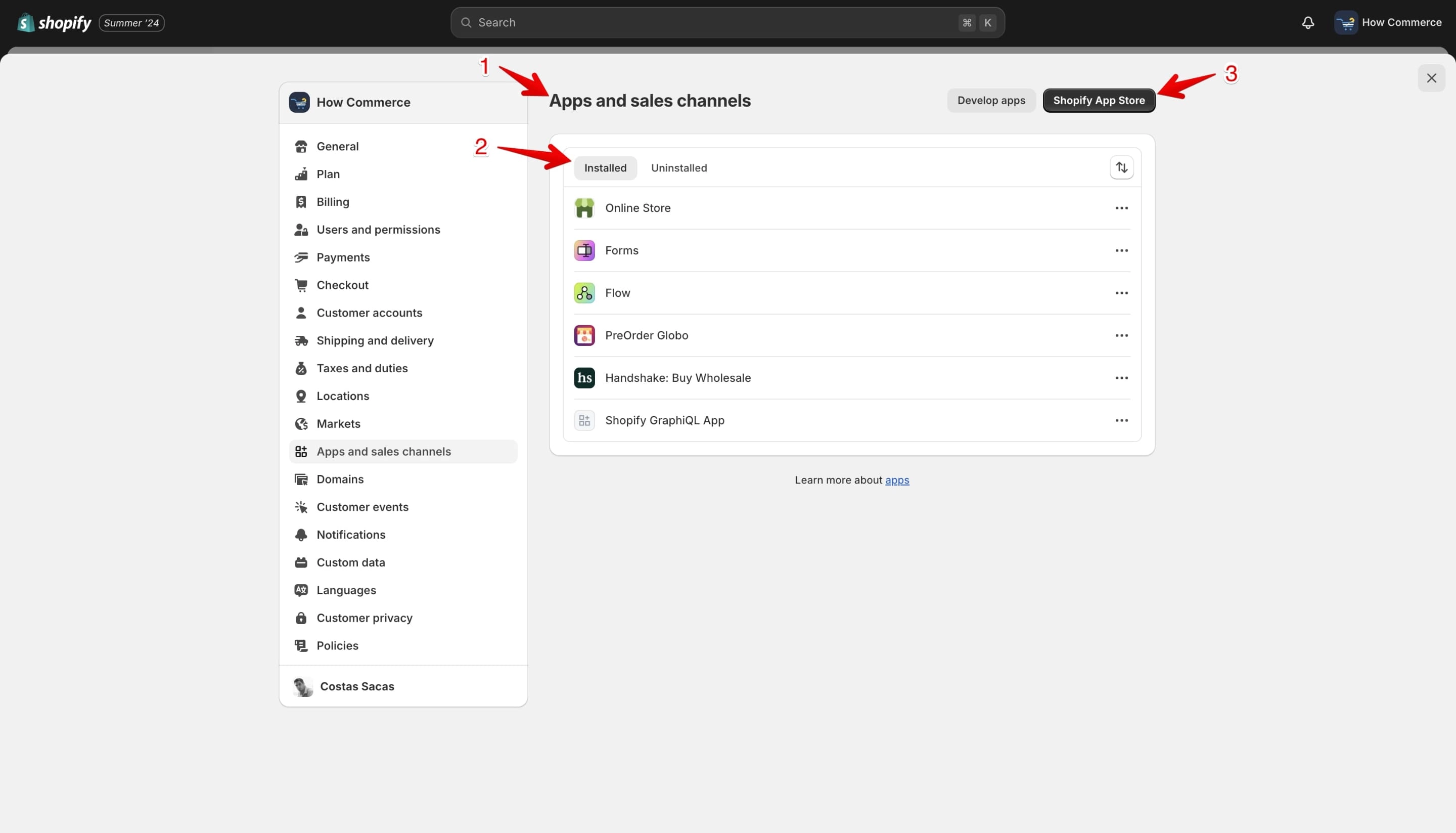
On the “Apps and sales channels” page (marked with 1 in the image below) you can see all the Apps and Sales channels installed on the store (marked with 2 in the image below).
To install another sales channel you need to click on the button (marked with 3 in the image below).
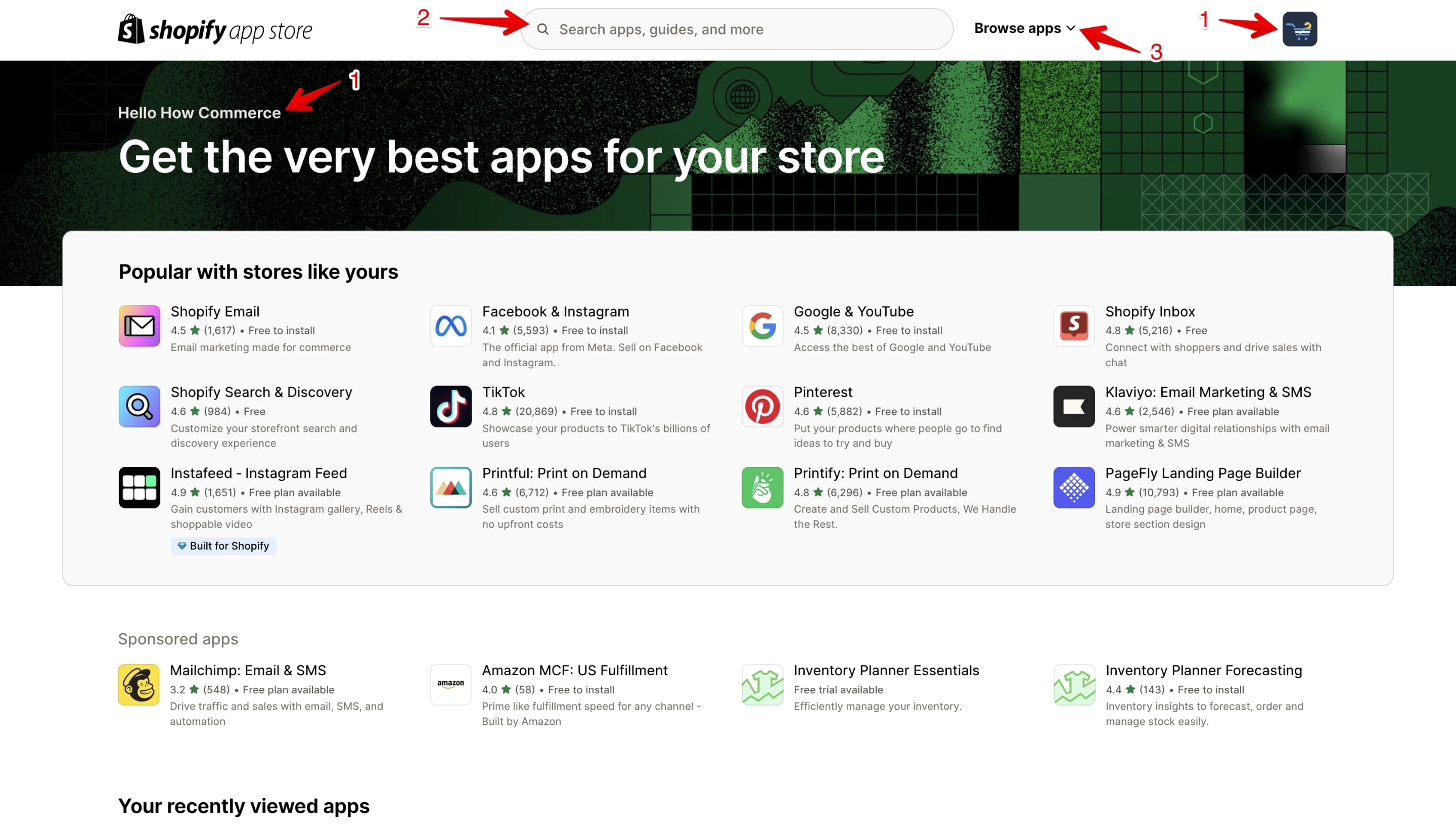
Now you are redirected to the Shopify app store where you can search for a sales channel or localize the exact channel that you need.
Before going further make sure you are in the correct store. If you have multiple stores you could be logged inside the wrong store.
Verification can be made on the greeting section or drop-down store menu (marked with 1 in the image below).
You need to verify this since the app will install on the store you are logged on.
Type the name of the sales channel in the search box or click on the “Browse apps” (marked with 3 in the image below).
Select the “Sales channel” menu item to list all the channels on the app store like in the image below:
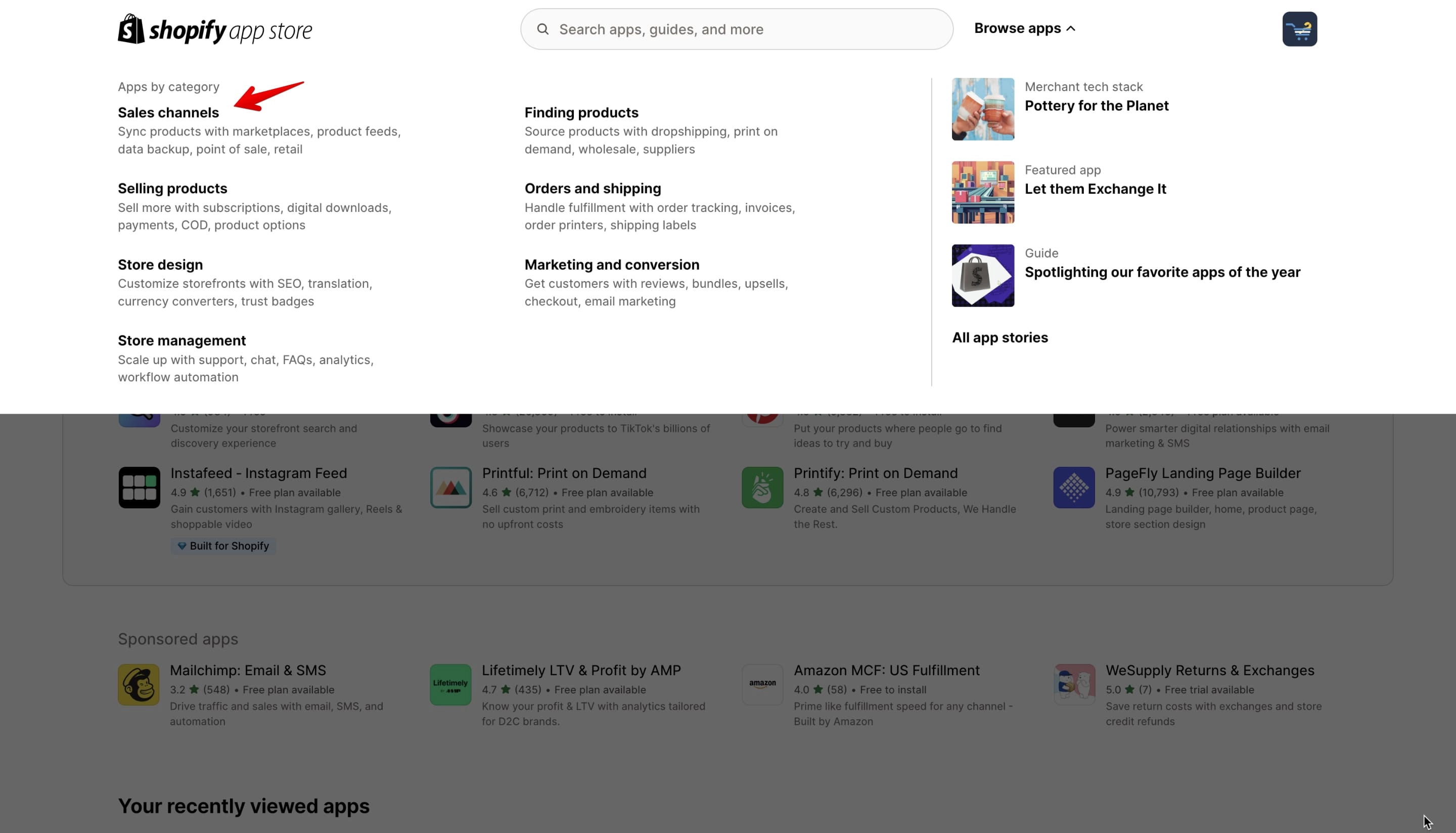
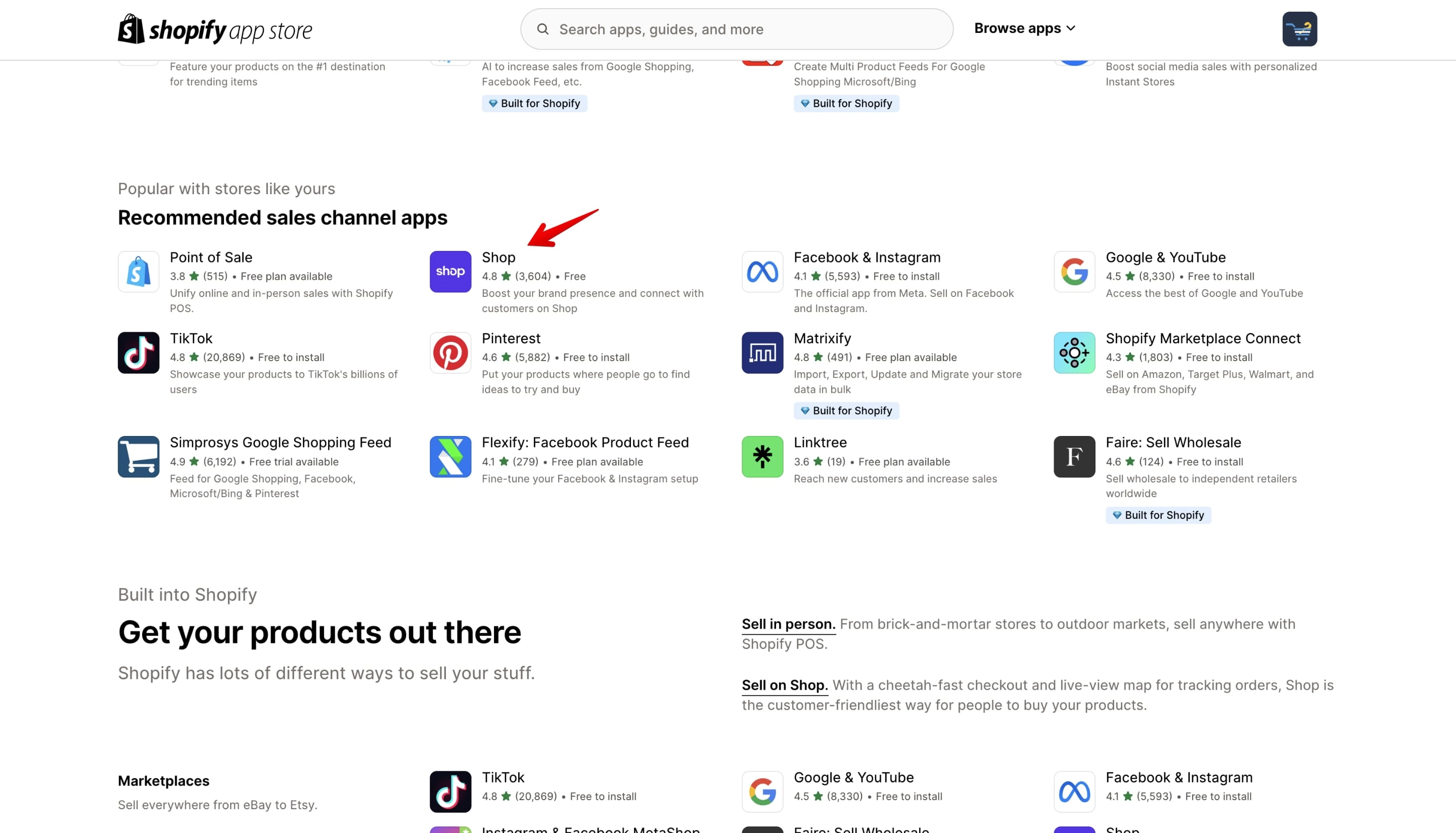
Now select the sales channel you want to install.
For this example I’ll install the “Shop” sales channel:
Click on the “Install” button like in the image below:
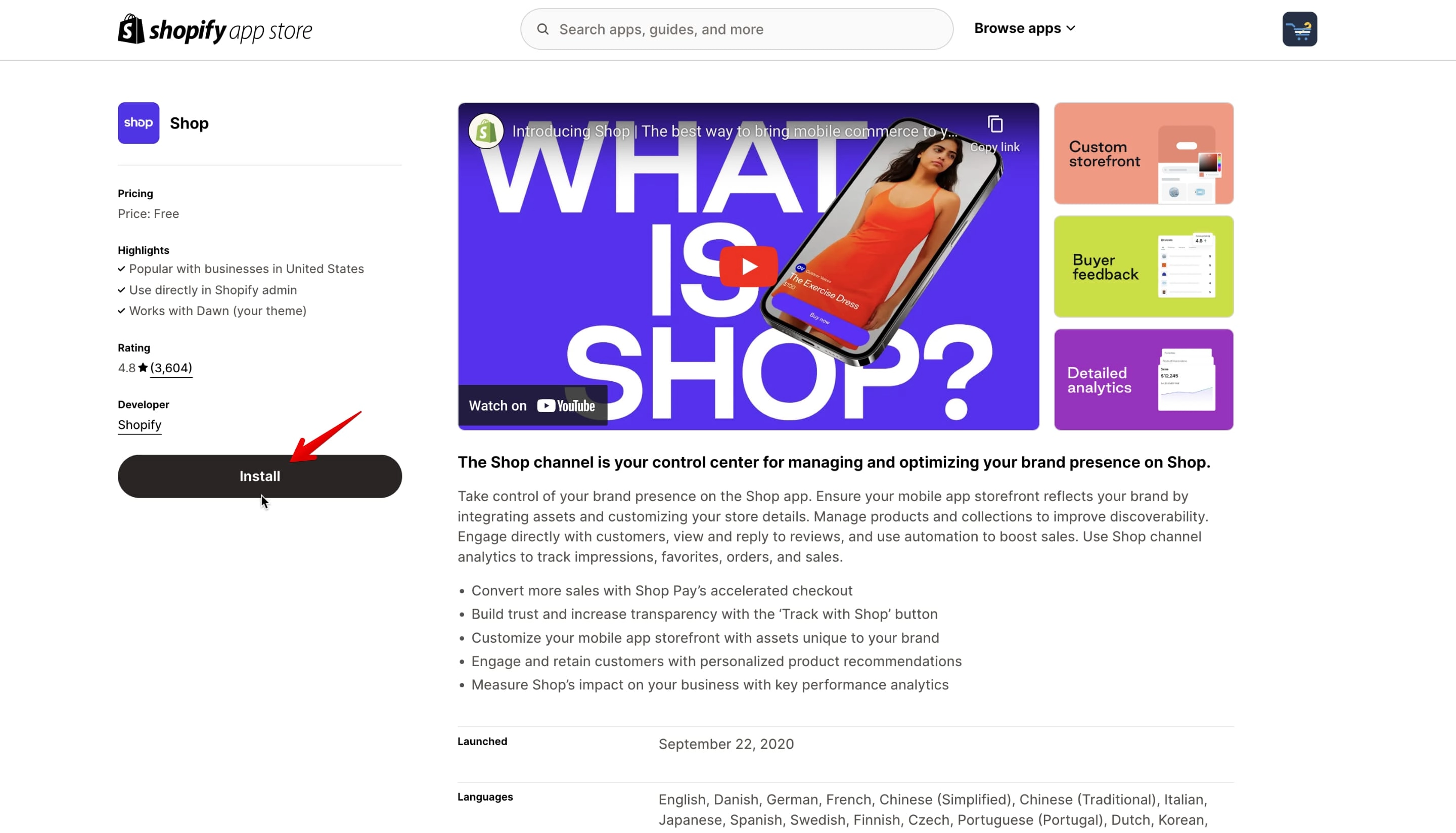
After you click the “Install” button you’ll be redirected to your store and you’ll see the sales channel page which you installed, in my case is the “Shop” sales channel (marked with 1 in the image below).
As you see the “Shop” channel is listed under the “Sales channels” menu but once you navigate away from it, will disappear. In order to avoid that you need to pin it to the menu. You can do that by clicking on the pin icon (marked with 2 in the image below).
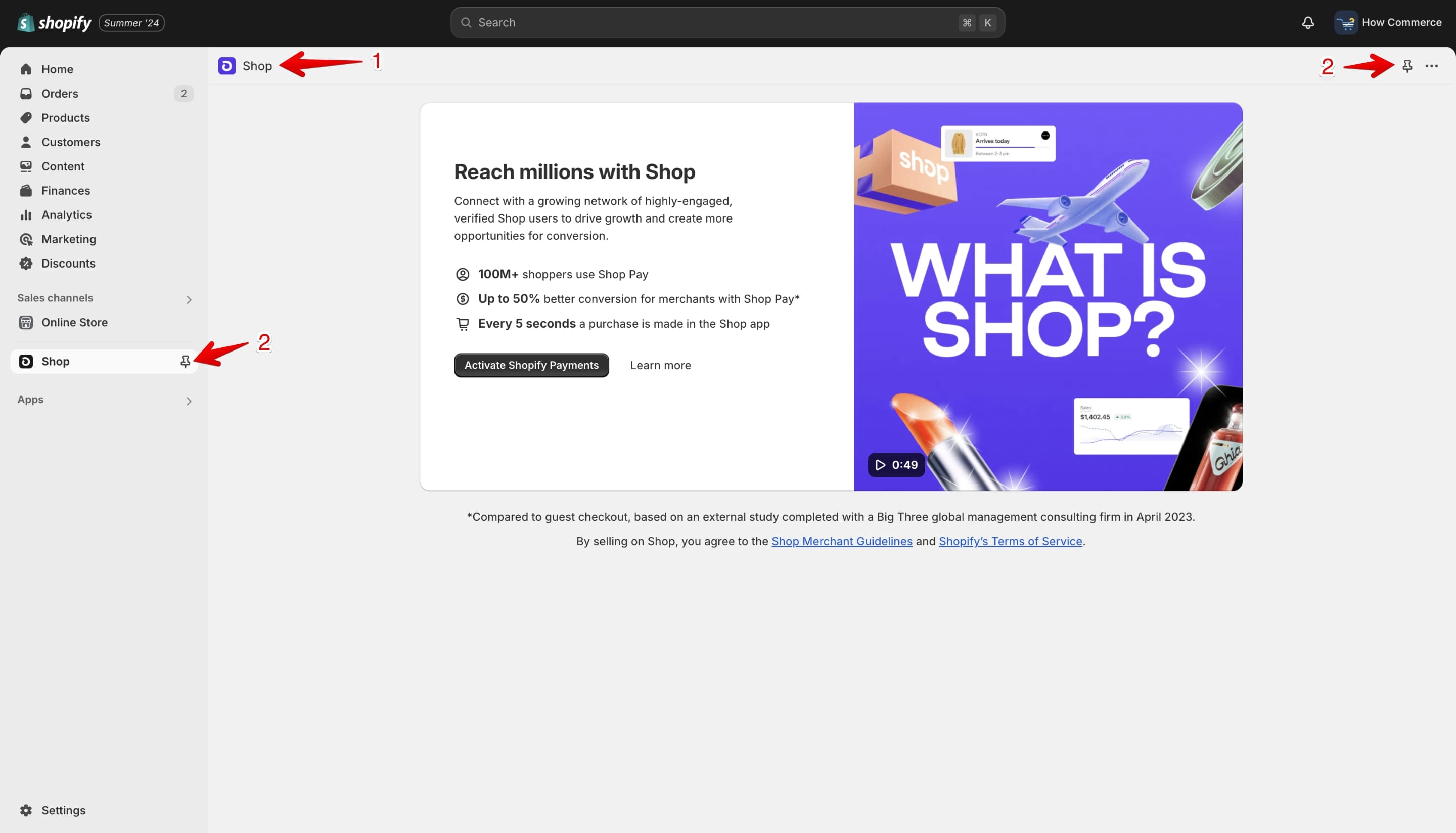
That’s it. Simple and fast.
Now all that remains is to configure the sales channel app.
Here every app is different so I’ll not go deeper on this subject.
How to install via the “Settings” menu item
The process is mostly the same as above just instead of going to the “Sales channels” menu you go to the “Settings” like in the image below:
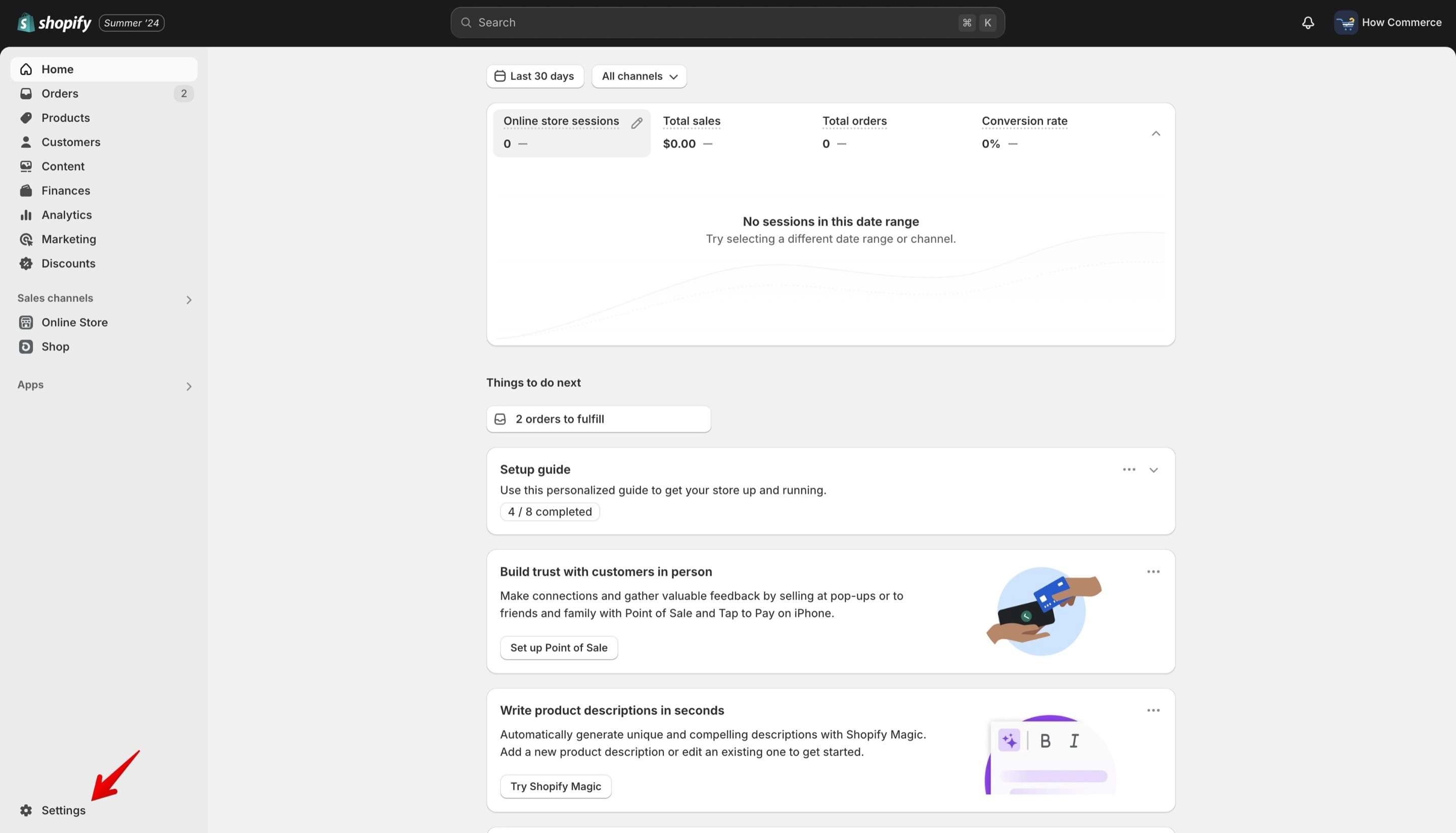
This will open the same pop-up window as above and from there the installation steps are the same.
How to remove a Shopify sales channel from Shopify?
Removal of a sales channel is even simpler.
First you need to identify the channel that you want to remove.
If you have it pinned in the menu just open it (marked with 1 in the image below).
Go to the “...” icon (marked with 2 in the image below), click on it and open the drop-down.
Select “Uninstall” (marked with 3 in the image below).
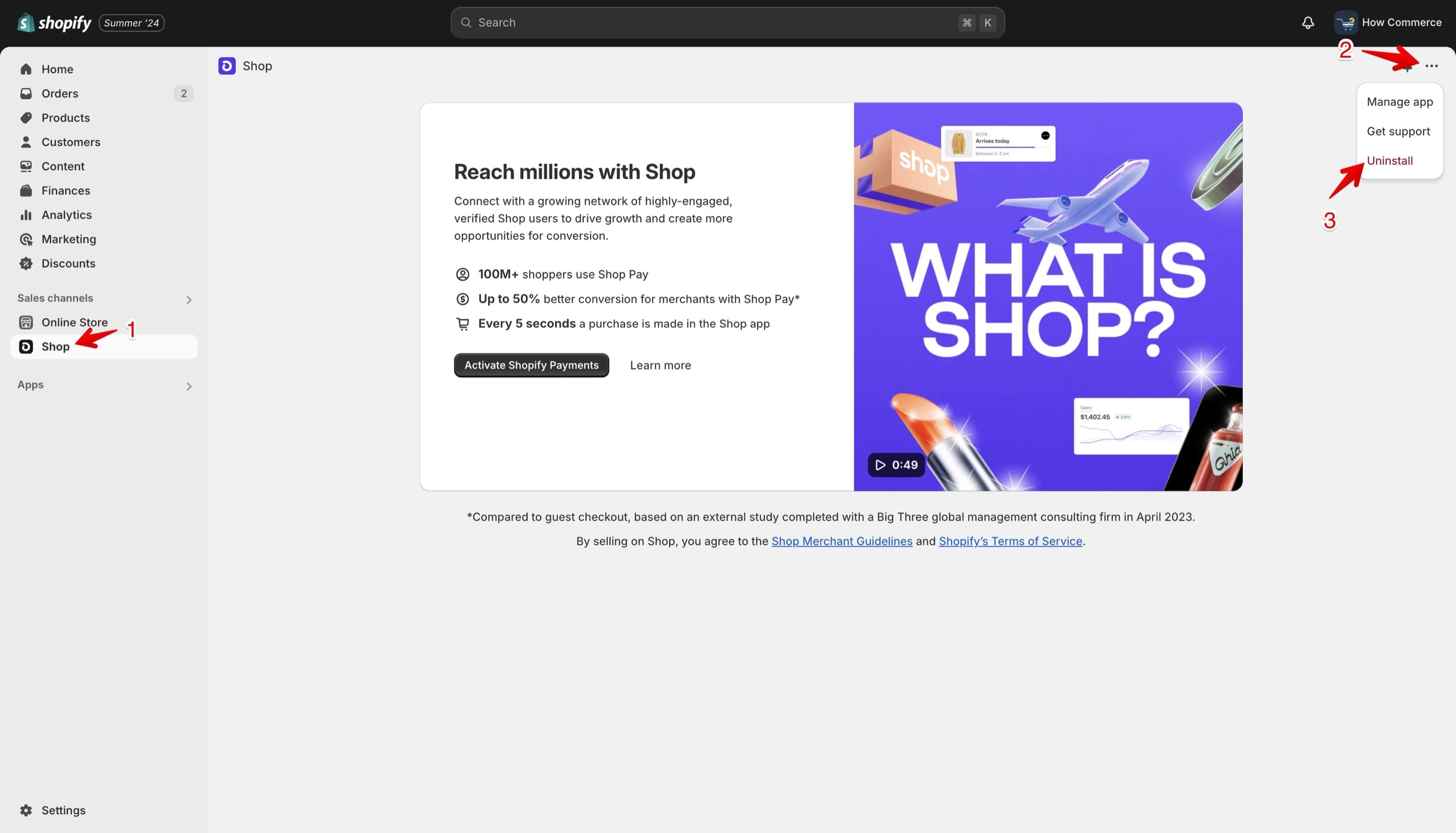
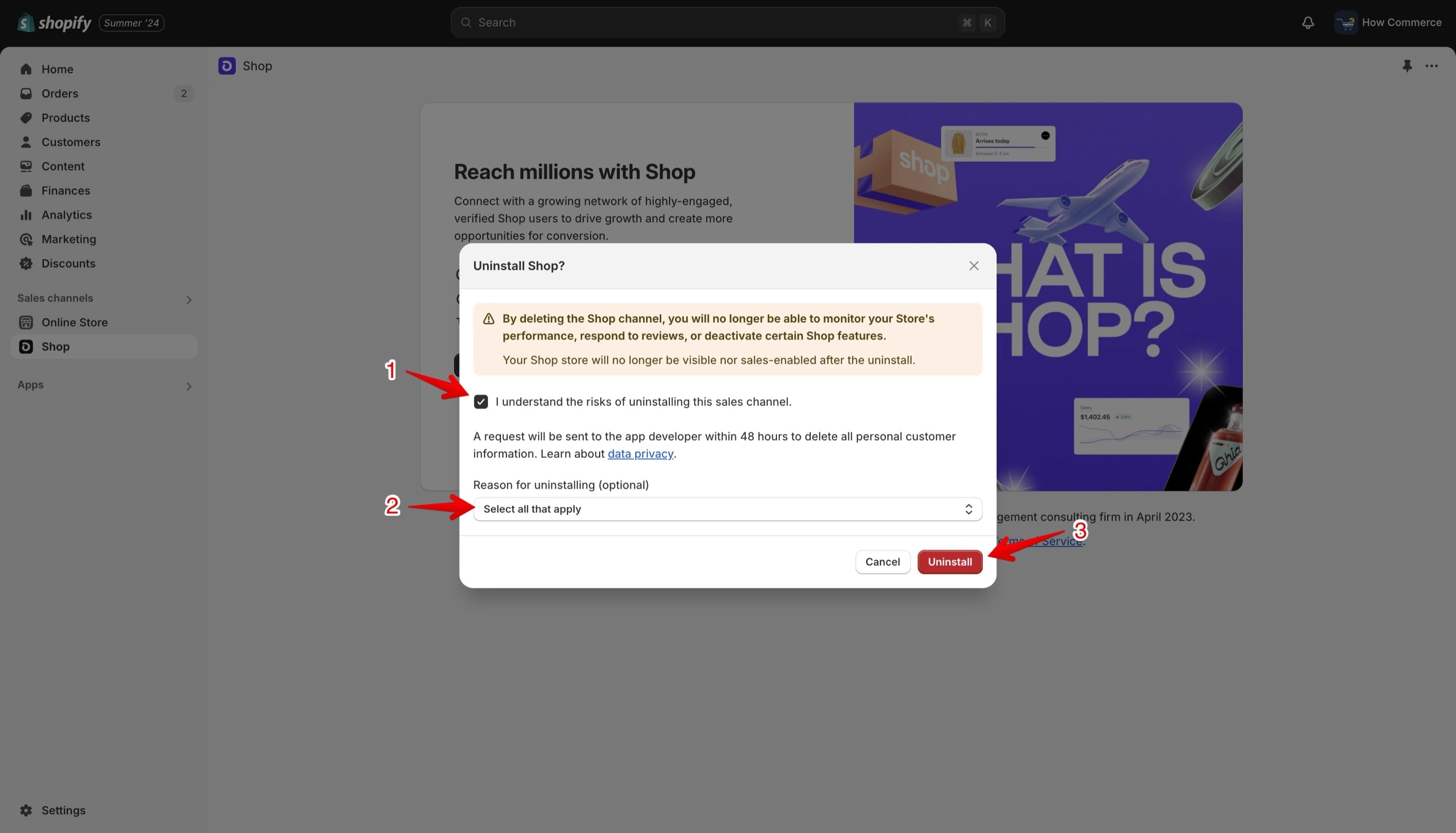
A pop-up will open asking you to confirm the sales channel “Uninstall” process.
Note that uninstalling will remove all data for that channel, data that can’t ever be recovered. So proceed carefully.
Click that you understand the risks of removing the sales channel (marked with 1 in the image below).
Provide a reason if you want (marked with 2 in the image below). It is good for Shopify to know in order to improve their sales channel and service to you.
Click the “Uninstall” button (marked with 3 in the image below).
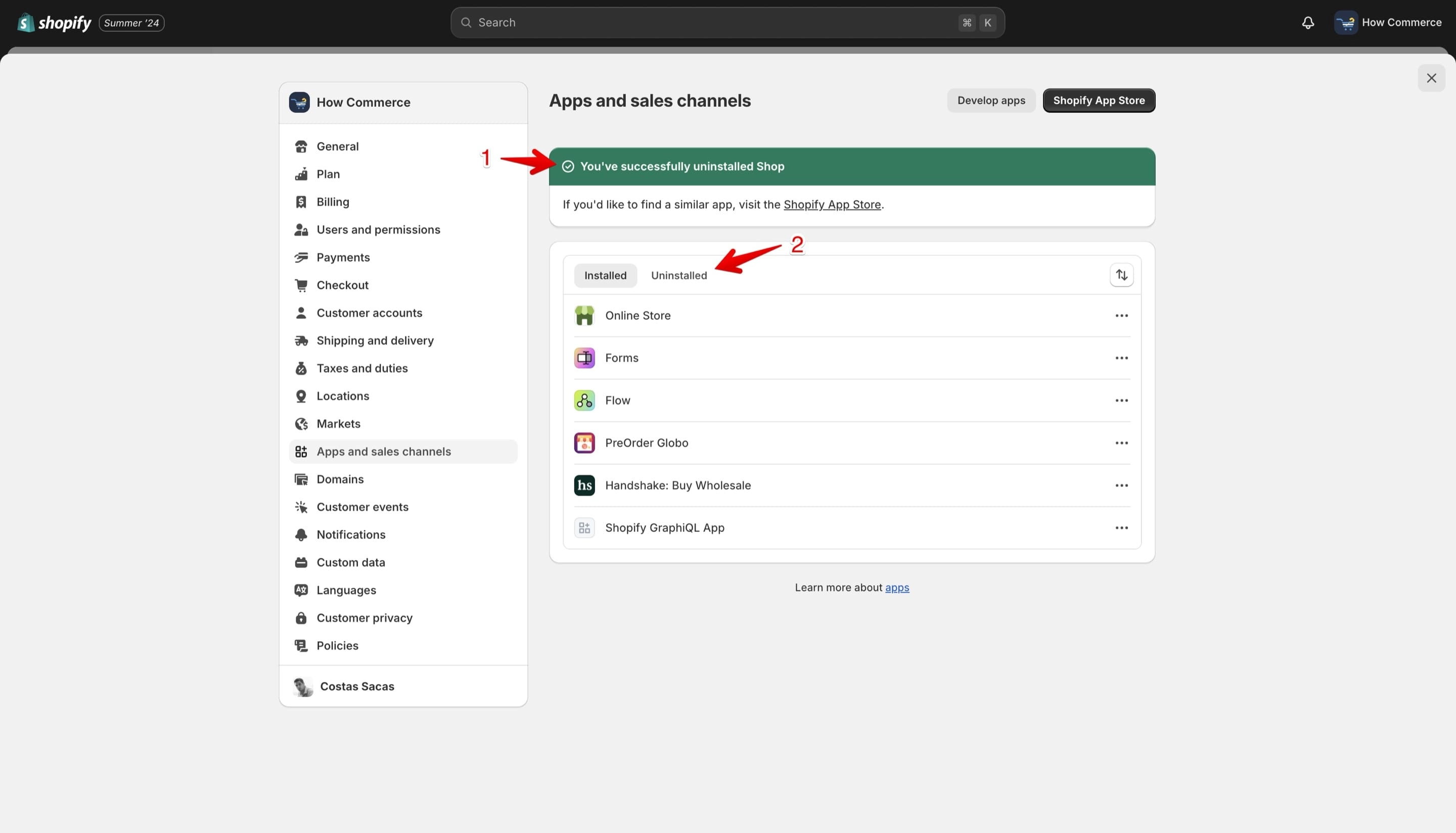
A success message will confirm that the sales channel is removed from your store (marked with 1 in the image below).
To make sure that the app is removed you can also check the “Uninstalled” tab (marked with 2 in the image below).
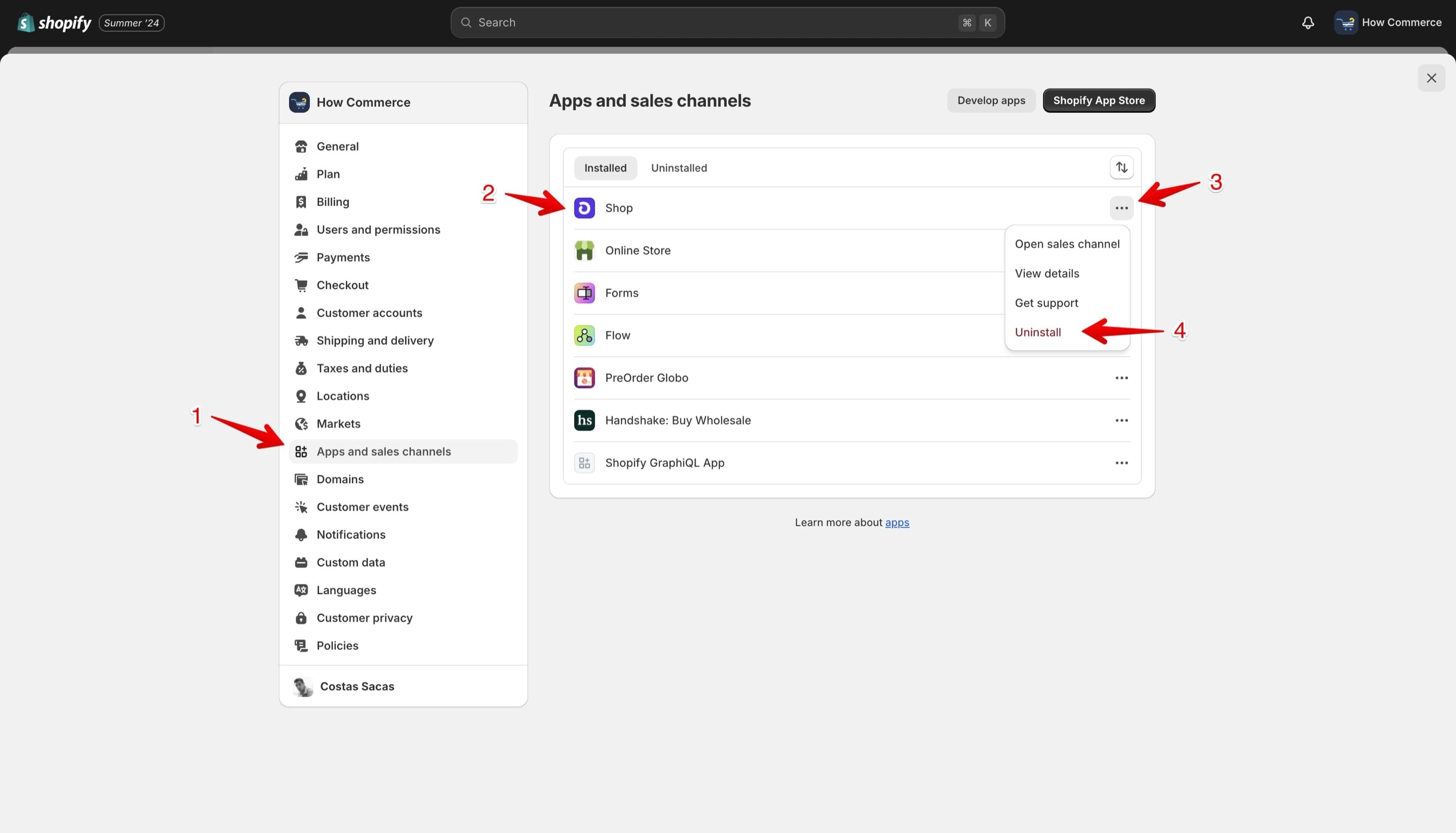
If you do not have the sales channel pinned to the “Sales channels” menu you need to go to the “Settings” link:
Clicking on the “Settings” links will open the setting page.
Go to the “Apps and sales channels” menu item (marked with 1 in the image below).
Identify the sales channel that you want to remove. In my example is the “Shop” sales channel (marked with 2 in the image below).
Click on the “...” (marked with 3 in the image below).
Select the “Uninstall” link (marked with 4 in the image below).
From here the process is the same as above.
Reinstall the sales channel
Sometimes you’ve changed your mind or removed the channel by mistake and you want it back.
Or later, after months or years, you remember you had a sales channel but do not know which one. This feature is great to look at and identify and reinstall the sales channel.
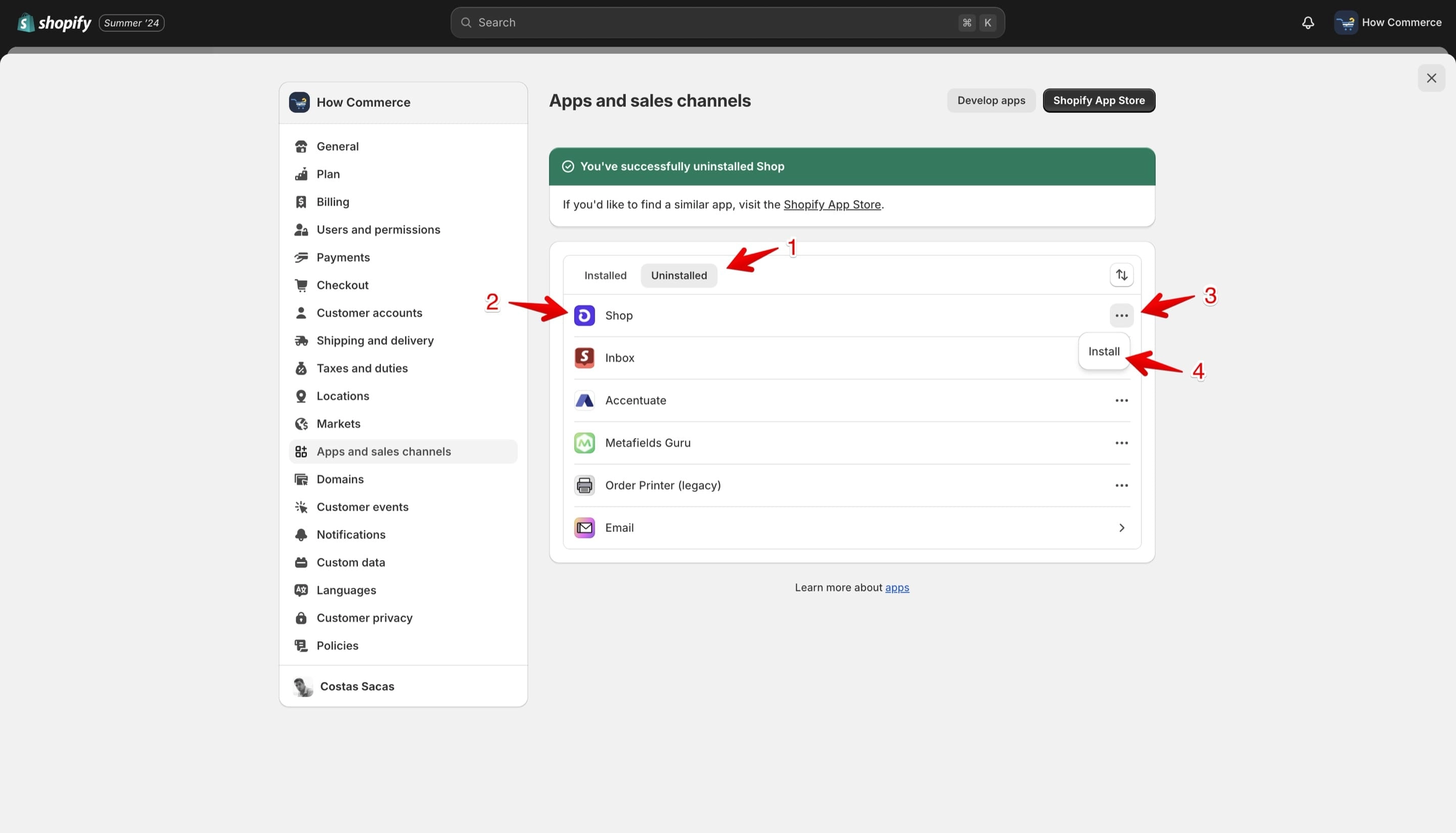
On the same page “Apps and sales channel” go to the “Uninstalled” tab (marked with 1 in the image below).
Select the sales channel you want to reinstall. In my case it is the “Shop” sales channel (marked with 2 in the image below).
Click the “...” icon (marked with 3 in the image below).
Click the “Install” link (marked with 4 in the image below).
Shopify sales channels that will improve your store sales
Free or partially free sales channels
These are sales channels mostly owned and developed by Shopify or big third-party companies that have an interest to provide the channel free or partially free of charge in order for you to become a seller on their platform.
Some channels are free of charge but capped at a certain threshold.
Shop
The Shop channel is your hub for managing and optimizing your brand on the Shop app.
Customize your storefront with brand assets, manage products for better discoverability, and engage with customers by responding to reviews.
Use analytics to track key metrics like impressions, orders, and sales.
- Boost conversions with Shop Pay’s fast checkout
- Enhance trust with the “Track with Shop” button
- Personalize your storefront with unique brand assets
- Increase engagement with personalized product recommendations
- Track your business impact with detailed performance analytics
Price: Free.
Install sales channel from here: https://apps.shopify.com/shop
Shopify Marketplace Connect app
Shopify Marketplace Connect offers a quick and easy way to sell across major global marketplaces such as Amazon, Target Plus, Walmart, eBay, and Etsy.
This single app allows you to connect and integrate your products with multiple marketplaces, making it simple to manage and synchronize listings, orders, and inventory, as well as track performance, all within Shopify.
- Sell products on marketplaces like Amazon, Target Plus, eBay, Walmart, and Etsy
- Manage listings, orders, and inventory in Shopify with real-time synchronization across marketplaces
- Enjoy flexible fulfillment options that support integrated channel strategies
- Connect to unlimited marketplace accounts for supported marketplaces
- Sell across all marketplace regions and categories with built-in currency conversion
Price: First 50 marketplace-synced orders/mo free, 1% fee per additional synced-order, capped at $99/month.
Install sales channel from here: https://apps.shopify.com/marketplace-connect
Microsoft Channel
If you run ads on Bing, this is a must.
The Microsoft Channel app enables Shopify merchants to effortlessly connect with millions of potential customers on the Microsoft Search Network and Microsoft Audience Network.
The straightforward onboarding process allows you to display your products through paid and free listings, reaching consumers who are more likely to make online purchases.
Free listings automatically appear on the Microsoft Bing Shopping tab and the Microsoft Start Shopping tab.
Install sales channel from here: https://apps.shopify.com/microsoft-advertising
Facebook and Instagram by Meta
The official Meta app lets you manage your Facebook and Instagram presence effortlessly.
Grow your business by managing orders, returns, and promoting products with powerful marketing tools.
Reach new customers and provide a smooth in-app shopping experience from discovery to checkout.
Automatically sync eligible products across both platforms, making it easy to create ads and shoppable posts.
- Gain insights on top-performing products and content
- Enhance ad performance with a conversion pixel
- Set up your shop with a single account connection
- Sell from one synced inventory
- Access email and live chat support from Meta
Price: Free. When you run a campaign, you set the budget and the ad spend is billed directly to your Facebook ad account.
Install sales channel from here: https://apps.shopify.com/facebook
Google & YouTube
Connect your store to Google and YouTube to convert more shoppers into customers.
Sync products, deals, and shipping to Google Merchant Center through Shopify.
Boost sales with Performance Max ads across Search, YouTube, and Display, and gain insights with Google Analytics.
Leverage YouTube Shopping to allow customers to buy directly from videos and use Google AI-powered Product Studio to enhance product images.
- Showcase your products on Google via Merchant Center
- Increase sales with Performance Max ads using Google AI
- Turn YouTube viewers into shoppers with YouTube Shopping
- Gain comprehensive ecommerce insights with Google Analytics
- Sync Shopify product details to display deals, shipping, and returns on Google
Price: Free.
Install sales channel from here: https://apps.shopify.com/google
TikTok
Find and attract new customers with TikTok Ads and TikTok Shop. The TikTok App on Shopify allows you to reach billions of engaged users who are actively buying.
Easily create ad campaigns, sync your product catalog, and sell through in-feed videos and live broadcasts on TikTok Shop.
- Create TikTok-style ads quickly using product images or videos
- Install the TikTok Pixel with one click to track ad performance
- Manage and track new orders by selling directly through TikTok Shop (US & UK only)
Price: Free. When you run a campaign, you set the budget and the ad spend is billed directly to your TikTok ad account.
Install sales channel from here: https://apps.shopify.com/google
Premium sales channels
These are paid channels owned by third-parties.
Conclusion
In conclusion, leveraging Shopify's sales channels offers a strategic advantage by allowing you to seamlessly integrate with a variety of platforms and expand your reach.
Sales channels, encompassing online stores, marketplaces, social media, and more, provide diverse avenues for growth.
Shopify simplifies this process, enabling you to connect your store to multiple sales channels with ease.
Just ensure you have a Shopify account, understand the eligibility requirements, and review each channel's terms of use to avoid any future complications.
If you do not have one you can open one here for $1/month for the first month.
By strategically managing your sales channels, you can achieve greater visibility, customer engagement, and overall business success.