

Overview
Probably most of you that come to this article know what a sale price is.
For those that do not know, a sale price is the discounted price of a product.
For example you have a product that is selling at the $100 price. Today you decided to have this product on sale.
To put the product on sale you need to discount the regular price from $100 to $90 offering the client for a limited amount of time a discount of $10.
Sales discounts are usually available for a limited time and under some conditions.
Depending on how your store was set up the sale price could contain taxes or not.
Usually if the business that owns the store is B2B focused, sale prices do not include taxes on the store pages (since taxes are listed at checkout most of the time) which makes them even more appealing in the customer's eyes.
A sale price is usually listed next to the regular price.
For example I use a strikethrough line on the regular price with (a shade of black or the actual text color) and on the right side I list the sale price with a bright color (a shade of red) to draw customer attention to it.
Shopify sale price
In Shopify a sale price is actually called “Compare at price” and it’s a bit cumbersome compared to other platforms.
You can set a sale price (Compare at price) on a product and also separately on variants if the product has more than one.
Some Shopify themes have coded sale labels that notify the users that the product is on sale.
The sale label can be visible on the product image or on the right side of the image under the product title.
The label position depends on how the developer that developed the theme decided to display it.
If you do not have a sales label we can help you code sale labels on your theme to display on your products.
The sales labels will attract customer attention to the product which is on sale.
We can add sales labels on the hero section, collection page, product page, cart page and different theme sections to enhance your customers' sales experience and increase ROI.
For more details please consult our “Sale labels” service page on our store.
Add a sale price to a product
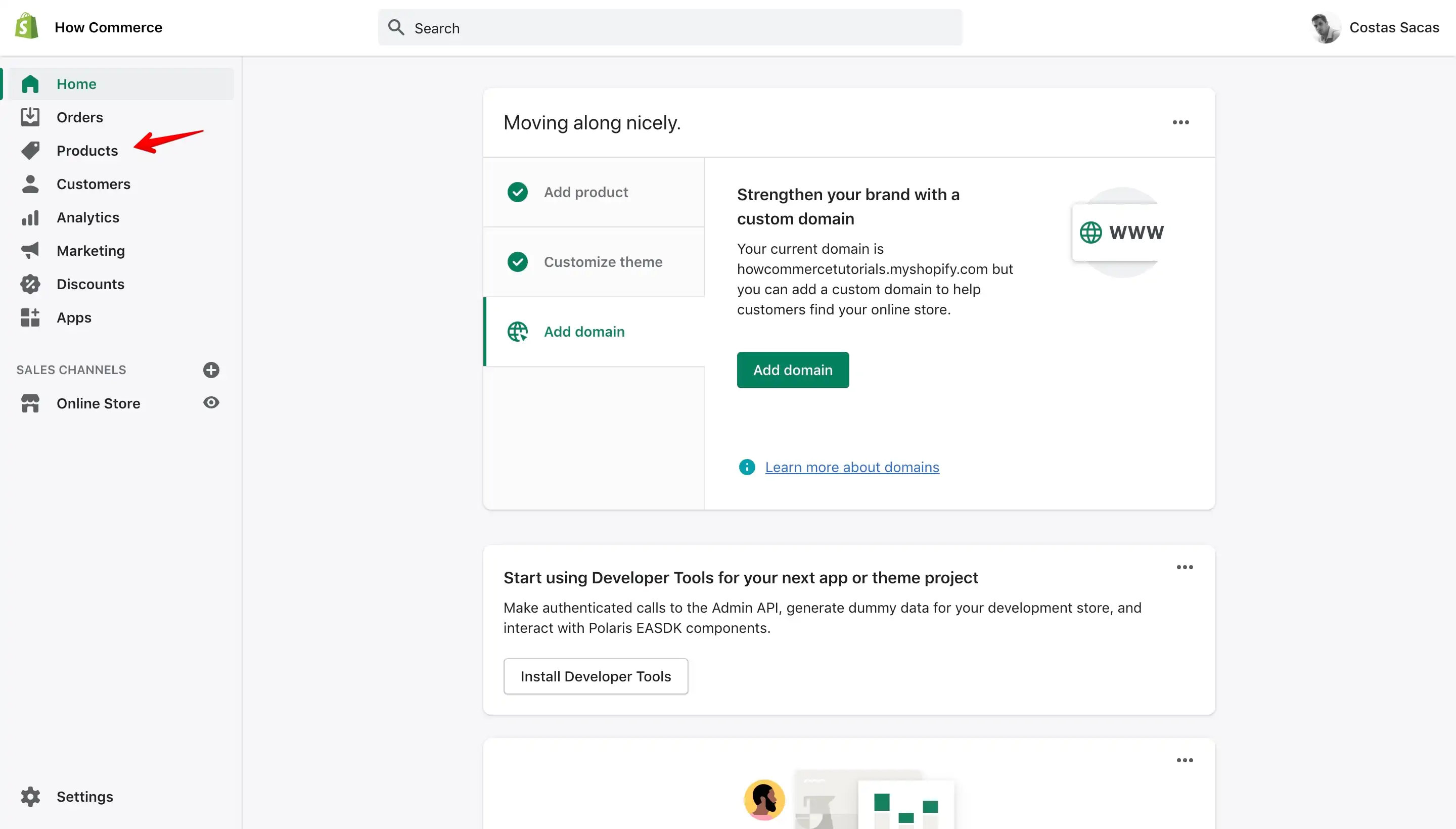
Login into your admin dashboard and go to the “Products” page:
On the product page search for the product that you want to add on sale. Type in the search box the product name (marked with 1 in the image below):
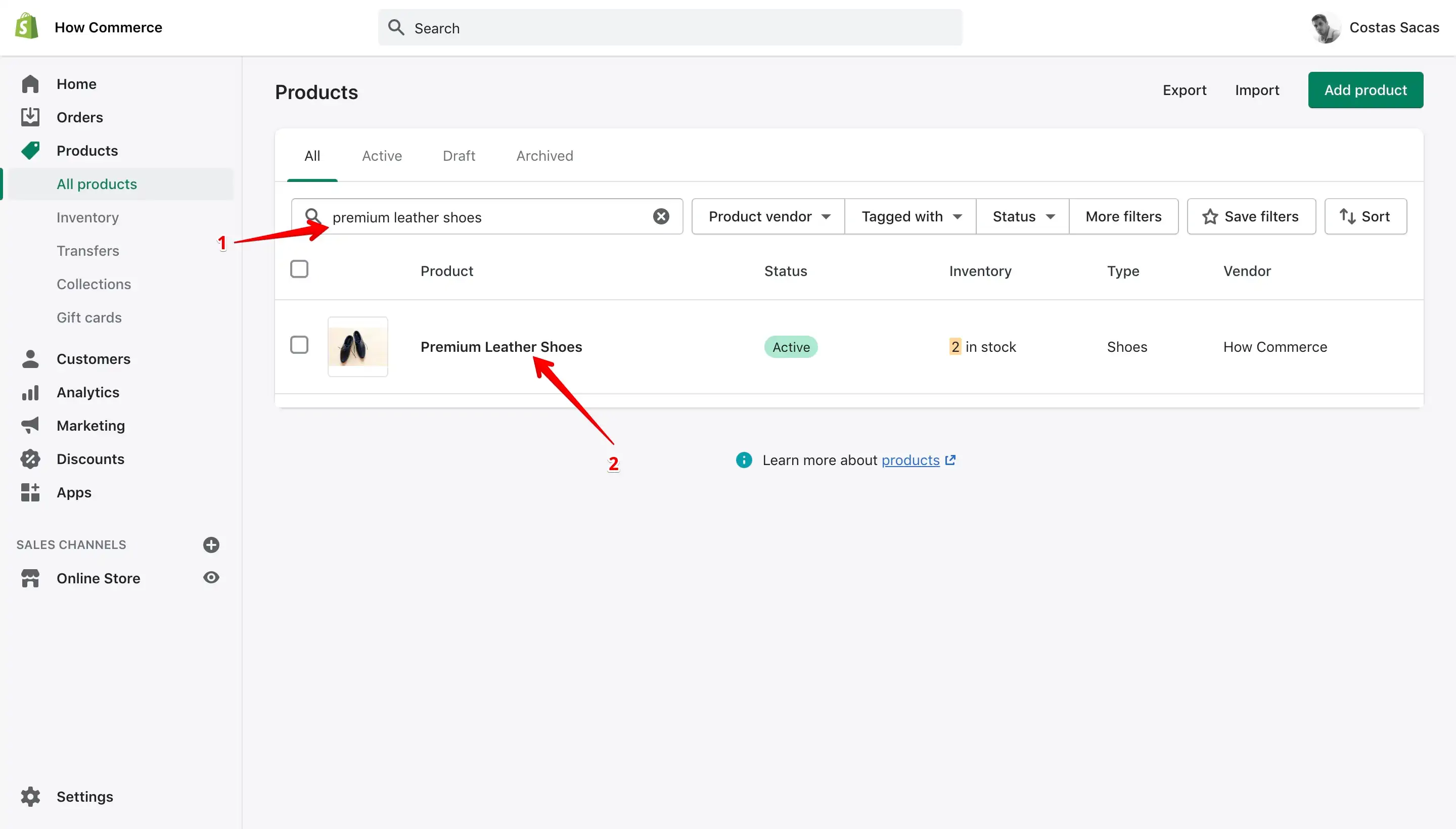
If you have a product title that will match your search query, Shopify will list it. Click on the product title (marked with 2 in the image above) to open the product page.
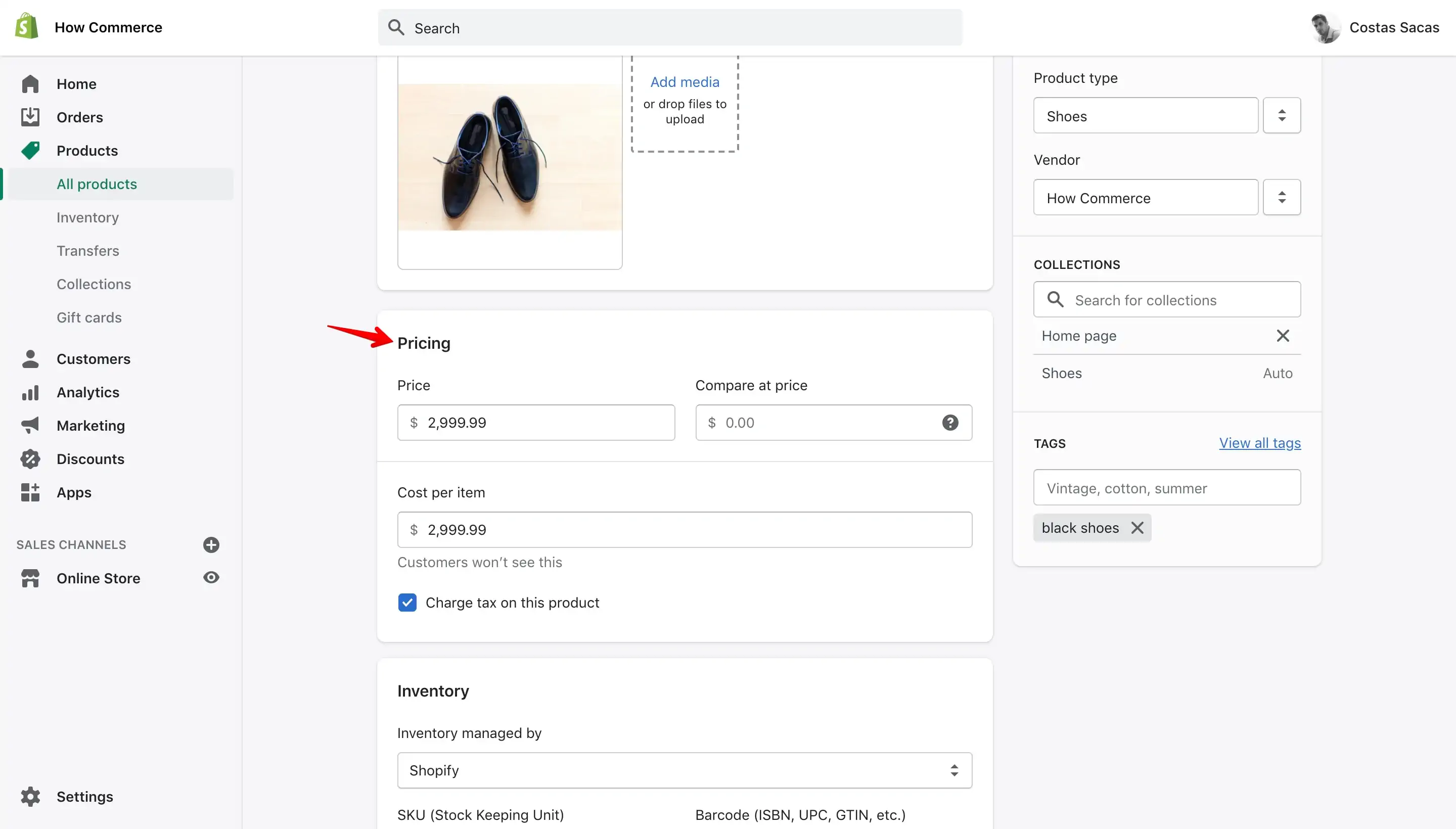
Scroll down until you see the “Pricing” section like in the image below:
Now copy the price from the "Price" inputbox and paste it in the "Compare at price" inputbox:
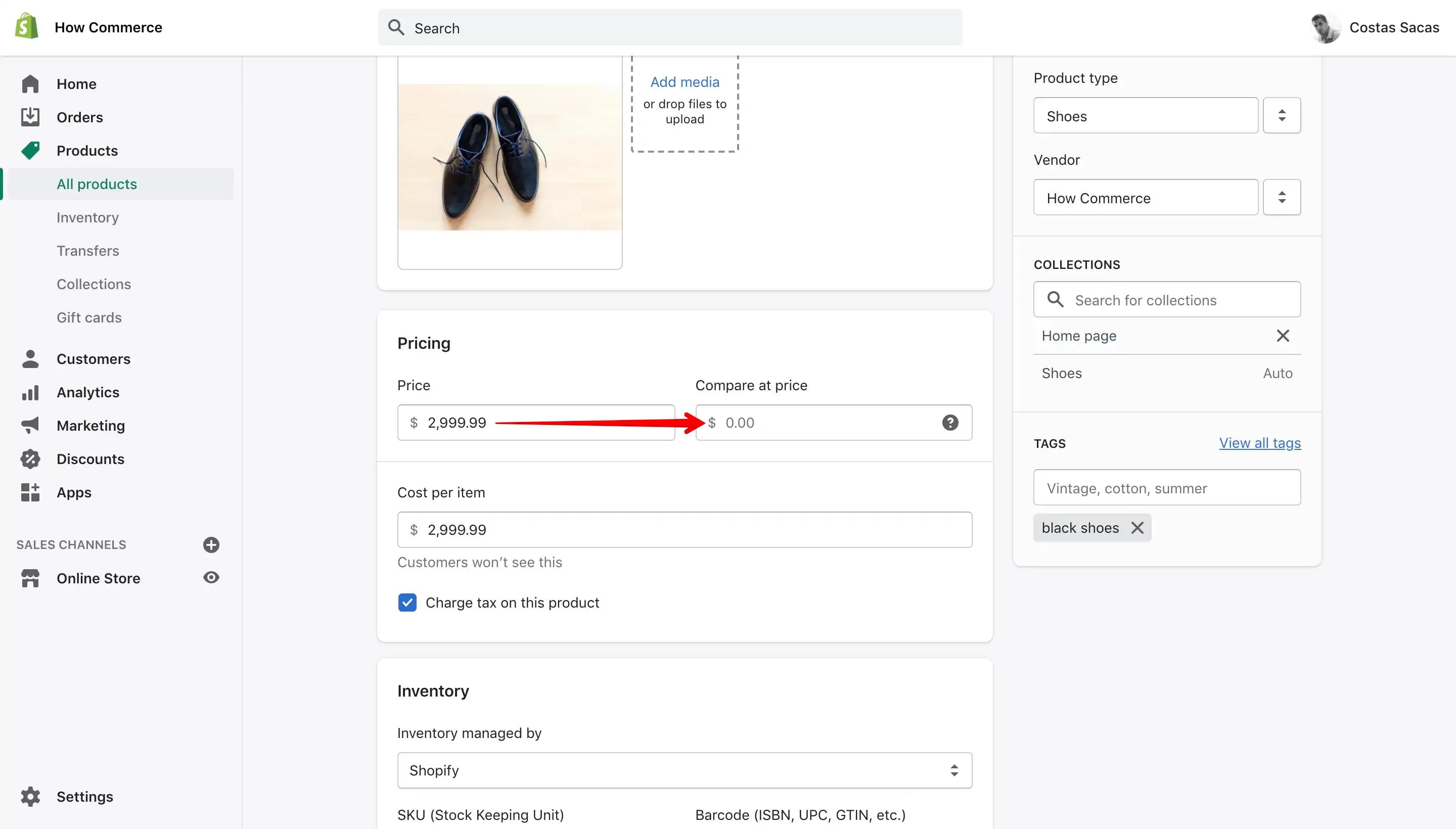
After you moved the price your “Pricing” section should look like this:
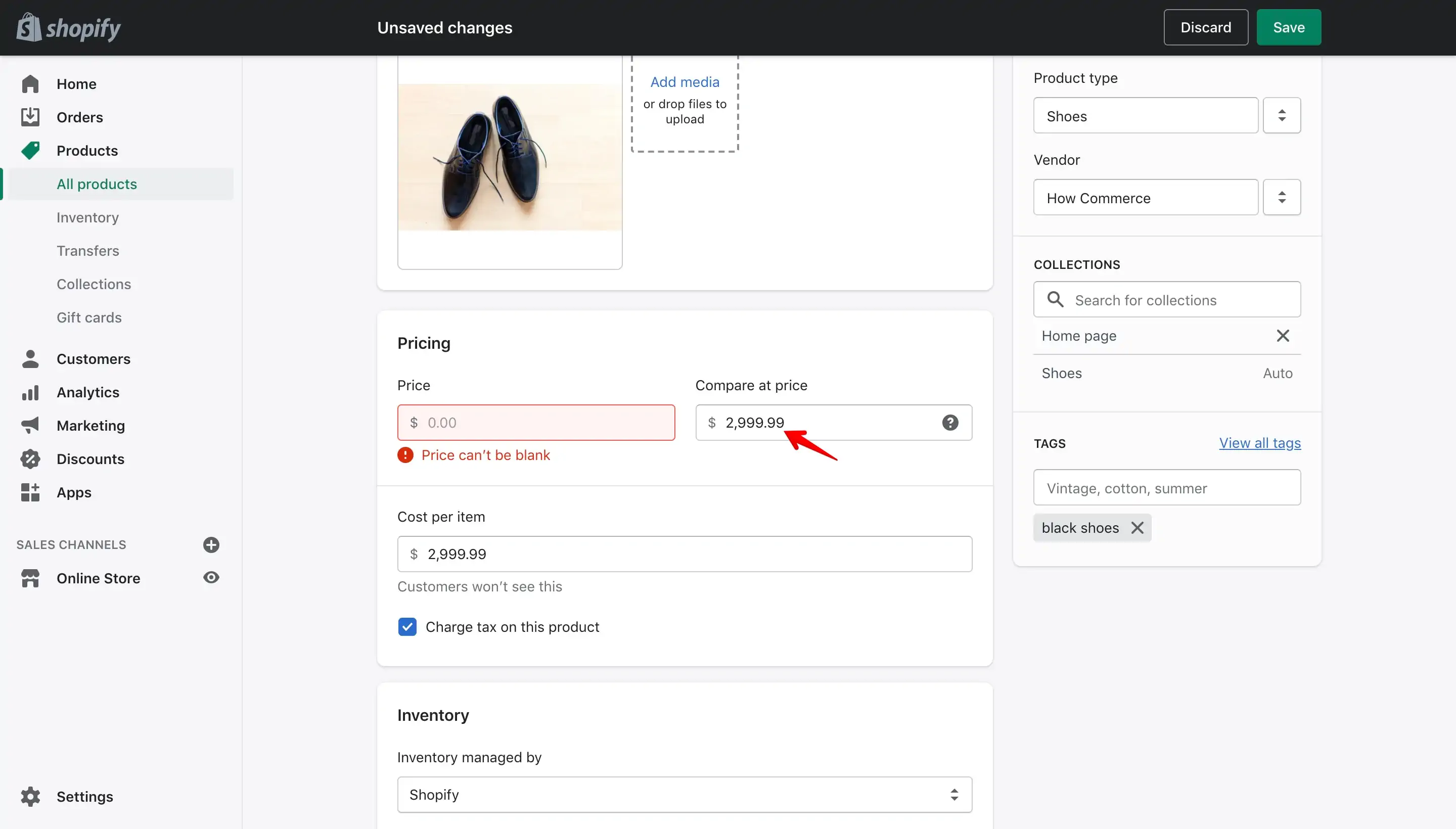
"Compare at price" will hold your day to day price which in my case is $2,999.99. This price is the price at which I sell my pair of shoes on a day to day basis.
Now I'll add the "Sale" price which will be $2.499.99. The "Sale" price is a $500 discounted price and on this price the customers will buy for a limited amount of time the pair of shoes.
Let's add the price in the "Price" inputbox:
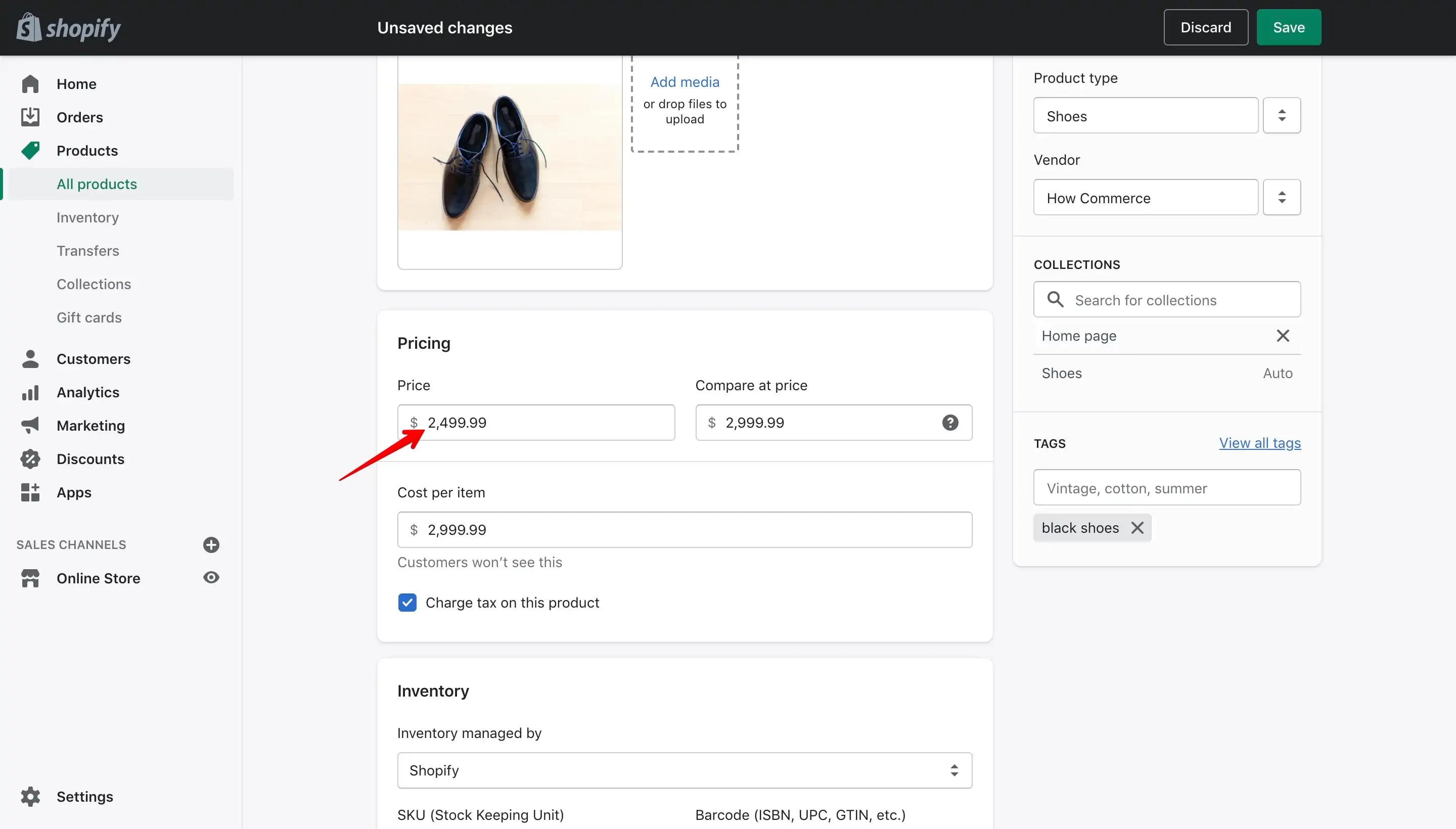
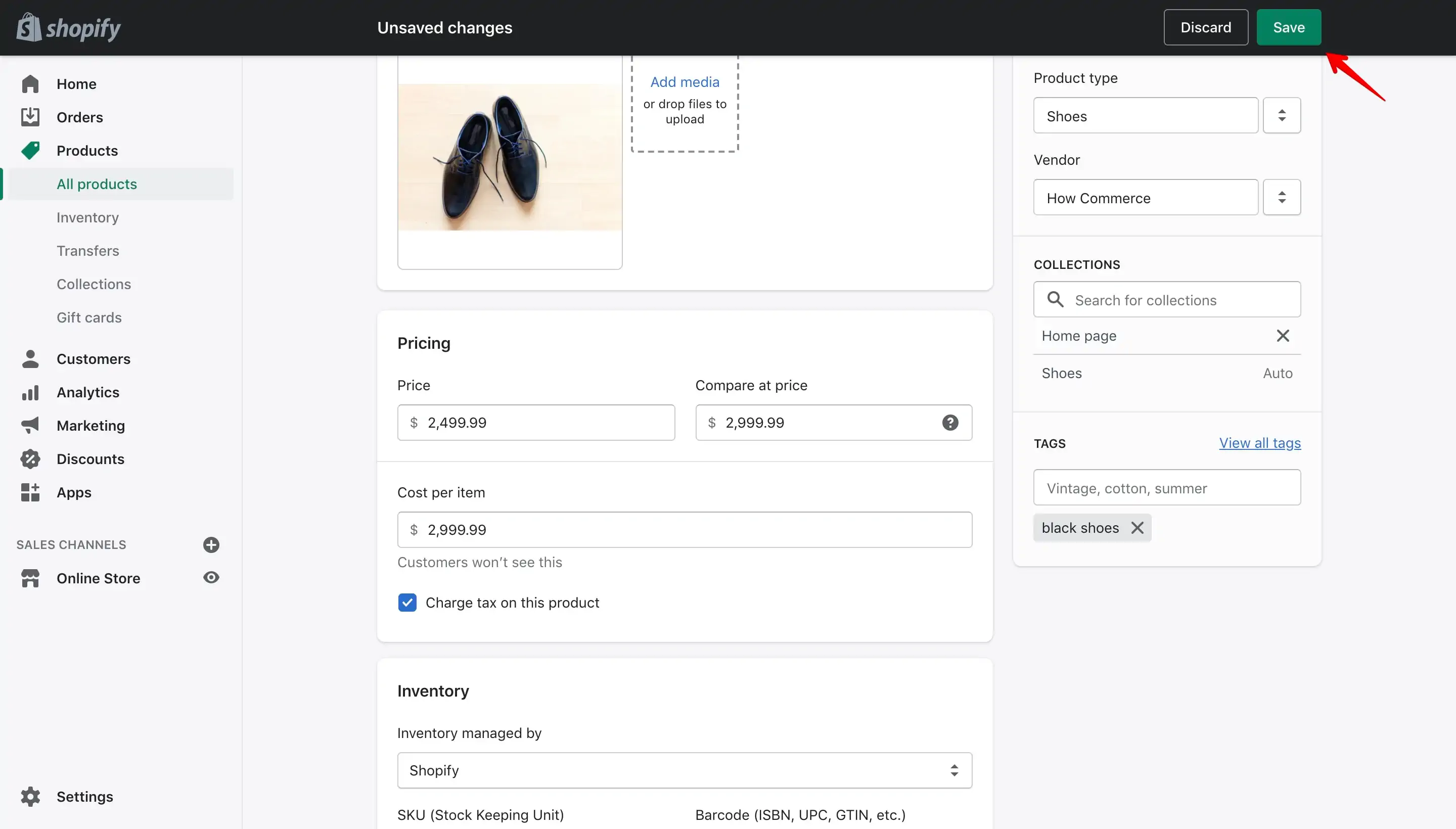
That's it! Now click the "Save" button to save your new settings:
Click the product "Preview" link so you can see how the product is listed on your storefront:
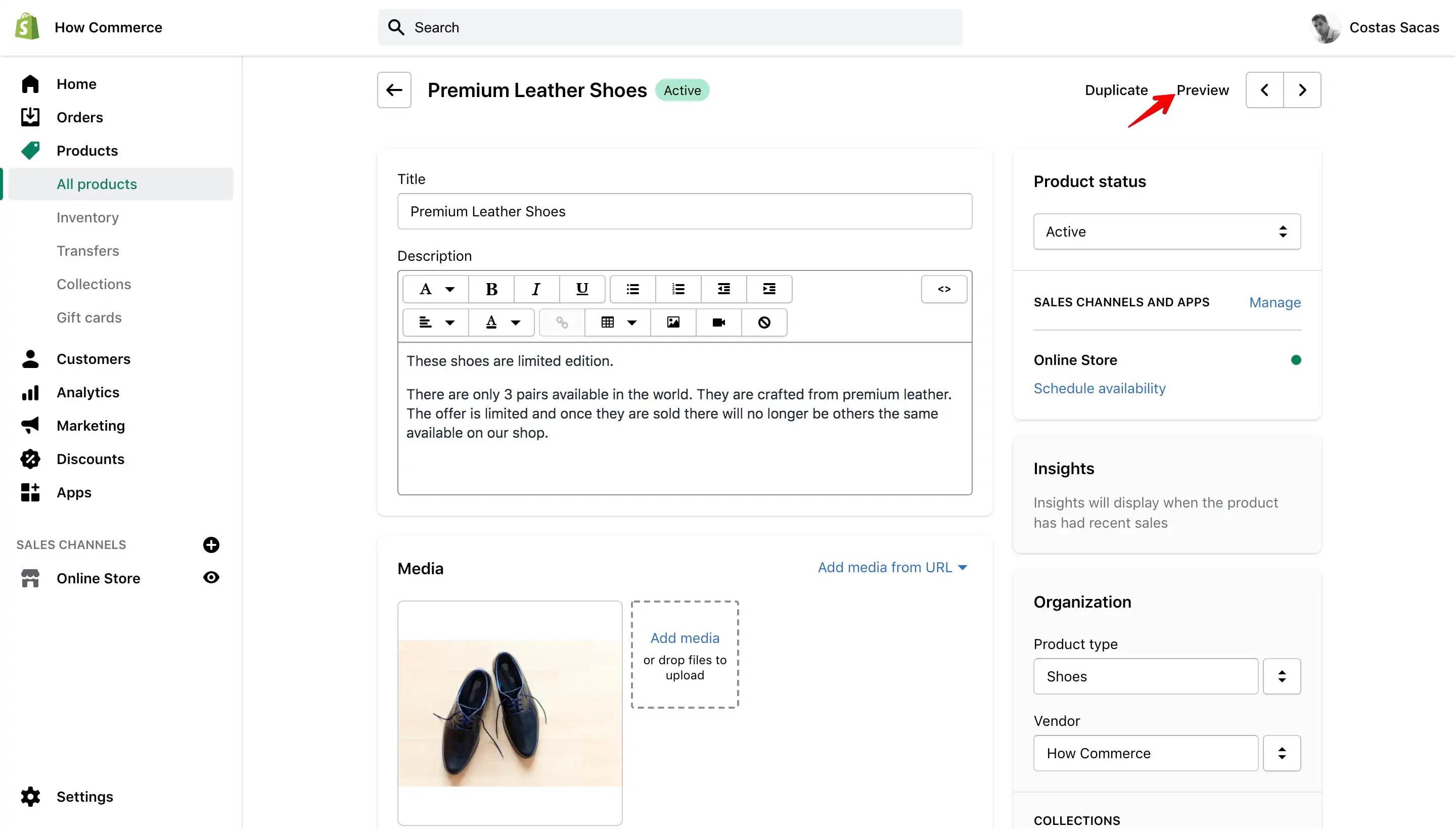
Shopify will display now the product page for the product that we’ve put on sale:
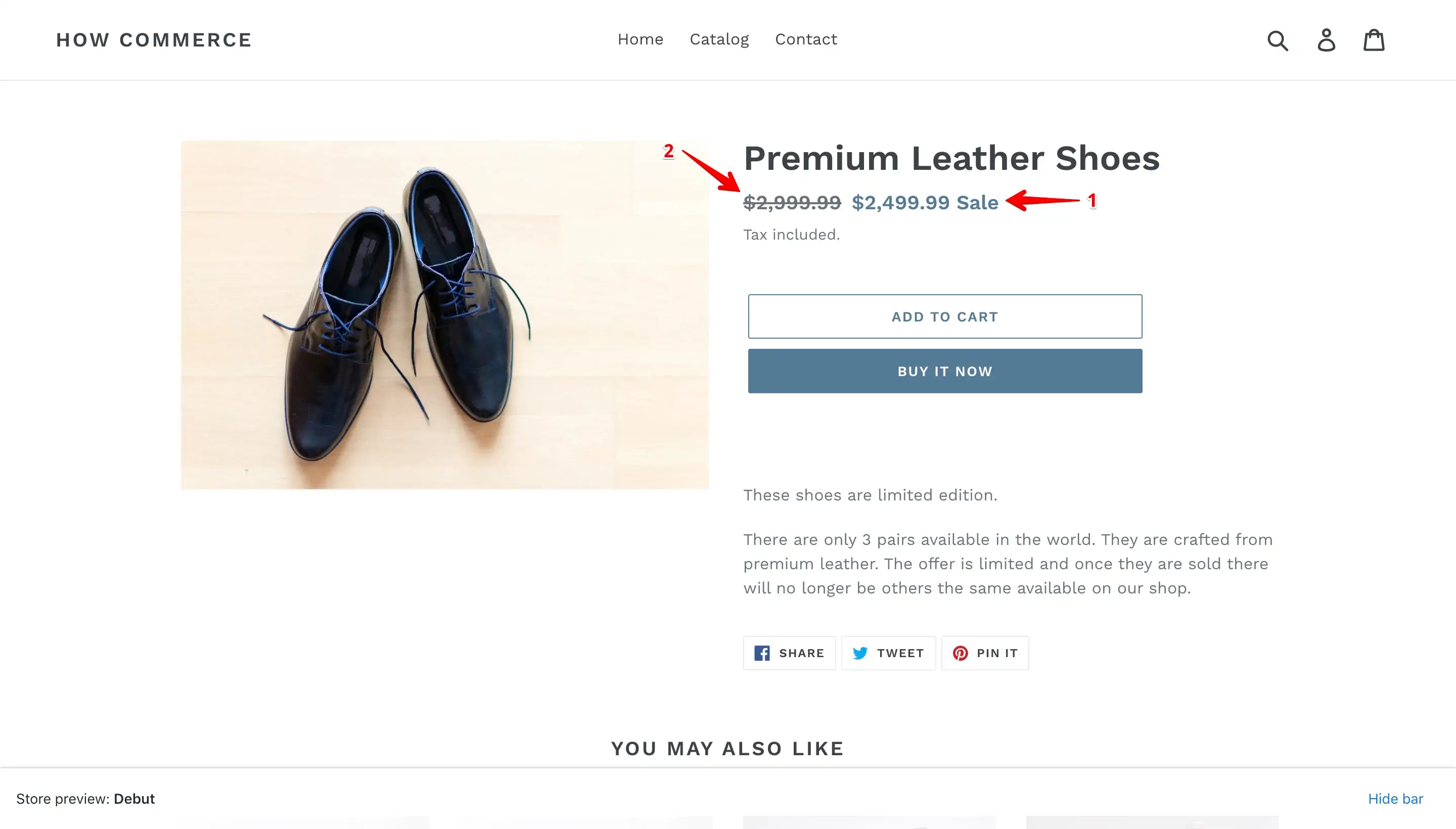
In the image above you can see the new sale price (marked with 1 in the image above) and the "day to day" price (marked with 2 in the image above).
I'm using the "Debut" theme for this example and as you see the sale price is a shade of blue which in my opinion is not really a great choice.
I usually make the sale price a more accentuated color like: red, orange, yellow, etc. depending on the page background.
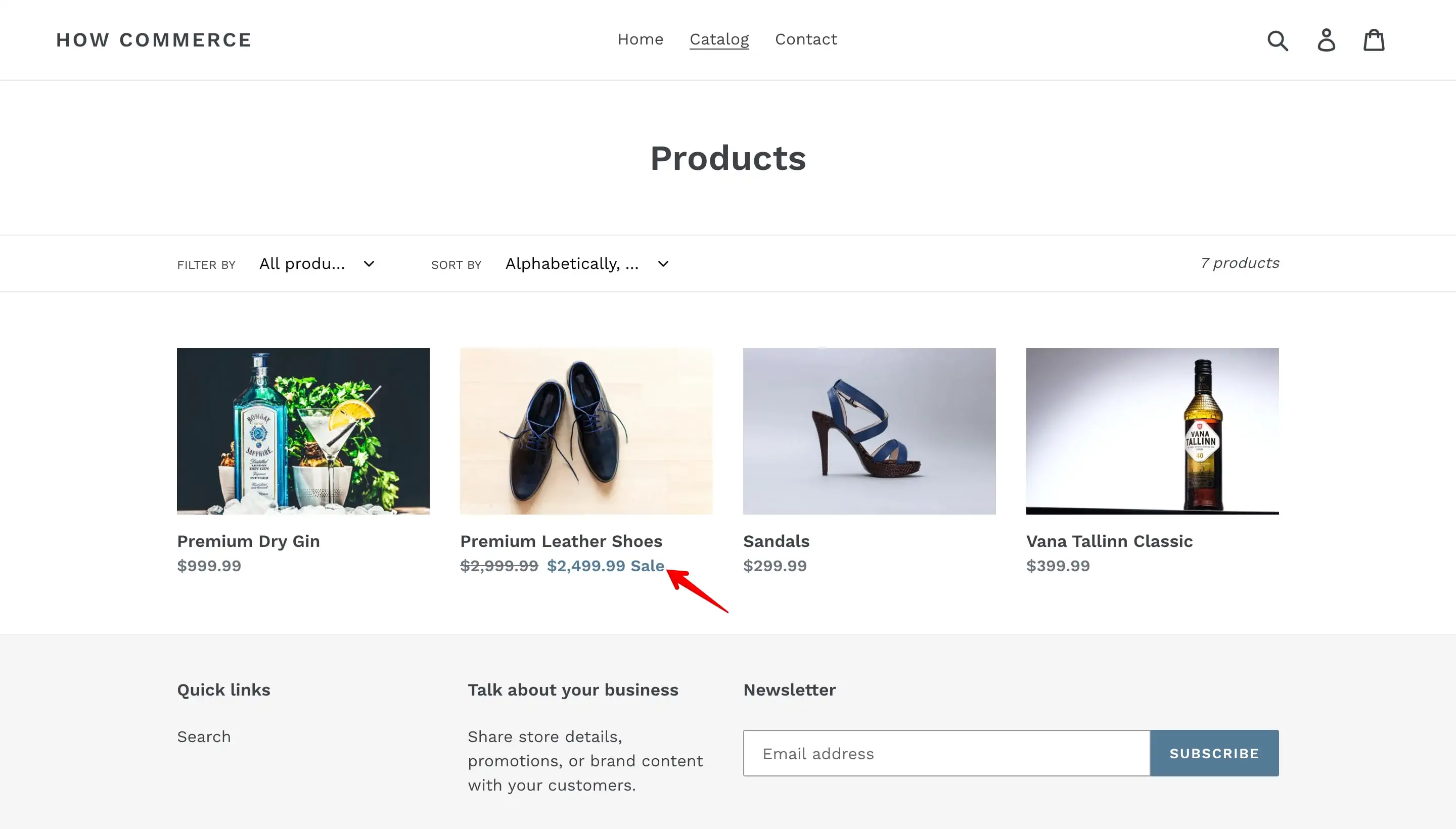
On the "Debut" theme the sale price is listed also on the products listing page:
And on the "You may also like" section on the product page:
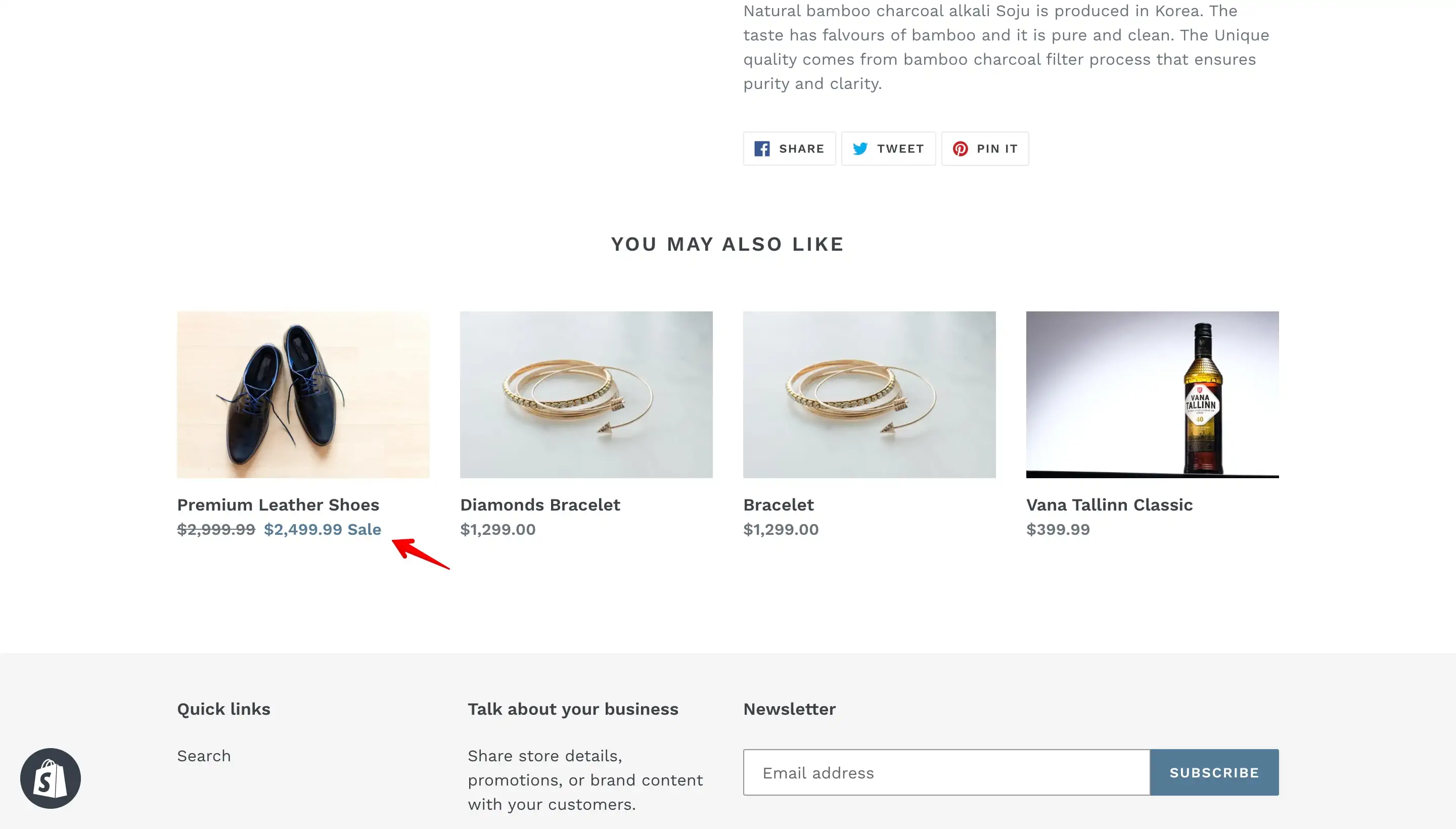
Other “Debut” theme sections like “You may also like” are listing the sales price as well.
Remove a sale price from a product
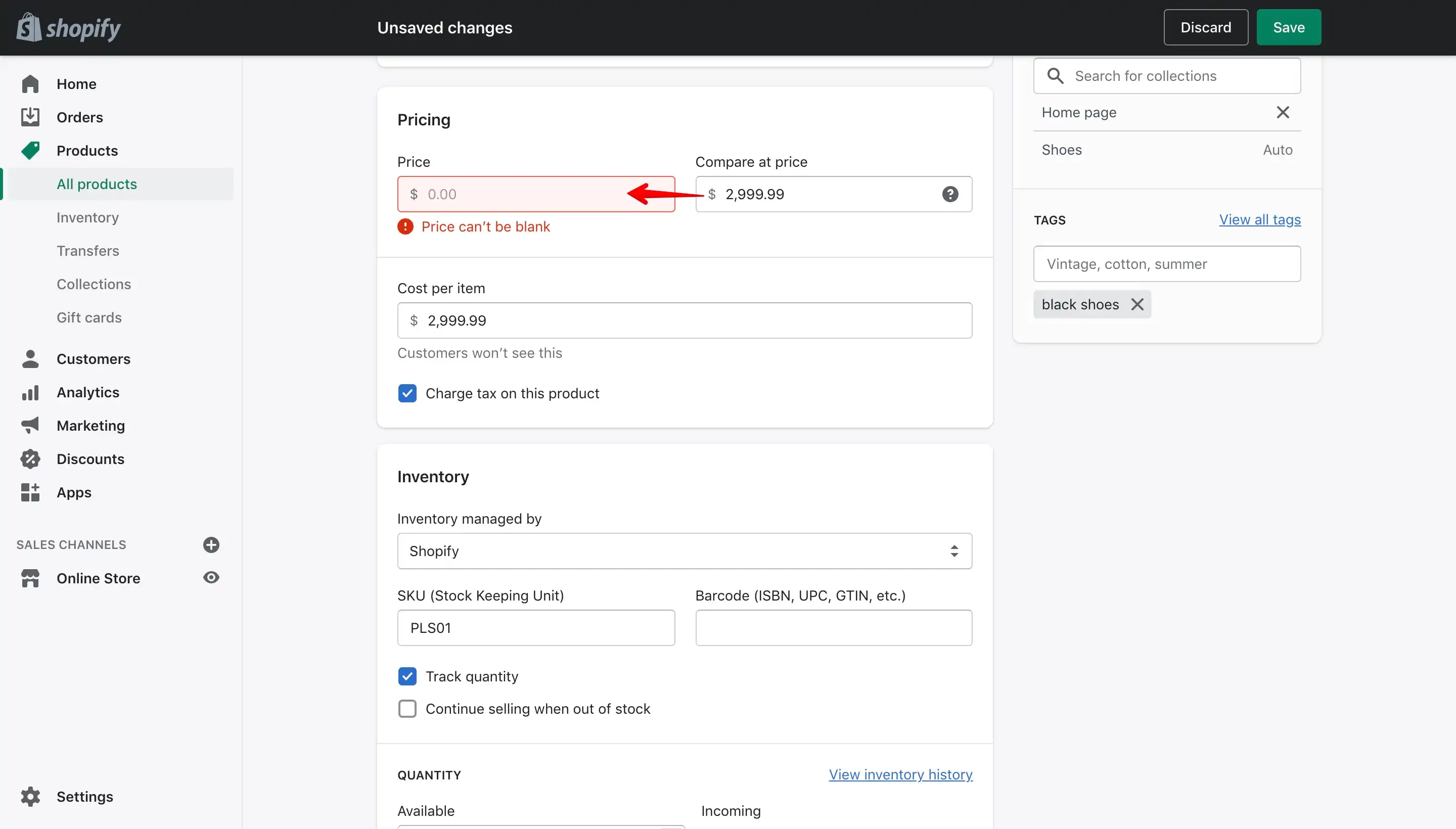
All you have to do is remove the “Sale price” and move back the “Compare at price” in the “Price” field, practically reverse the previous operation:
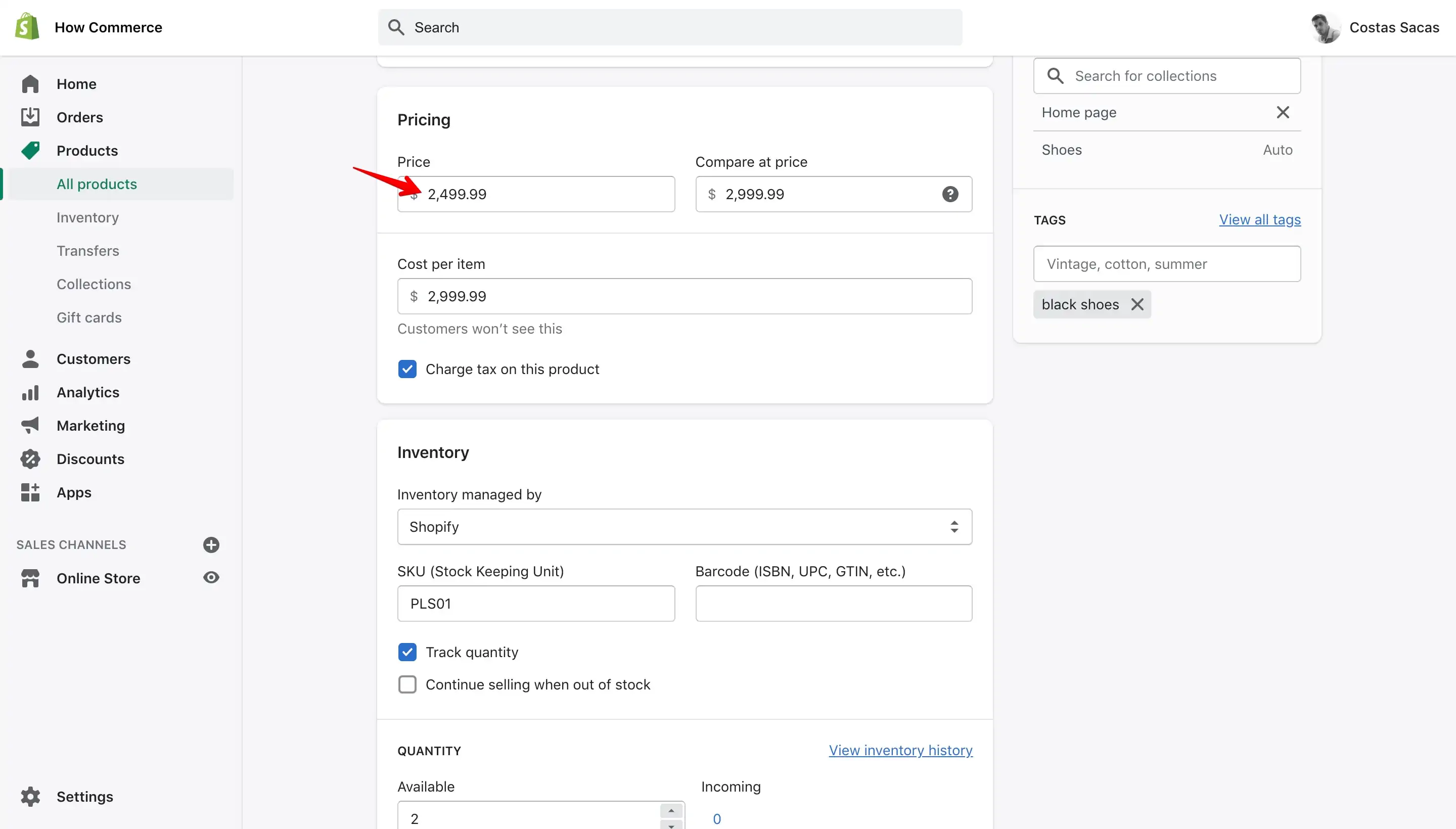
Now move the "Compare at price" price to the "Price" inputbox:
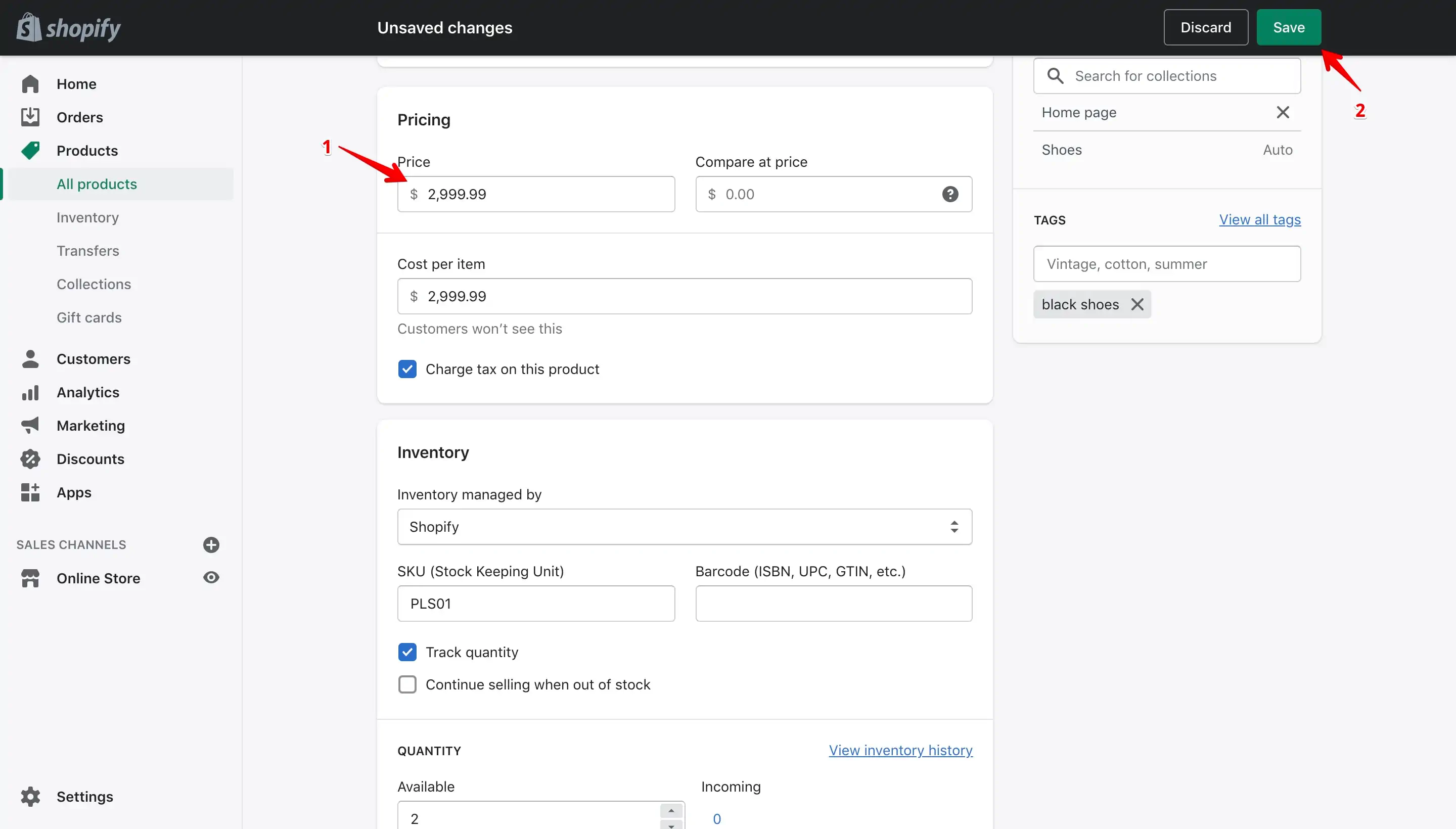
Once the price is moved (marked with 1 in the image below) you need to click "Save" (marked with 2 in the image below):
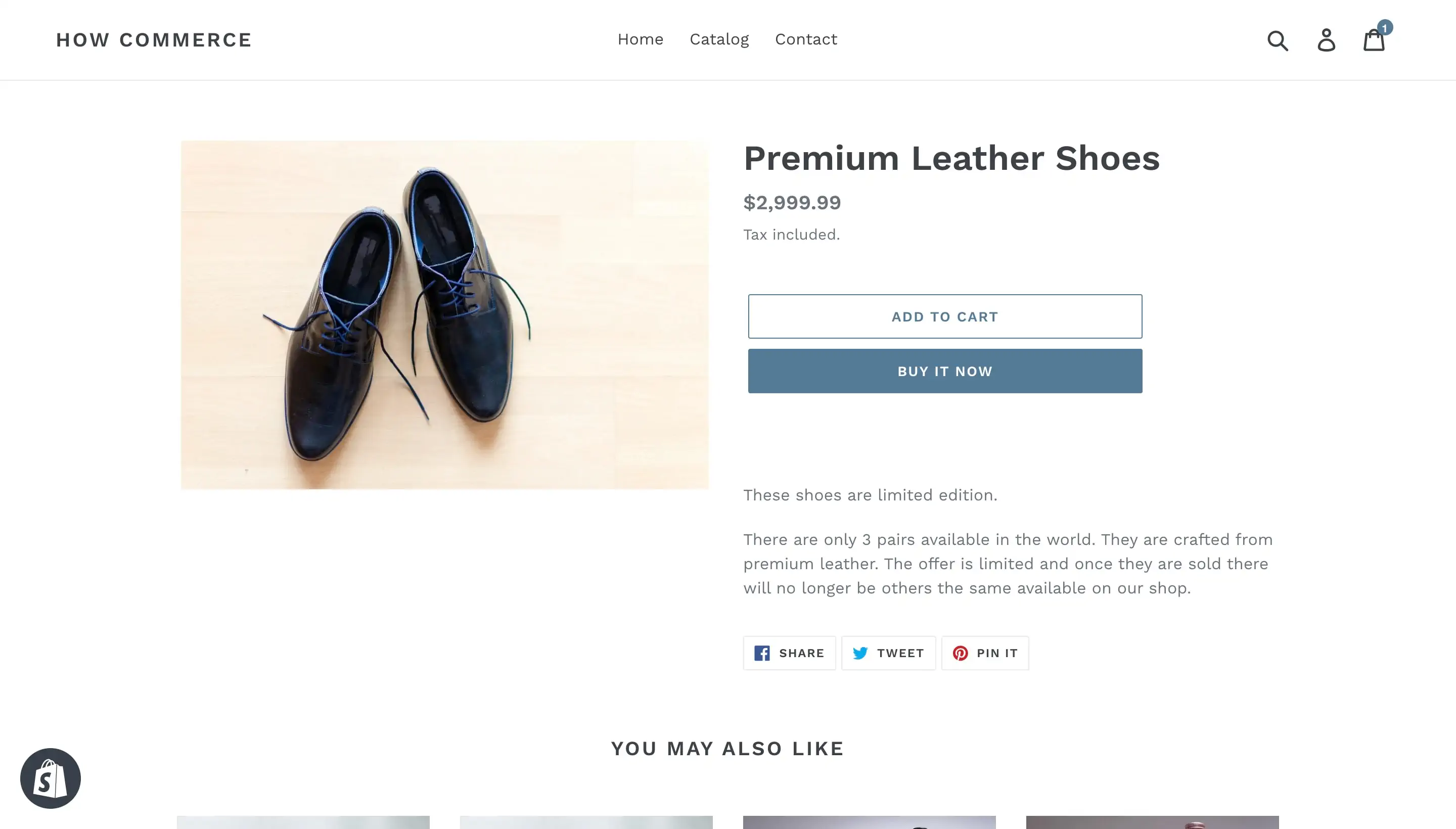
To check that everything is OK, go to your storefront and see on the product page if the “Sale price” is indeed removed.
Add a sale price to products variants
You may have in your store products with multiple variants and you want to add different sale prices for each variant in part.
You can do that very easily on Shopify.
Login into your admin dashboard and go to the “Products” page:
On the product page search for the product that you want to add on sale. Type in the search box the product name (marked with 1 in the image below):
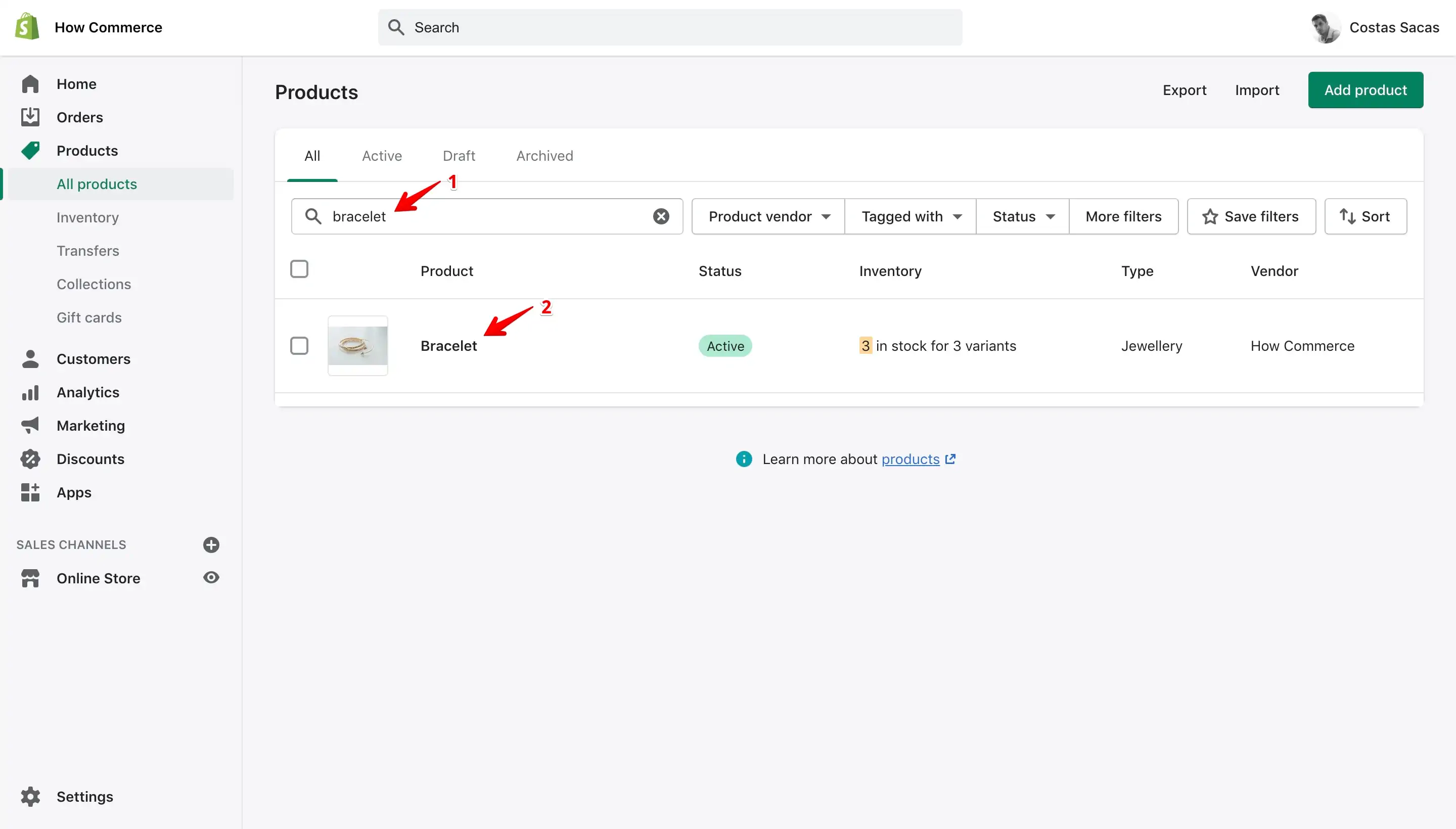
If you have a product title that will match your search query, Shopify will list it. Click on the product title (marked with 2 in the image above) to open the product page.
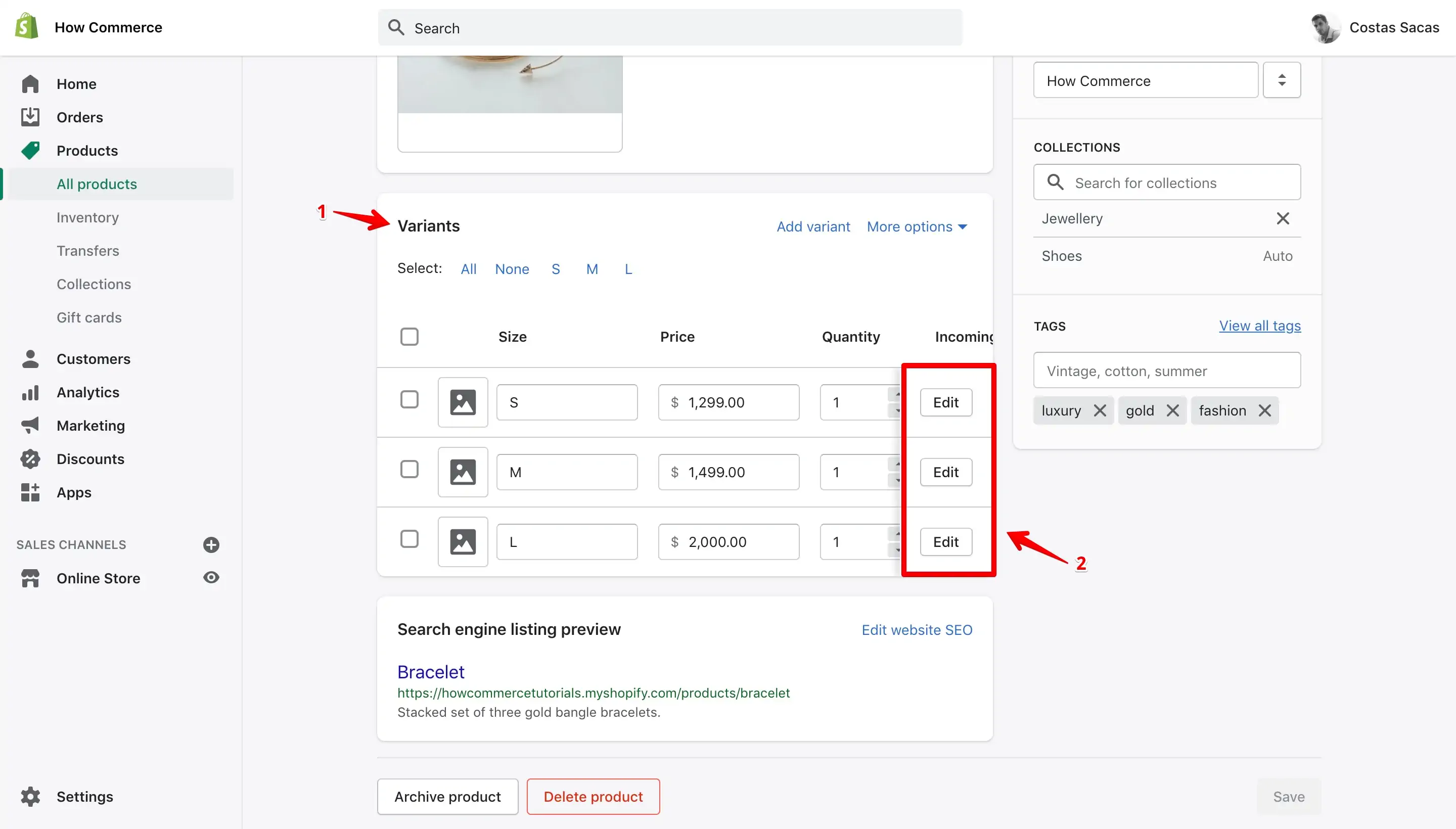
Scroll down to the "Variants" section (marked with 1 in the image below) and click on the "Edit" button for the "Variant" (marked with 2 in the image below) you want to add the sale price:
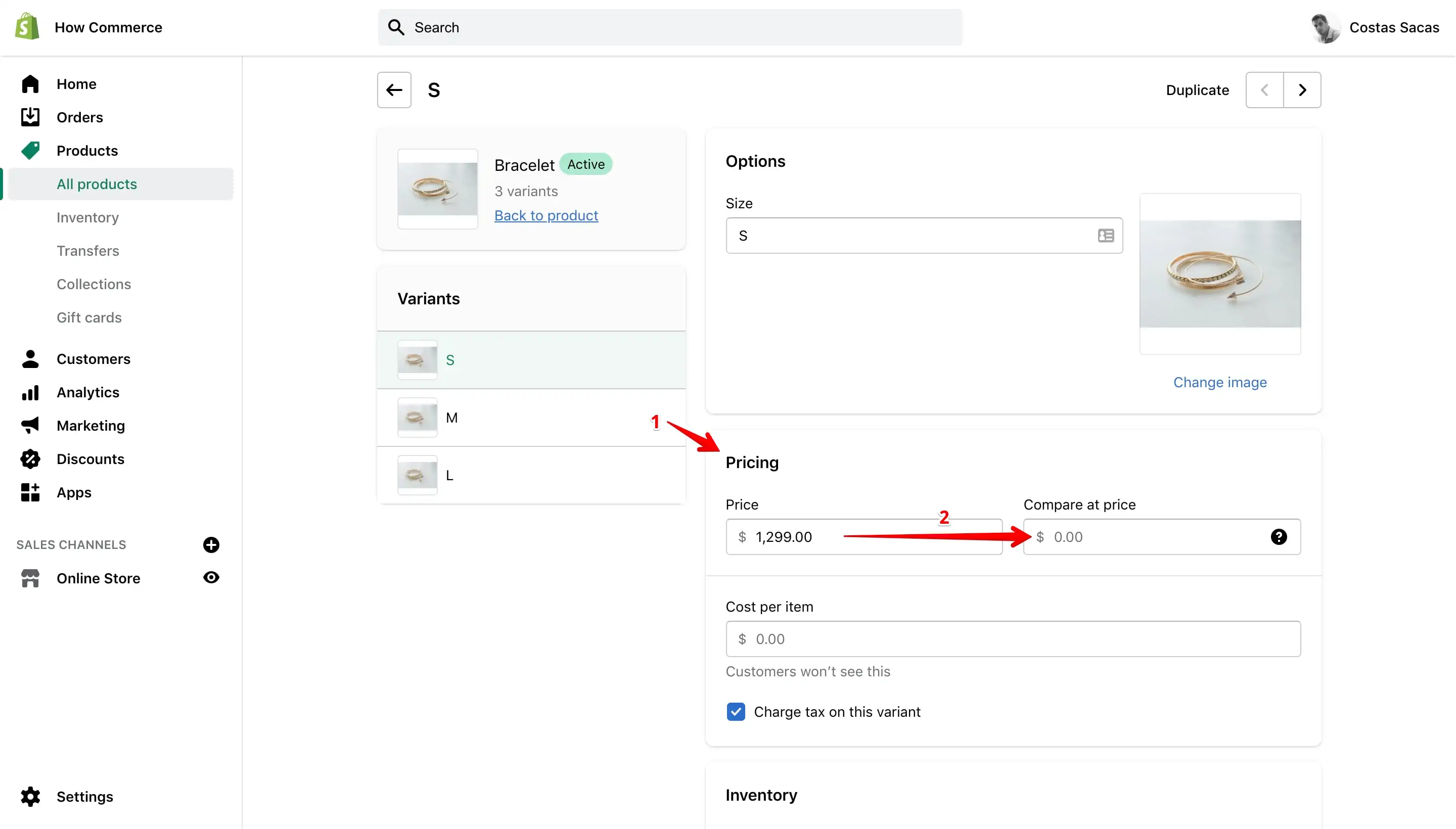
On the product variants editing page scroll down until you see the “Pricing” section (marked with 1 in the image below) and move the existing price (the “day to day” price) in the “Compare at price” inputbox (marked with 2 in the image below):
Now add your desired sale price in the "Price" inputbox (marked with 1 in the image below):
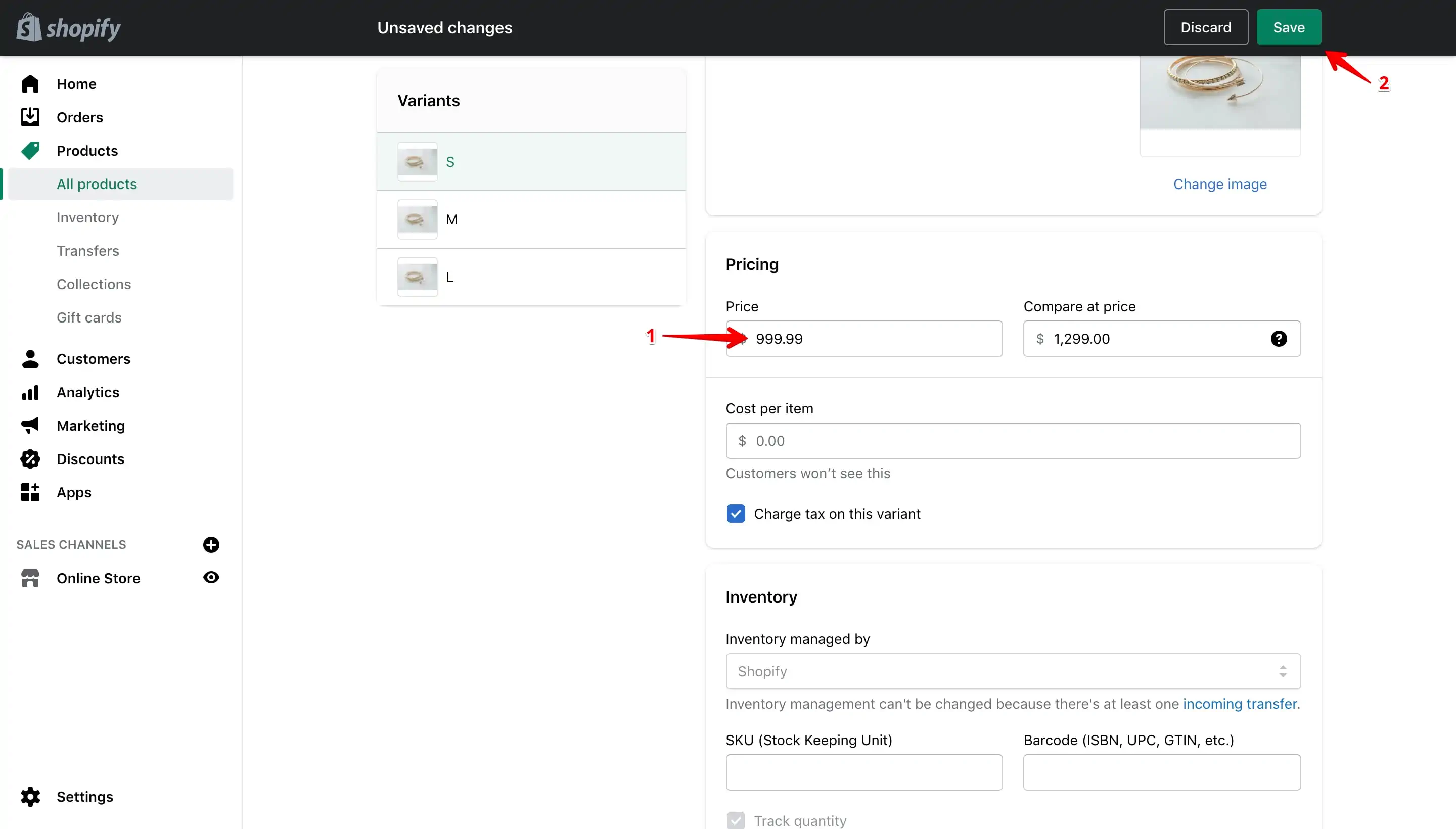
After you have the sale price in place click the “Save” (marked with 2 in the image above) button to save your new changes.
If you want to have all variants on sale, repeat this step for all variants for which you want to set a sale price.
If you add sale prices for all the variants of a product the display on storefront goes like this:
- If all variant sale prices are the same, Shopify will list the price normally as it does for a one product variant as listed above.
- If the variant sale prices are different for each variant, Shopify will display the smallest price.
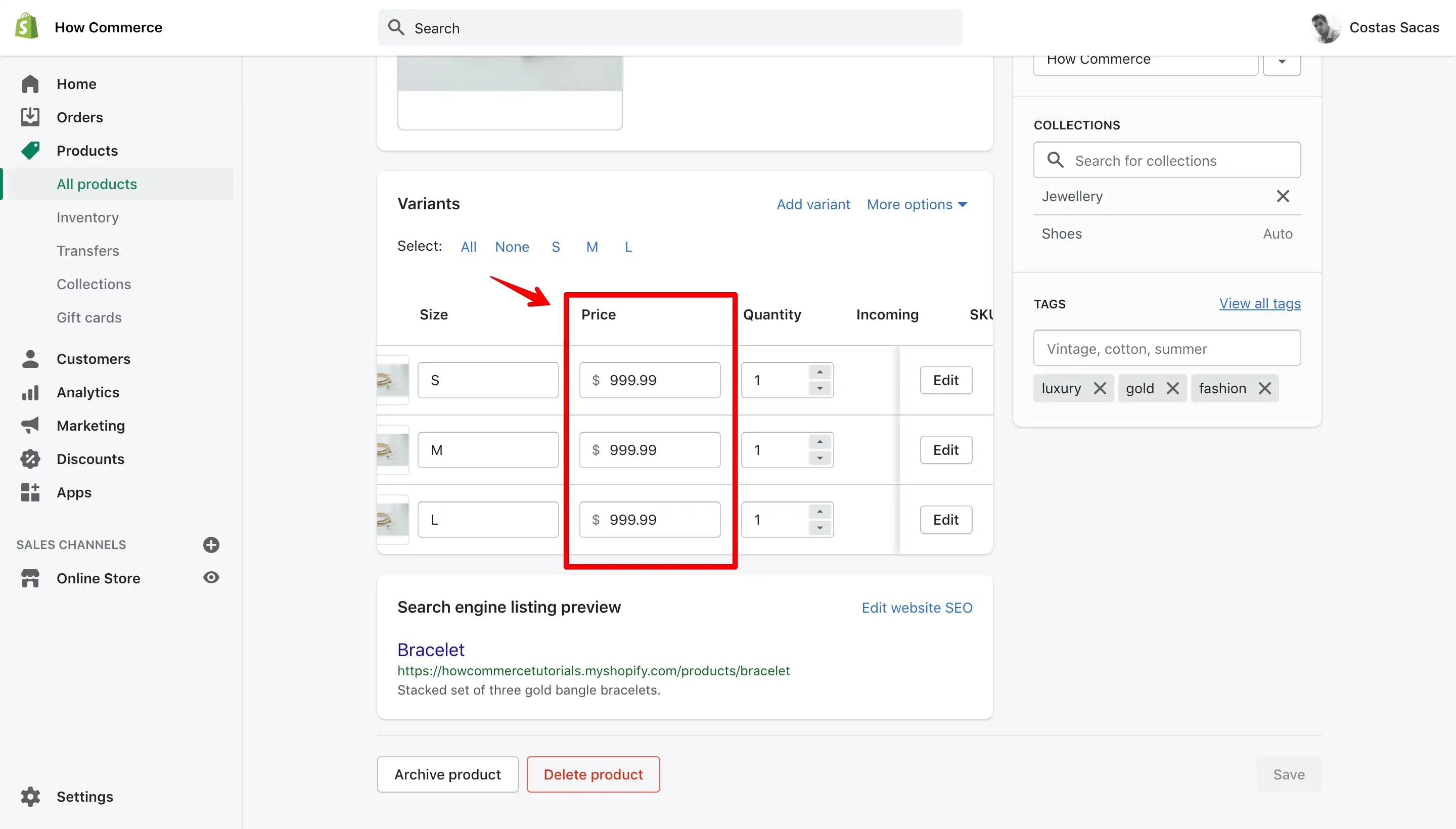
All variants have the same sale price
When all the variants will have the same sale price this is how they will look in your Shopify dashboard:
And this is how it will look on the storefront when the product is listed on the "Products listing" page:
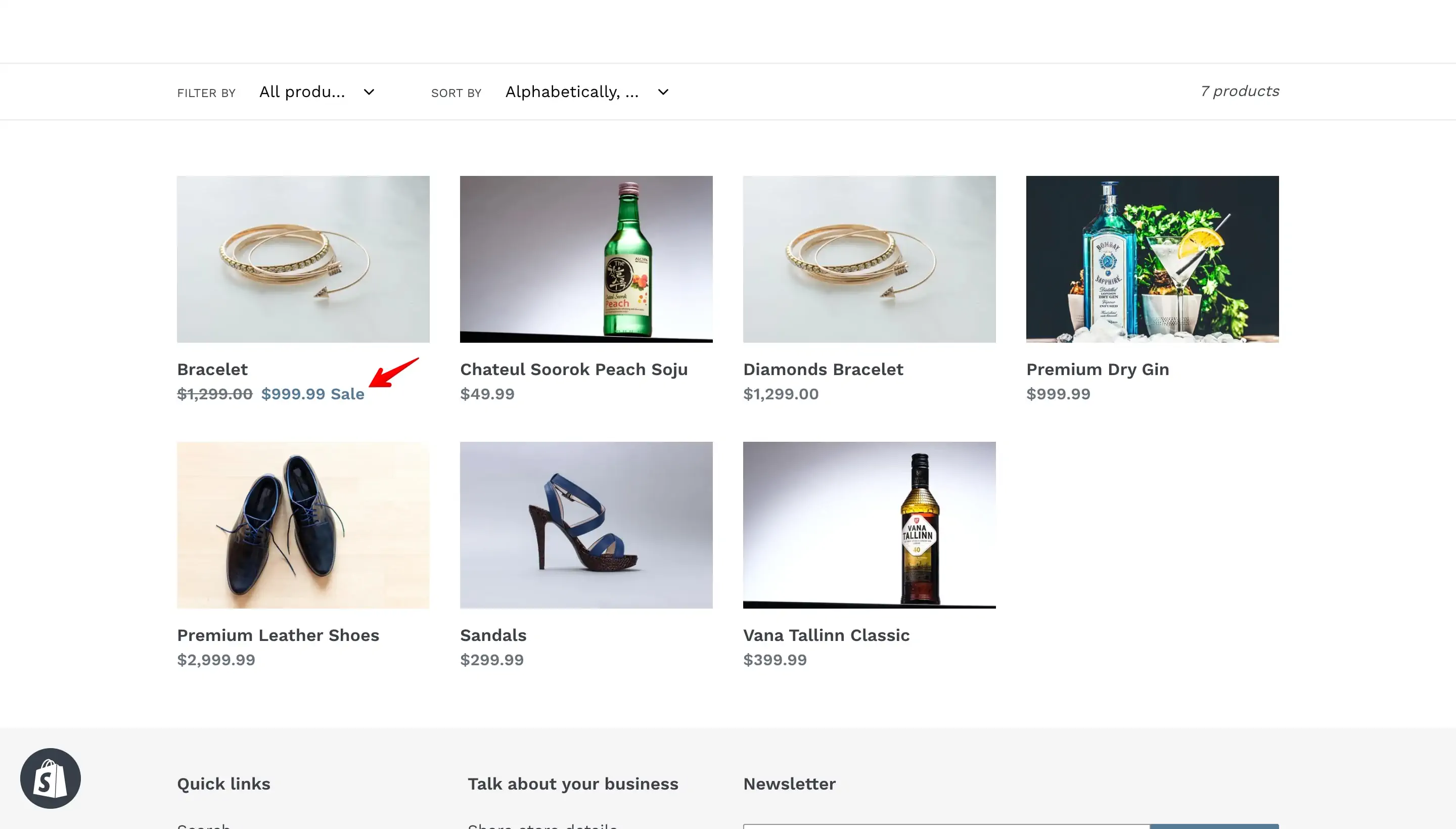
You’ll see the same thing on the product page and on the other Shopify sections.
Each variant has a different sale price
When variants will have different sale prices this is how they will look in your Shopify dashboard:
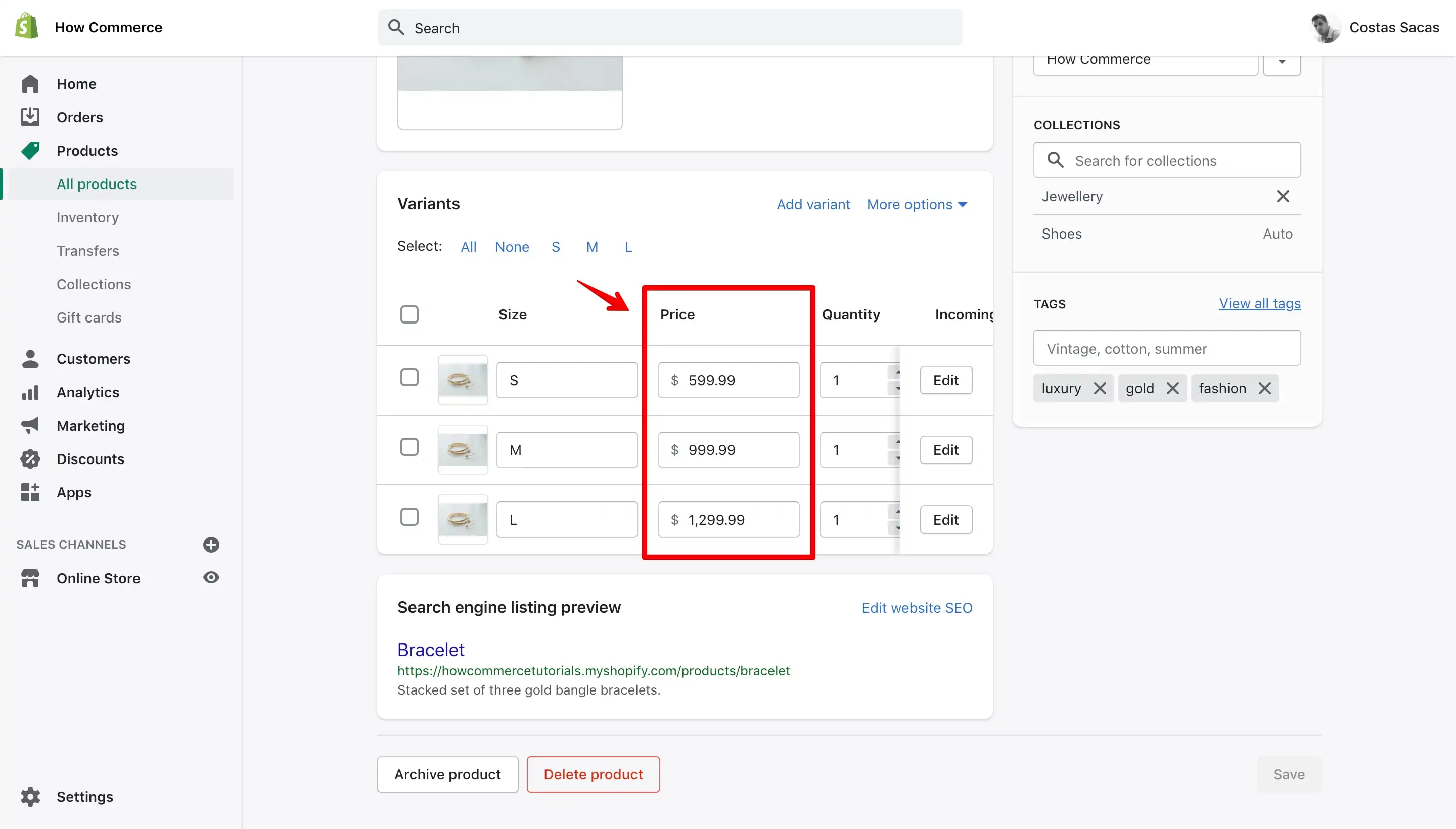
Since it's logical that you should not list all prices for all your variants on sale, Shopify themes will list on the collection page and other sections next to the product the smallest sale price available. Of course this can be customized.
On my example product I have 3 variants that are on sale as it goes: Model S - $599.99, Model M - $999.99 and Model L - $1,299.99.
In our example Shopify will list the smallest sale price which is assigned to the Model S - $599.99. This is how it will look in the storefront on the "Debut" theme:
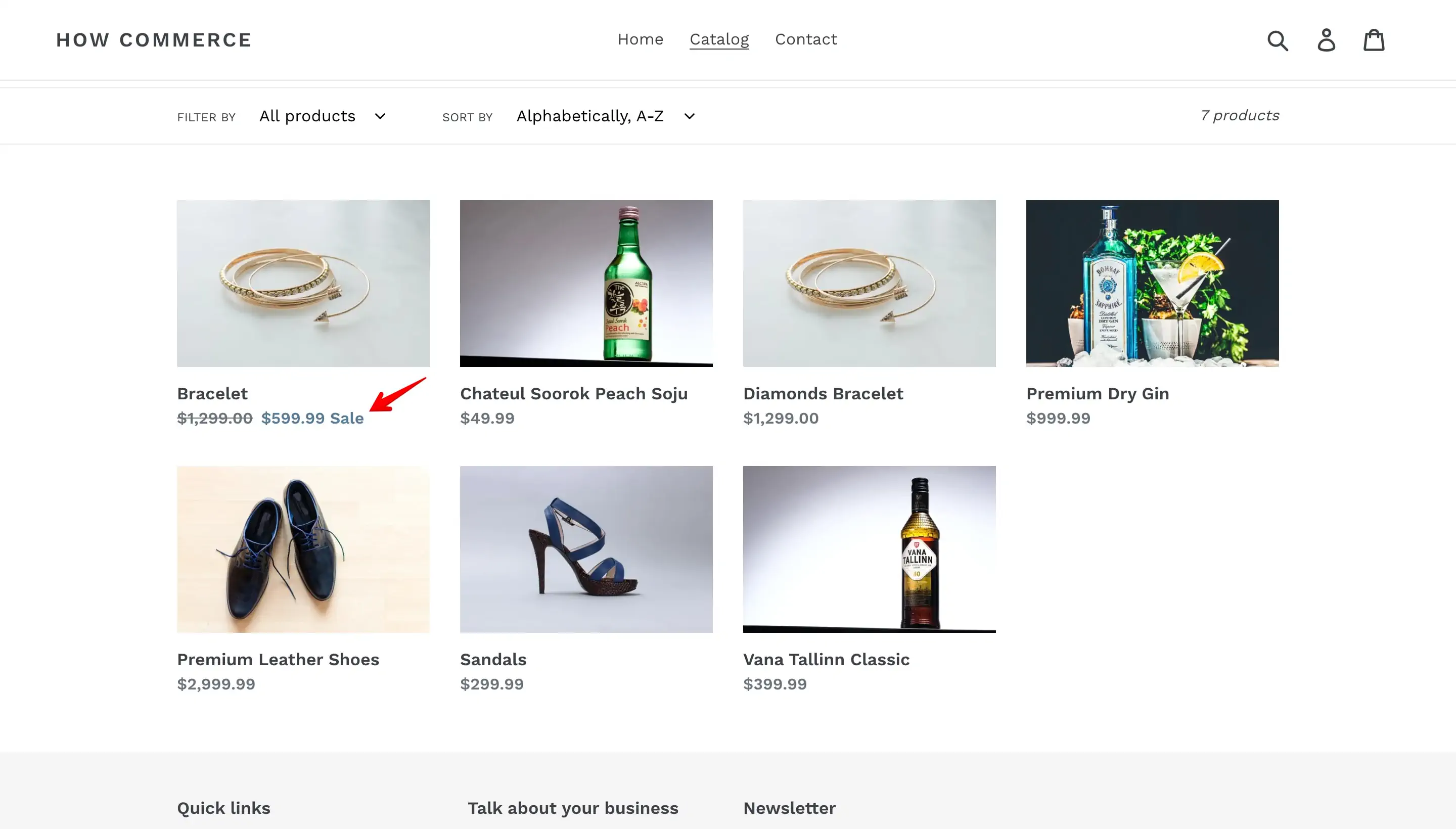
On the product page once you change the variant through the select box (marked with 1 in the image below) the sale price will update (marked with 2 in the image below) to reflect the variant selected:
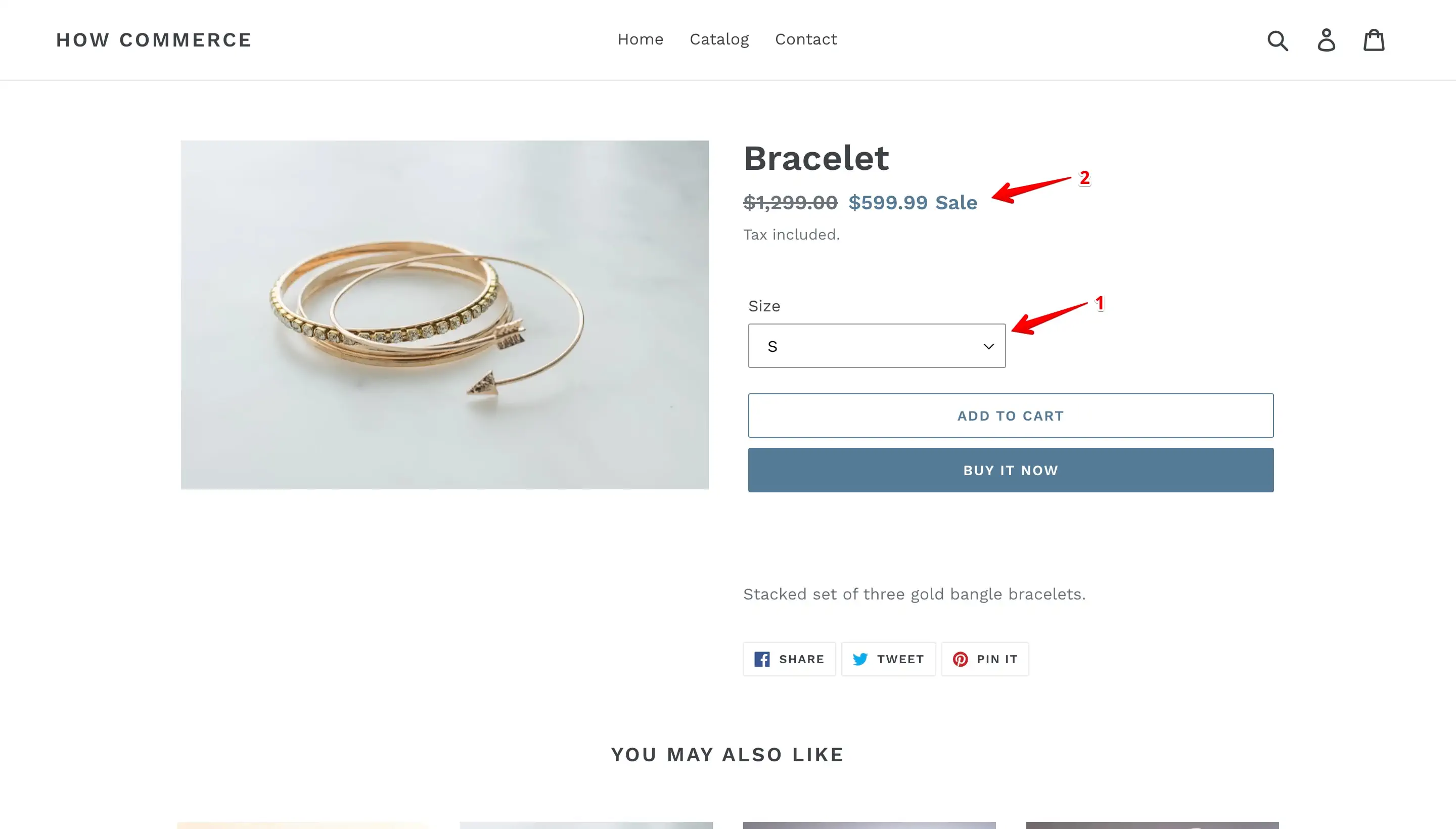
Add multiple price sales with the bulk editor (time saver)
In my opinion the best and easiest way to add sale prices to single products and to products with multiple variants is through the bulk editor.
Single product
Go to the “Products” page (marked with 1 in the image below) in your admin dashboard and select products without variants (marked with 2 in the image below):
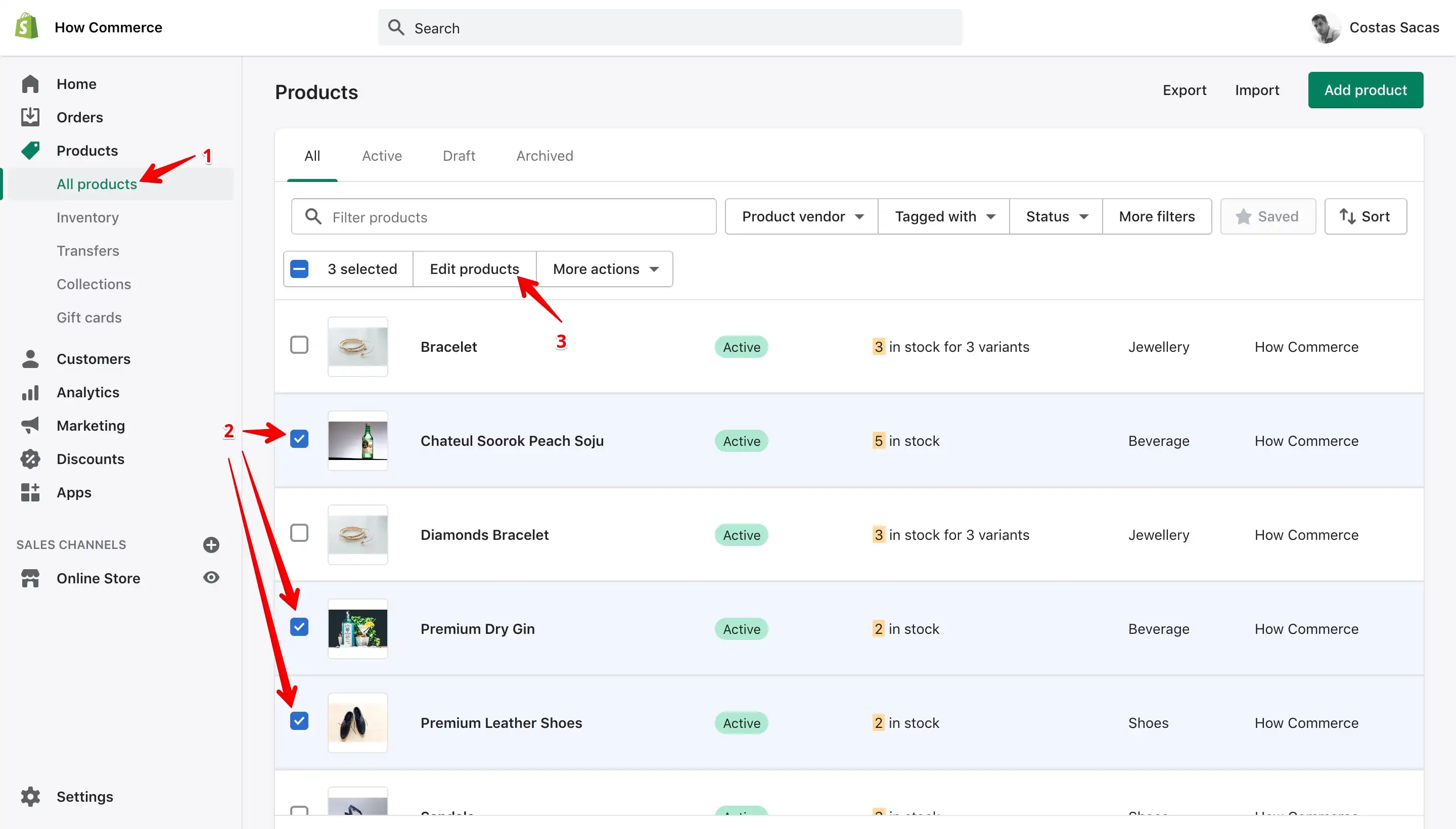
Click on the "Edit product" button to open the "Bulk editor" (marked with 3 in the image above).
On the "Bulk editor" make sure you have the "Price" (marked with 1 in the image below) and "Compare at price" (marked with 2 in the image below) added:
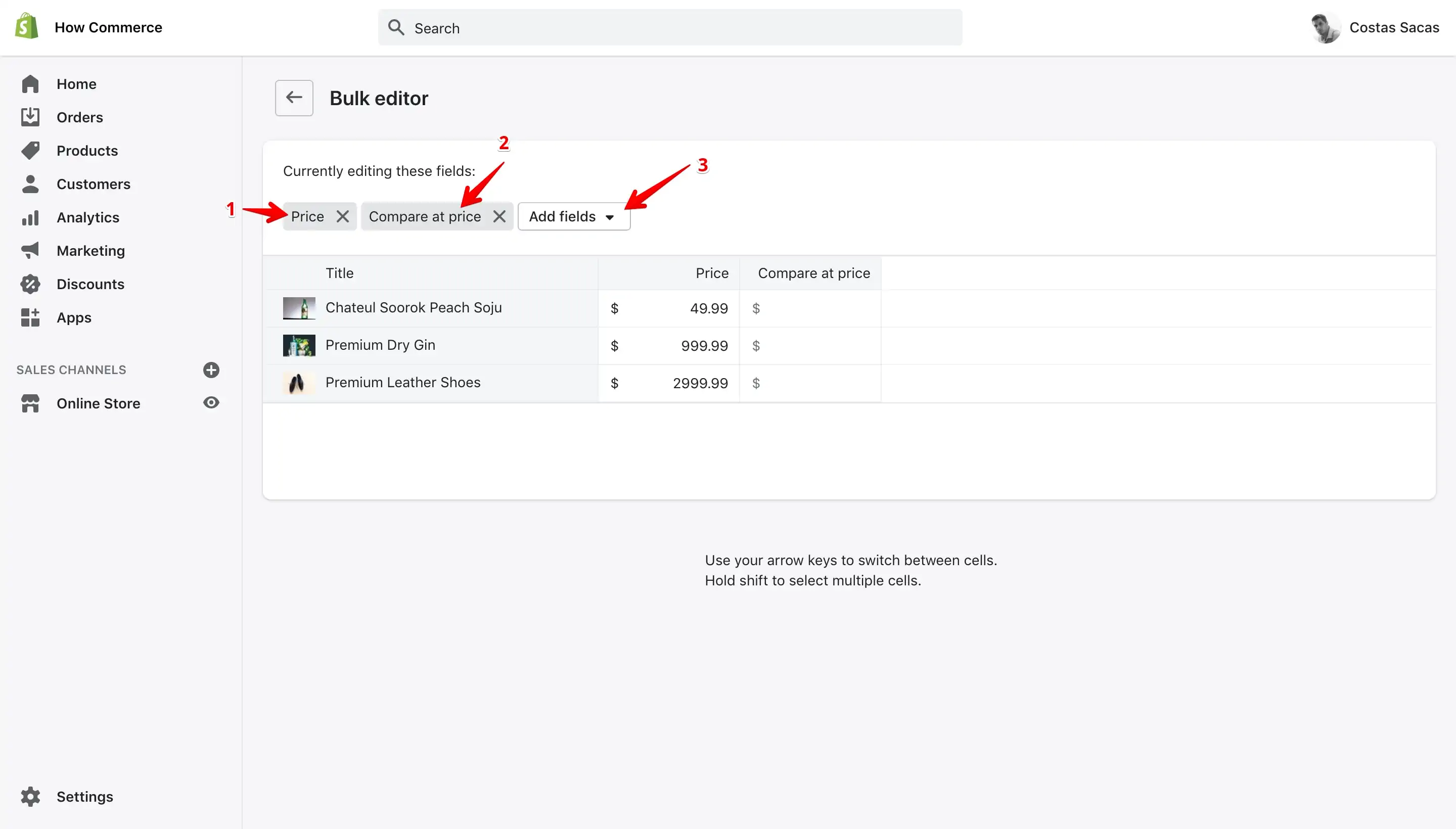
If you can’t see the 2 fields (“Price” and “Compare at price”) it means the fields need to be added to the “Bulk editor”. To add them click on the “Add fields” select box (marked with 3 in the image above).
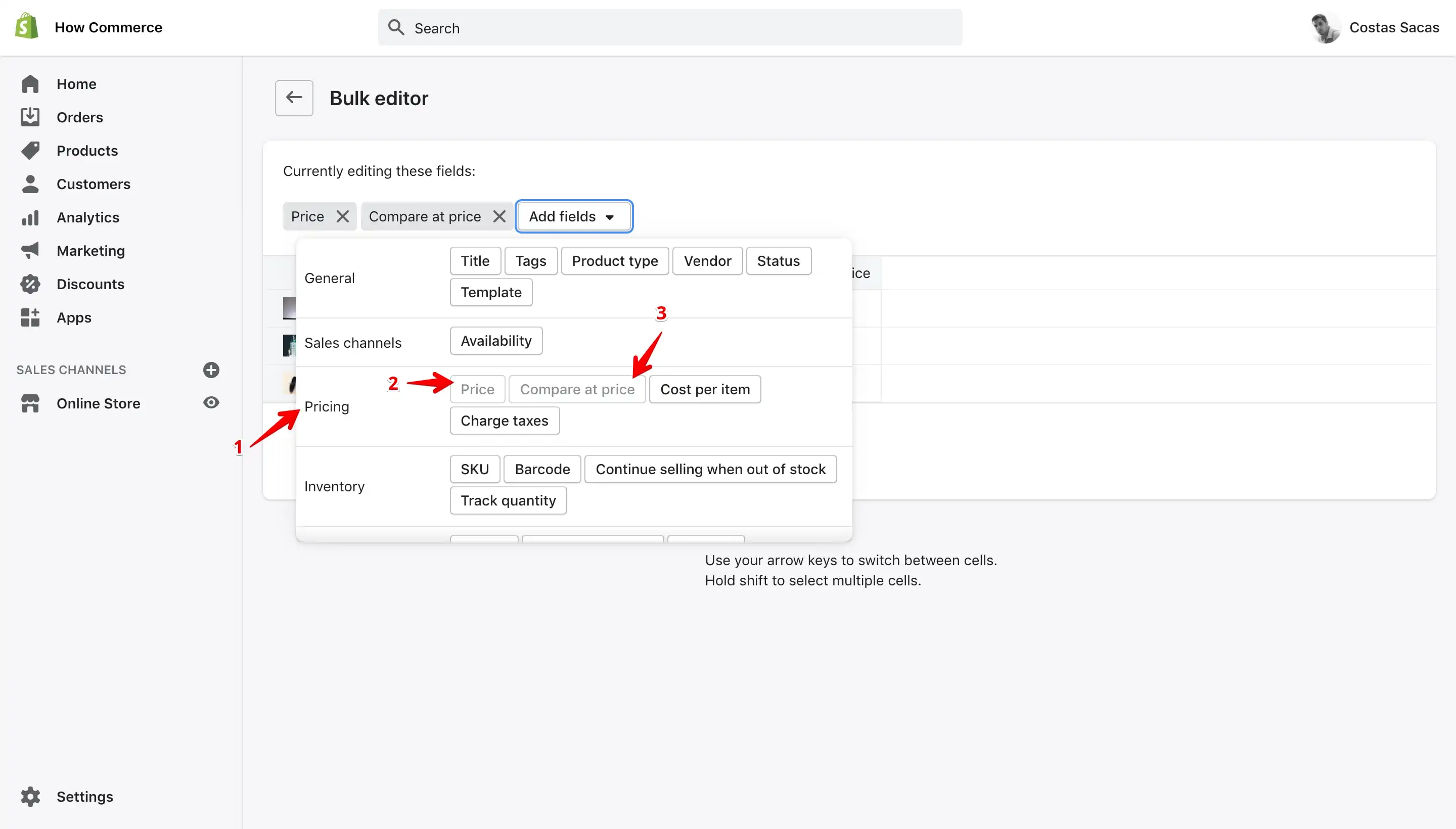
Scroll to the “Pricing” section (marked with 1 in the image below) in the drop-down list.
In my example the 2 fields (marked with 2 and 3 in the image below) are added and as you see in the image below they are disabled.
If you do not have them selected for you they will be in an active state.
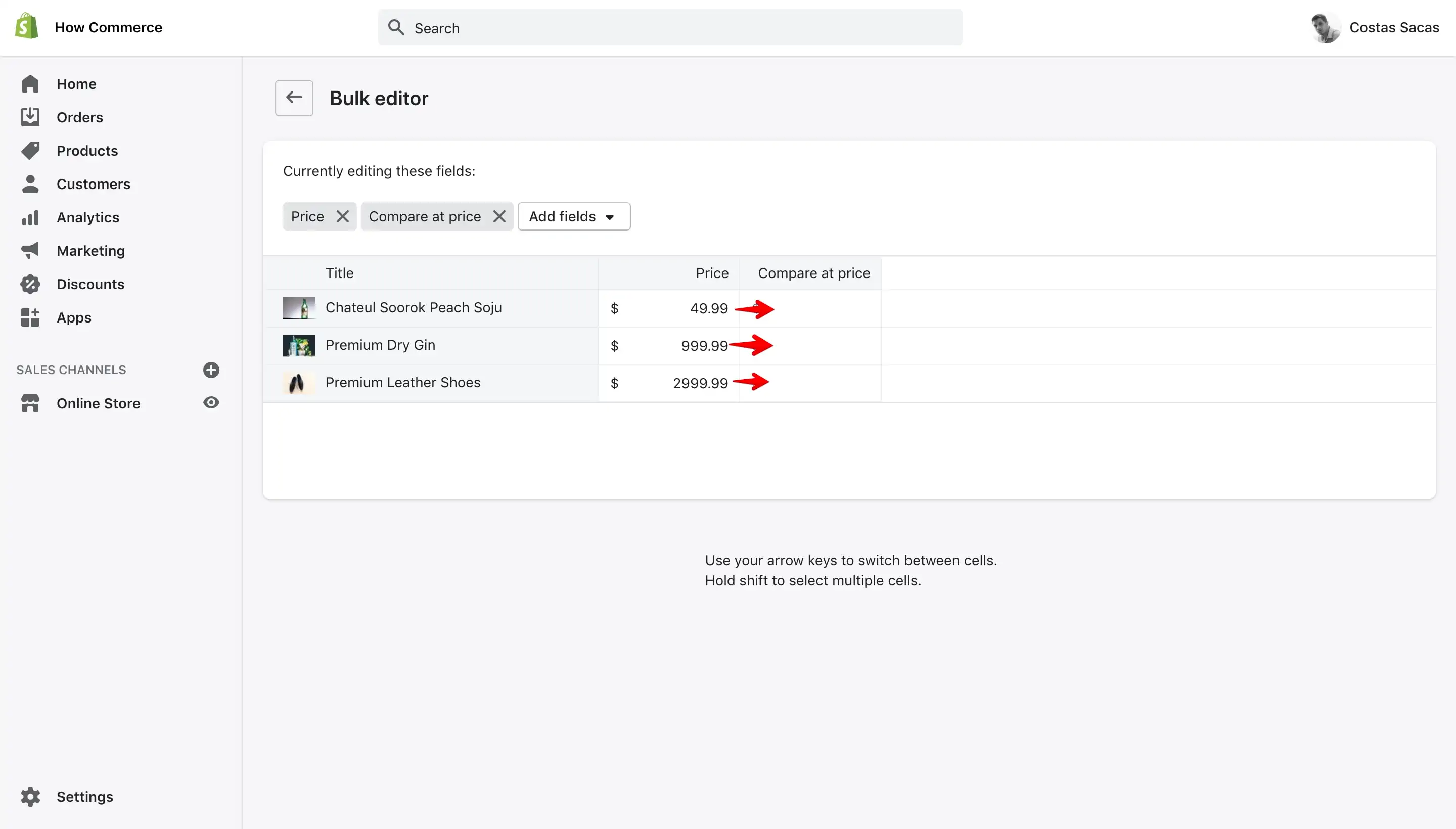
Now that the fields are active on the "Bulk editor" move the "day to day" price to the "Compare at price":
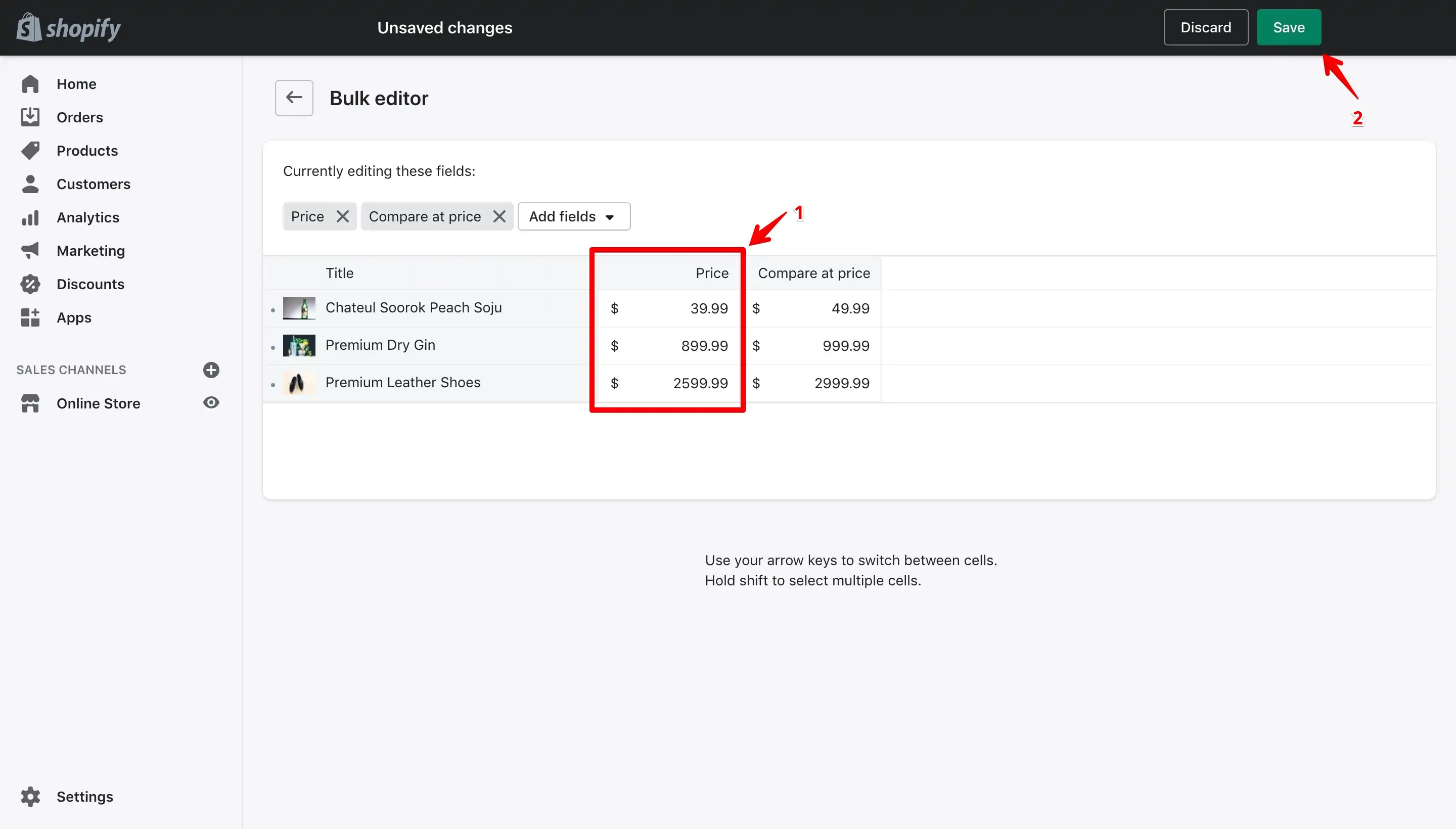
Add your new sale price for each product (marked with 1 in the image below) and click the "Save" button (marked with 2 in the image below) :
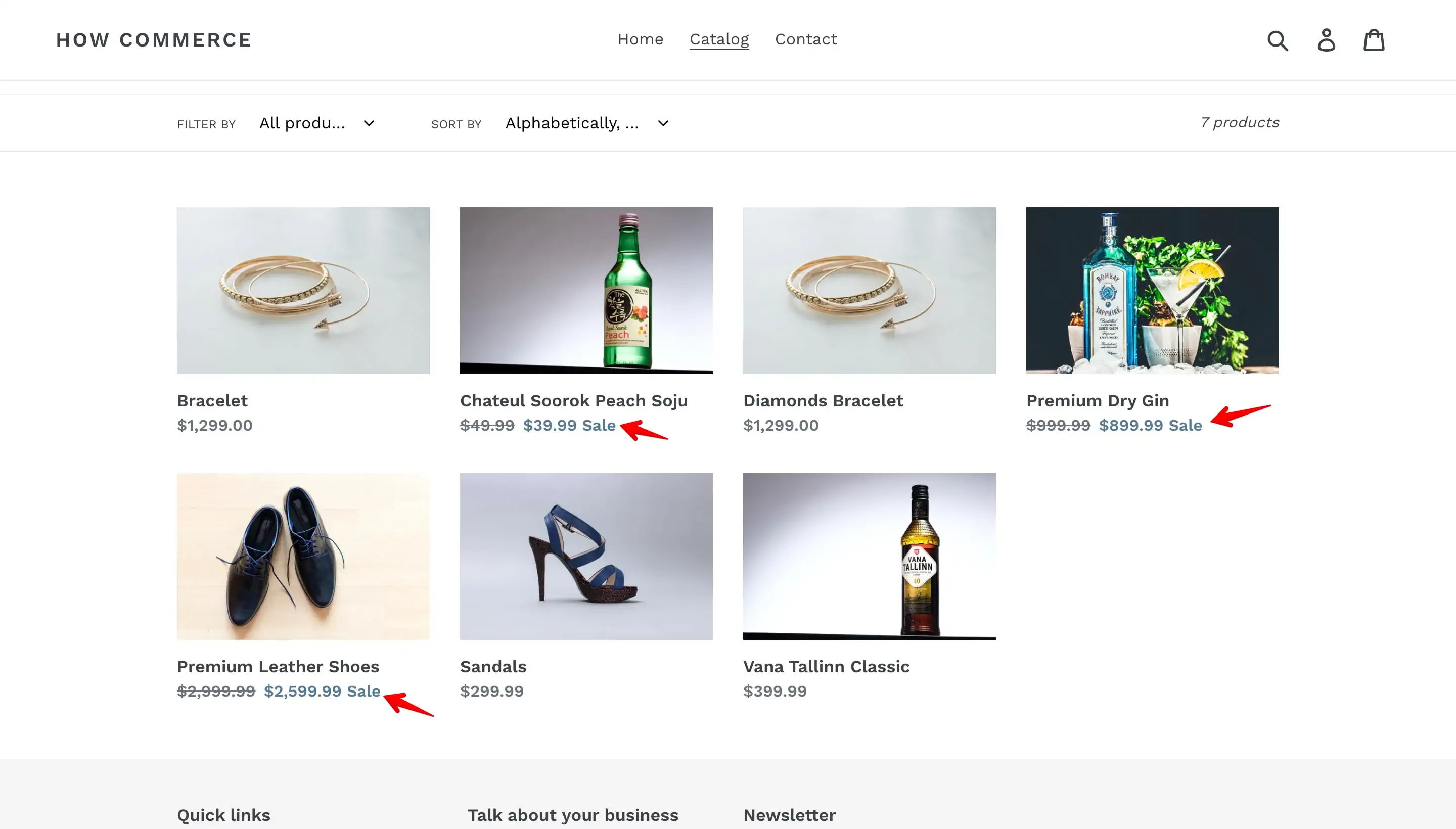
Your new sale prices should be visible all over the storefront. On the “Debut” theme on the storefront collection page the sale price it will display like this:
Product with multiple variants
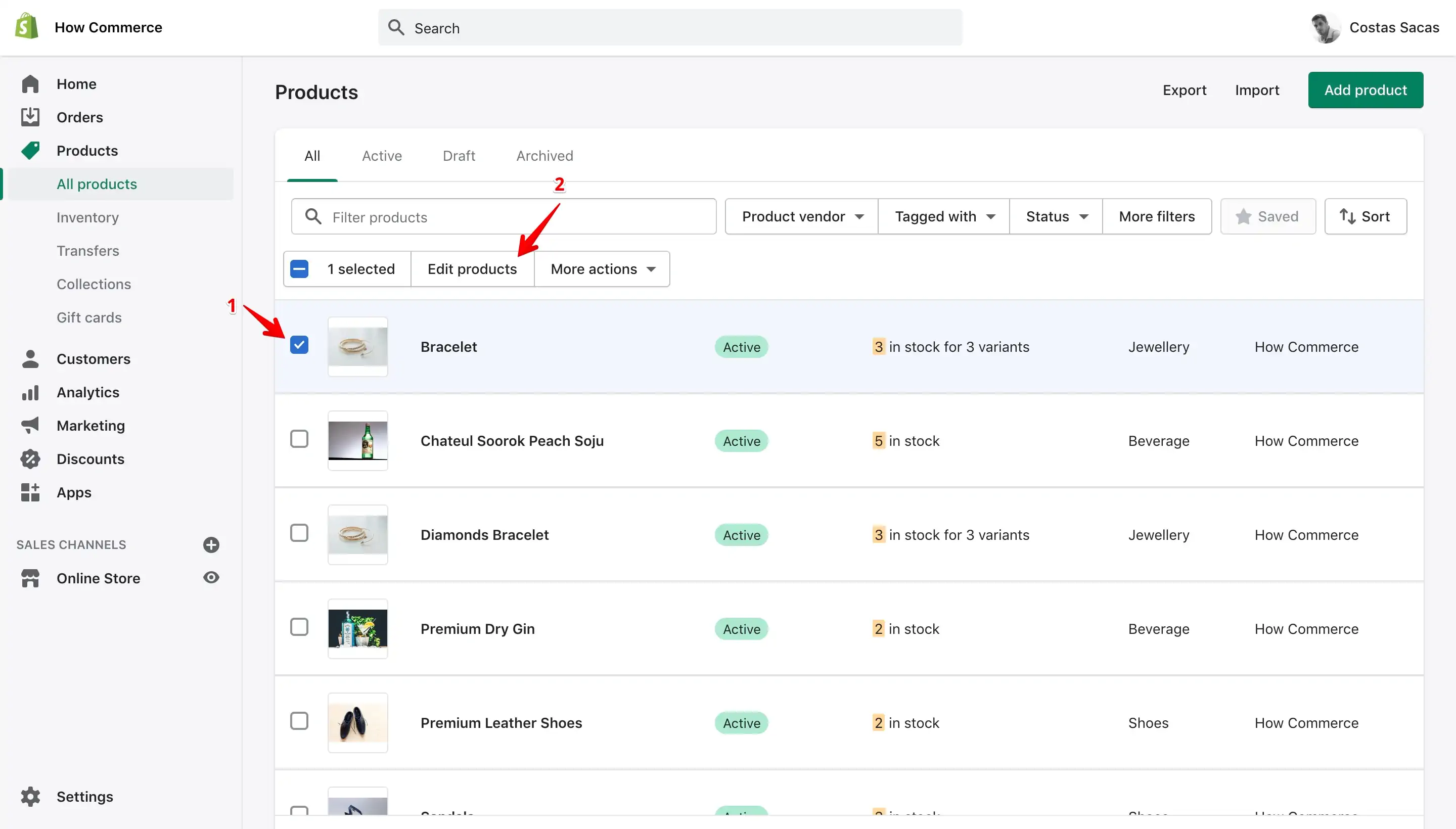
Go to the "Products" page (marked with 1 in the image below) in your admin dashboard and select a product or more with multiple variants (marked with 2 in the image below):
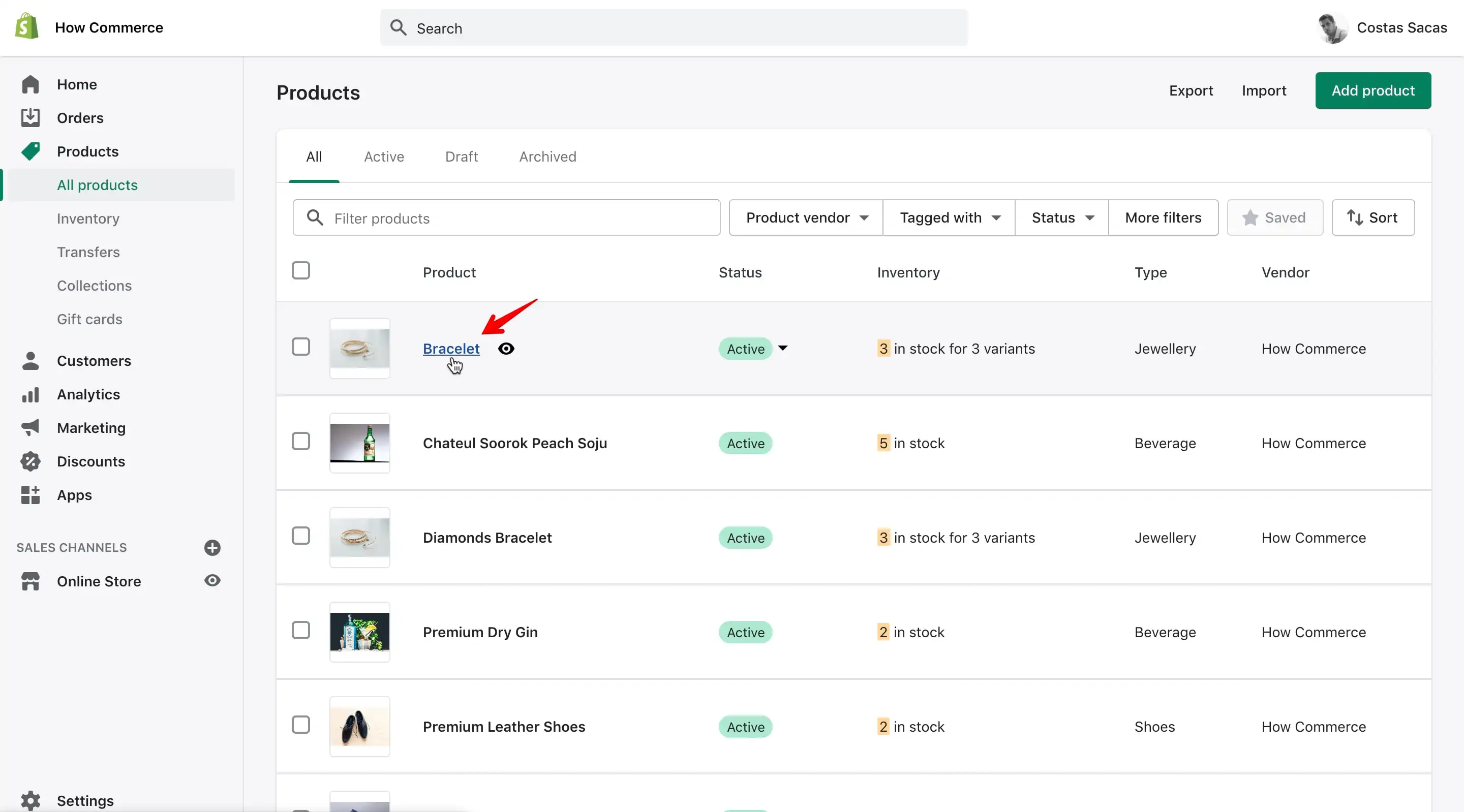
Or another way to reach the bulk editor for variant is by clicking on the product:
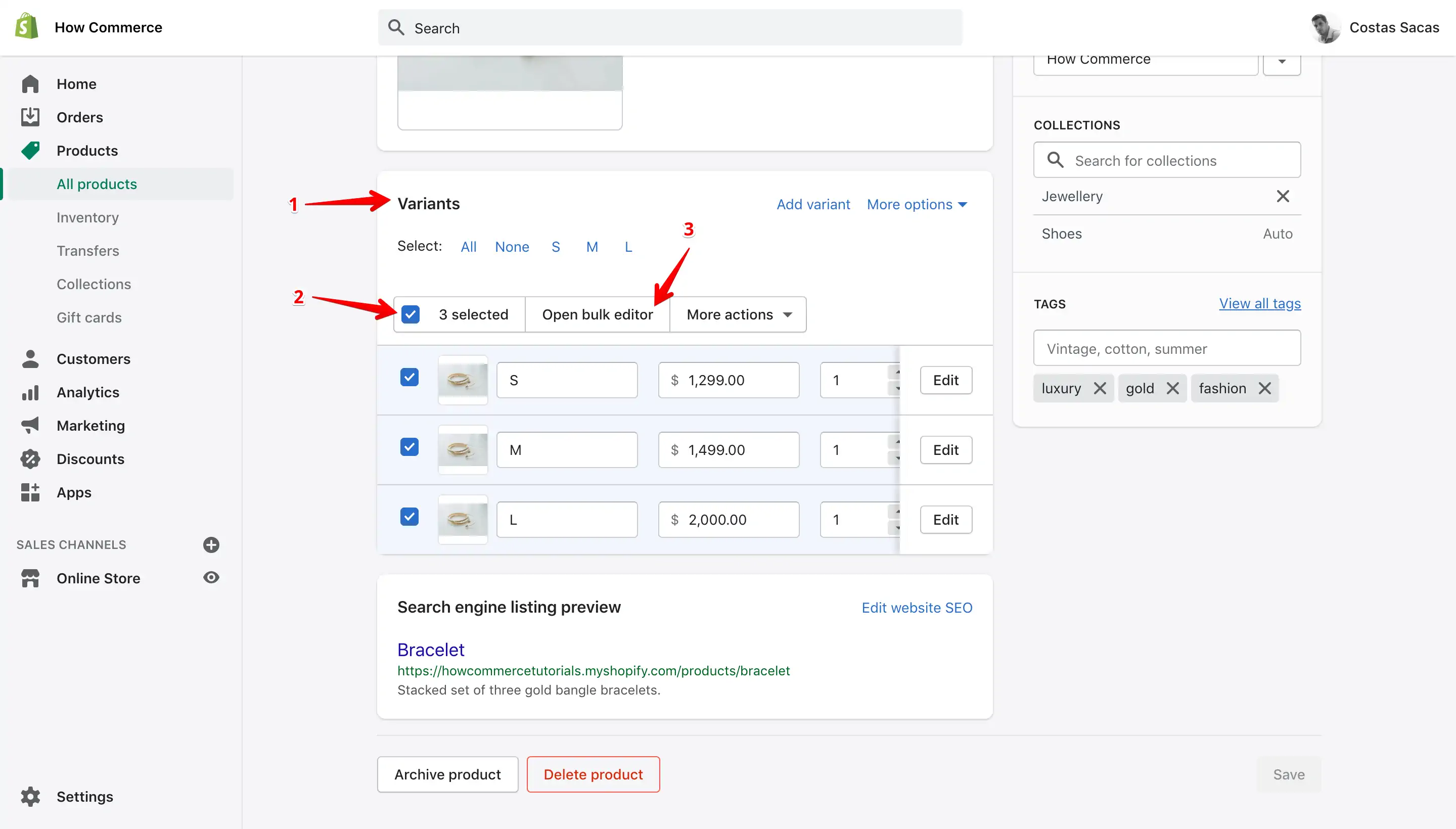
Scroll down until you see the "Variants" section (marked with 1 in the image below), after you select all variants (marked with 2 in the image below) or choose as many as you want to edit click on the "Open bulk editor" (marked with 3 in the image below):
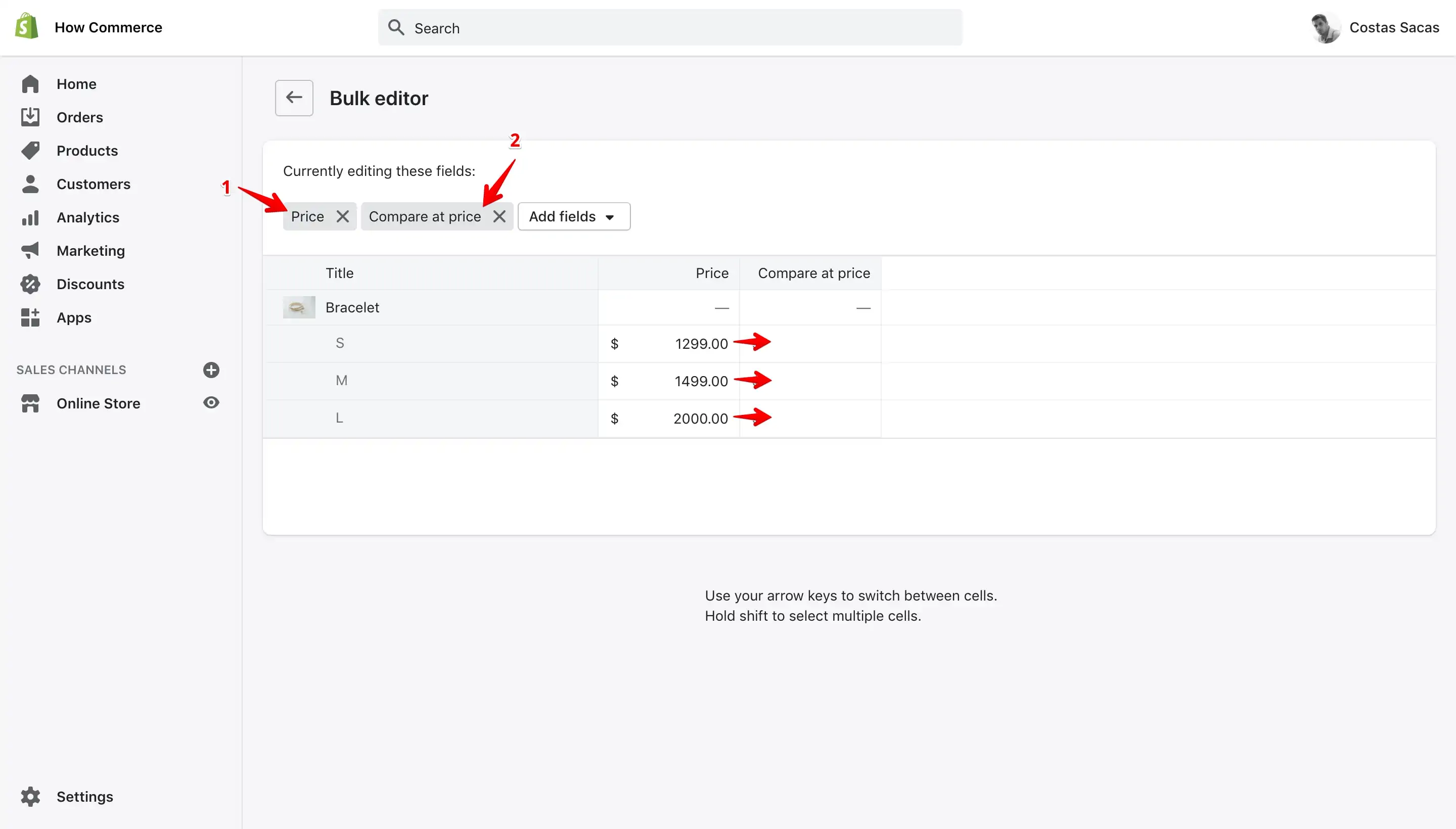
On the "Bulk editor" make sure that you have the fields needed for editing "Price" (marked with 1 in the image below) and "Compare at price" (marked with 2 in the image below).
If you do not have these 2 fields please go above to the previous chapter in this tutorial and follow the instructions on how to add them.
Move the “day to day” price from the “Price” column to the “Compare at price”:
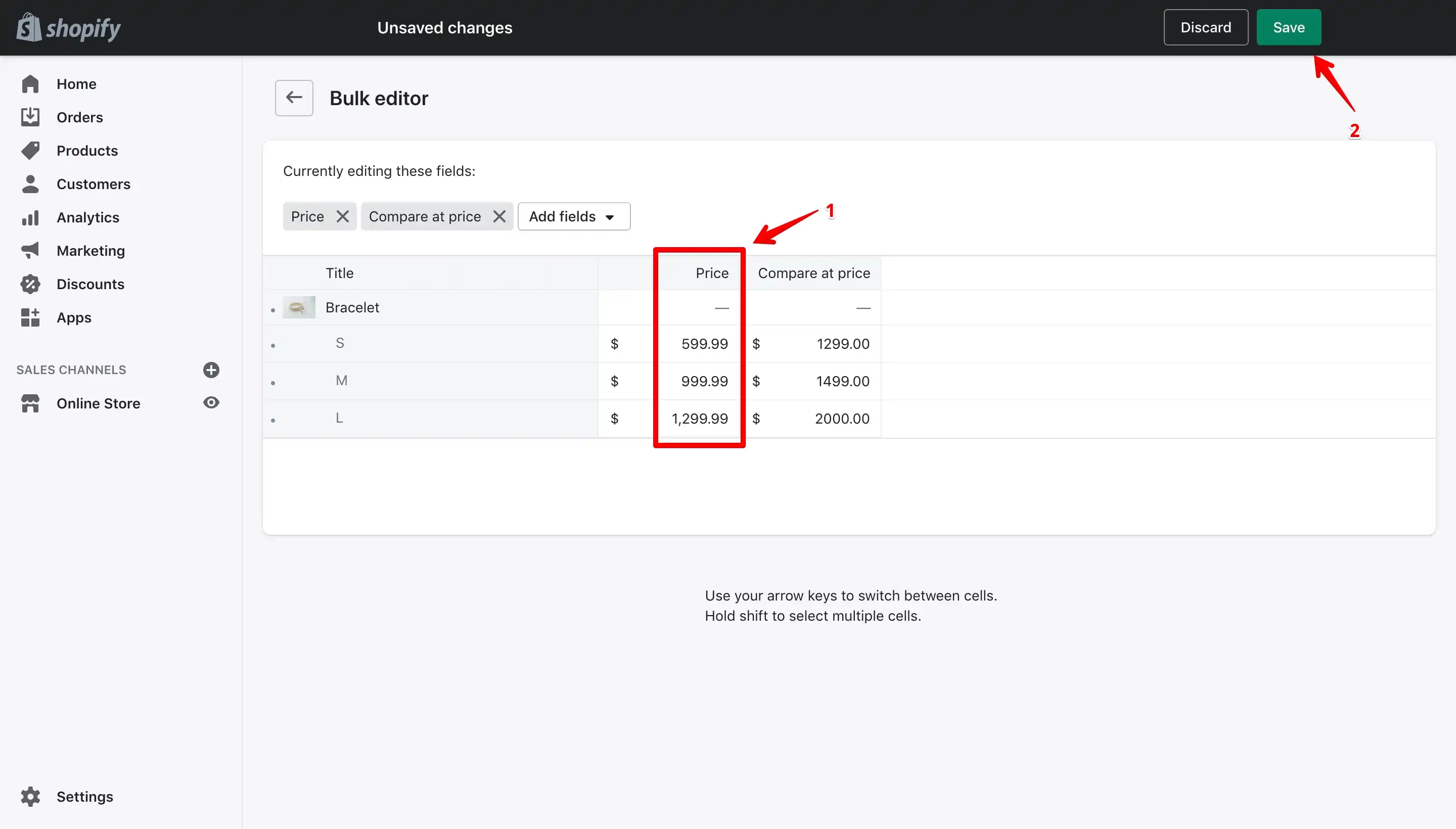
Add your new sale price for each product (marked with 1 in the image below) and click the "Save" button (marked with 2 in the image below) :
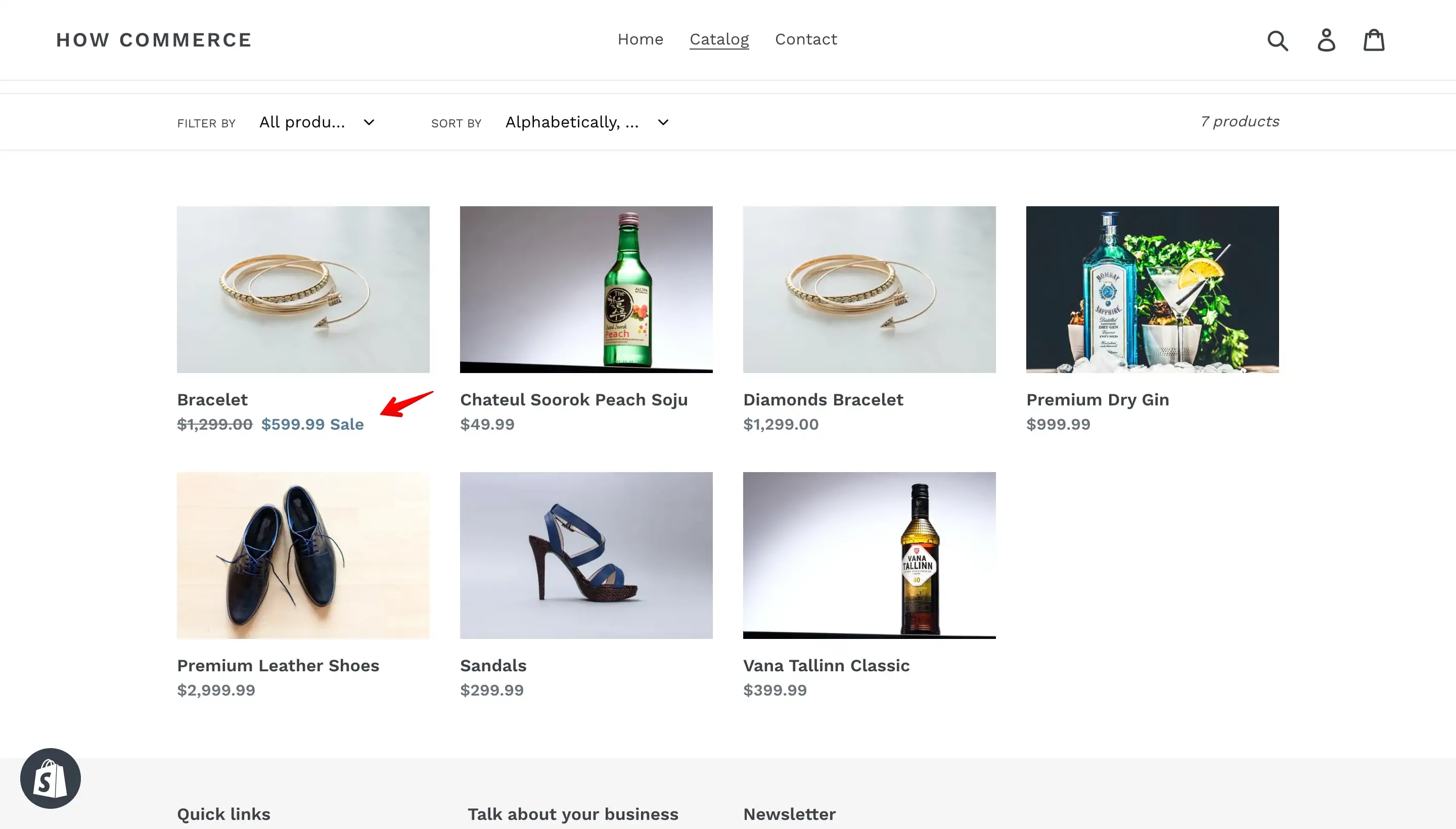
As expected in the Debut theme, Shopify will display the smallest sale price:
Conclusion
Knowing how to make use of and add a sale price to an online store is a must for any merchant.
Many times you need this feature when you need to make a promotion and especially on days like "Black Friday" or "Cyber Monday".
I do hope this article will make it easier for you to implement your sale prices on your store.