

Shopify sections are the building blocks of your online store’s theme.
By default, the name you see for a section is the generic name defined by the developer in the section’s JSON schema.
In the past, sections could not be renamed - a major problem for complex stores, especially those on Shopify Plus.
Renaming sections makes the theme editor far more organized, particularly when you’re working with multiple layouts and campaigns.
If every section had the same generic name, finding the right one would be a frustrating process.
This used to be the case, but with Shopify’s recent improvements, renaming sections is now possible.
Step 1: Open the theme editor
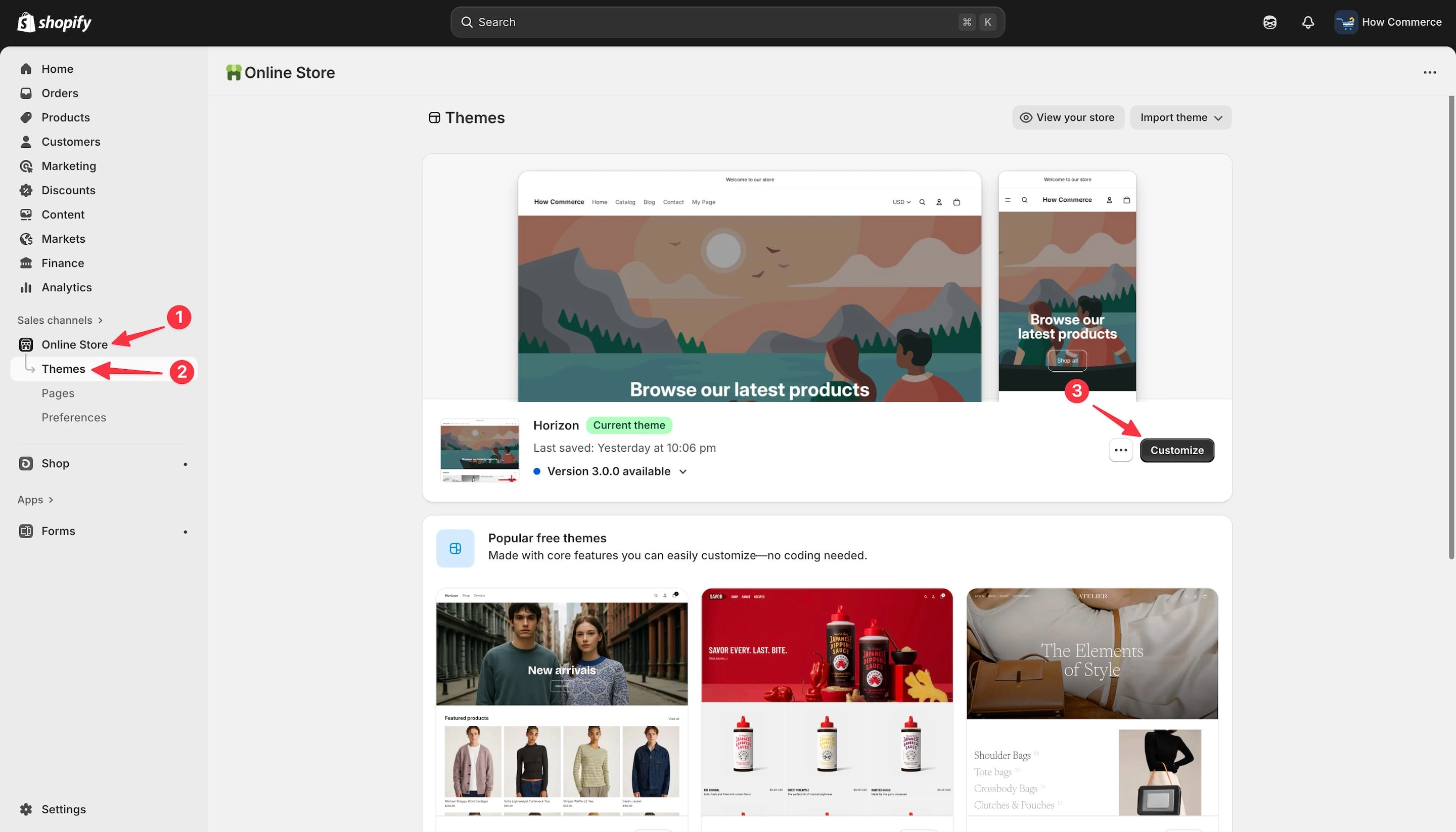
From your Shopify Admin, go to Online Store (1) → Themes (2) → Customize (3). See the image below.
Step 2: Select the Section
Navigate to the page (template) that contains the section you want to rename.
In the left-hand sidebar, locate the section you want to rename.
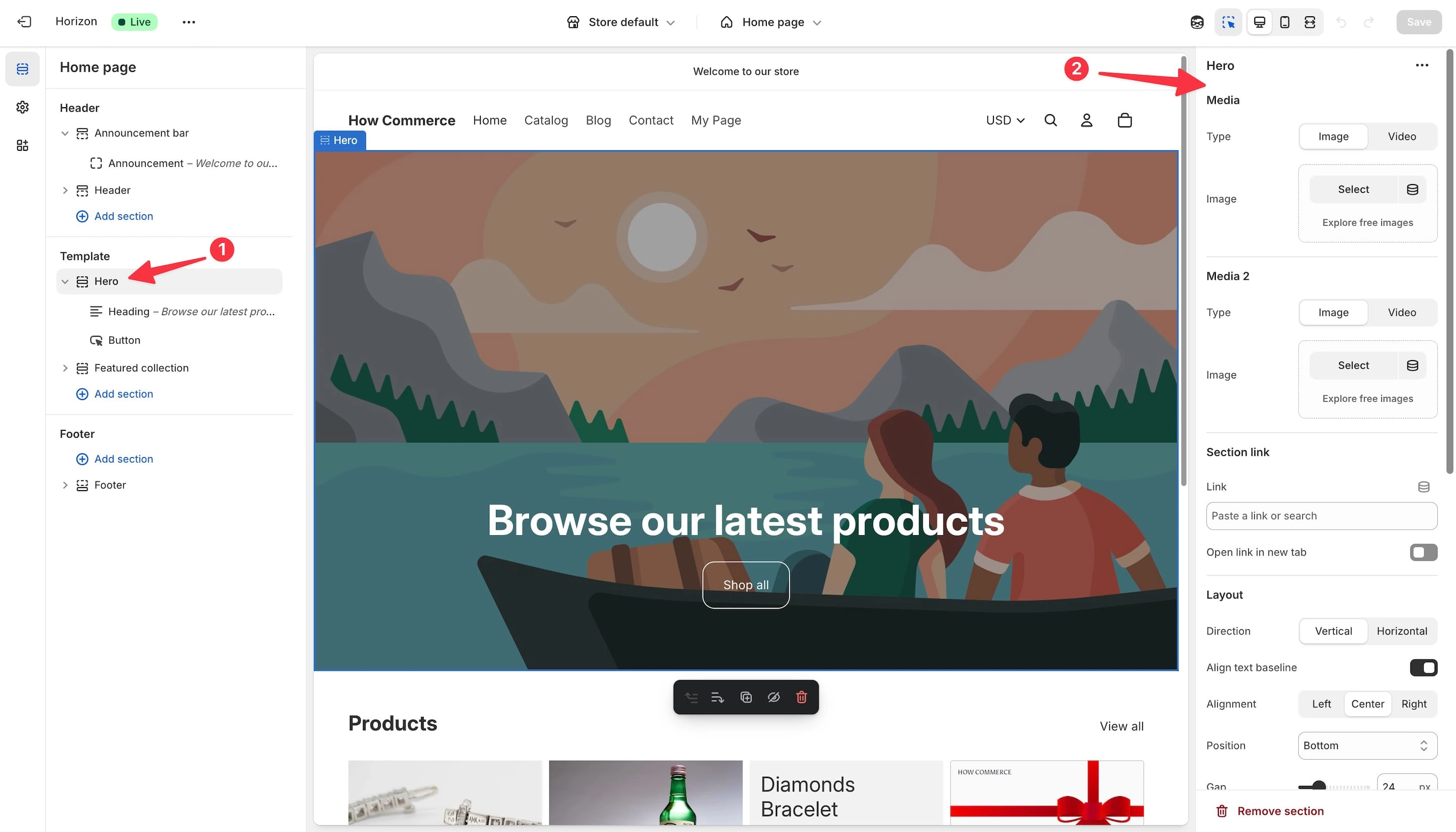
For this example, I’ll select the “Hero” section (marked with 1 in the image below).
Click the section to expand its settings.
When you select it, a second sidebar will appear on the right with all available settings for this section (marked with 2 in the image below).
Step 3: Rename the section
This is the easiest method.
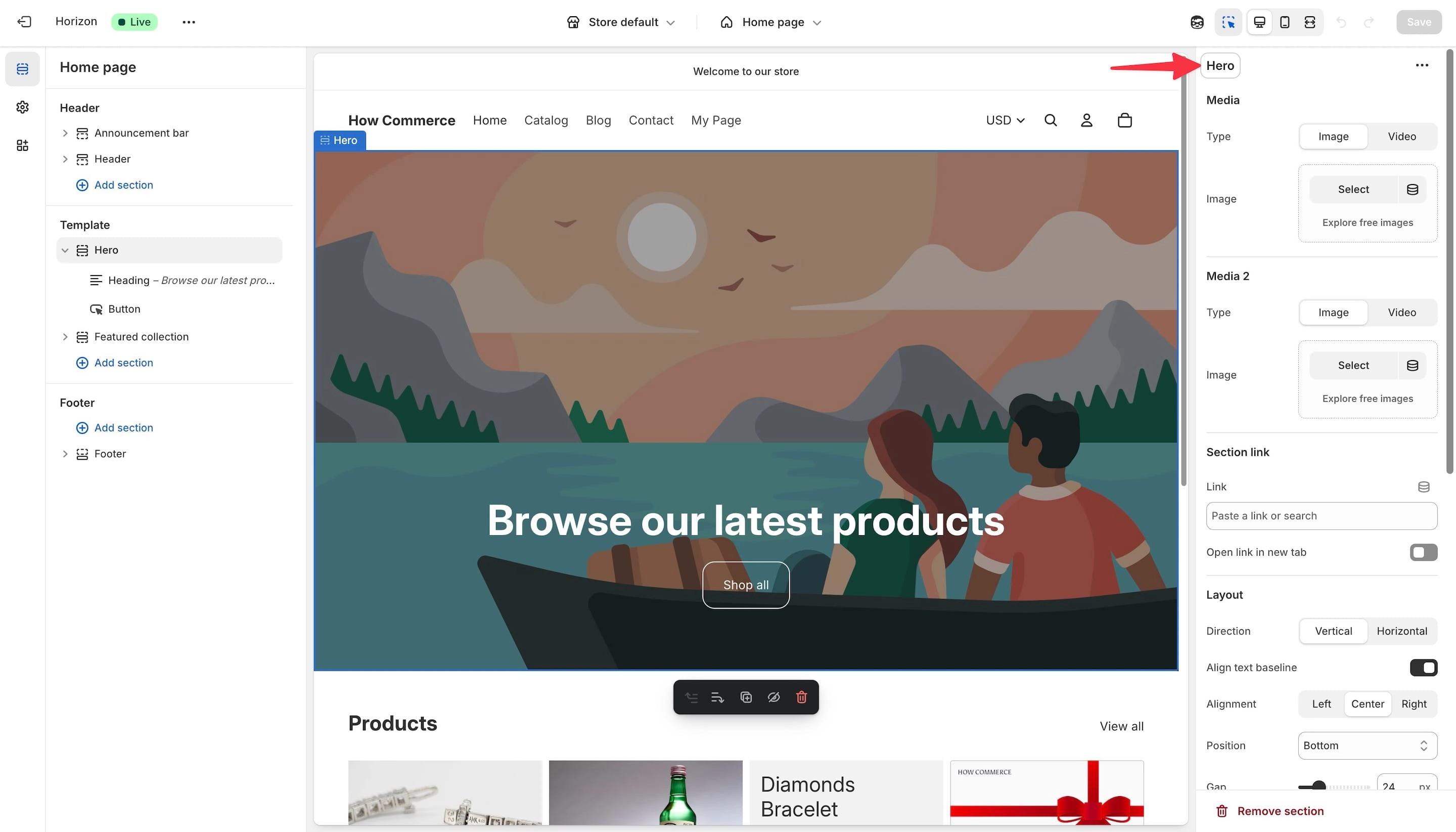
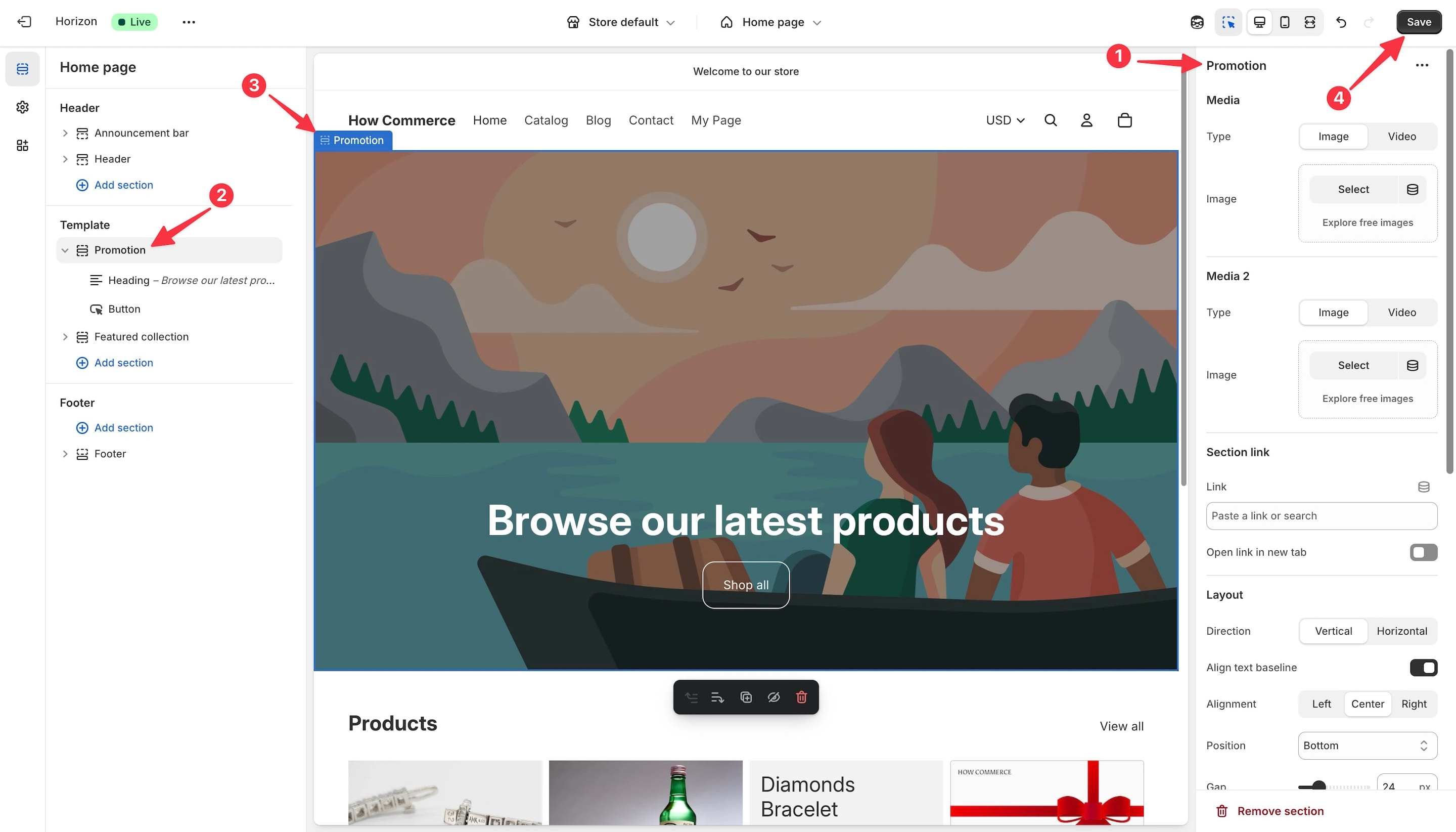
In the section settings, click on the section title, in my example, it’s “Hero.”
An input box will appear, allowing you to change the section name.
Type your new name.
In this example, I’ll change the section name from “Hero” to “Promotion” (marked with 1 in the image below).
After typing the new name, click outside the input box to save it.
You’ll then see the updated name appear in the left sidebar (marked with 2 in the image below) as well as in the live editor (marked with 3 in the image below).
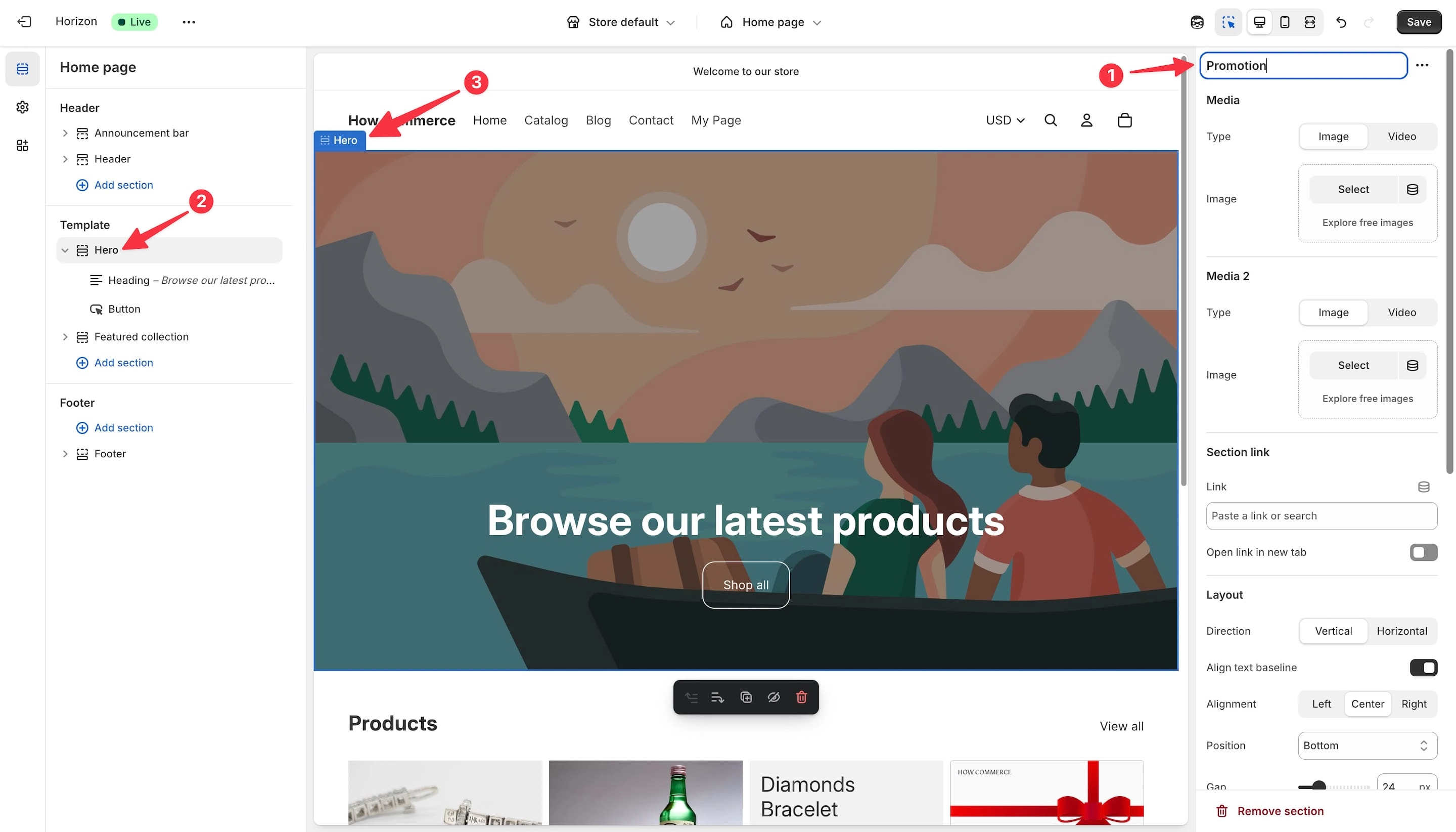
You can clearly see in the image below that the section name has changed to “Promotion.”
This change is only temporary. To save it permanently, click the “Save” button (marked with 4 in the image below).
There are two additional ways you can rename sections.
Menu Rename
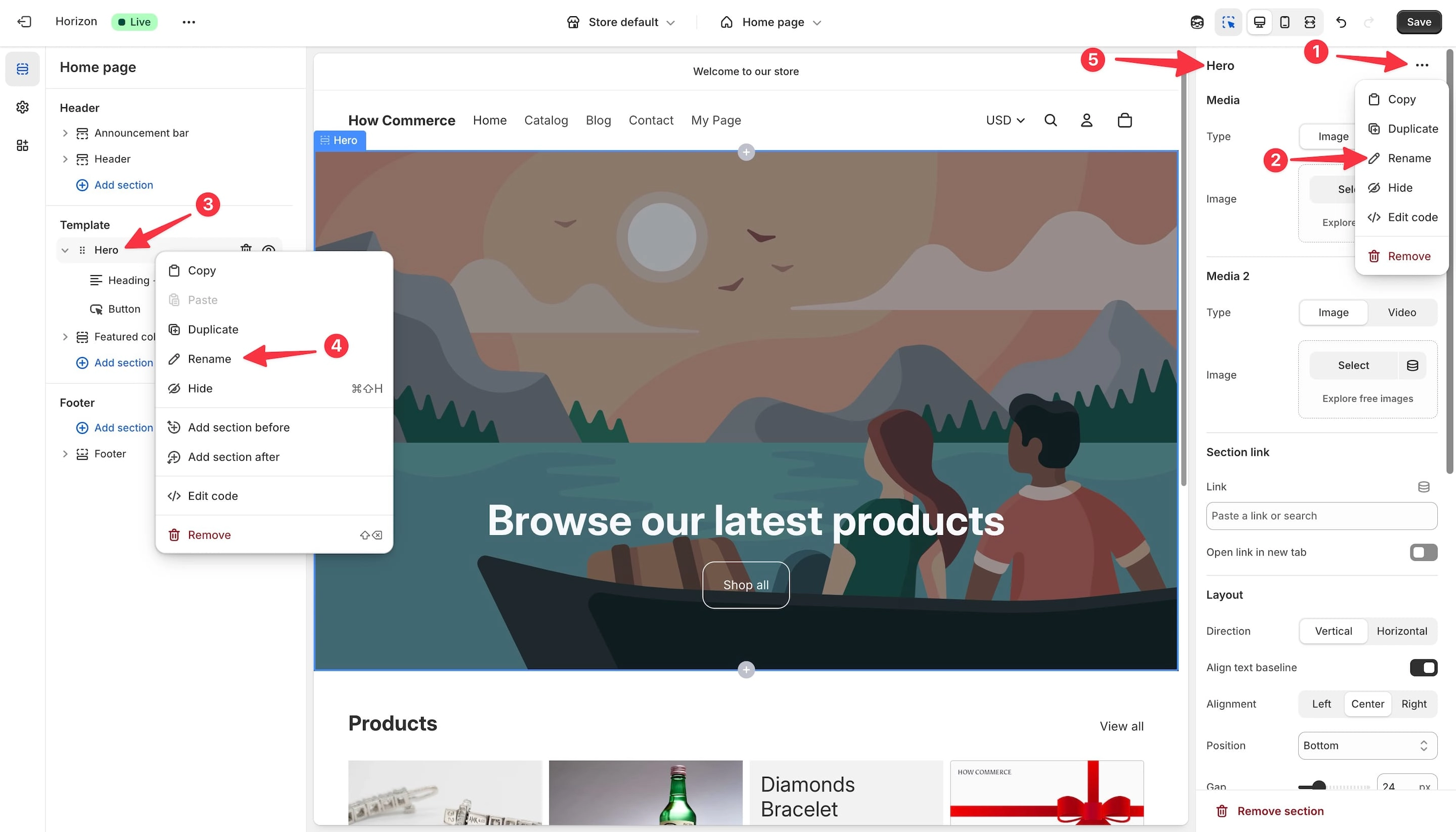
Click the ⋯ menu (marked with 1 in the image below) next to the section name.
Select “Rename” (marked with 2 in the image below) from the drop-down menu.
Enter your custom name (marked with 5 in the image below).
Inline rename
Click directly on the section name in the sidebar (marked with 3 in the image below).
Select “Rename” (marked with 4 in the image below) from the drop-down menu.
Type your new custom name (marked with 5 in the image below).
Important Notes
Names can’t be blank - Shopify requires a value.
Renaming affects only the name displayed in the theme editor. It does not change the section’s internal code or schema identifier.
Some third-party or heavily customized themes may behave differently. If this is the case, get in touch with the theme developer, share this tutorial with him and ask why the sections don't behave properly.
Best Practices
Keep names short but descriptive.
Use a consistent naming convention (e.g. “Homepage Hero – [Campaign]”).
Rename sections during setup so the editor stays clean as the store grows.
Conclusion
Renaming sections is a quick way to keep your Shopify theme editor tidy and efficient.
It doesn’t affect your live storefront or code but makes managing your store easier, especially for large catalogs and seasonal campaigns.
Give it a try next time you’re customizing your Shopify theme!