

When creating a Shopify store, there might be instances where you need to share information in a downloadable or viewable format, like a PDF.
Instead of forcing your customers to download it, you can embed the PDF directly within a page, allowing them to view it instantly.
This guide will walk you through how to embed a PDF in a Shopify page using HTML and an <iframe> tag.
Why embed a PDF?
Embedding PDFs can be beneficial for showing detailed guides, instructions, catalogs, or product specifications.
It keeps visitors on your site longer and improves their experience by minimizing extra steps.
Let’s get started with a simple and effective way to add a PDF to your Shopify page.
First you need to go to Shopify Admin in order to log into your Shopify admin area.
If you do not know how please follow this tutorial: How to login into your Shopify store?
1. Upload PDF file to Shopify
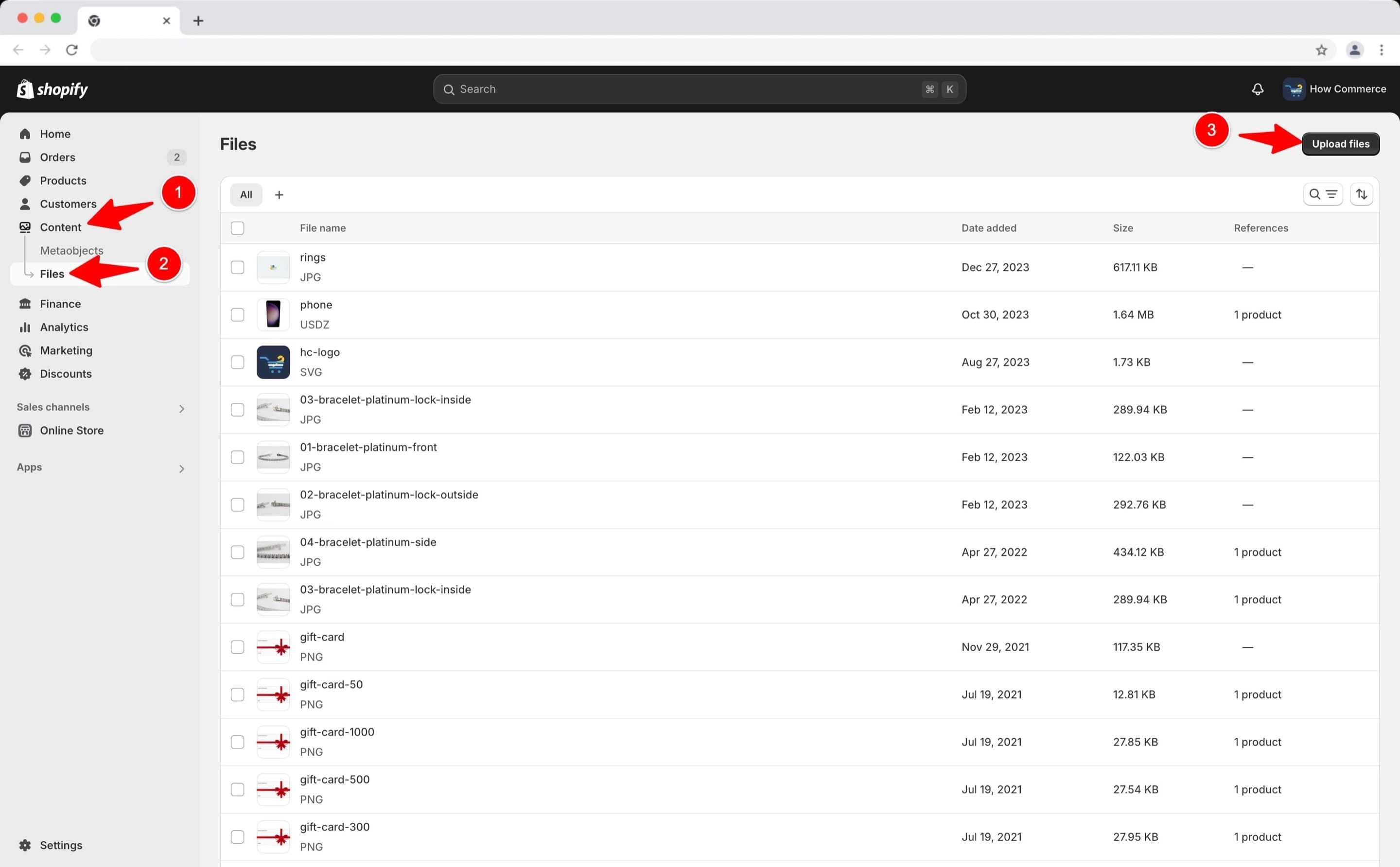
To access the files section go to "Content" (marked with 1 in the image below) and then to "Files" (marked with 2 in the image below).
To upload the PDF file click on the "Upload files" button (marked with 3 in the image below).
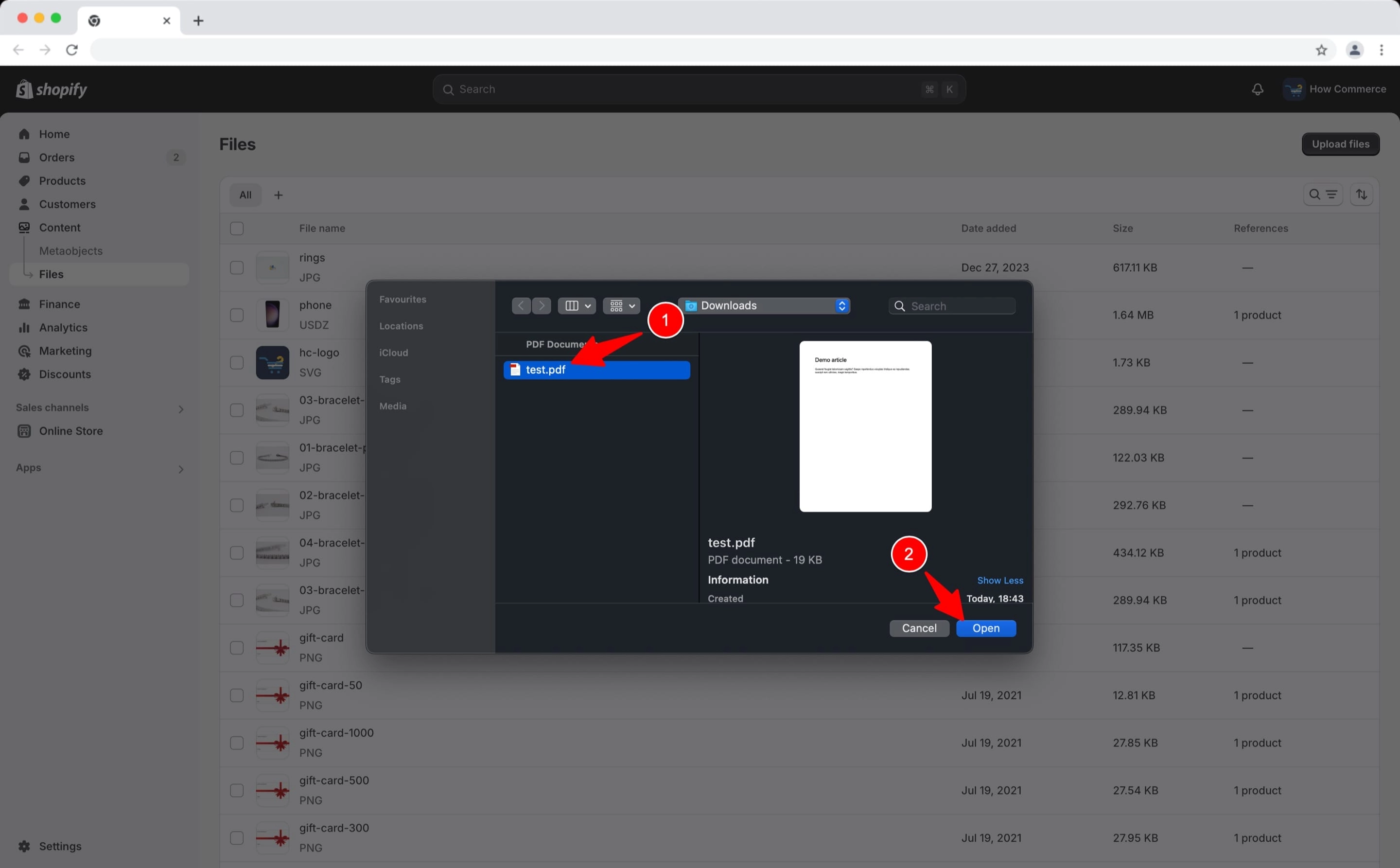
Select the file (marked with 1 in the image below) and click on "Open" (marked with 2 in the image below) to upload it to Shopify.
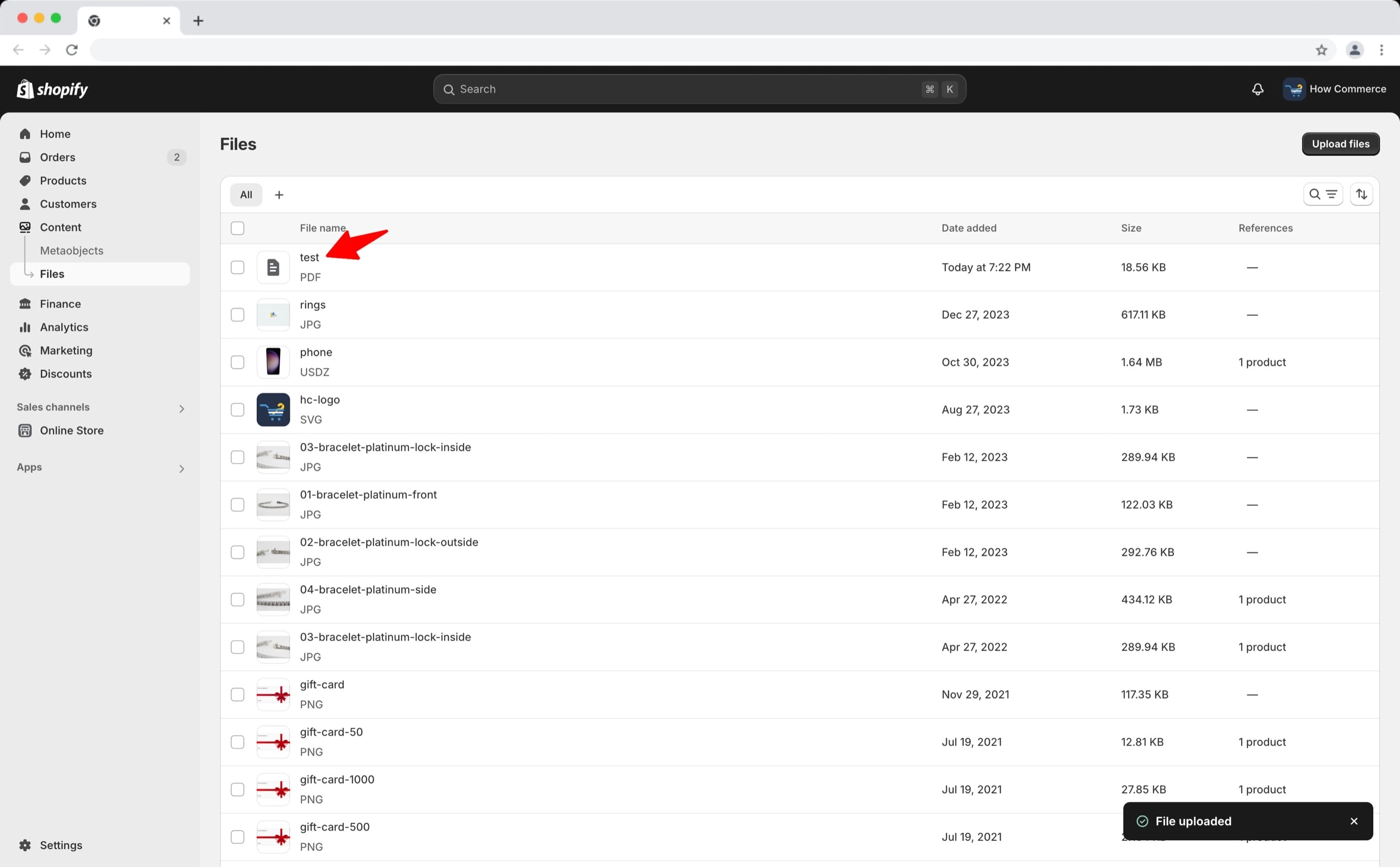
Once the upload is complete you can see the PDF file uploaded under the Shopify files section:
2. Get the PDF URL
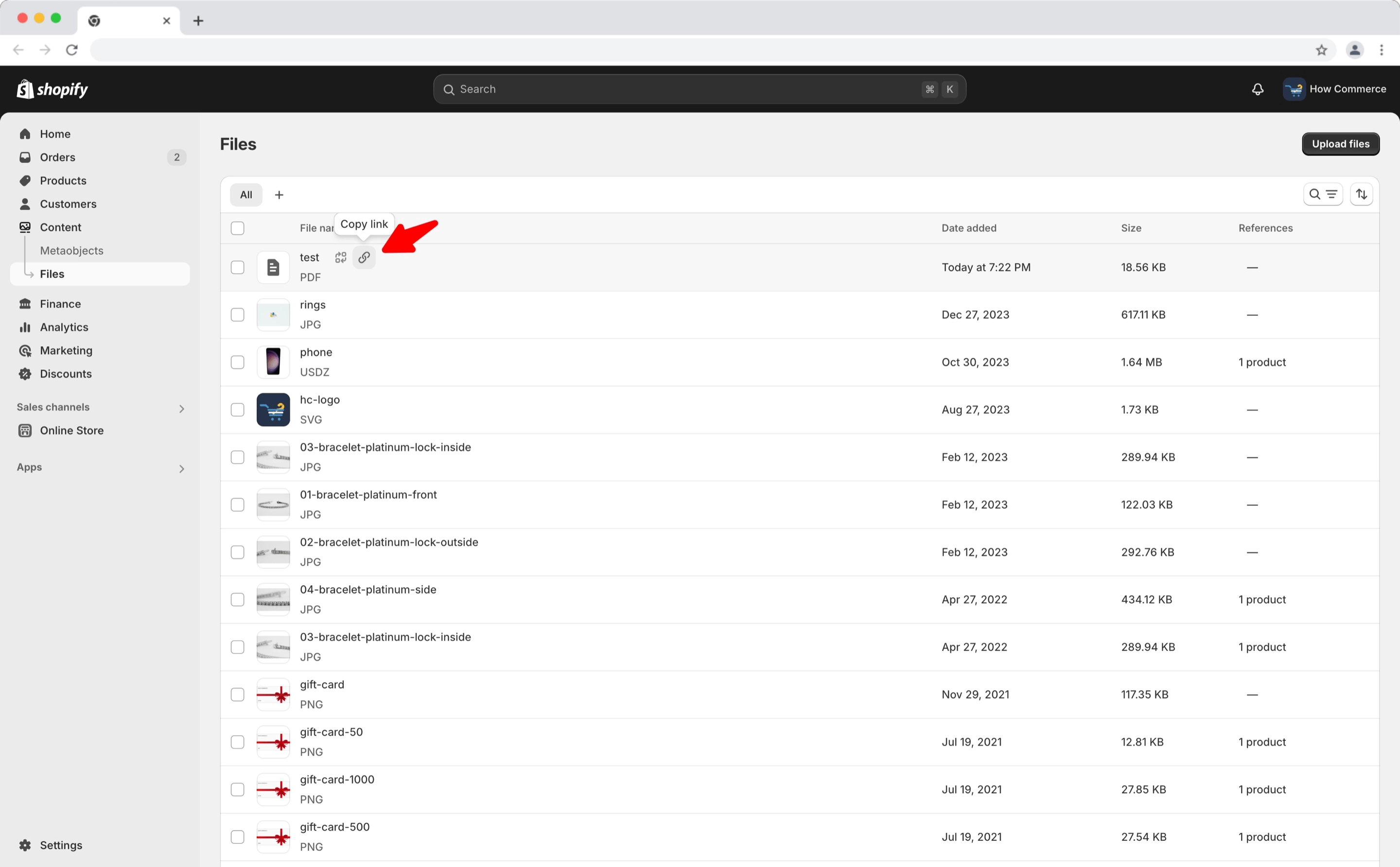
Now you need to copy the file URL since it’s needed for embedding the file in a Shopify page, blog post, product etc.
Hover over the file row and you'll see the "Copy link" icon. Click on the icon and the link will be copied.
3. Select the page
Go to "Online store" (marked with 1 in the image below) and to the "Pages" (marked with 2 in the image below).
Select a page (marked with 3 in the image below) or create a new one (marked with 4 in the image below).
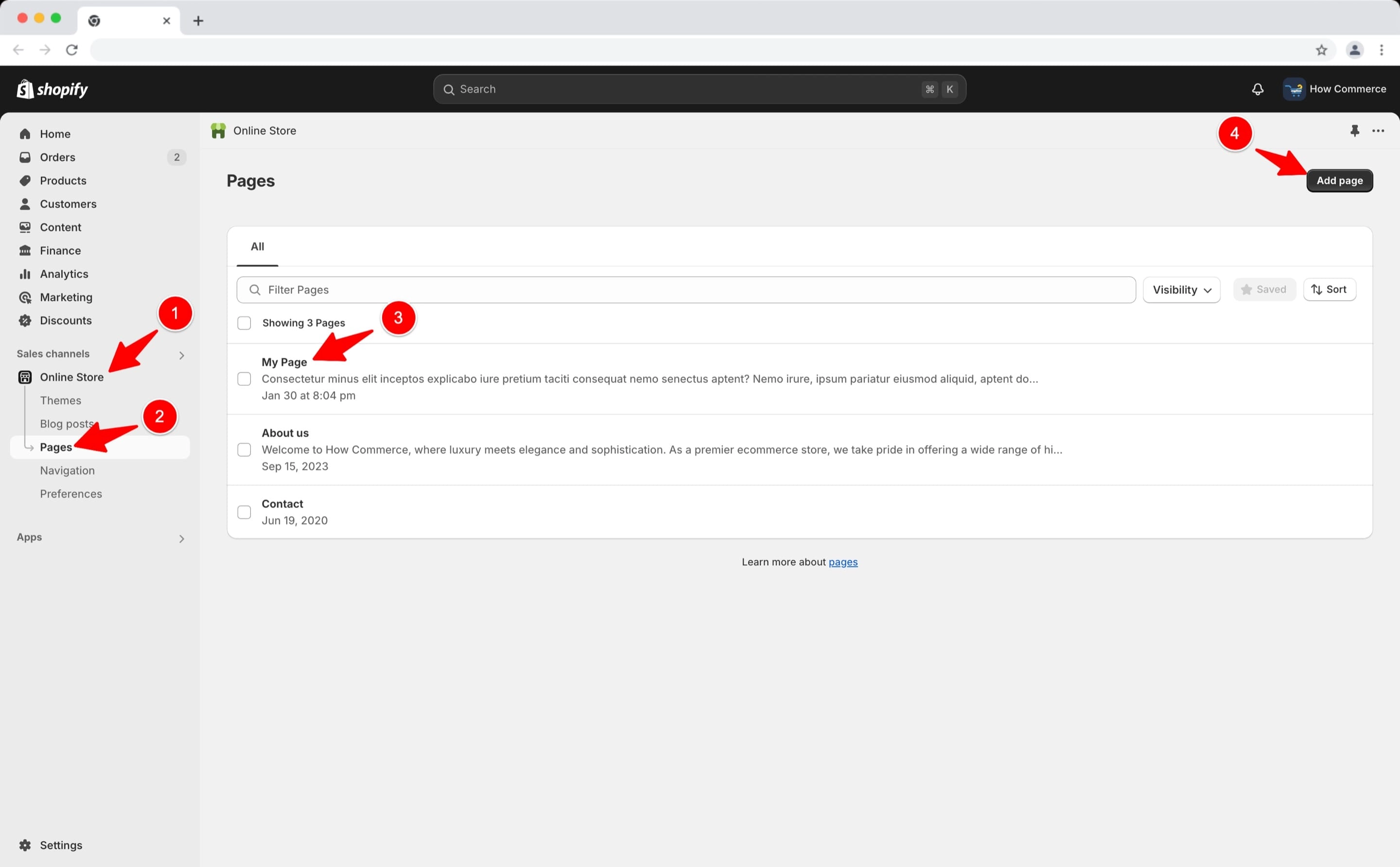
You can add the PDF file in the same way on a product description, on a blog post or wherever a code editor is supported.
4. Add the code
On the text editor click on the code editor button (marked with 1 in the image below) to see the code view editor.
Inside the code editor paste the code below:
<div class="pdf-embed-container">
 <iframe src="YOUR_PDF_URL_HERE" style="width:100%; height:600px;" frameborder="0">
 </iframe>
</div>
Inside the code replace the "YOUR_PDF_URL_HERE" with the link that you copied in the step above from the files uploaded in the files section.
You may want to customize the width and height values in the style attribute to better fit your design.
The default is set to width:100% and height:600px, but you can modify these based on your layout needs.
Save your new settings by clicking on the "Save" button (marked with 3 in the image below).
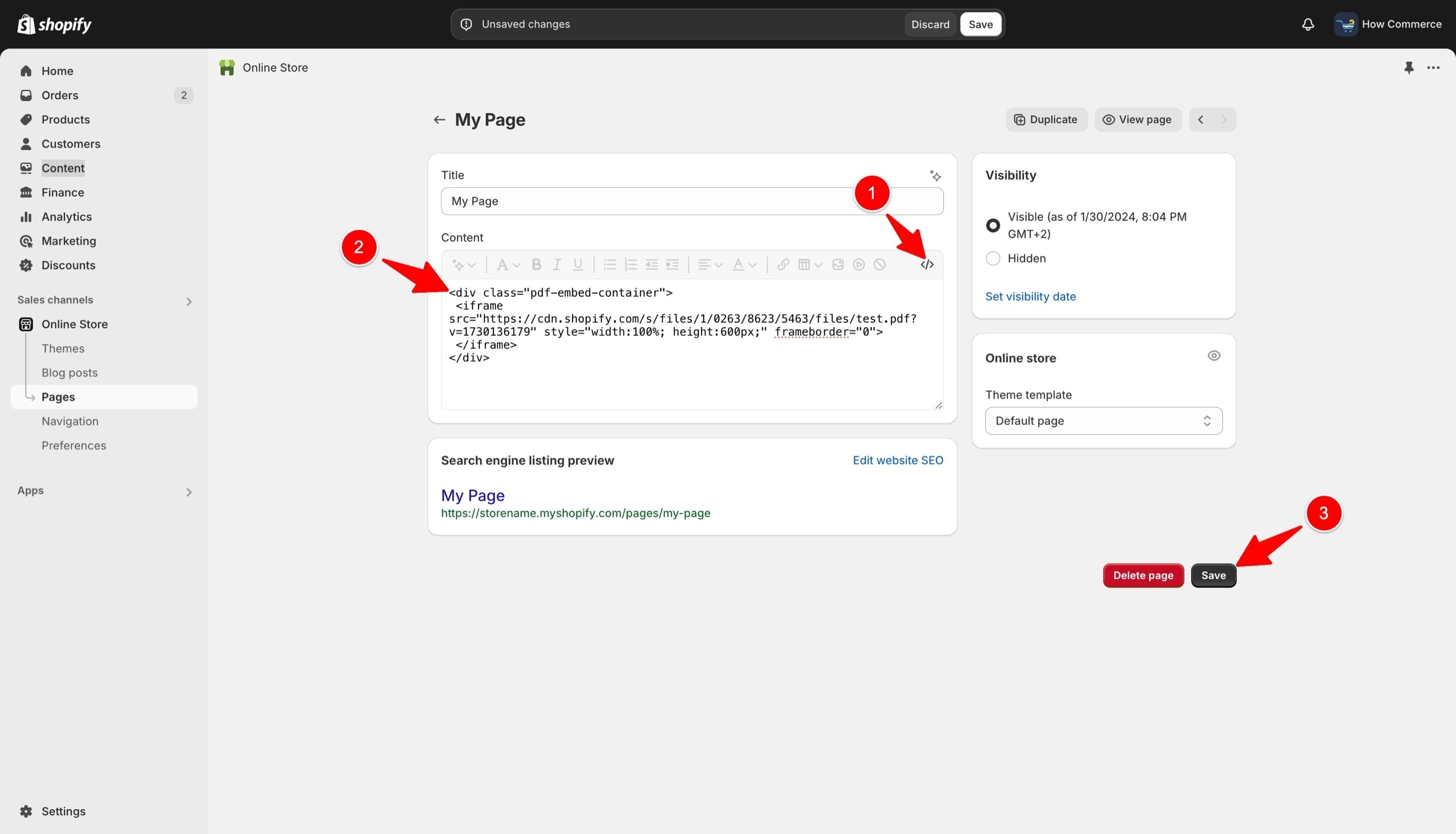
After you save the page if the code implementation is correct you'll see the PDF file in a PDF window with all the settings needed for a PDF (marked with 1 in the image below).
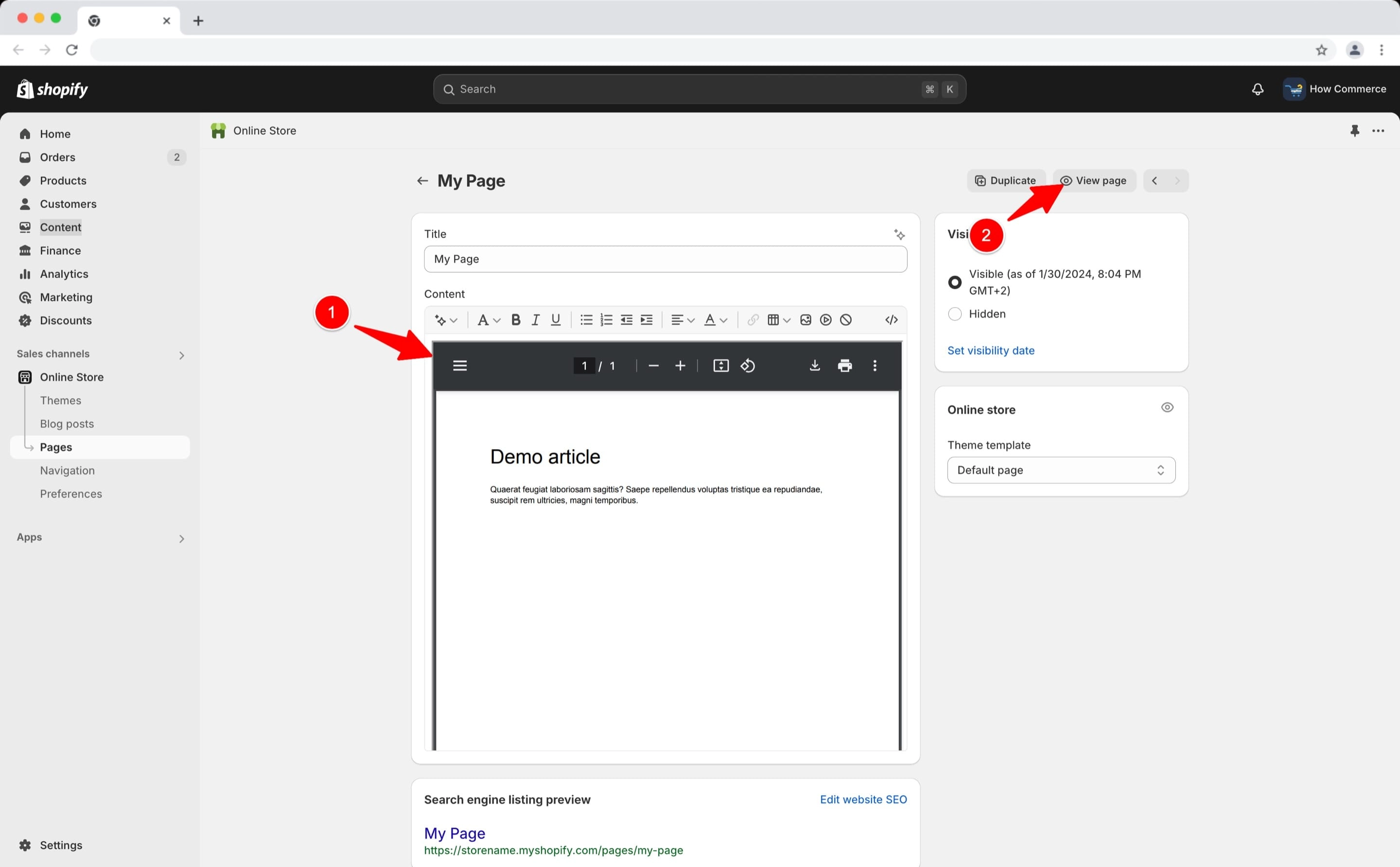
Click on the "View page" (marked with 2 in the image above) and go to your store front and check the PDF file embedded inside the page:
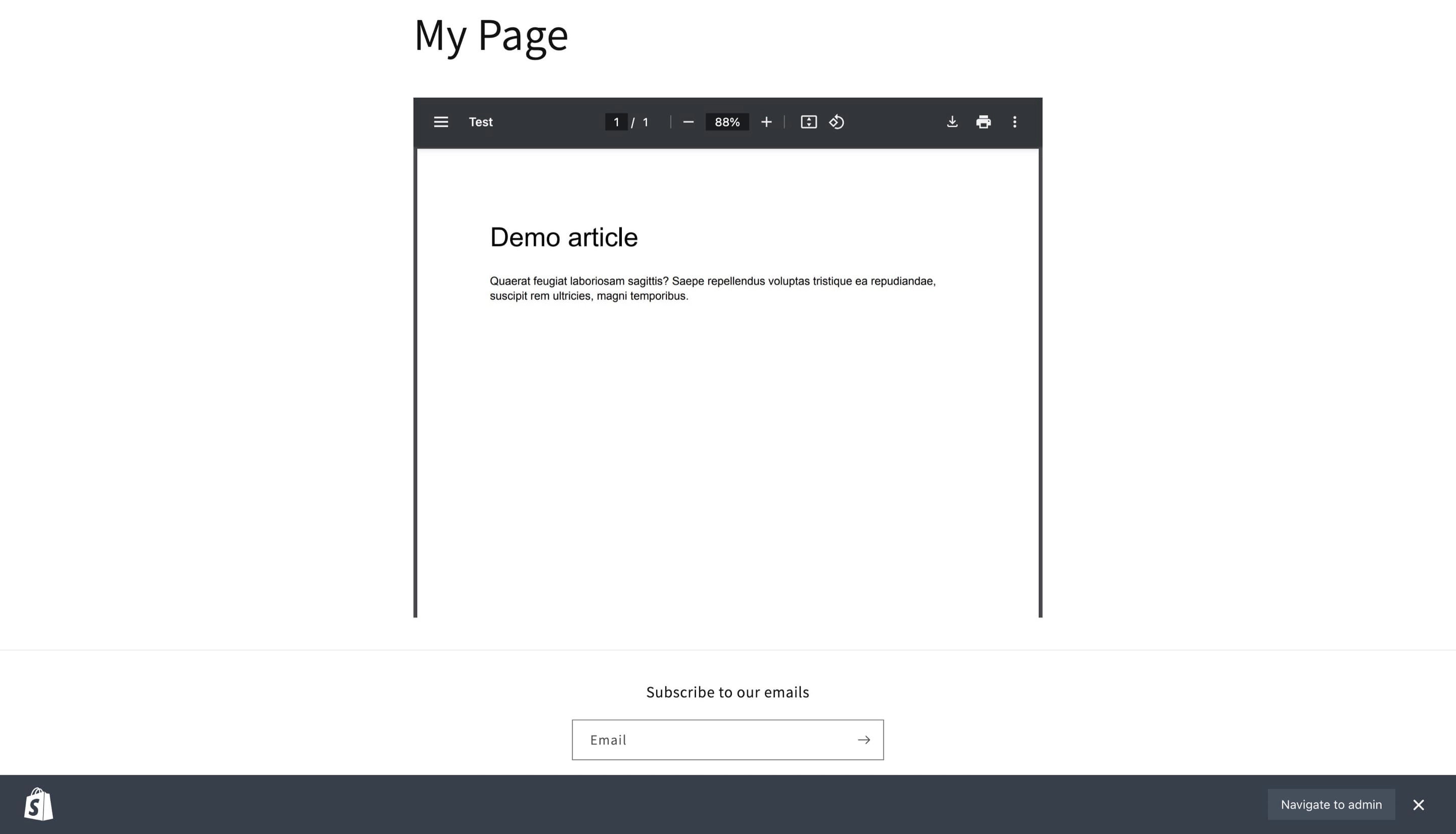
Once you preview the page, you'll see the PDF embedded within the content area, allowing users to scroll through and read the document without needing to download it.
Conclusion
Embedding a PDF in your Shopify page is a quick way to make essential documents viewable directly on your site.
By following these steps, you’ll be able to easily add PDFs that enhance the accessibility and usability of your Shopify store.