

Overview
On November 4, 2025, Shopify introduced a long-awaited feature that finally lets store owners duplicate a collection. This capability has been missing for years, and its arrival, while overdue, is undeniably useful.
You can now create an exact copy of any collection, including its title, description, image, conditions, and manual product list.
No more rebuilding everything from scratch.
The duplicated collection remains unpublished by default, giving you time to review and make adjustments before publishing.
That said, the feature is still limited.
At the moment, you can’t set a title during duplication, nor can you choose which elements to carry over, unlike the more flexible duplication flow available for products.
When you click the “Duplicate” button, Shopify creates a new collection with identical settings to the original, keeps it unpublished, and appends “(Copy)” to the title to indicate that it’s a duplicated version.
Why do you need to duplicate a collection?
There are times when you need a collection that is almost identical to an existing one.
You might want to keep the same structure and settings but assign a different layout, template, or visual style.
In other cases, you may want all the configuration from the original but plan to add a different set of products.
Creating a new collection from scratch in these scenarios is unnecessary and wastes time you could use for tasks that actually move your business forward.
Every second matters, and efficiency compounds.
Duplicating a collection is simply the smarter option.
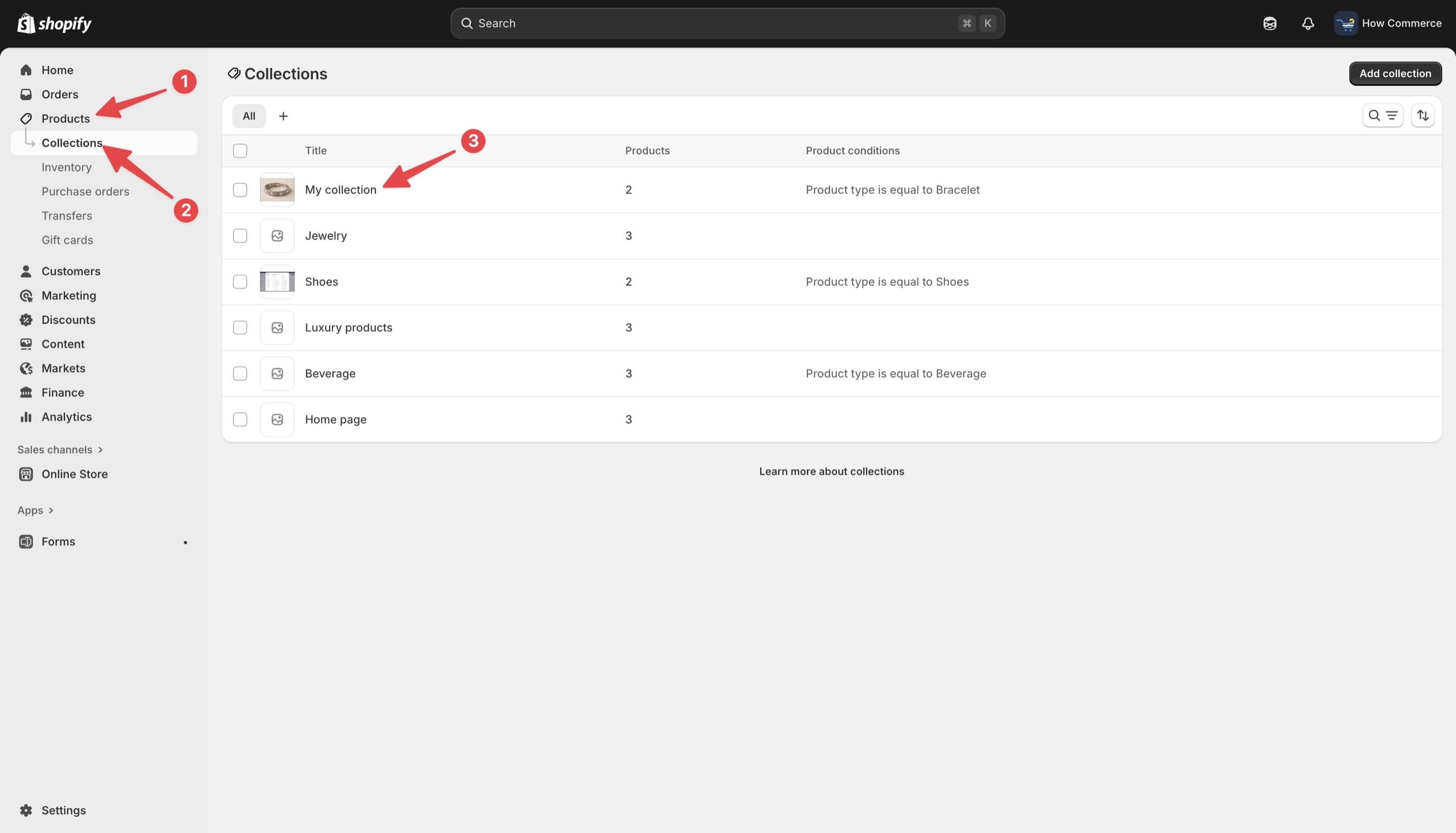
Duplicate the collection
Go to the "Products" menu item (marked with 1 in the image below), select "Collections" (marked with 2), and choose the collection you want to duplicate (marked with 3).
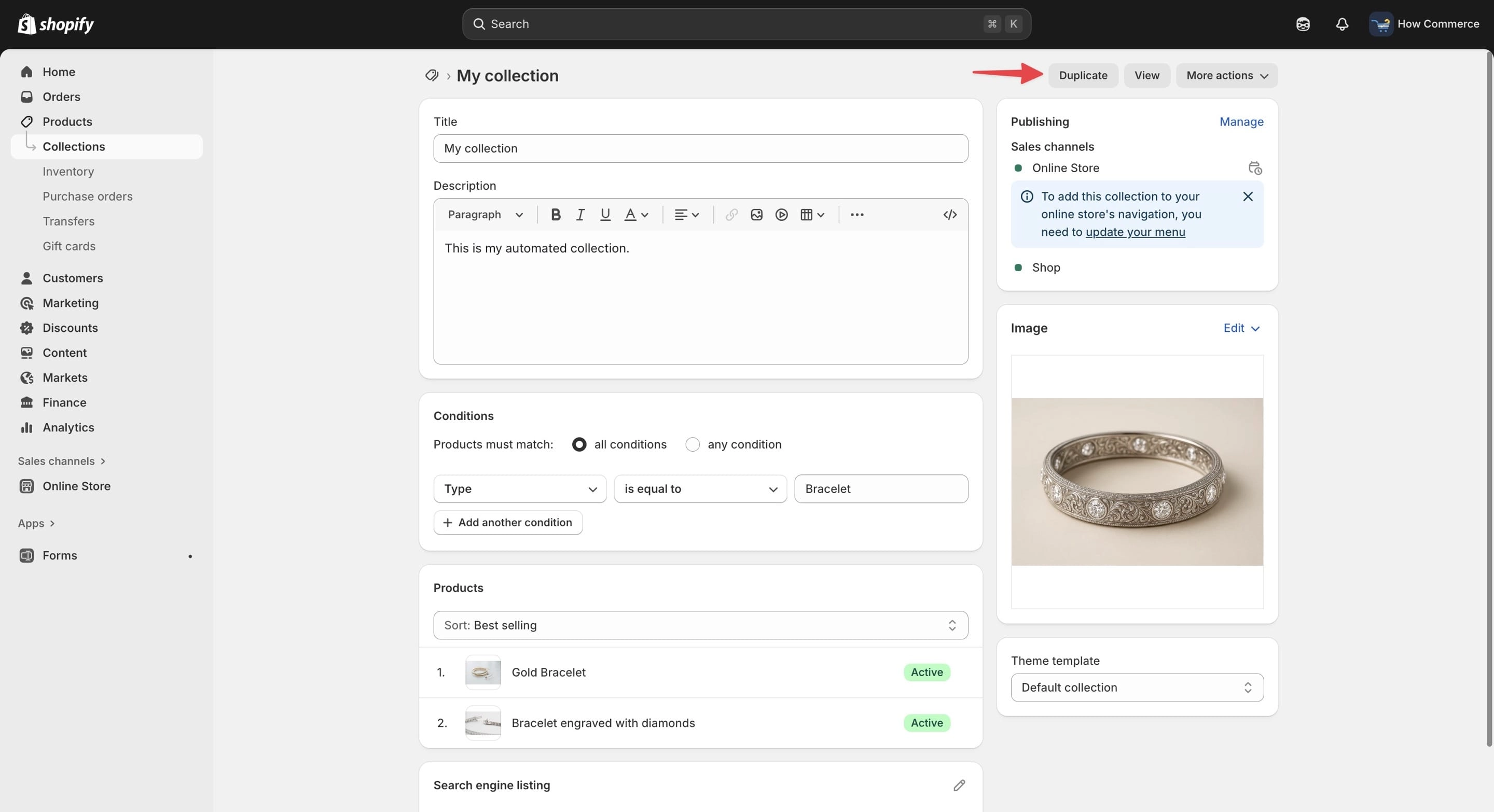
Open the collection and you will see the collection editing page.
Click the "Duplicate" button as shown in the image below.
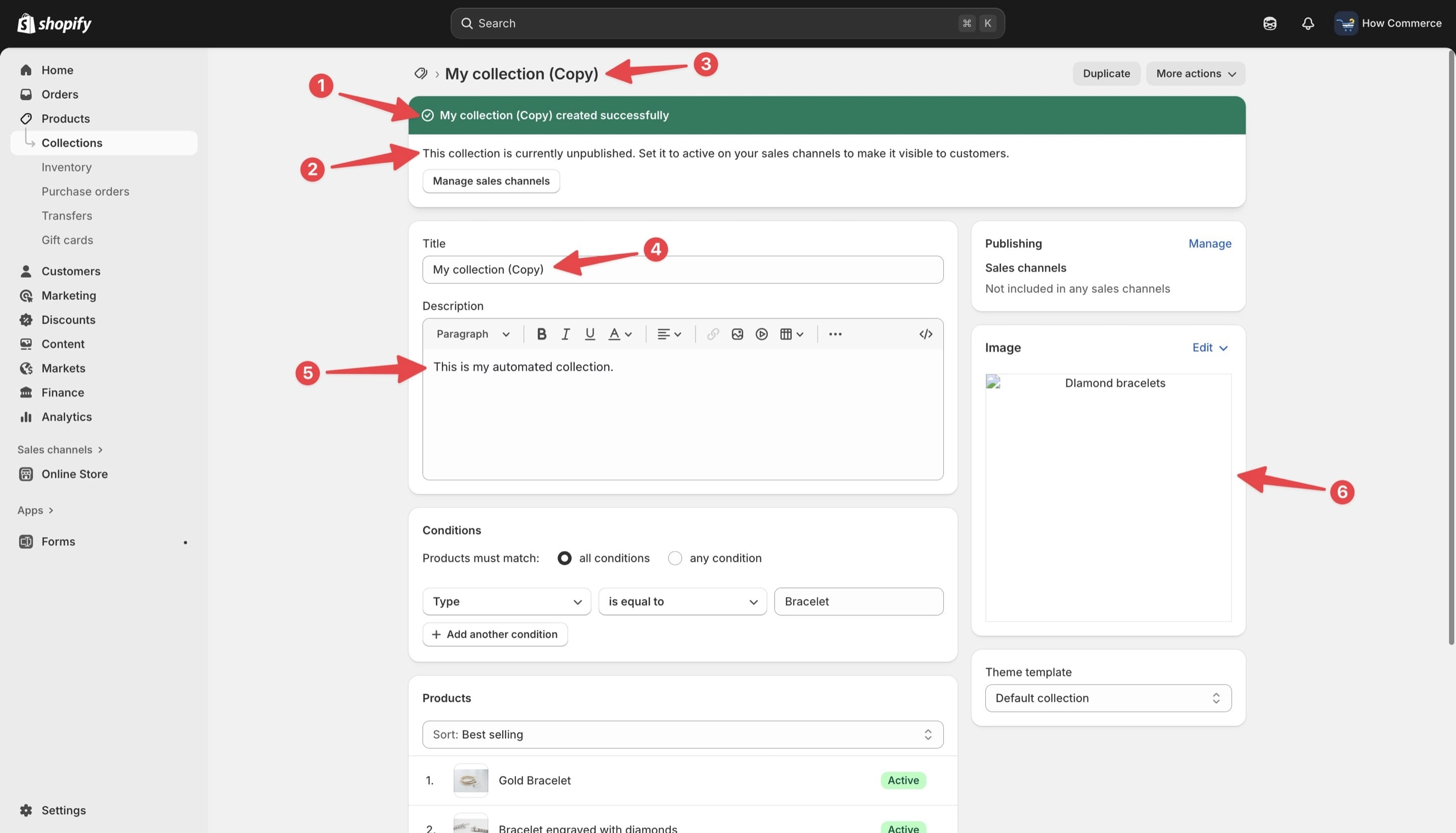
The collection is now duplicated.
A green confirmation message appears (marked with 1 in the image below) to indicate that the duplication was successful.
Shopify also displays a notice that the new collection is currently unpublished (marked with 2), which gives you time to review and adjust everything before making it live.
As shown in positions 3 and 4, the new collection title is identical to the original, with “(Copy)” added at the end so you can easily identify it.
You will need to update this title to match the purpose of your new collection.
The description should also be revised if necessary (marked with 5).
At the moment, image duplication does not seem to work reliably.
Although Shopify assigned the original image during duplication, it did not display correctly in my tests, so I had to reassign it manually (marked with 6).
This is likely a temporary Shopify bug.
If you plan to use a different image for the new collection, this is the place to update it.
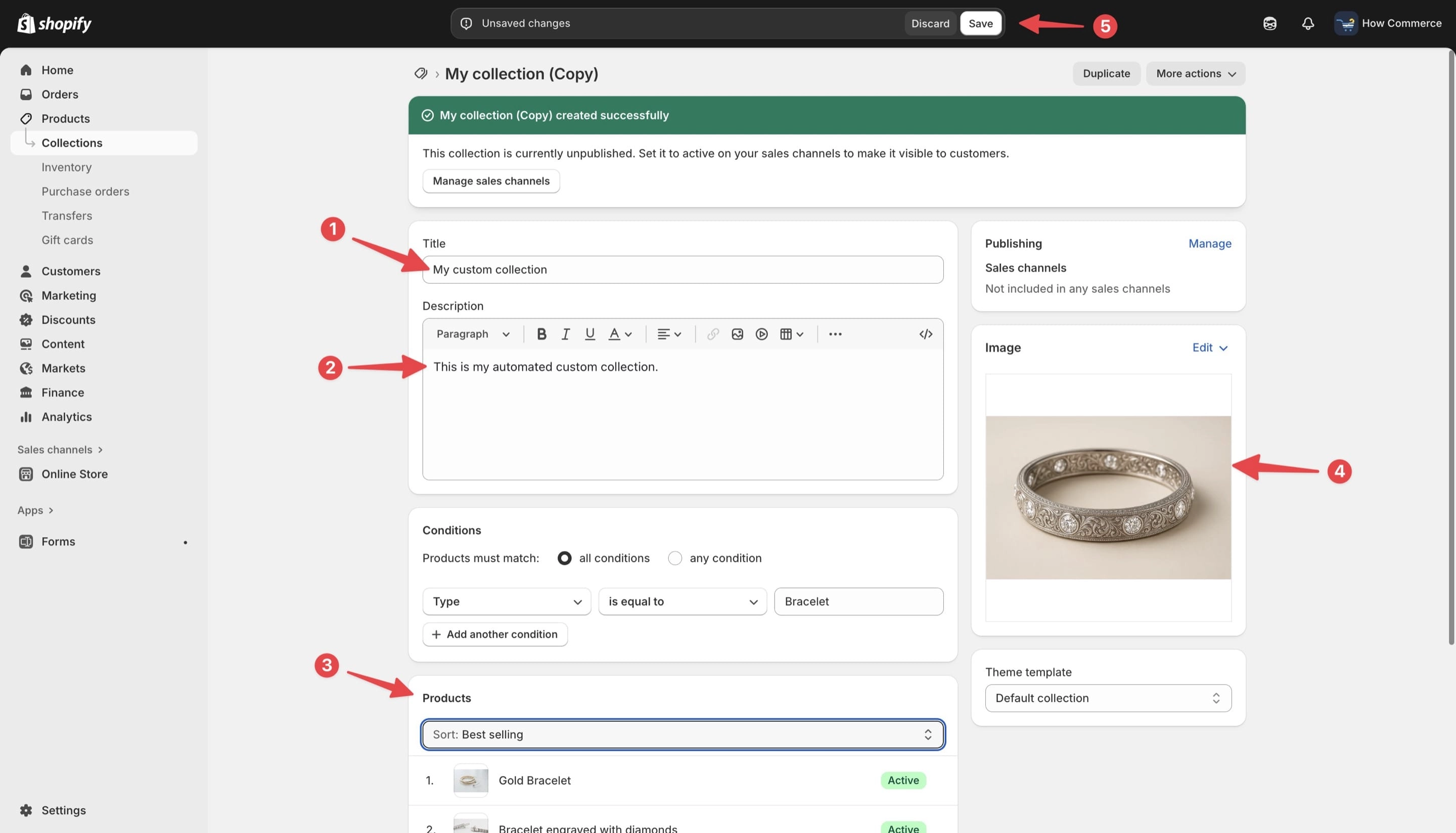
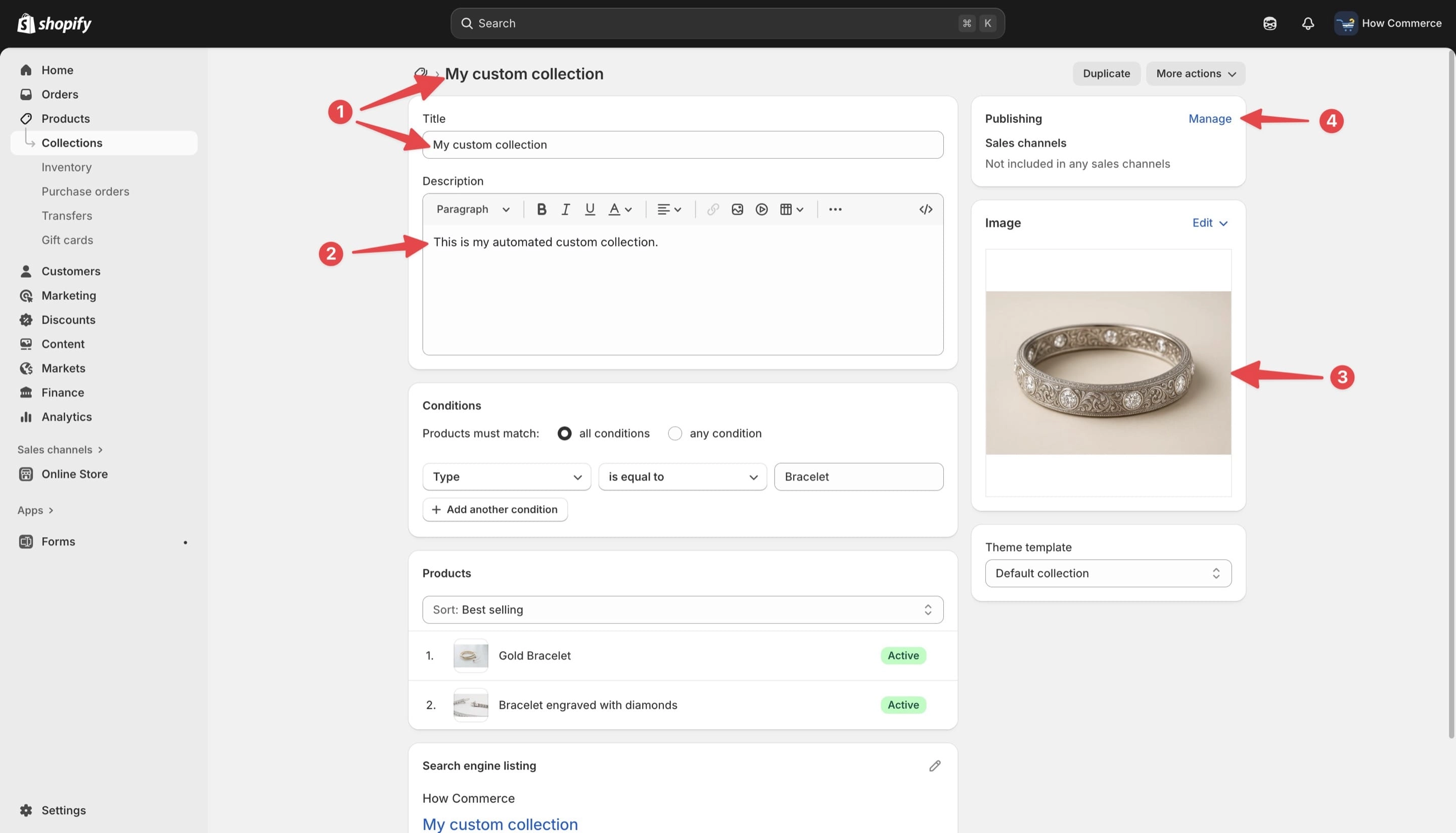
Below, I updated the title (marked with 1 in the image below) and the description (marked with 2).
In the “Products” section (marked with 3), you should remove the products carried over from the original collection and add the new ones you want to include.
I also replaced the collection image (marked with 4).
Once all changes are complete, save your updates by clicking the "Save" button (marked with 5).
As shown below, after saving, the updated title appears correctly (marked with 1 in the image below), along with the revised description (marked with 2).
The new collection image is also applied (marked with 3).
With the content finalized, you now need to assign the collection to the appropriate sales channels.
The primary channel is the "Online Store", since this determines whether the collection appears on your storefront.
To assign it, click the "Manage" link (marked with 4 in the image below), choose the channels you want, and save your changes.
What to pay attention to?
One important detail to watch is the URL that Shopify generates for the duplicated collection.
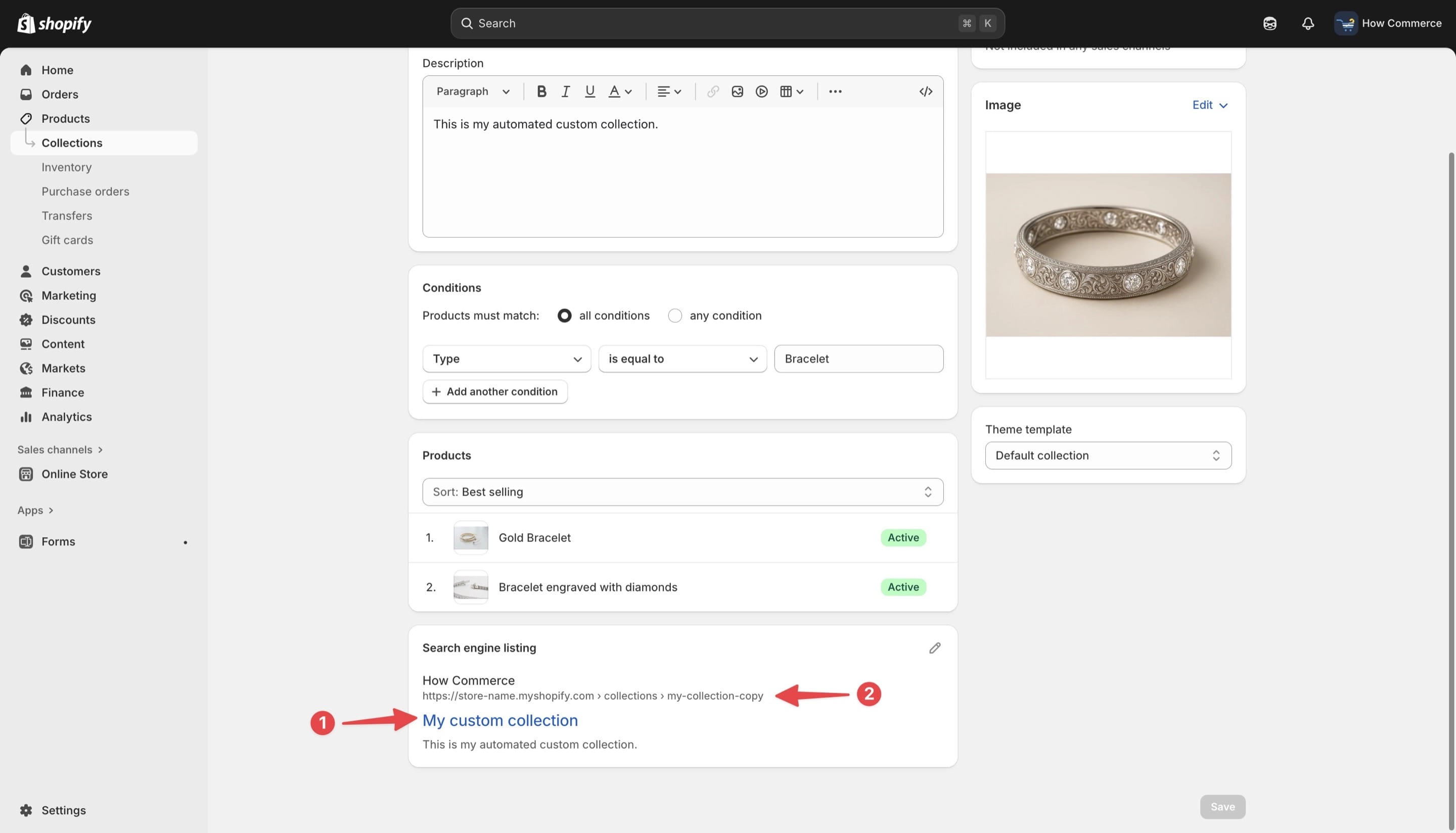
When you change the collection title, the SEO page title updates correctly (marked with 1 in the image below), but the URL does not update automatically. This is a serious SEO issue (marked with 2), because the URL remains tied to the original collection name.
Ideally, Shopify will address this in a future update, but for now it is incorrect behavior.
Make sure you manually update the URL to match the new collection title.
Failing to do so can hurt your search engine performance.
Conclusion
Duplicating a collection in Shopify is a simple but valuable feature that removes a lot of repetitive work.
It lets you reuse layouts, conditions, descriptions, and configurations without rebuilding everything manually.
The process still has limitations, including incomplete image duplication and the SEO URL issue, but the time savings are undeniable.
As long as you review the duplicated collection, adjust the content, replace the products, and fix the URL, you can launch new collections far more efficiently.
This feature is a step forward and will become even more powerful as Shopify refines it.