

In this tutorial I’m going to show you how to change the “Denominations” label on the product page select box when working with gift cards.
If you reached this tutorial you’ve probably tried everything to do it and you are pissed off like I was since this word is hidden from view. First thing you probably did was to search for the word in the “Languages” section and modify it from there.
This was my expectation also since this is where this word should be. Unfortunately this is not the case yet. Hopefully Shopify will find a way to add it to the locales files so we can translate it properly.
Not everyone will want to keep that label. As an example some of my customers asked me to change it to “Values”.
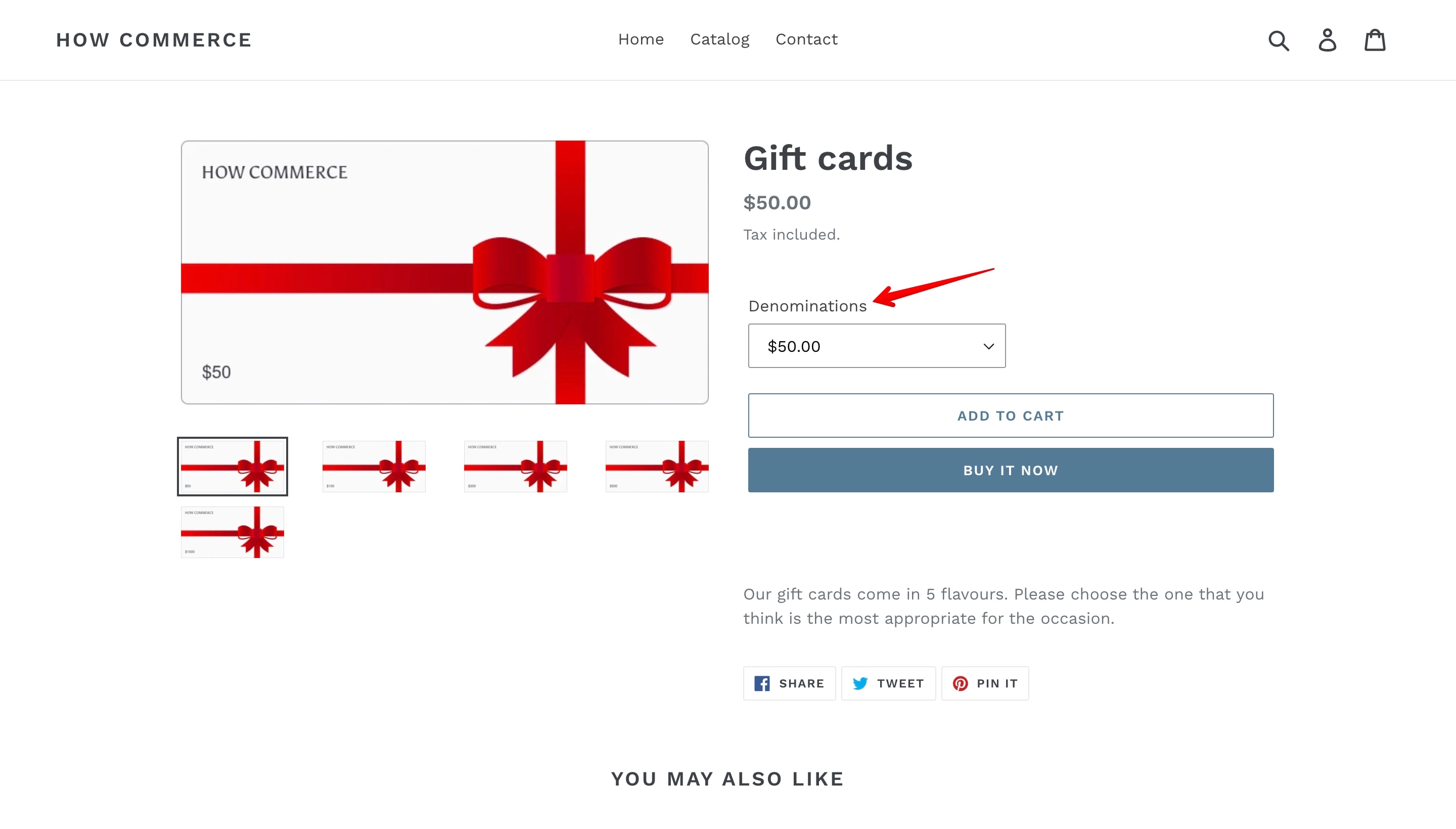
Identify the “Denominations” label
This is what we’ll change:
First you need to login into your Shopify store. If you do not know how to do that please read this article
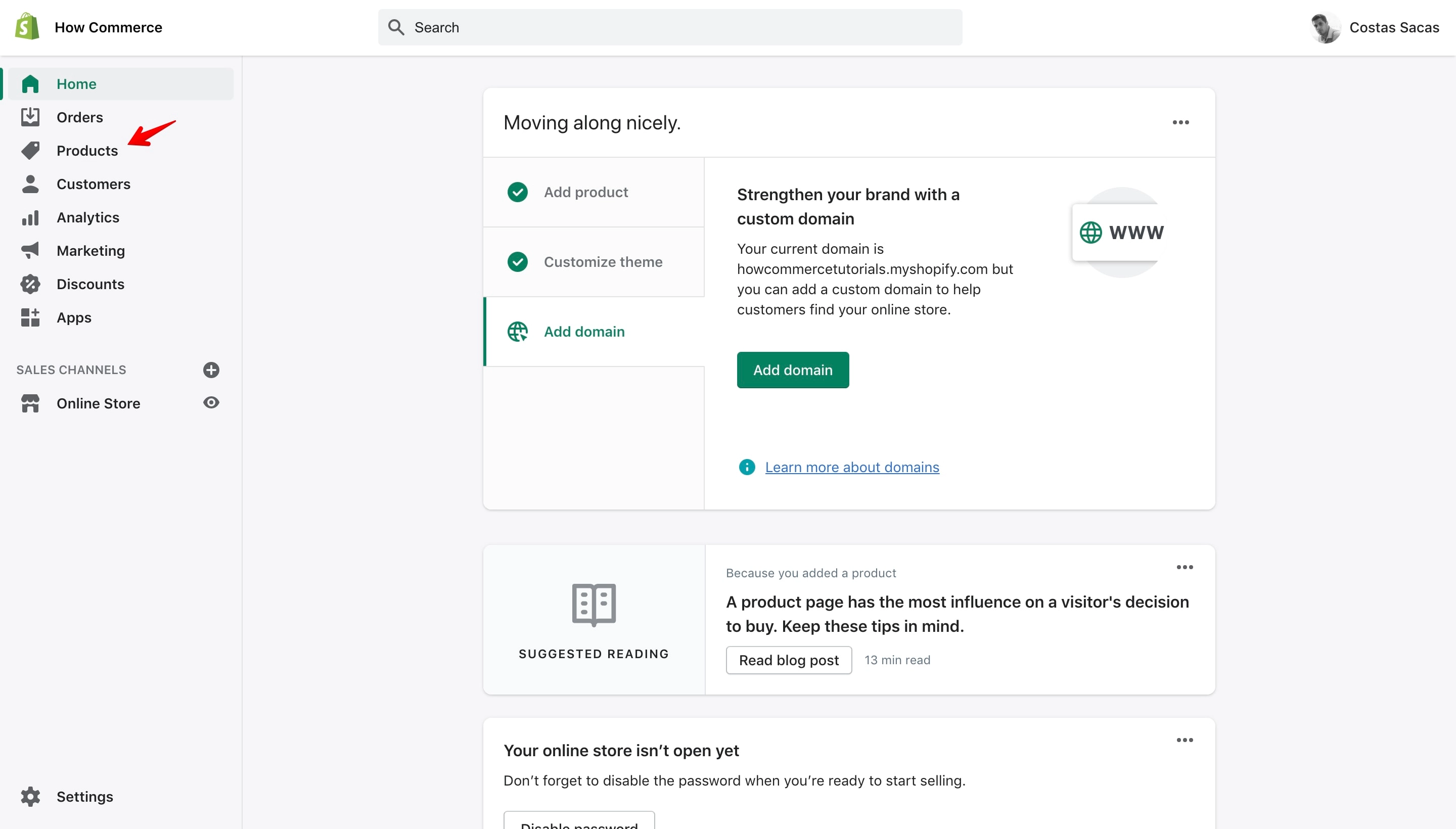
Once you are logged inside the store you’ll see the Shopify dashboard page. Click on the “Products” menu item on the left sidebar to open the product page:
On the “All products” page (marked with 1 in the image below) go to the search input box (marked with 2 in the image below) and type the name of the gift card that you want to change the select box label.
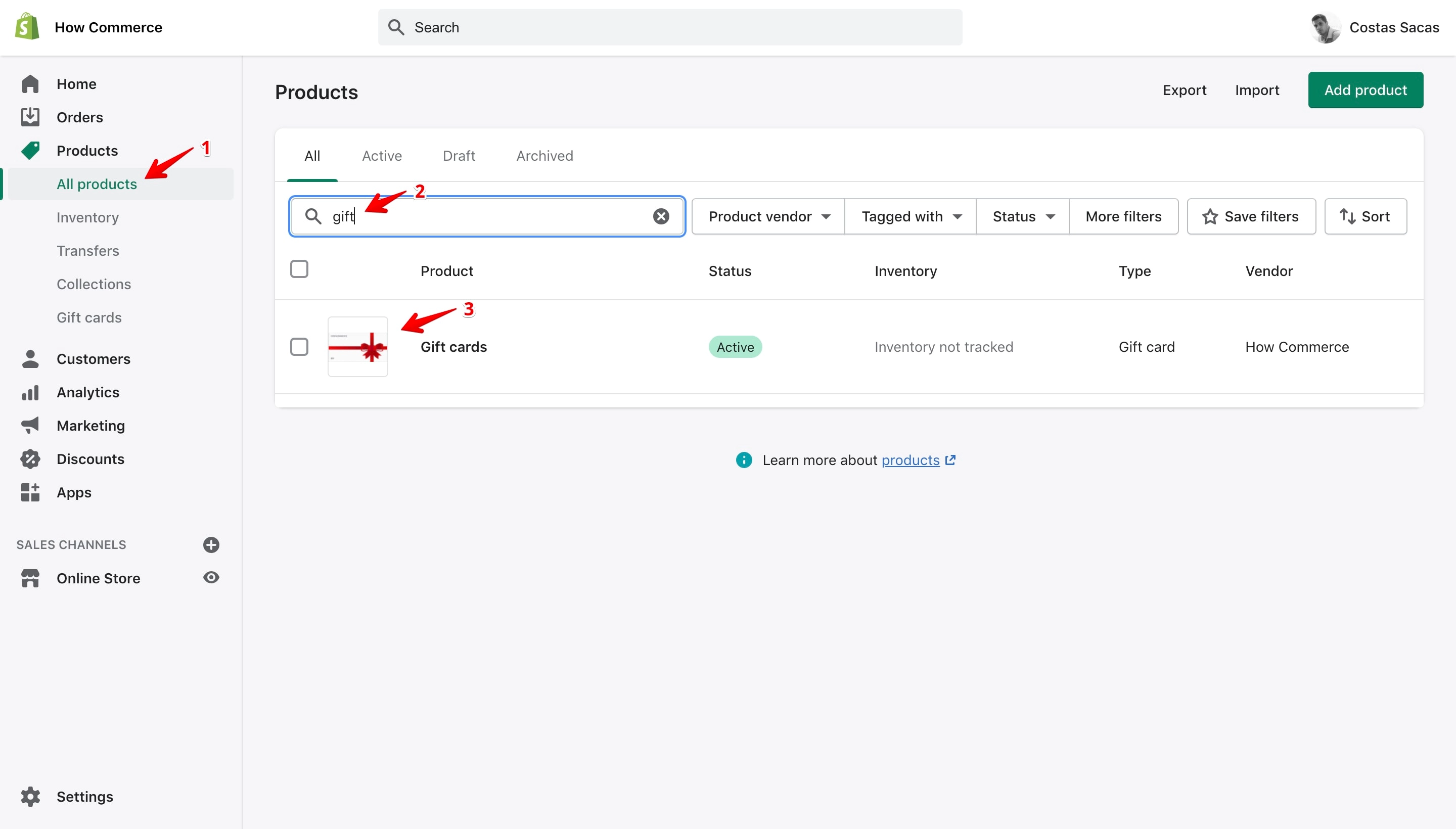
Once the gift card product is displayed (marked with 3 in the image above) select it to open the product editing page.
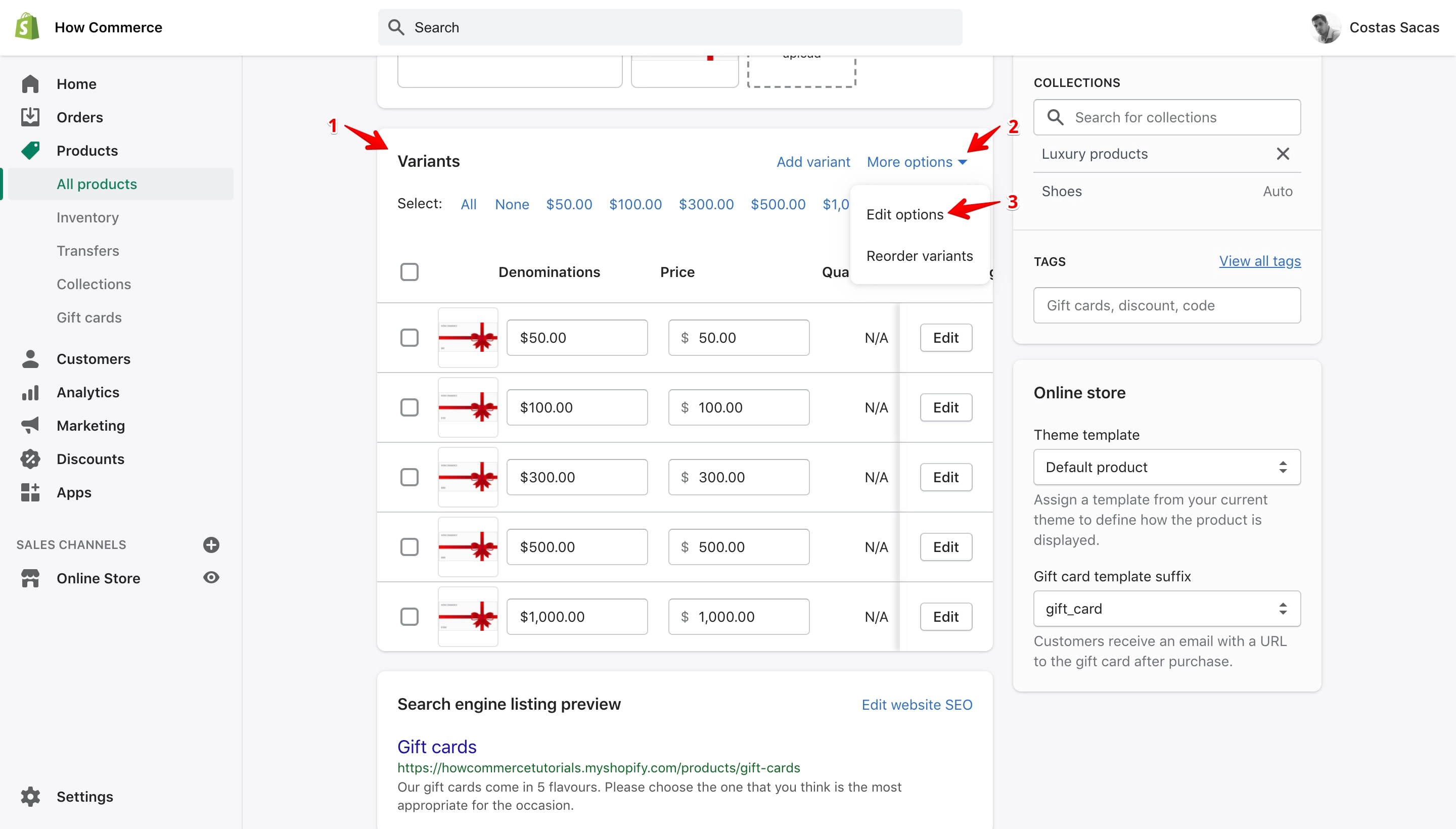
On the product editing page go to the “Variants” section (marked with 1 in the image below) and click on the “More options” (marked with 2 in the image below). A drop-down menu will display with 2 options. Click on “Edit options” (marked with 3 in the image below).
By doing that a pop-up will display:
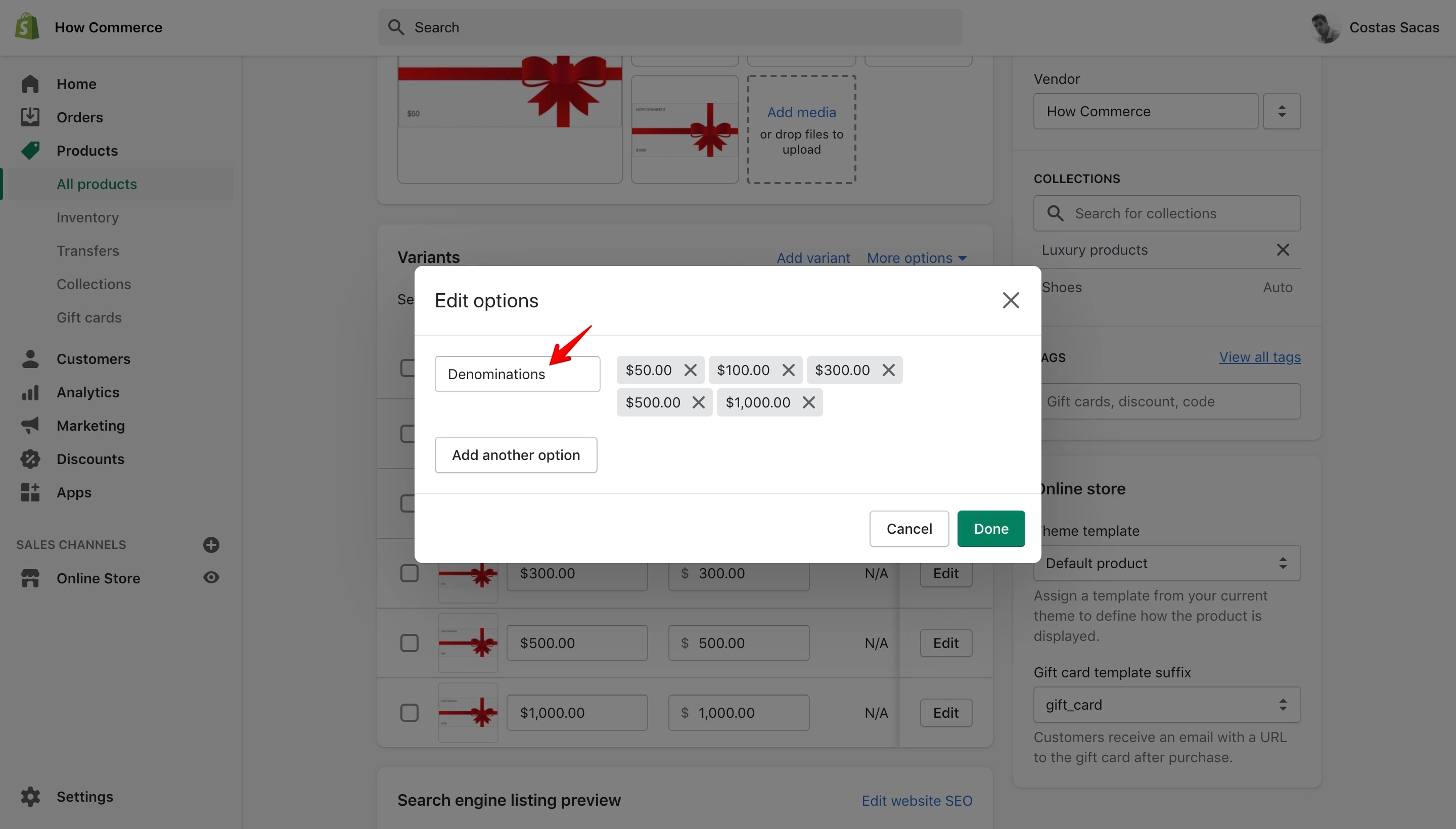
Change the “Denominations” word
I’ll change the “Denominations” word with “Values”:
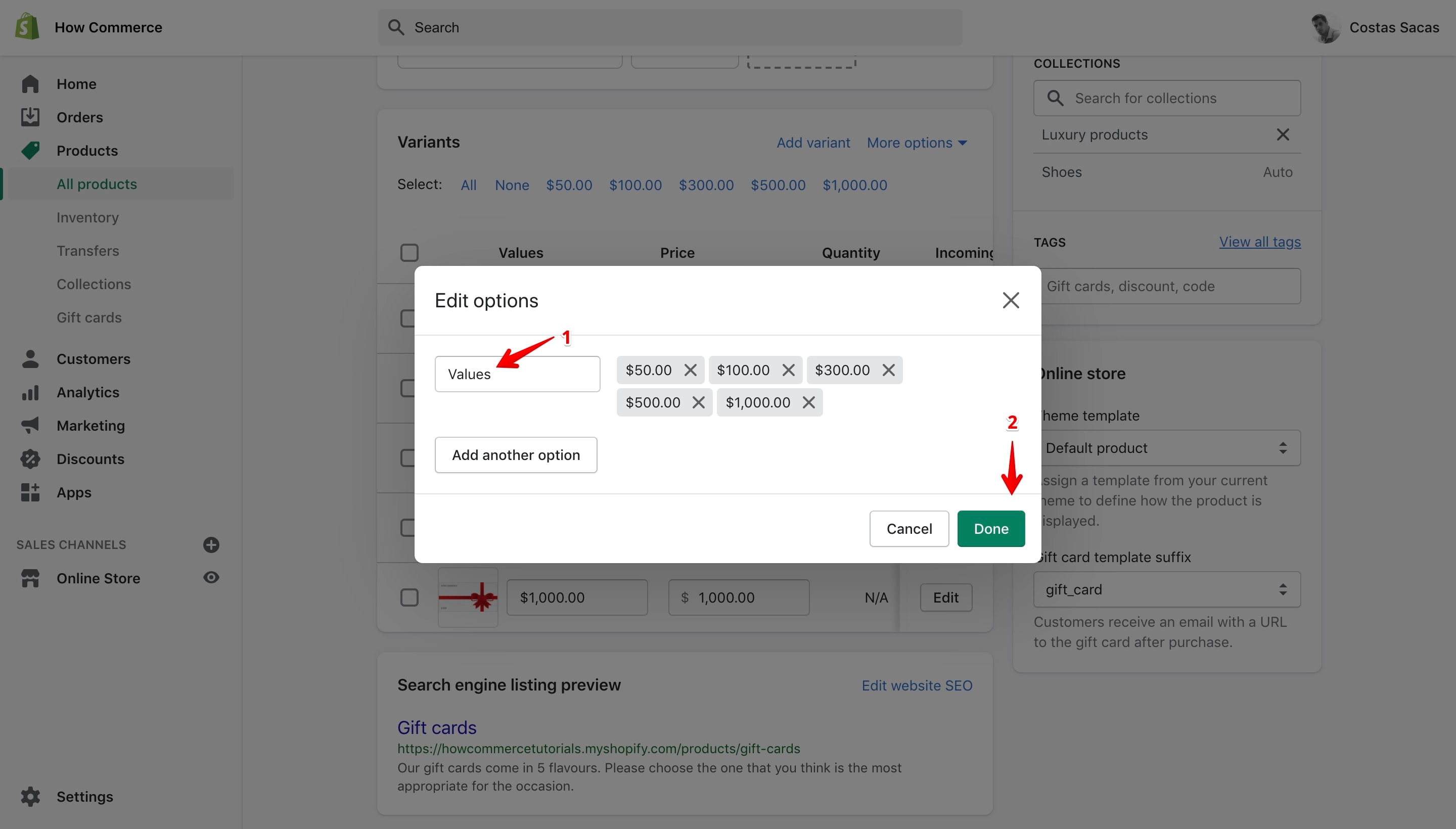
Change the word “Denominations” by typing the new word you have selected in the input box (marked with 1 in the image above). Once completed click on the “Done” button (marked with 2 in the image above).
Now “Save” your new changes by clicking the “Save” button:
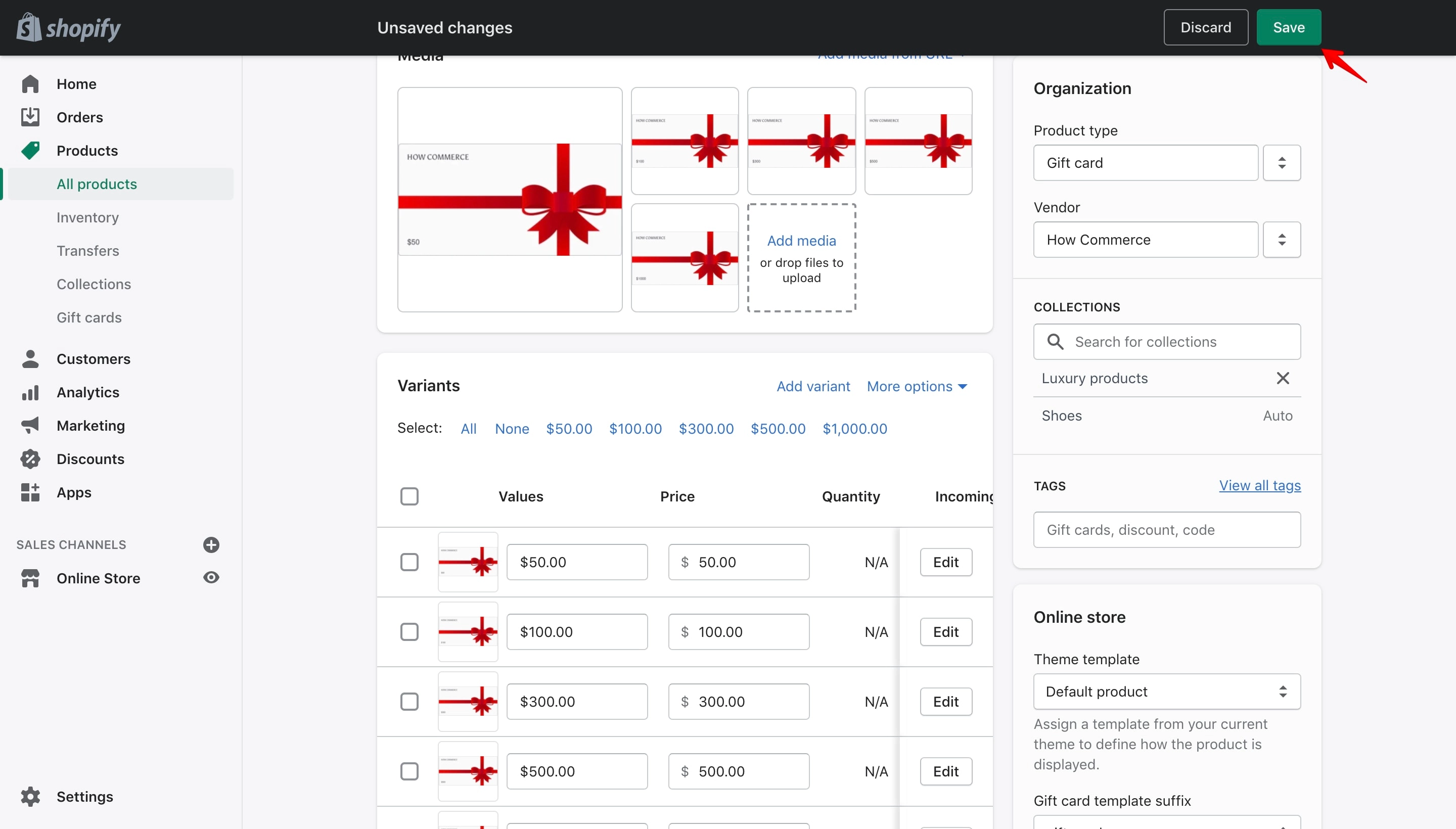
Everything is completed. Clean and quickly.
Please go to the storefront to see your new value listed:
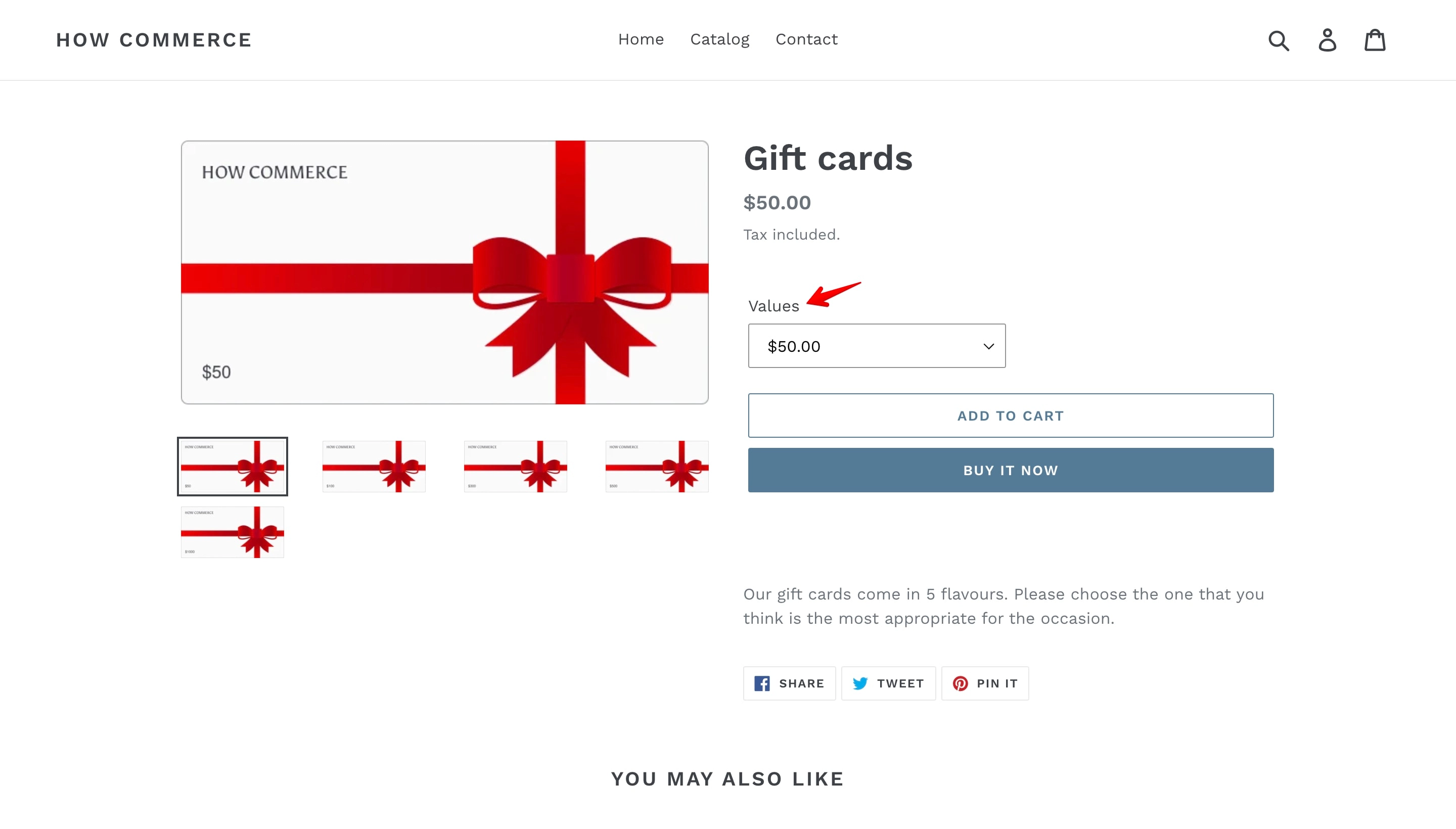
If you want to translate the “Denominations” word, for the moment it is not possible, at least not in the correct way via locales files.
“Denominations” word in the Shopify admin dashboard
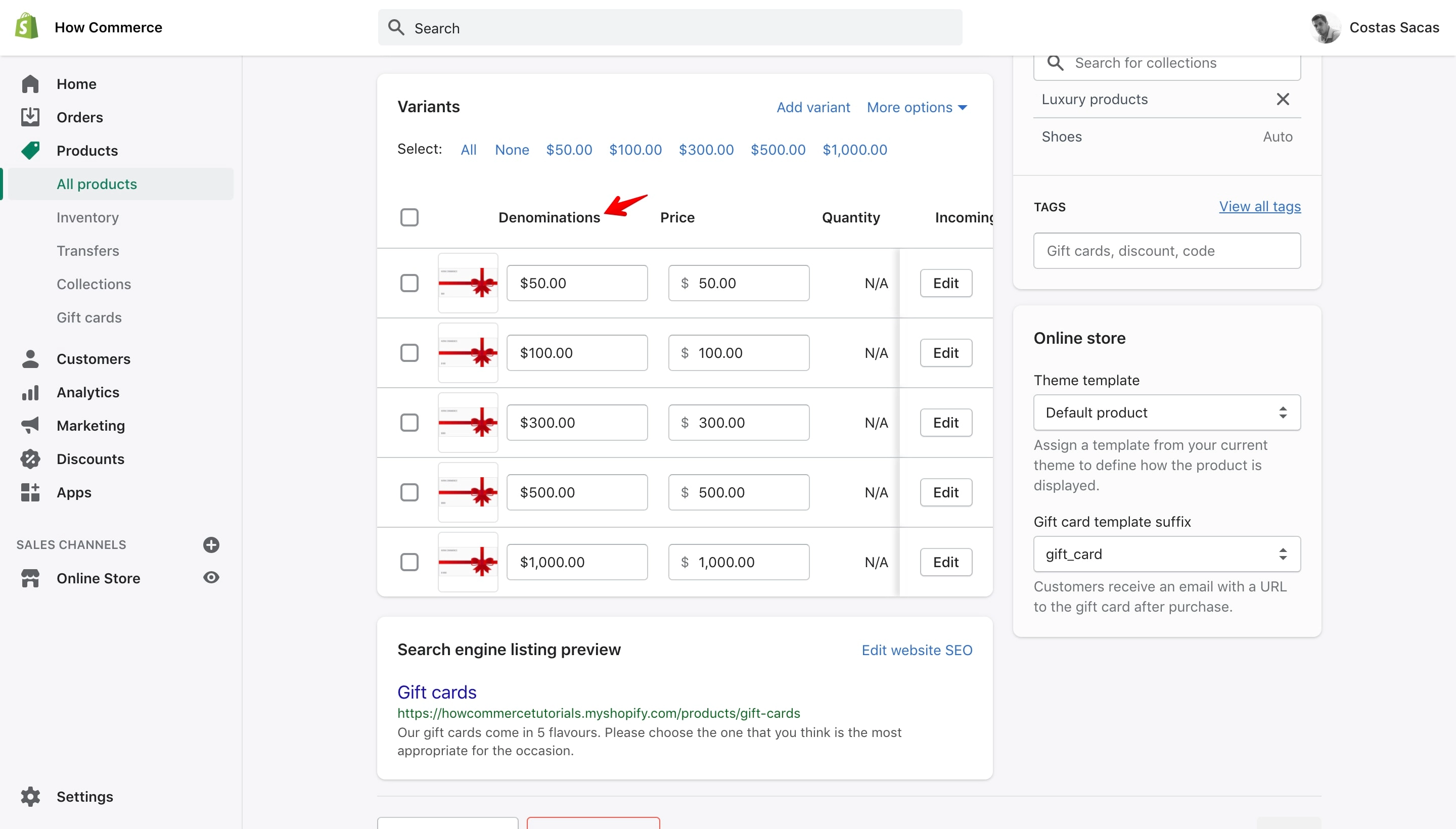
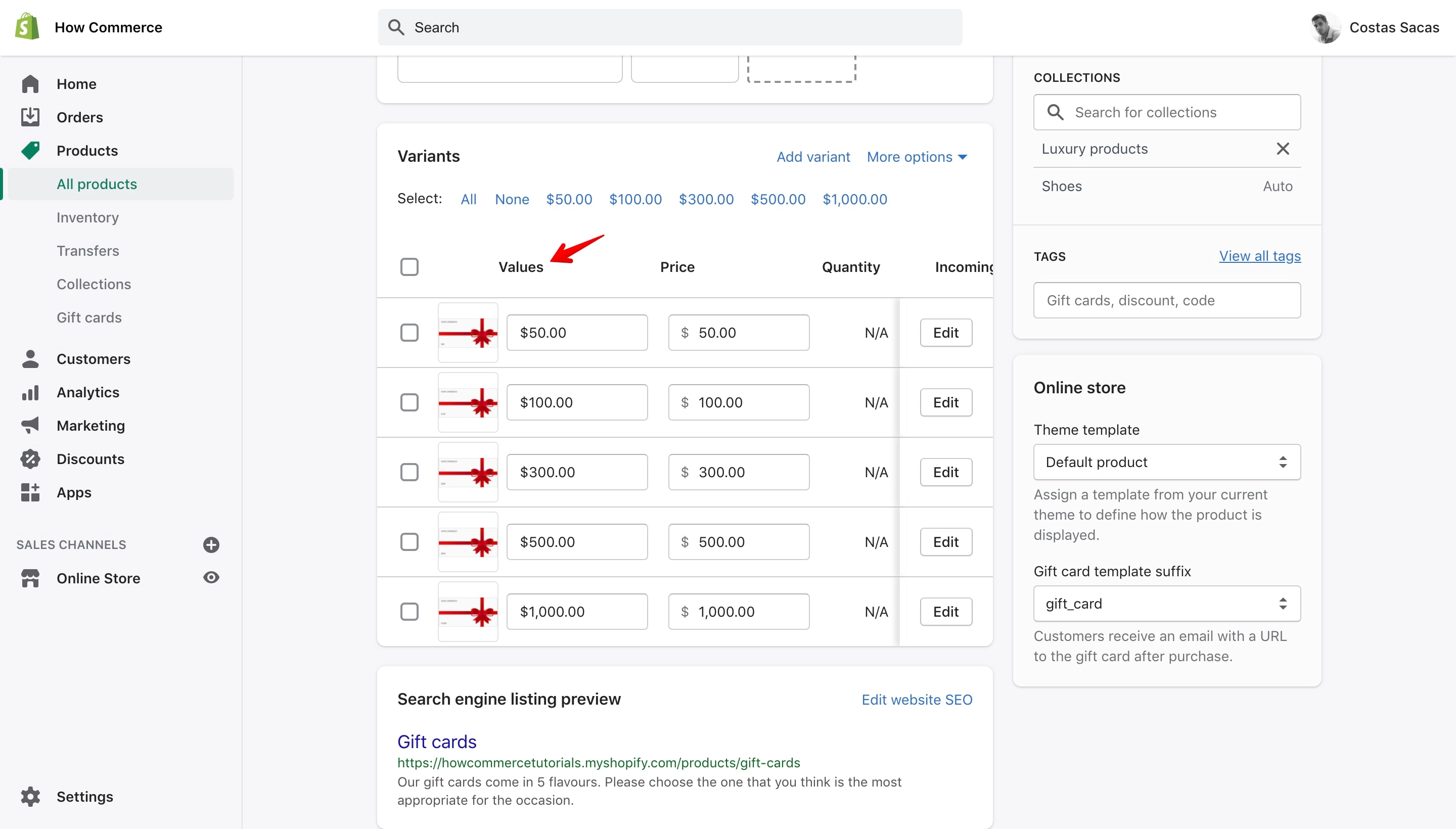
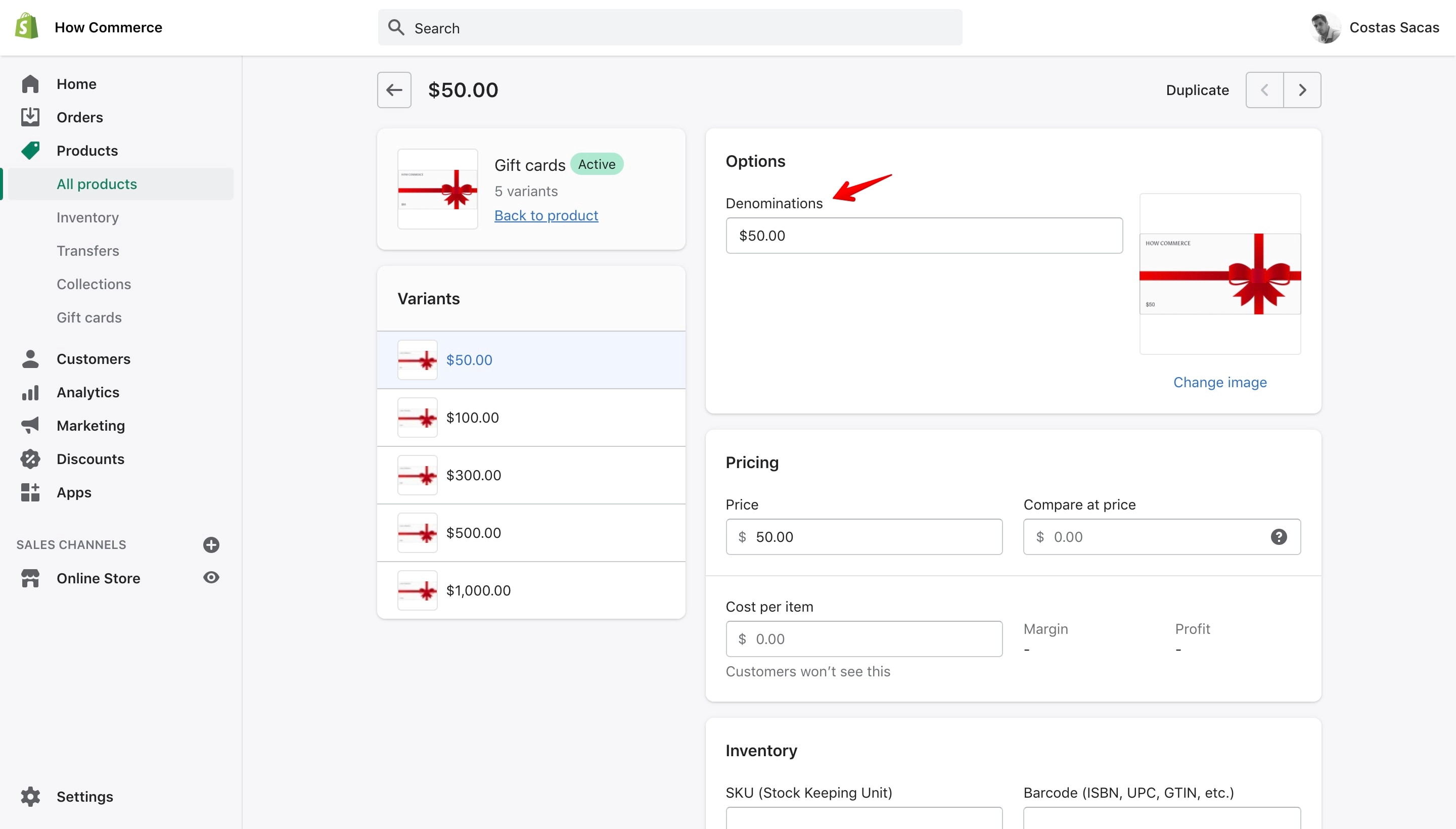
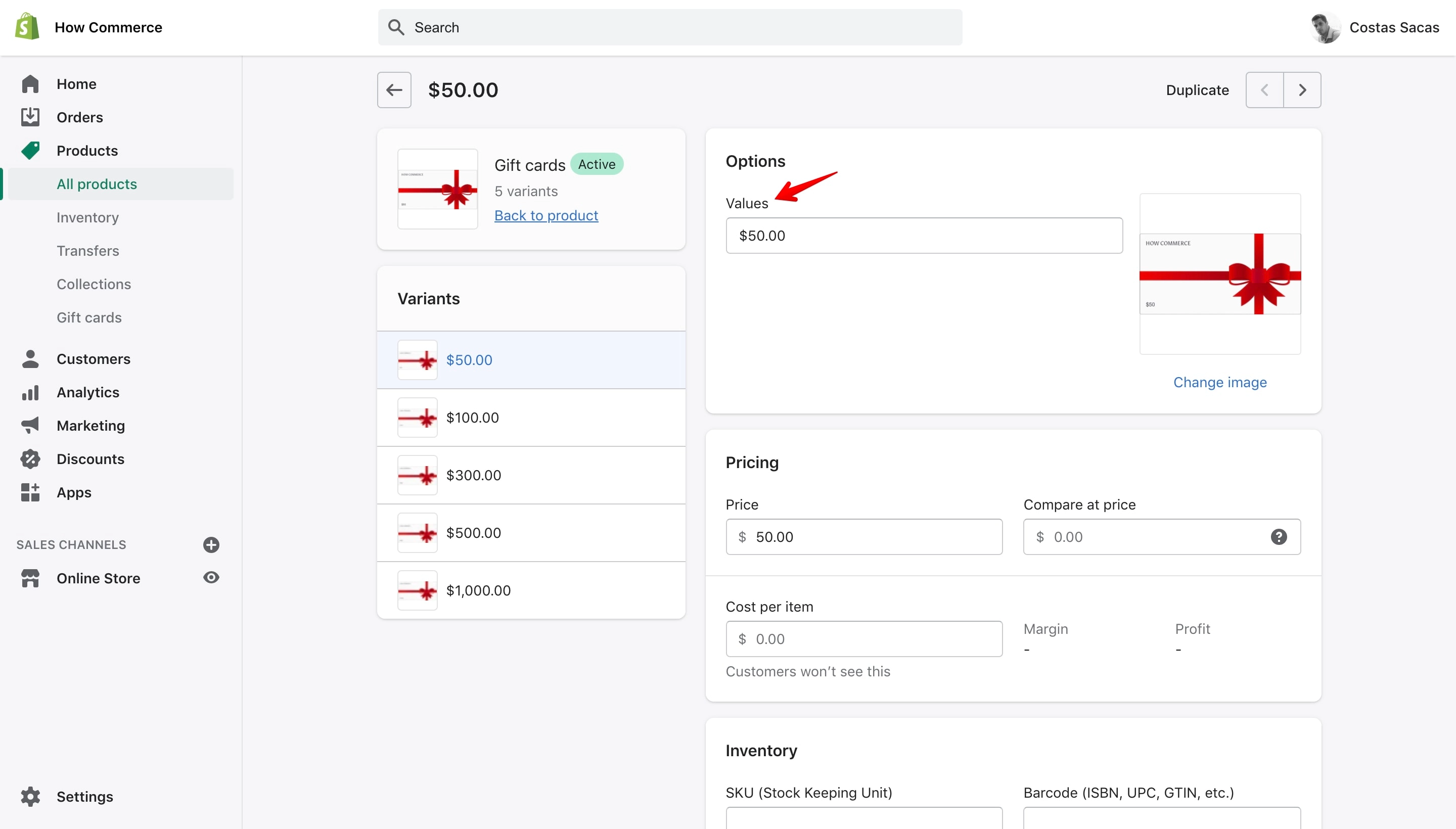
Please note that once you change the “Denominations” word the new value will also reflect in the Shopify admin section.
“Denominations” word in the Shopify product edit page
This is how it will look on the Shopify product edit page:
Before:
After:
“Denominations” word in the Shopify variant edit page
This is how it will look on the Shopify variant edit page:
Before:
After:
Conclusion
Changing the denomination label value is very simple to do. The only issue is the translation of the word. This can be achieved for the storefront by modifying the code and creating a separate translation key. If you need help with that please get in touch.