

Why this matters
In recent years Shopify made this process very simple.
You do not need any complex apps or special tricks and no long tutorials.
Just a simple click of a button.
Select the products
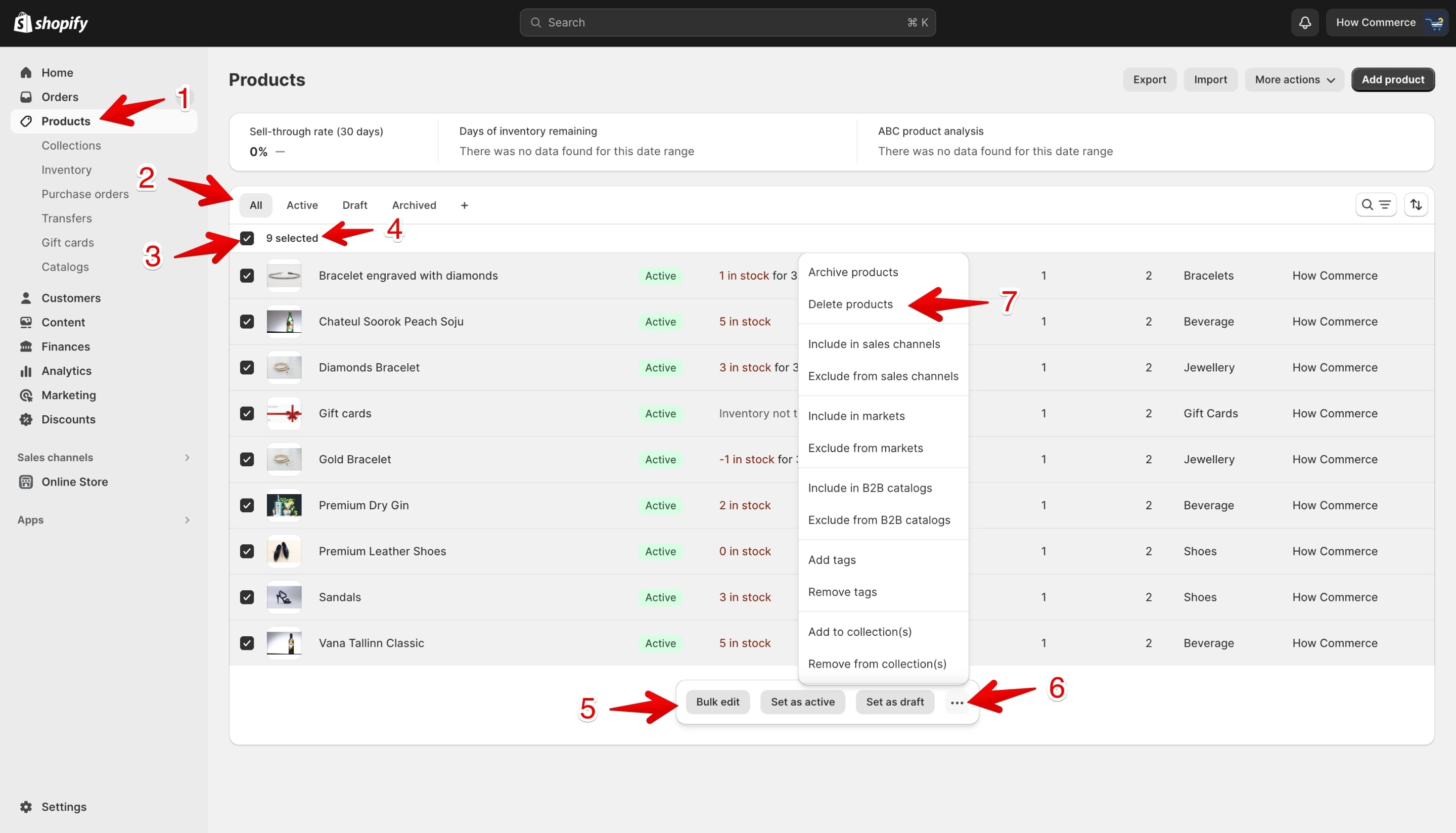
Go to your admin and select the "Products" menu item to access the "Products" listing page. Make sure you are on the "All" tab and check the input box to select all products on the page.
Check that the number of products you want to delete is correct.
After you select the products, you'll see a menu in a small pop-up at the bottom of the page.
Click on the "..." button and a drop-down menu will open with multiple options for managing products.
Select the "Delete product" option.
Delete the products
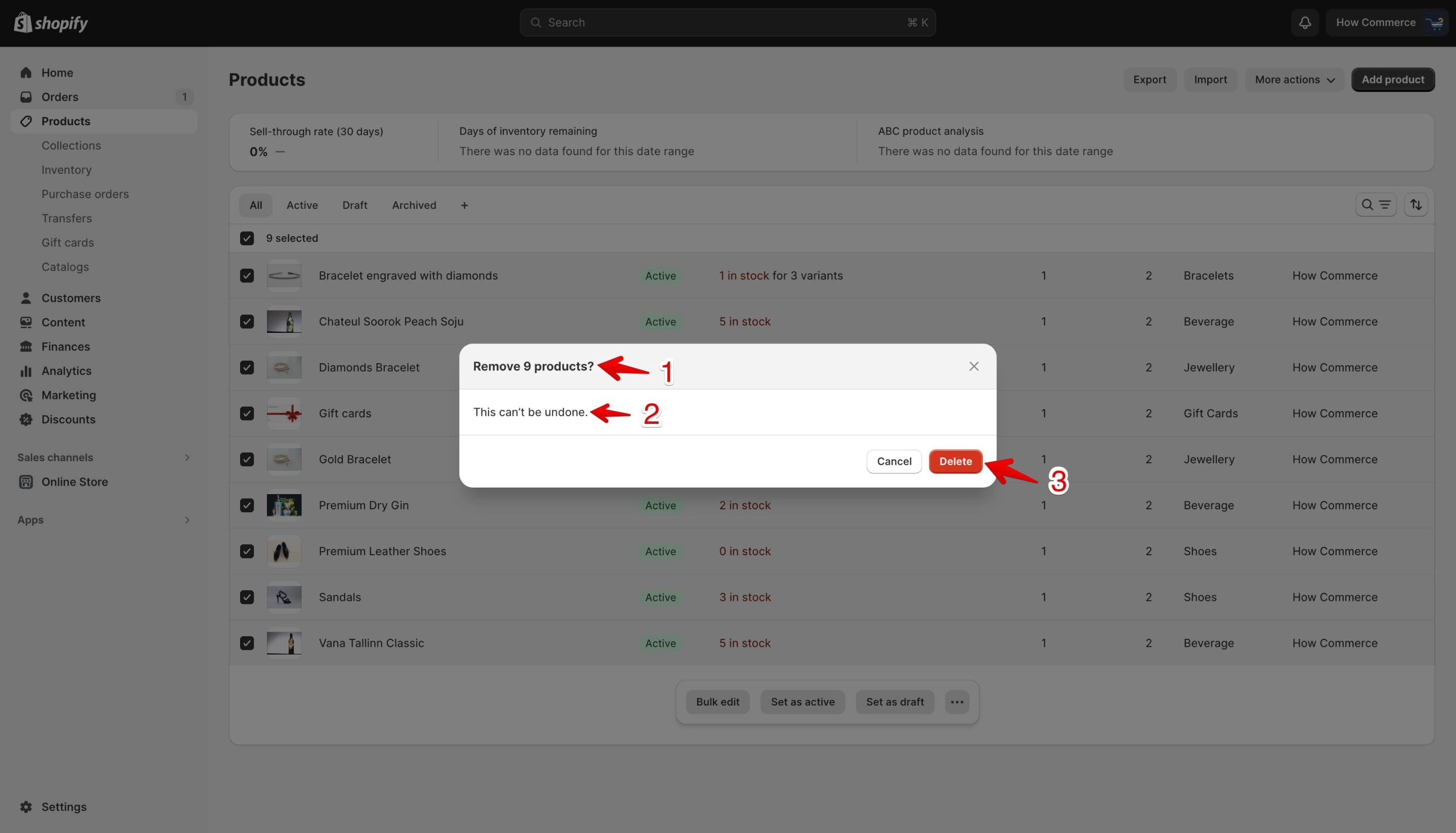
A pop-up will appear with the option to delete all selected products. The pop-up title shows the number of products that will be deleted from the store.
Shopify will give you a warning that these products, once deleted, cannot be recovered and are gone forever.
If you agree, click the "Delete" button to confirm.
That's it.
All the products in the store, or at least all the products you selected, are removed from the store.
Conclusion
Deleting all products in Shopify can be efficiently accomplished through the Shopify Admin interface without any complex third-party apps.