

Introduction
This tutorial is intended for Shopify store owners, theme developers, and technical managers who want to work efficiently with sections inside the Shopify Theme Editor.
Whether you are customizing your own store or developing themes professionally, understanding how to copy, duplicate, and paste sections correctly will save time, prevent layout issues, and help you work within Shopify’s intended theme architecture.
For a long time, copying a section in Shopify was not possible natively.
Merchants and developers had to rely on third-party apps to duplicate sections within a theme.
This is no longer the case. Shopify now allows you to duplicate sections directly from the Theme Editor, without installing any additional apps.
Duplicate a Section
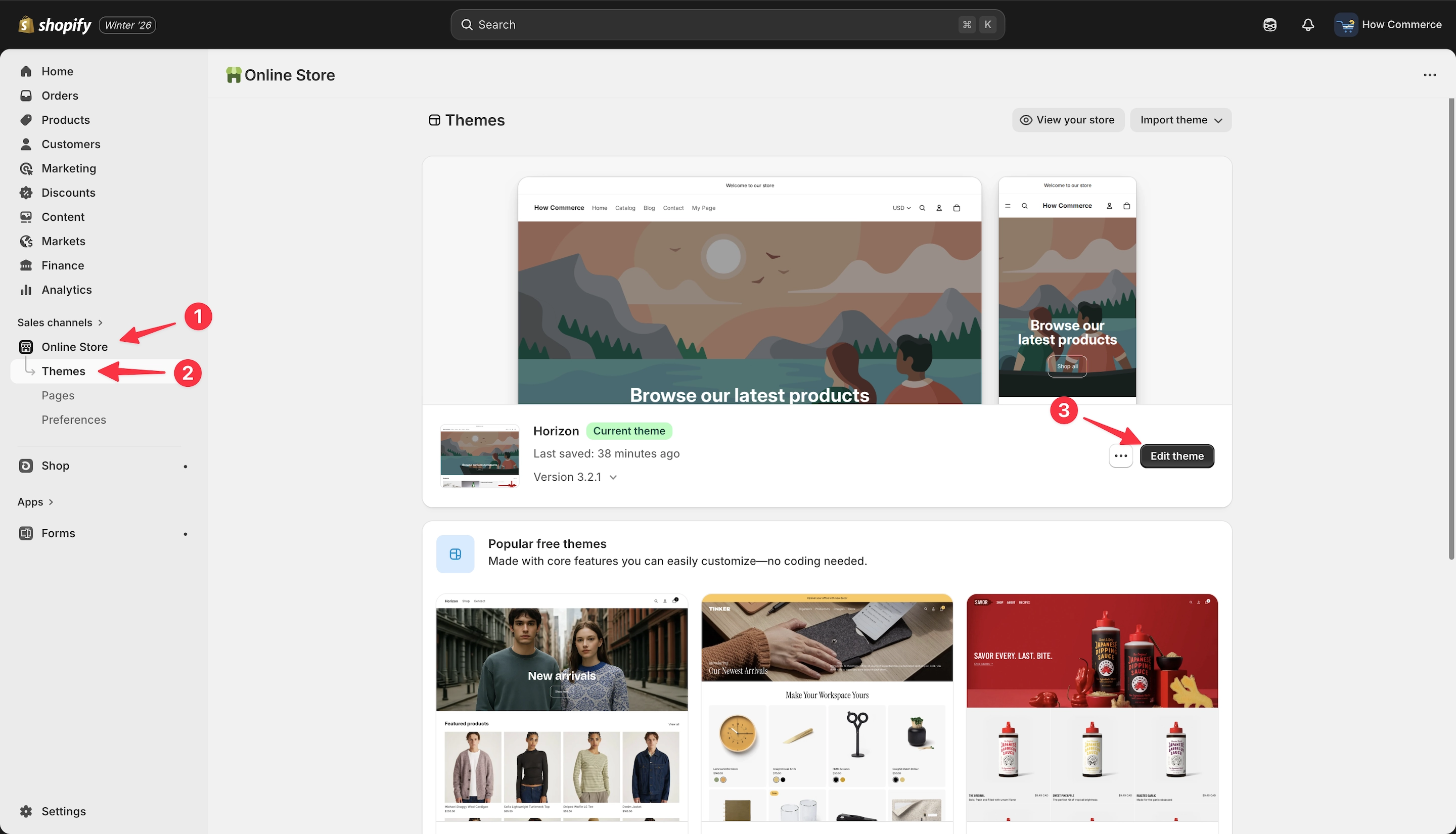
Go to the Online Store (marked as 1 in the image below) and select Themes (marked as 2 in the image below).
On your main theme (the live theme), click the Edit theme button (marked as 3 in the image below).
Inside the Theme Editor, click the section you want to duplicate.
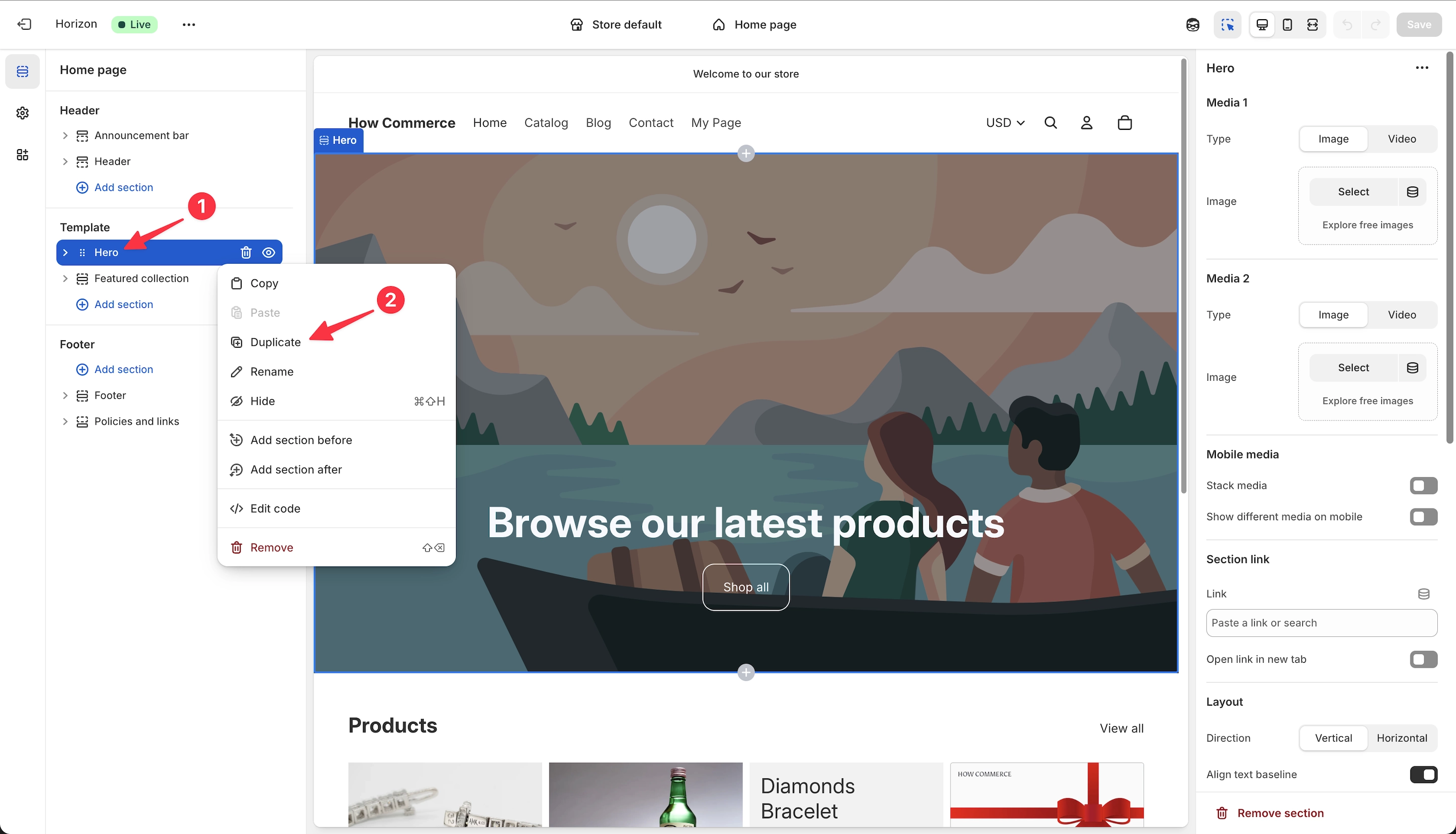
In this example, select the Hero section (marked as 1 in the image below). Click on it to open the section settings menu.
From this menu, click the Duplicate button (marked as 2 in the image below).
Shopify will duplicate the section (marked as 1 in the image below) under the same section group, which in this case is Template (marked as 2 in the image below).
Once completed, click the Save button (marked as 3 in the image below) to save your changes. Otherwise, the changes will be lost.
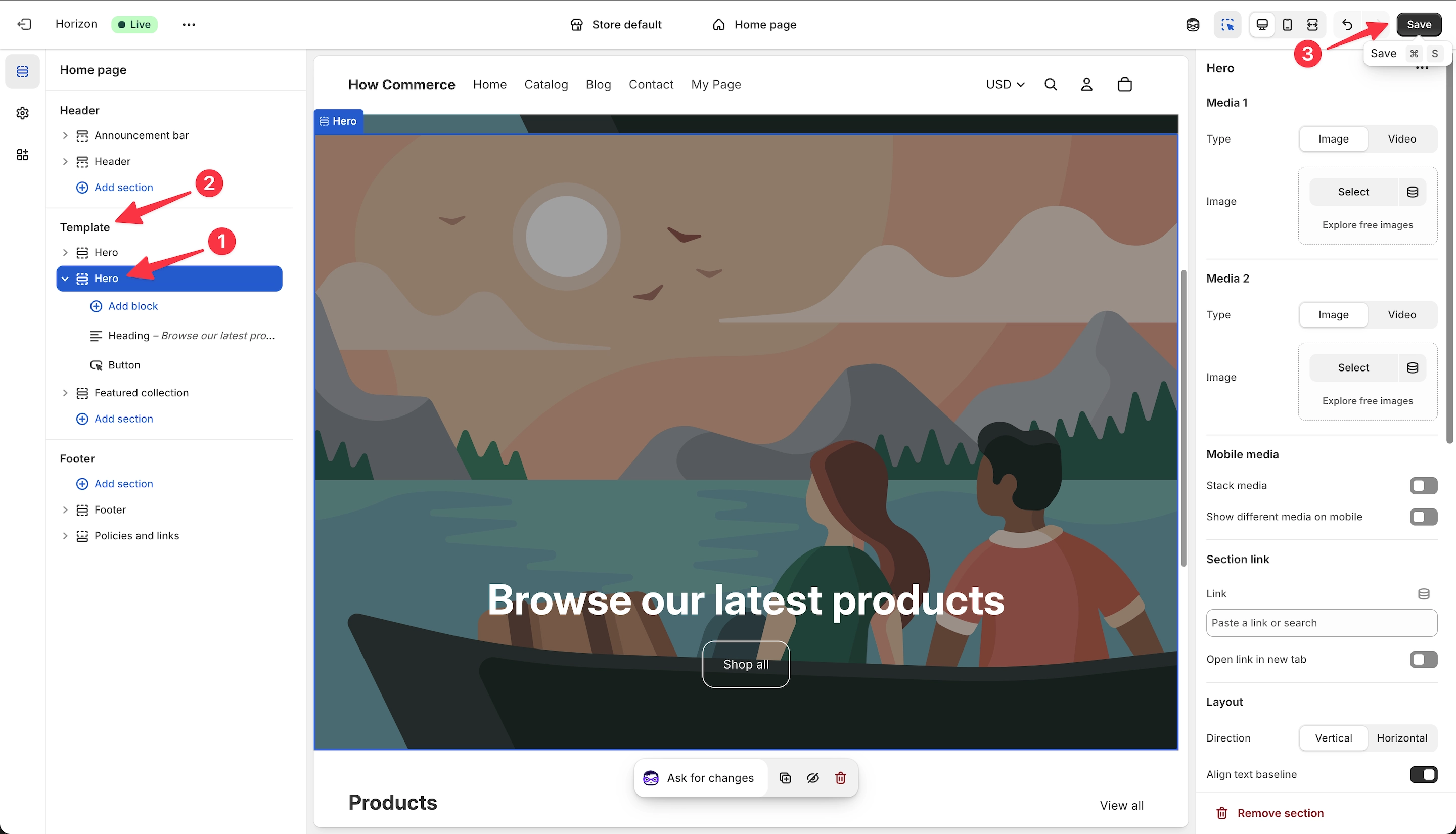
That’s it. With a single click, the entire section is duplicated.
This saves significant time, as there is no need to recreate the section from scratch.
Copy a section to the same page and the same group
Select a section by clicking on it.
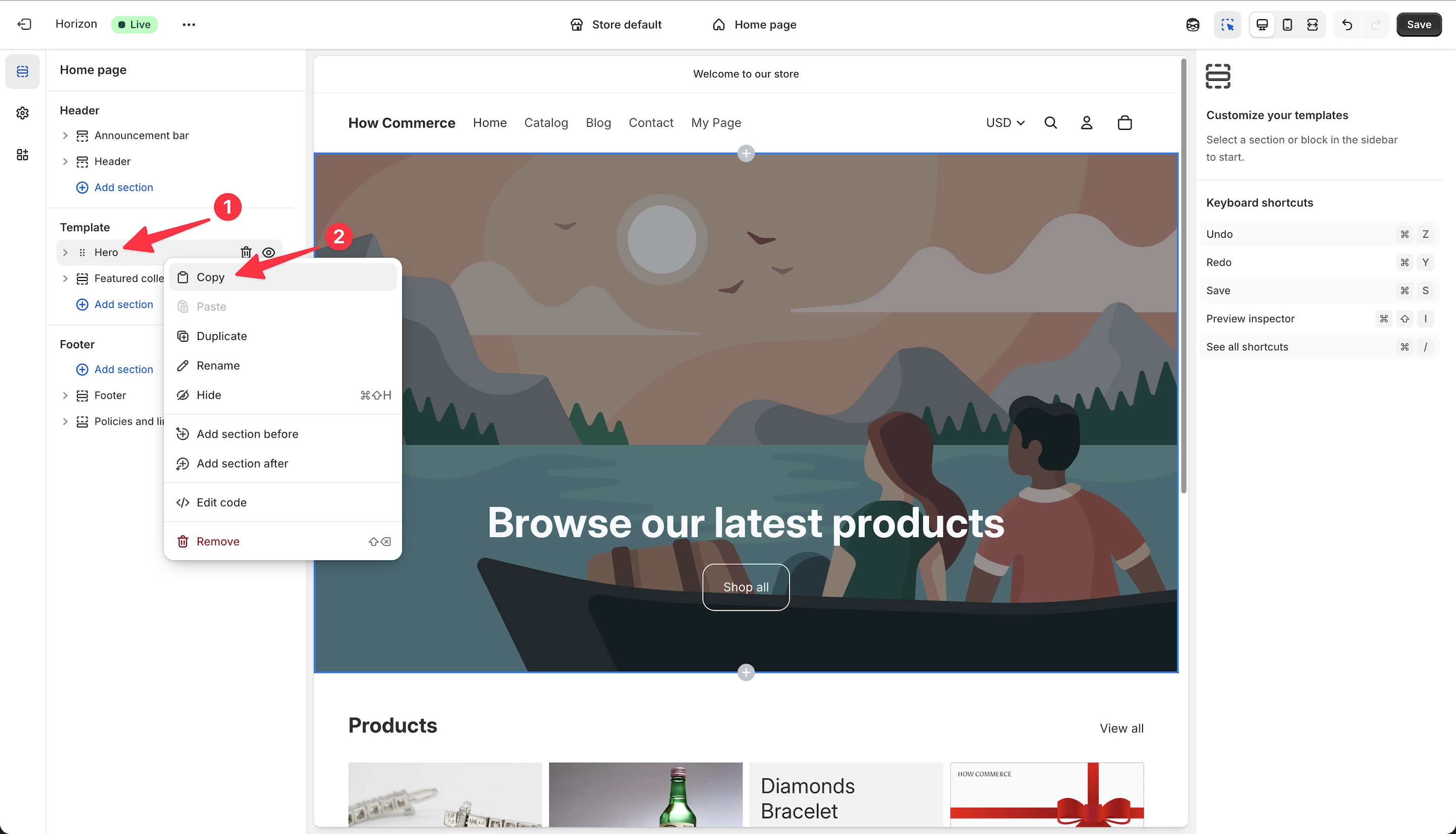
In this example, choose the Hero section (marked as 1 in the image below). Click on it to open the section menu.
Click the Copy button (marked as 2 in the image below).
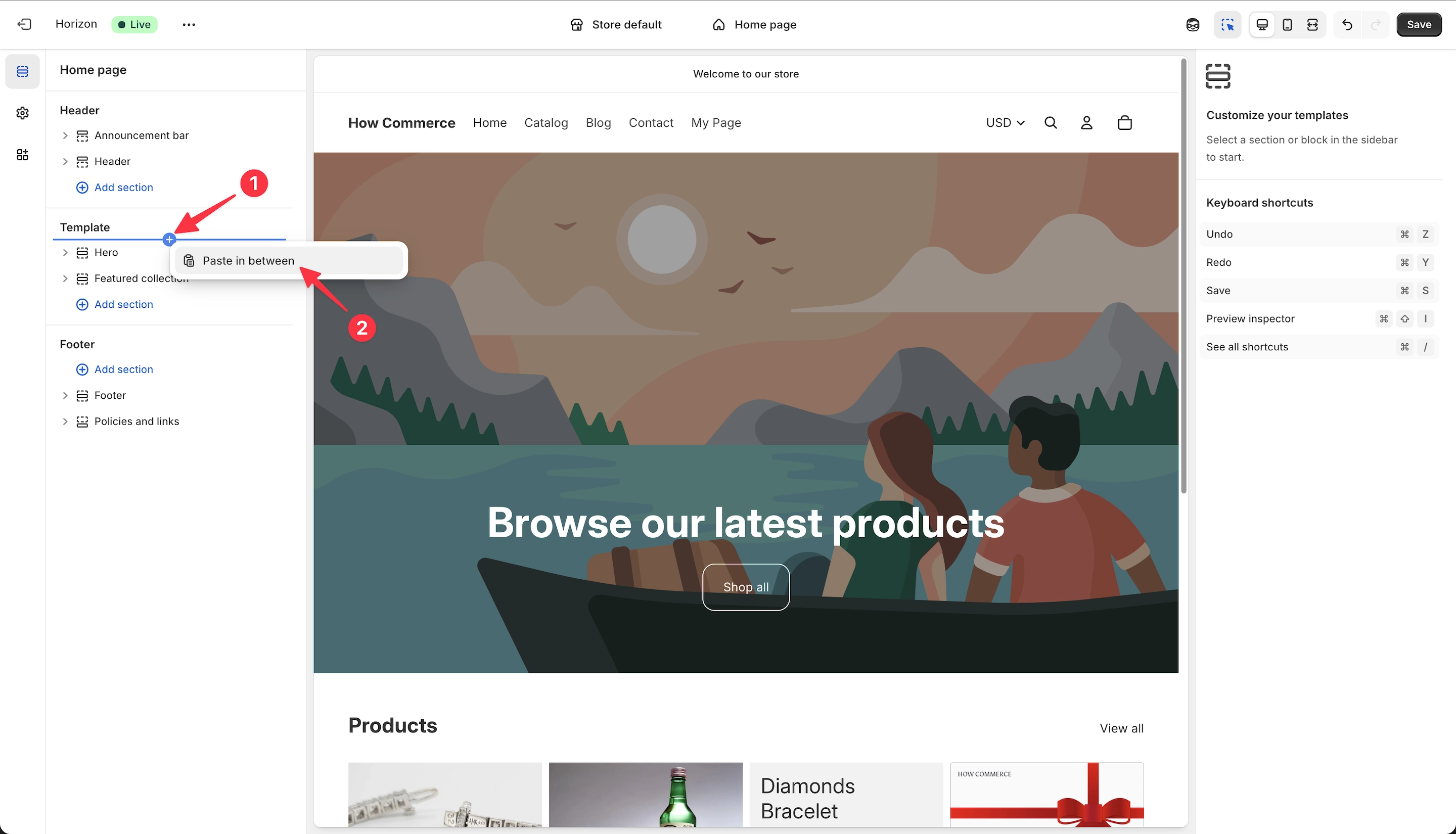
If you want to paste the section between other sections (marked as 1 in the image below), move the cursor between sections until the small plus (+) icon becomes visible.
When the plus (+) icon is visible, right-click on it. A small menu will open with the option Paste in between (marked as 2 in the image below).
Click this option, and the section will be pasted exactly in that position.
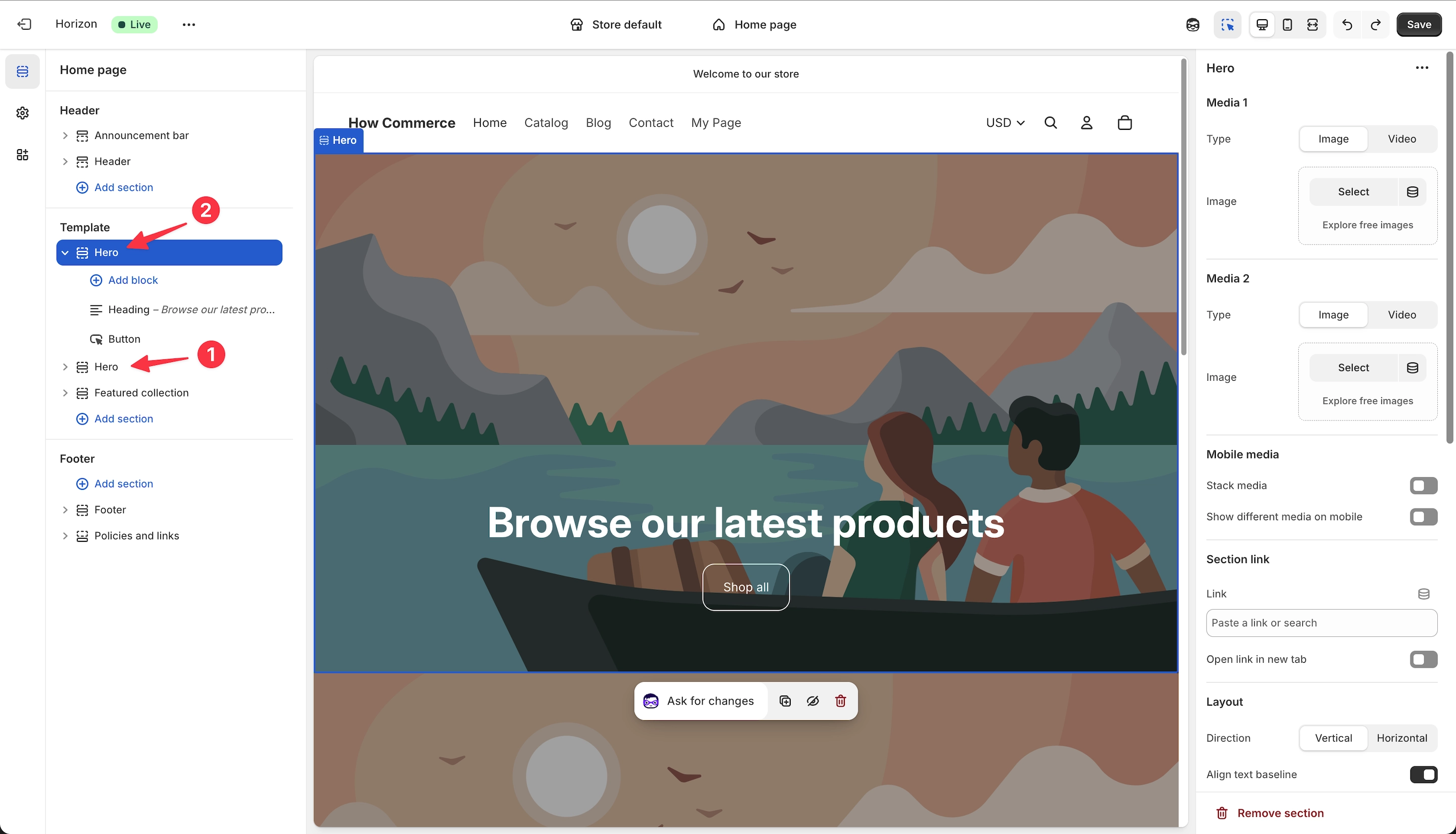
The original section will remain in place (marked as 1 in the image below), and the duplicated section will appear above the original one (marked as 2 in the image below).
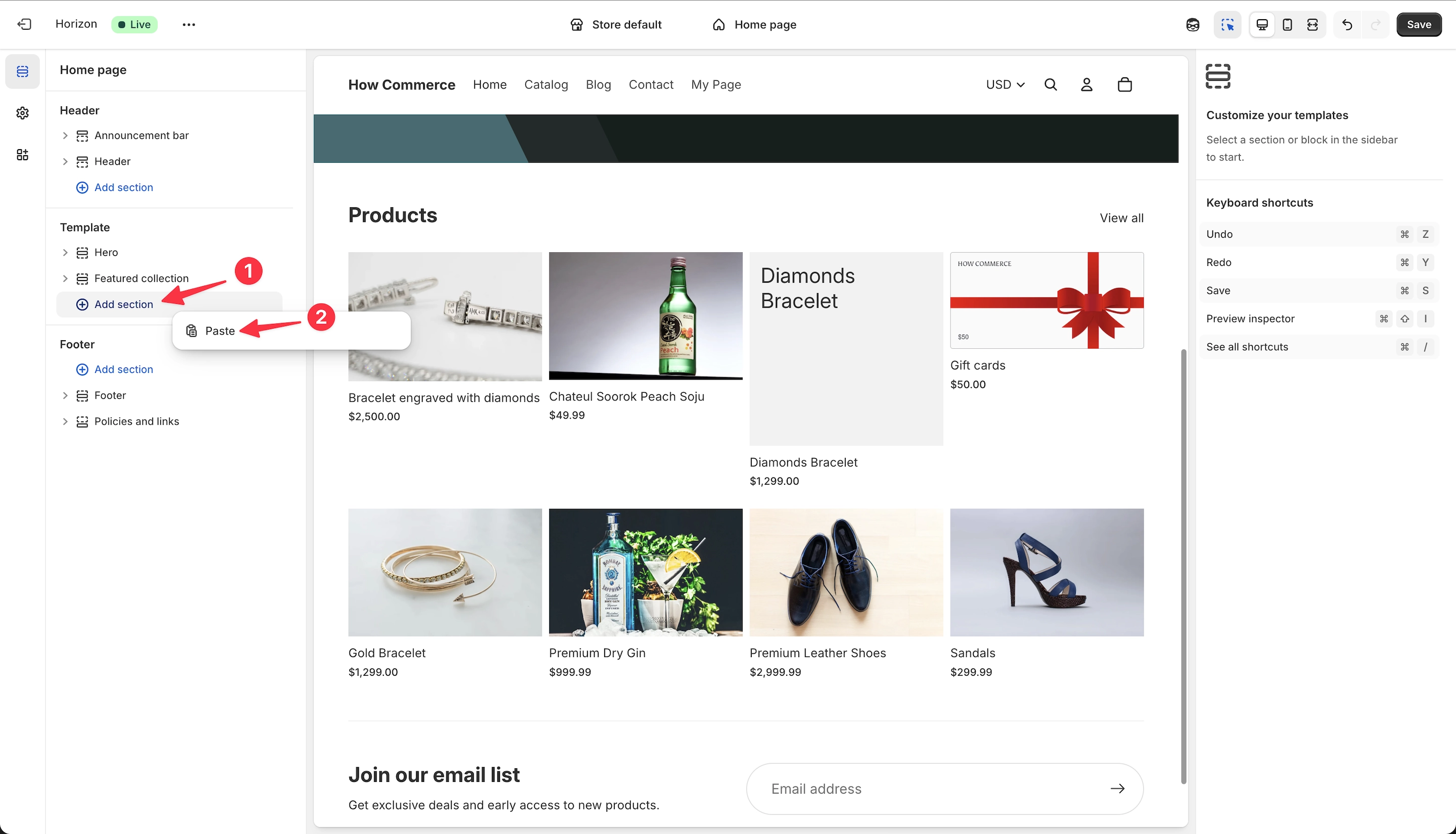
You can also paste the section using the Add section tab (marked as 1 in the image below). This will create a duplicated section directly below the currently selected position in the column.
To paste the section as a new section, click the Paste button in the modal (marked as 2 in the image below).
Afterwards, you can drag and drop the section anywhere within the same group.
Copy to the same page and different group
Select the section you want to copy:
Go to the section group where you want to paste the section.
In this example, the section groups are Header, Template, and Footer, as shown in the image below.
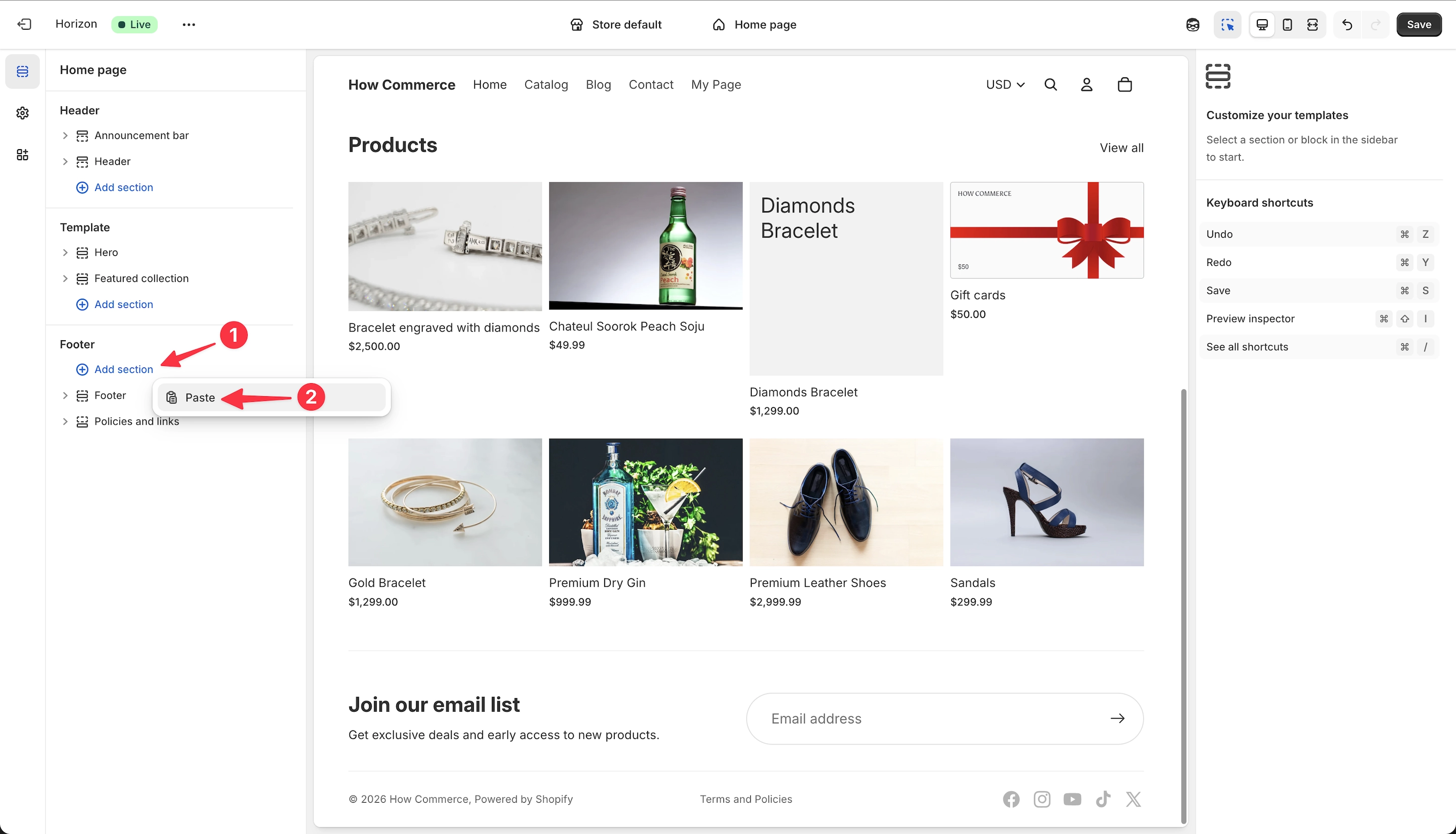
For this example, paste the selected section into the Footer group and add it as a new section (marked as 1 in the image below).
Paste it by clicking the Paste button (marked as 2 in the image below).
In the image below, you can see the copied section added as a new section within the Footer section group.
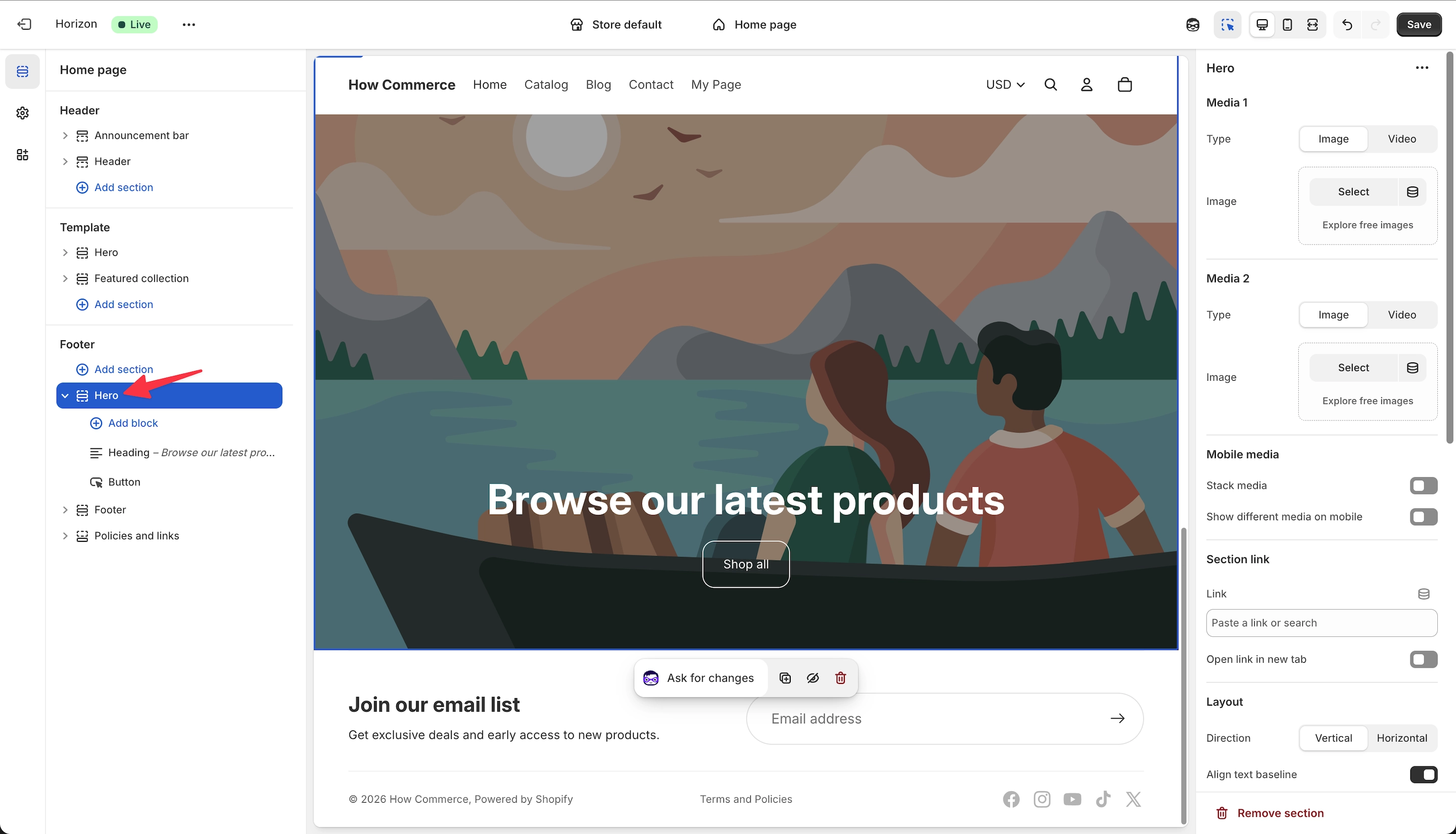
You can paste a section only into section groups where that section type is allowed.
Each section type is defined by the theme developer in the section schema and configured with specific properties that determine whether it can be used within a section group or a template.
In the example below, the previously selected section is not a supported type for the Header section group.
If you attempt to add it as a new section (marked as 1 in the image below), a modal will appear (marked as 2 in the image below) displaying the message “Paste – Section type not allowed.”
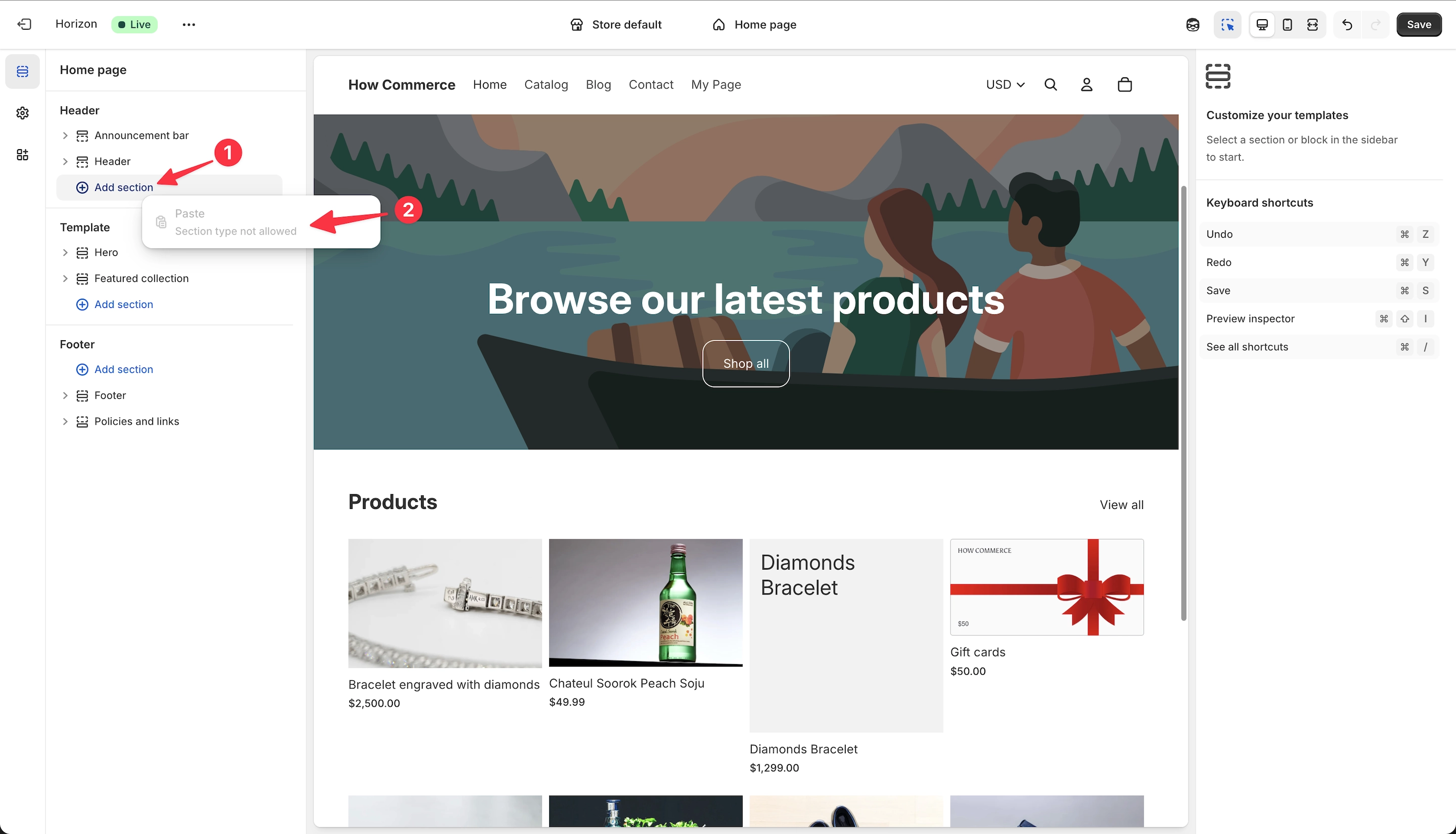
In short, if a section is not registered to work with a specific section group or template, Shopify will not allow it to be pasted there.
If you want to change this behavior, you will need a developer to modify the section’s schema and properties.
That said, these limitations exist for a reason.
Experienced ecommerce developers design themes based on real-world, battle-tested scenarios.
They understand which sections should be used where and under what conditions.
These constraints are intentionally added to guide store owners toward correct and safe design decisions.
For example, it makes no sense to allow a login or password-related section, typically used on the password.liquid page when a store is offline, to be placed on the home page or a product page.
These guardrails are not restrictions. They are design decisions meant to prevent misuse and maintain a clean, functional storefront.
Copy section to another template / page
Select the section you want to copy:
Go to the template where you want to paste the section.
To do this, click the page templates selector (marked as 1 in the image below).
Open the templates group (marked as 2 in the image below). In this example, the Blogs templates group is used.
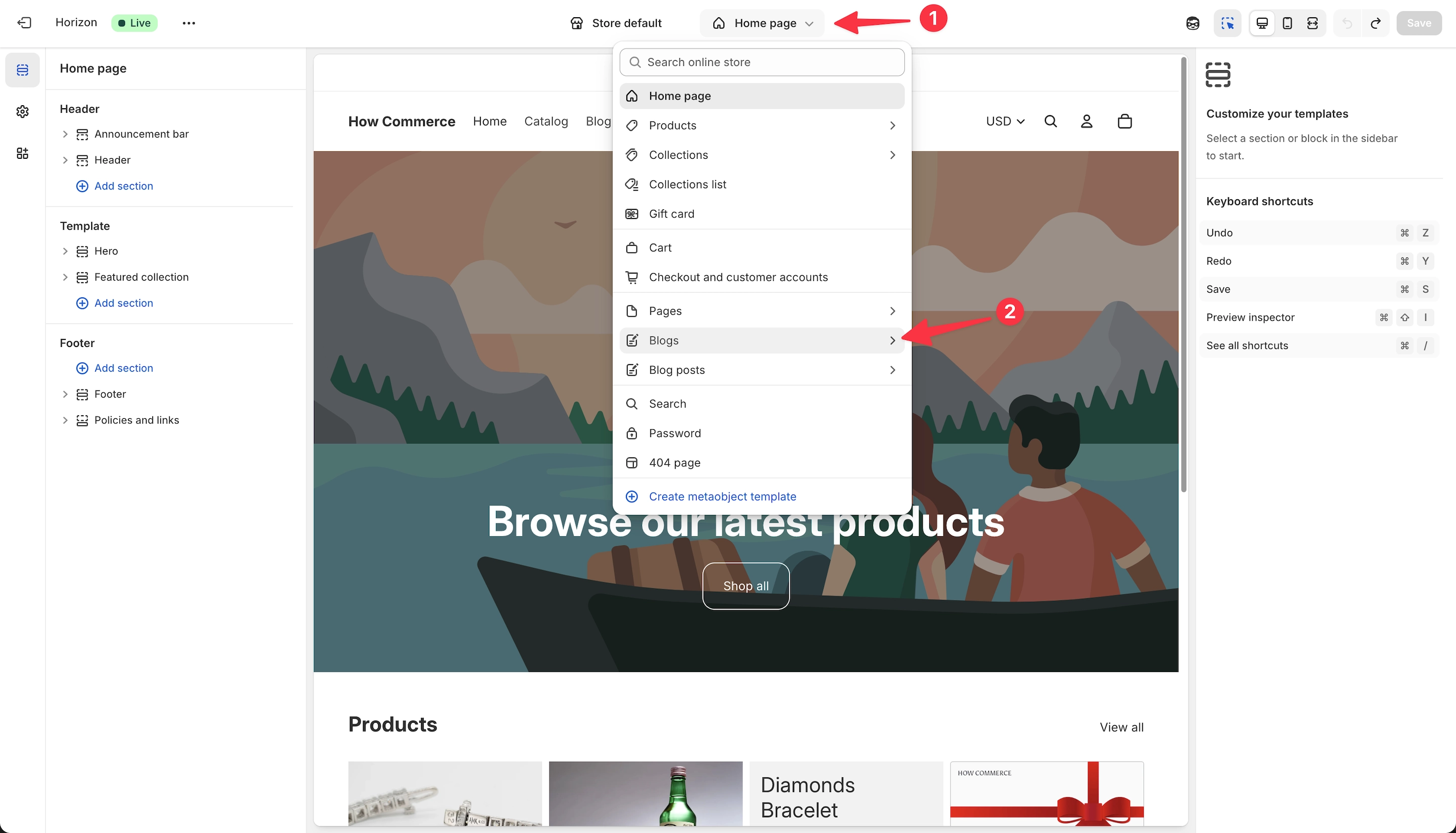
Select the template. In this example, the Blog page template is used, as shown in the image below.
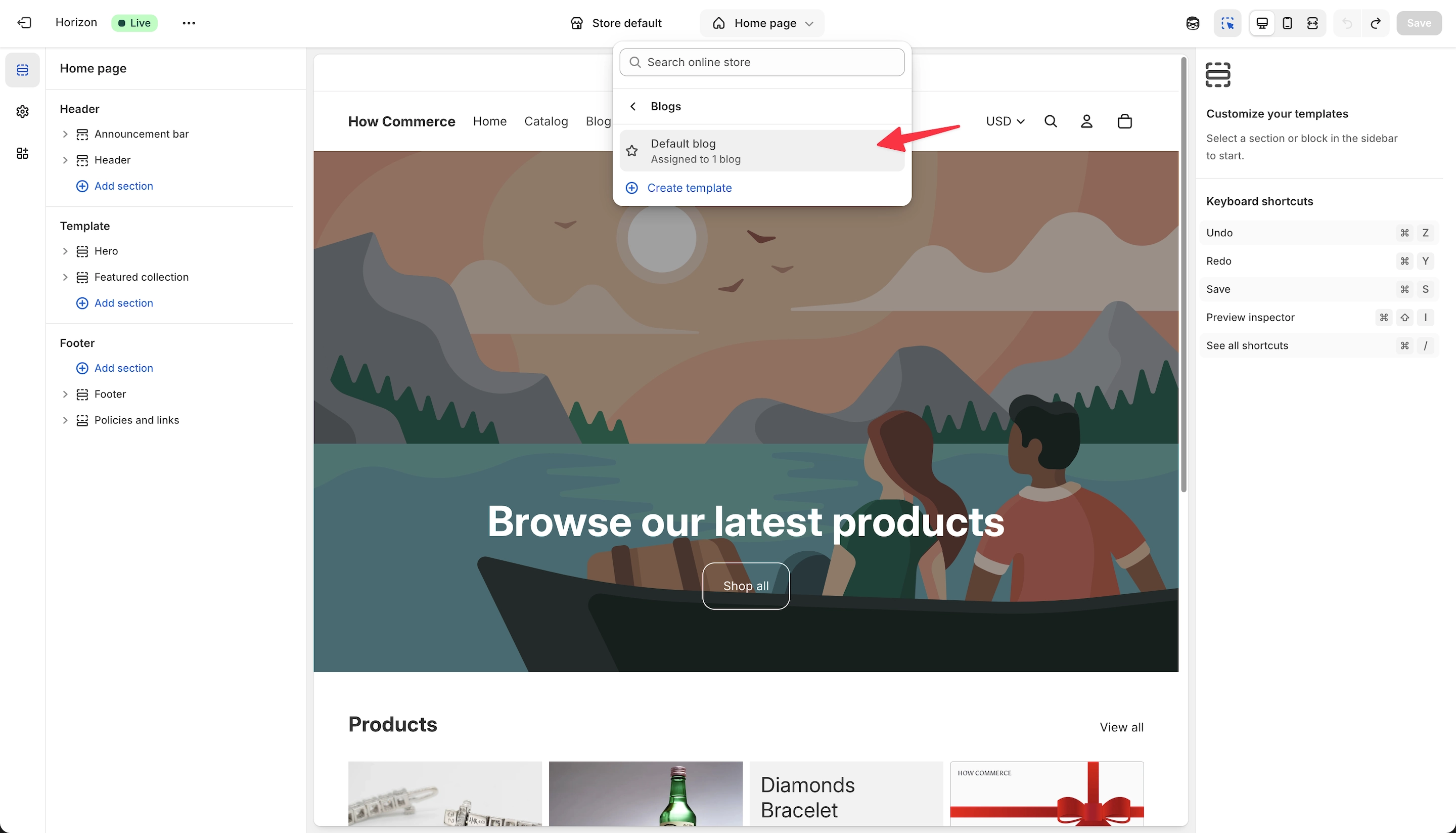
Now choose the section group where you want to paste the section.
Make sure the section type is supported in that group.
Otherwise, as discussed earlier, Shopify will not allow the section to be pasted into that specific group.
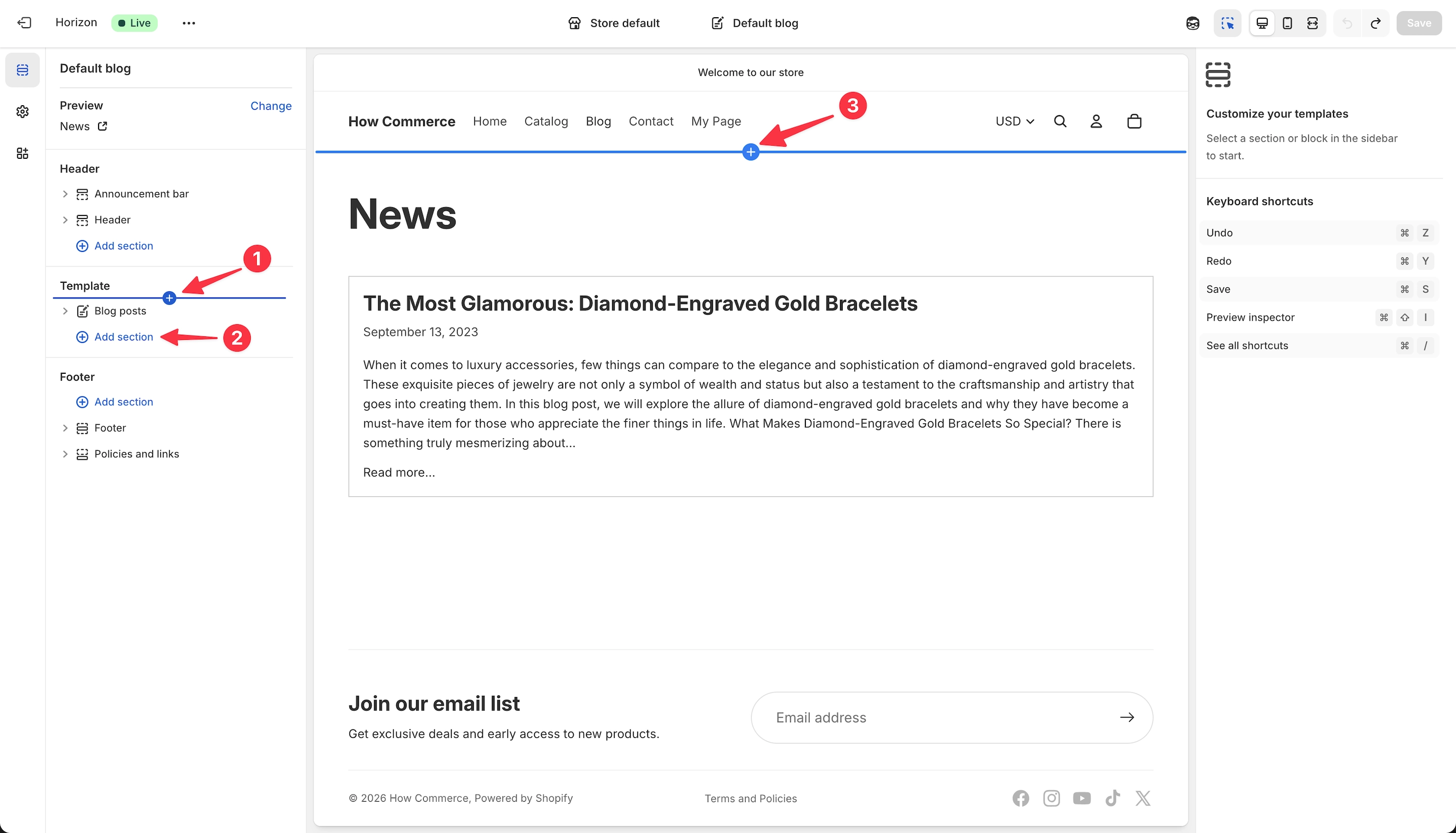
Once you select the section group, you have two options:
- Paste in between sections (marked as 1 in the image below)
- Add section as a new section (marked as 2 in the image below)
Option 3 marks another action you might notice and attempt, which is pasting the section directly inside the visual editor.
Do not waste time on this.
Shopify does not currently support pasting sections directly into the visual editor. It would be a useful feature in the future, but it is not available at this time.
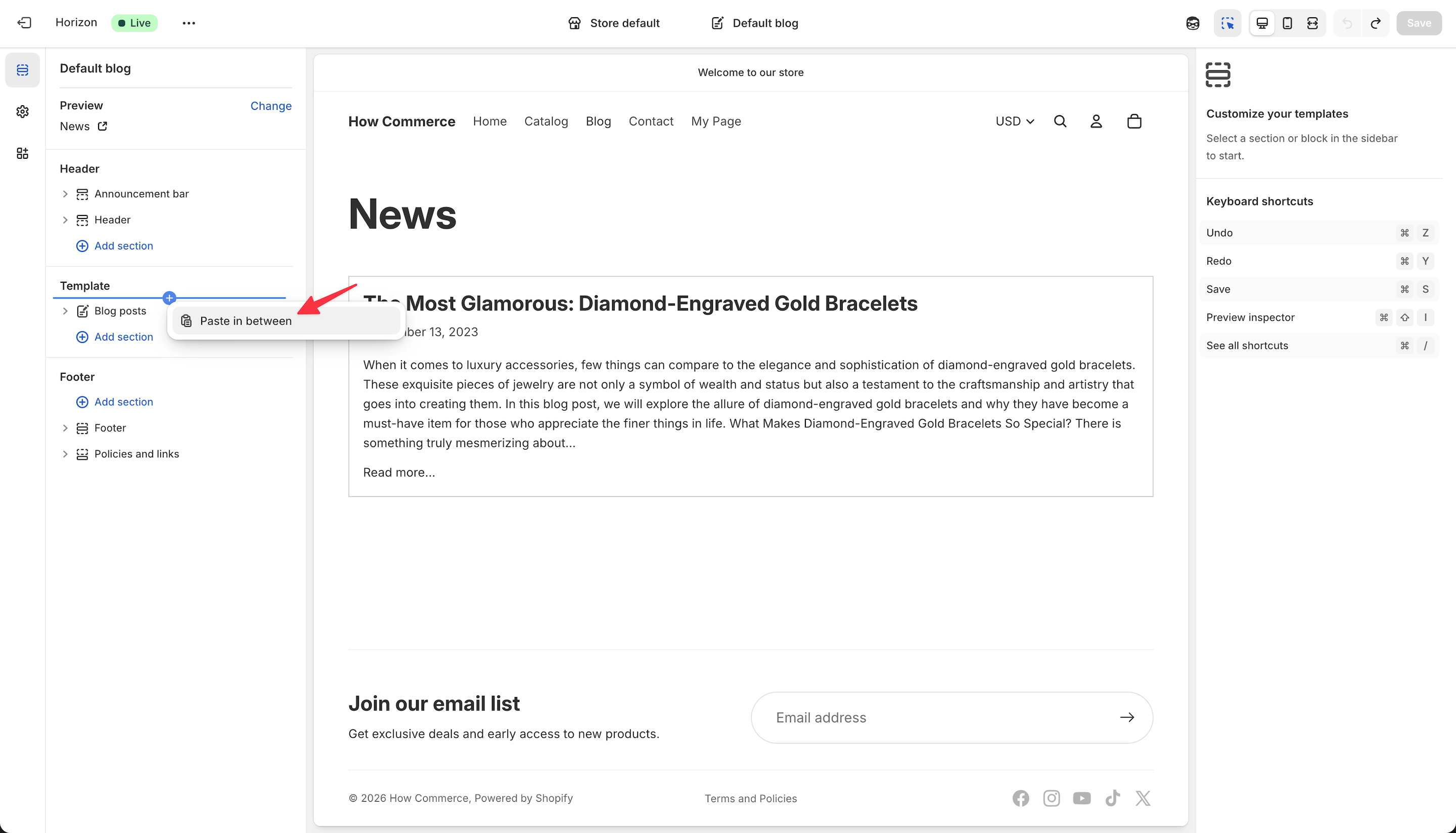
In this case, “Paste in between” is used to place the section at the top of the blog, since this is a hero section.
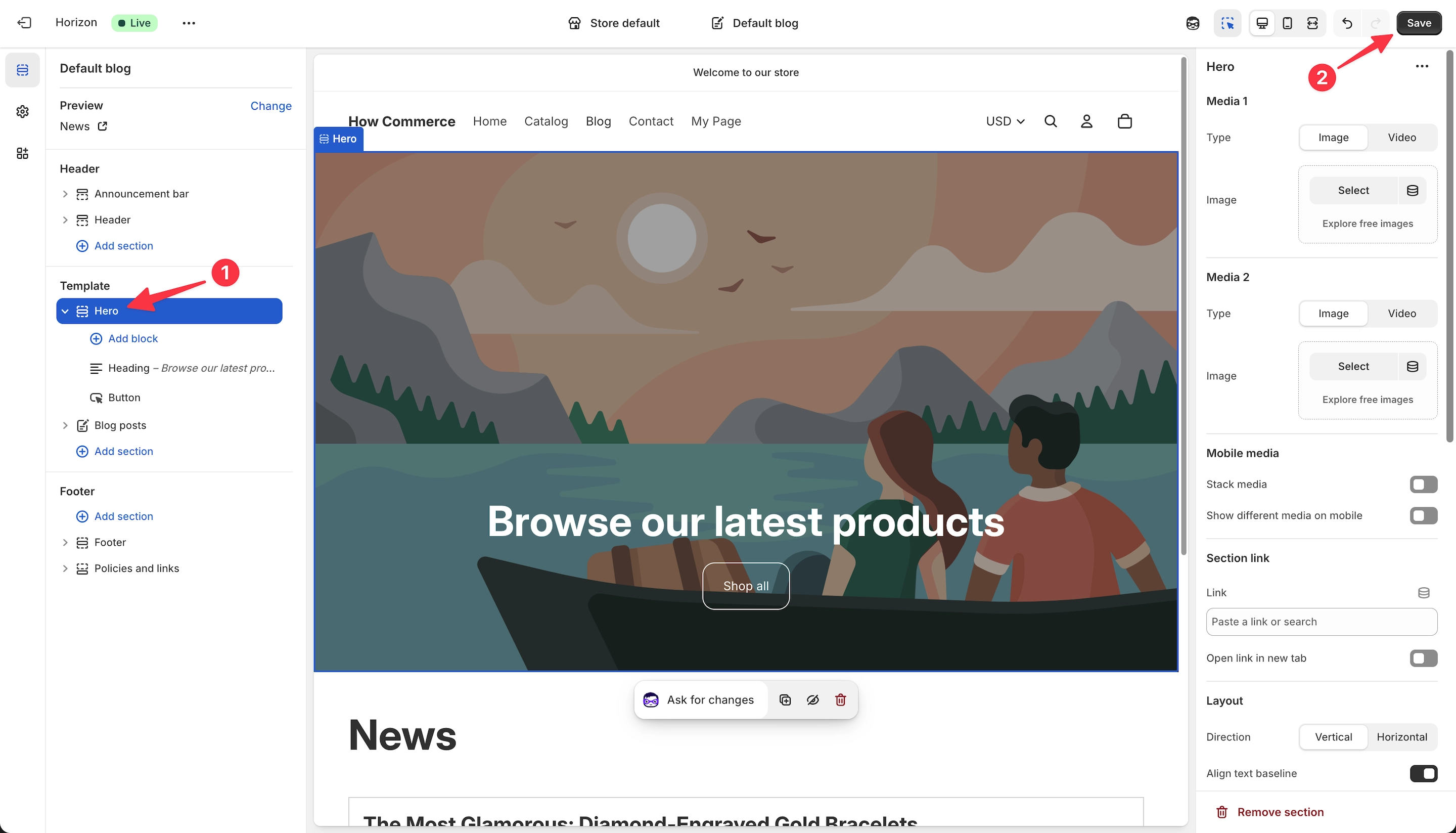
In the image below, you can see the section pasted (marked as 1 in the image below).
Once everything is in place, do not forget to save your changes by clicking the Save button (marked as 2 in the image below).
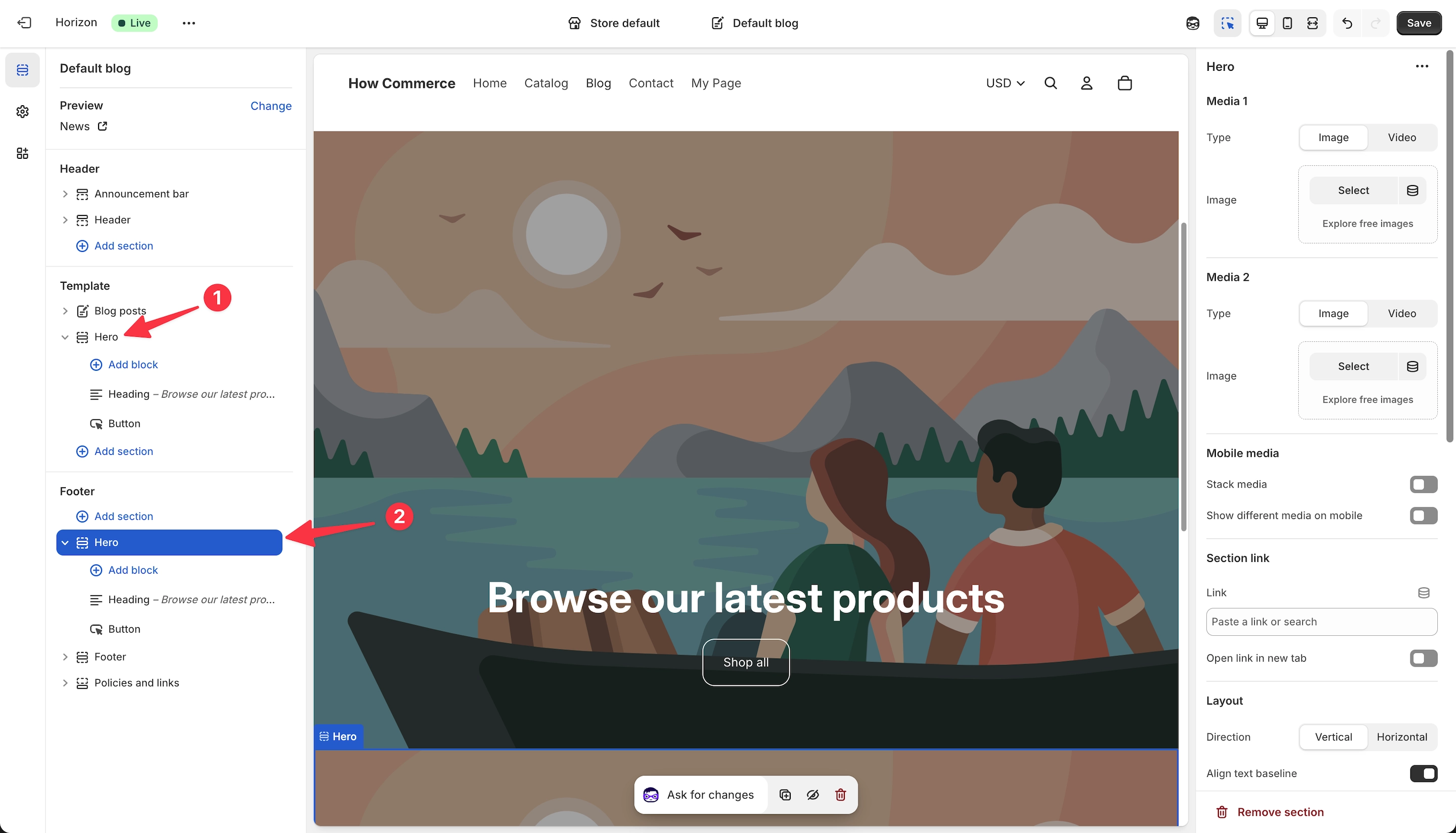
Another important point to keep in mind is that, within the same template, you can paste the same section into multiple section groups and duplicate it as many times as needed, as long as you do not exceed Shopify’s current limit of 25 sections per template.
In the image below, the section has been pasted into both the Template section group (marked as 1 in the image below) and the Footer section group (marked as 2 in the image below).
Common mistakes to avoid
Even though the process is straightforward, a few common mistakes can cause confusion:
-
Forgetting to save changes
Shopify does not auto-save. If you do not click the Save button, all changes will be lost. -
Trying to paste unsupported section types
If a section is not allowed in a specific section group or template, Shopify will block it. This is controlled by the section schema, not a bug. -
Attempting to paste directly into the visual editor
Shopify currently does not support pasting sections directly inside the visual preview. Always use the section list and section group controls. -
Assuming all sections work everywhere
Sections are intentionally restricted to specific contexts. Ignoring this leads to broken layouts and unexpected behavior.
Avoiding these mistakes ensures a smooth and predictable workflow when working with Shopify sections.
Final Thoughts
Shopify’s ability to copy and paste sections directly from the Theme Editor significantly improves both development speed and store management. What once required third-party apps or manual rebuilding is now a native, reliable workflow.
Understanding how section groups, templates, and section schemas work together is essential. These constraints are not arbitrary. They exist to protect the structure, performance, and usability of the storefront. When a section cannot be pasted into a specific group or template, it is by design.
By following this tutorial, you can confidently duplicate and reuse sections across templates and section groups, place them exactly where they belong, and work within Shopify’s intended architecture without breaking theme logic.
Used correctly, this feature saves time, reduces errors, and helps maintain a clean, scalable theme.