

Why change your Shopify store name
One thing to keep in mind is that changing your Shopify store name will not change your Shopify domain name.
This process only changes the name of your store that appears on your admin page and to your customers in places such as emails and checkout pages.
If you want to change your Shopify subdomain name in the form of: https://store-name.myshopify.com you need to register a new store since this link once created is definitive and can’t no longer be changed.
Step-by-step guide
Log in to your Shopify admin page. If you need help, follow our Shopify login guide first.
Once you're logged in, you'll be directed to your Shopify admin dashboard.
On the left side of the dashboard, you will find a list of options.
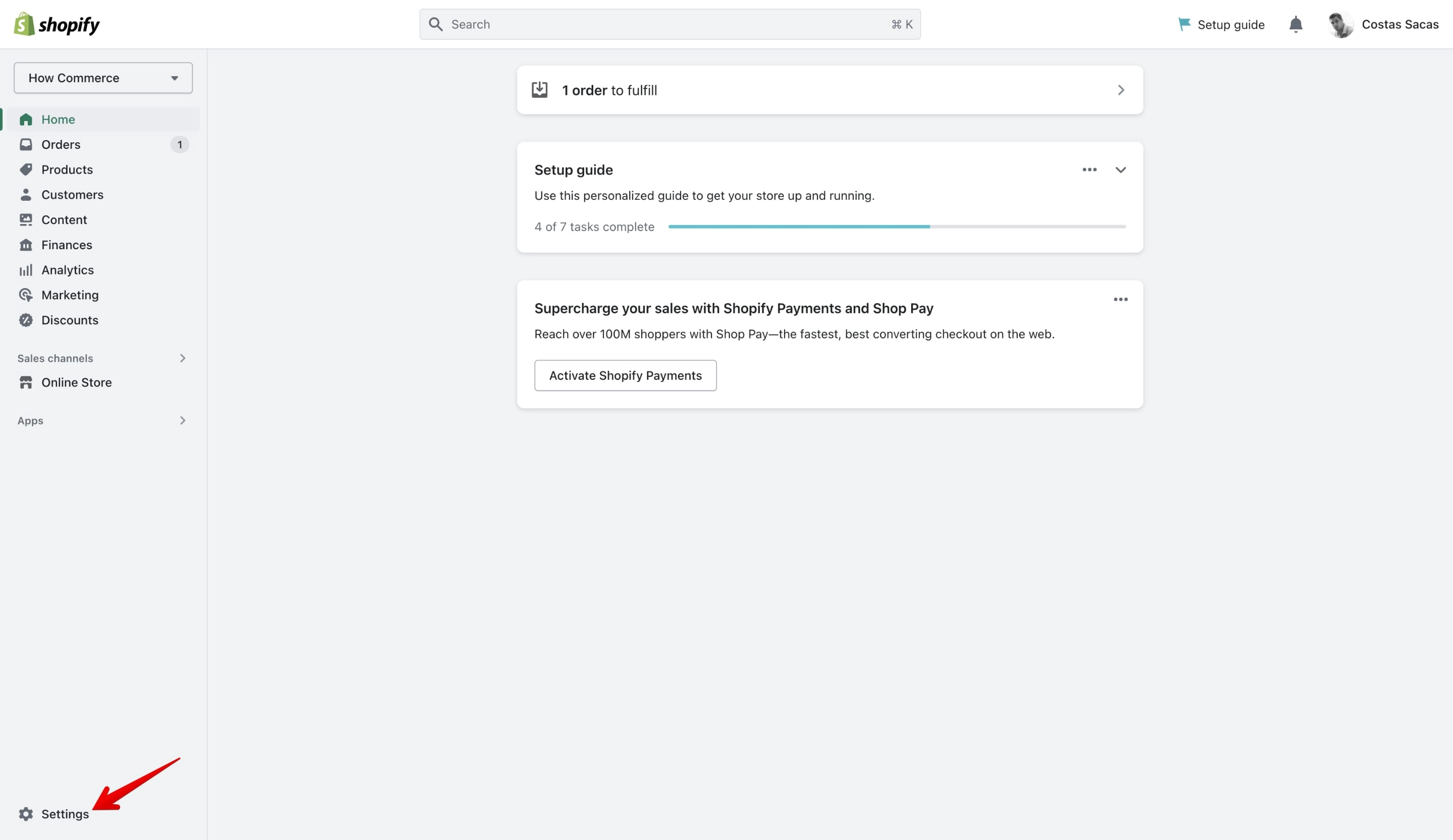
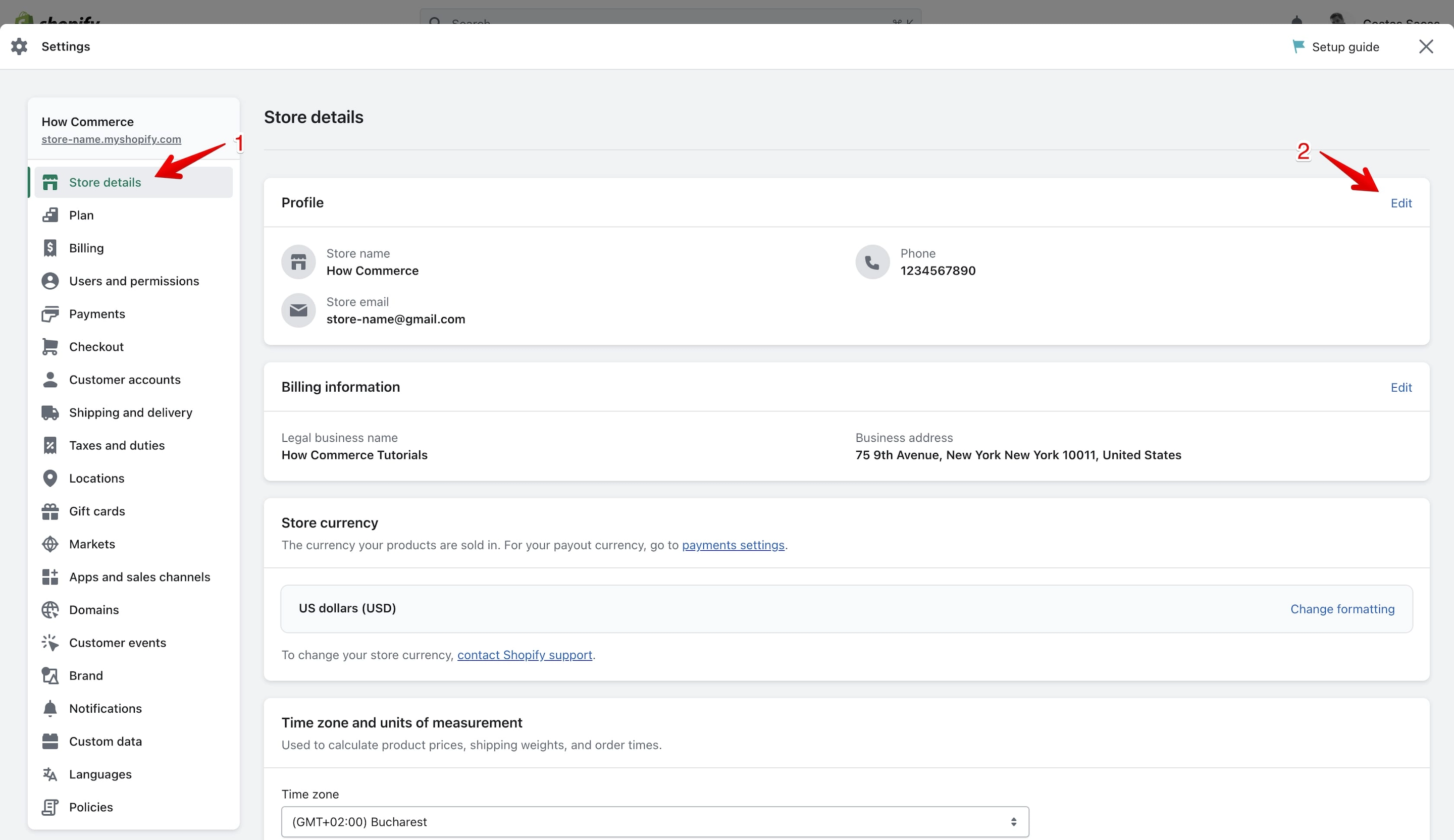
Click on "Store Details" (marked with 1 in the image below) and then click on the "Edit" link (marked with 2 in the image below):
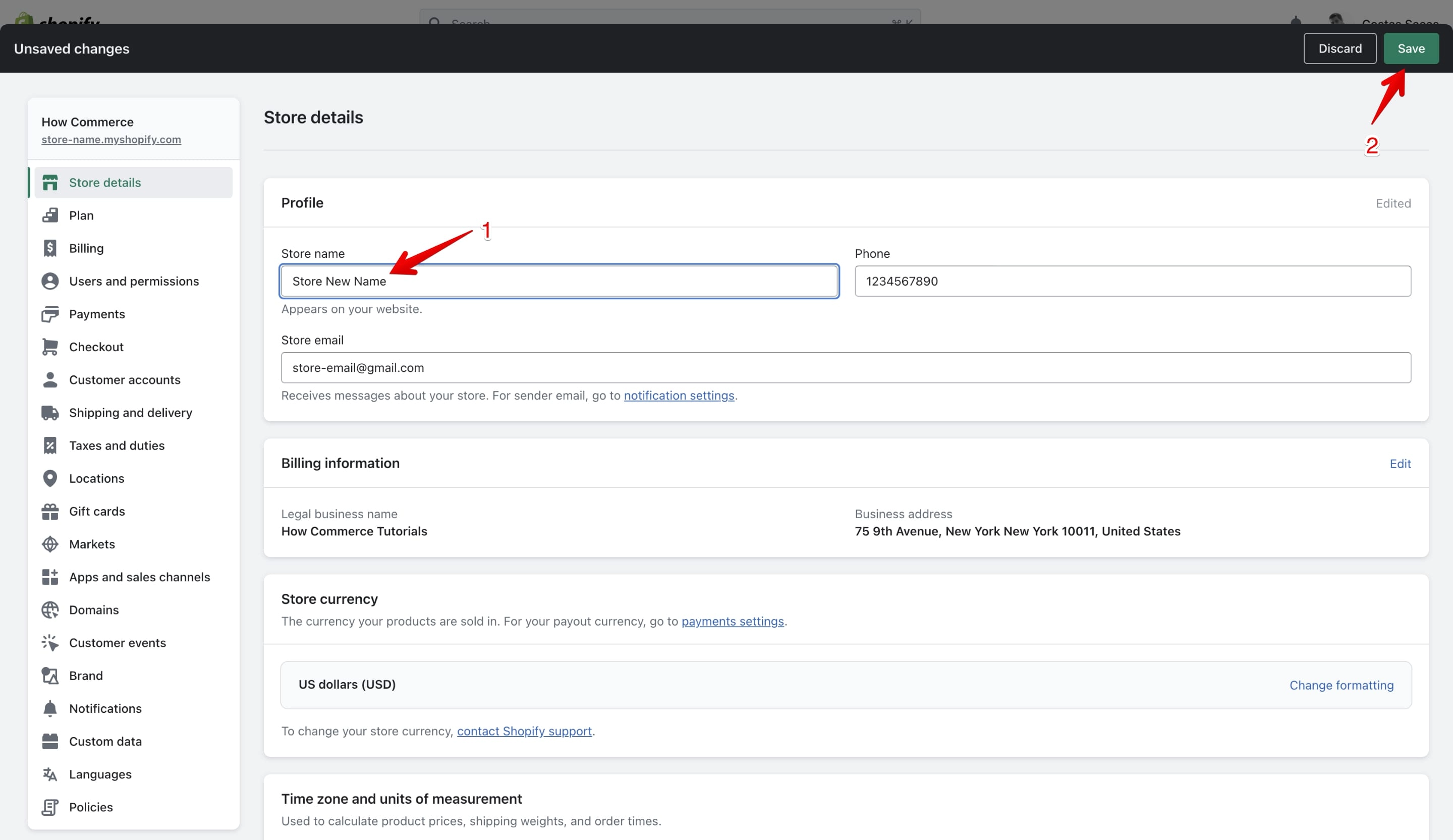
Now change your store name by typing the new name inside the input box (marked with 1 in the image below).
After you've entered the new name, click on the "Save" button (marked with 2 in the image below) to save your new settings:
Conclusion
That's it!
You've successfully changed your Shopify store name. Your new store name will be displayed on your Shopify admin page as well as to your customers where the store name is shown.
Remember that changing the store name will not affect your products, prices, customers, or order information in any way. It only changes the way your store is represented to your customers and on your admin page.