
Introduction
This tutorial will help you remove or modify the following types of links in the footer: “Powered by Shopify”, “Ecommerce Software by Shopify” or “E-commerce by Shopify” and also links like: “This shop will be powered by Shopify” on the themes offline pages.
Why this link exists
First of all, maybe you are wondering why is this link present in the theme footer?
Well, this is a way for Shopify to promote their business. If you want to promote Shopify and tell others about it, I recommend leaving the link where it is.
Let’s say somebody is visiting your website and sees the link in the footer: “Powered by Shopify”, “Ecommerce Software by Shopify” or “E-commerce by Shopify”. He starts wondering: “Hey, what is this link for?” and clicks on it to see where it goes.
Usually the link takes the user to the Shopify website: https://www.shopify.com/. Once he sees what is the platform that powers your website, he decides that he wants to open himself a shop and starts using the Shopify platform for that.
Leaving the link will help Shopify a lot in their journey to change commerce as we know it. I love what they do and I encourage you to keep the link but in some cases you really need to remove the link from the footer.
For those of you that are wondering if search engines will penalize you for having this link in the footer let me tell you that from my knowledge this is not the case. I’ve looked at all 8 free themes developed by Shopify and they have the recommended tag rel="nofollow", though these days this tag is a strong signal meaning that Google might take it into consideration or it may not.
The rel="nofollow" tells search engines to not associate your website with any Shopify endorsements or crawl the linked page from your site.
Why removing it can help
Not removing the link has some drawbacks though. For example, once a user clicks an external link and moves to another website chances that he will not come back are increased and you can lose a customer. If the user is in your sales funnel he will get back but if he isn’t, you can lose him forever and he may never visit your site again.
To avoid issues like this one it is better that you remove this link since your shop is an ecommerce one and not a blog to promote affiliate products.
Which method to use
The first method and the most simple one is to remove the text from Shopify admin inside the theme “Language” section. This is also the method listed in Shopify documentation but in my opinion it is not the correct one because this method will replace the text with a space that you’ll be typing inside the input box, leaving the code in the front-end intact.
I do not like to see on my websites pieces of code that don't contribute to the website overall.
If a piece of code is not needed it should not be patched but removed entirely from the website.
If you replace the text with a space to make it invisible, the code that you leave in the front-end will load on every page slowing down your website.
Maybe you’re thinking that it's just a small line of code, and won't do any harm. I would say one small line of code here, another one there and another over there and soon you’ll have a lot of kilobytes or as I have seen in some extreme cases even megabytes of useless code.
A couple of kilobytes of code will not harm so much a user on a high speed internet connection with a powerful computer. If all your users will have high speed internet and powerful connections you’ll be fine but I doubt that.
Most of your users will use mobile devices and WI-FI internet connections on the road, stations, airports, restaurants and some of them will be in the countryside using a slow internet connection.
Because of that I can tell you from my experience that even the smallest optimisation you can do matters and makes a huge difference.
In the first method I’ll show you how to remove the text by replacing it with a space. This method is explained in the Shopify documentation as well, but it is not crystal clear, so I’ll try to make it clearer and easier to understand for those that are not familiar with ecommerce platforms.
I do not recommend this method but for those that do not understand coding it is much safer. By changing your Shopify store code, because you do not understand entirely what you do, you can break your theme.
Shopify has a tracking feature that could help with this by saving an older version of your page once you’ve made changes to it. If you break something you can revert to the working version of the file. Anyway, I still recommend hiring a developer to change the code and point him to this tutorial to help him complete the job faster.
The second method is the one that I recommend and I’ll show you how to remove the code and keep the theme clean.
Please note that “Powered by Shopify” is theme related meaning that when you’ll remove it, it will be removed only for that theme and not for the entire shop. When you install a new theme “Powered by Shopify” will display again and you have to remove it.
For every theme the tutorial is repetitive so it is best to go at the top of the article and click on the theme that you want to change the copyright. Clicking or tapping on the theme name will take you directly to the specific section of the tutorial for that theme.
Debut theme
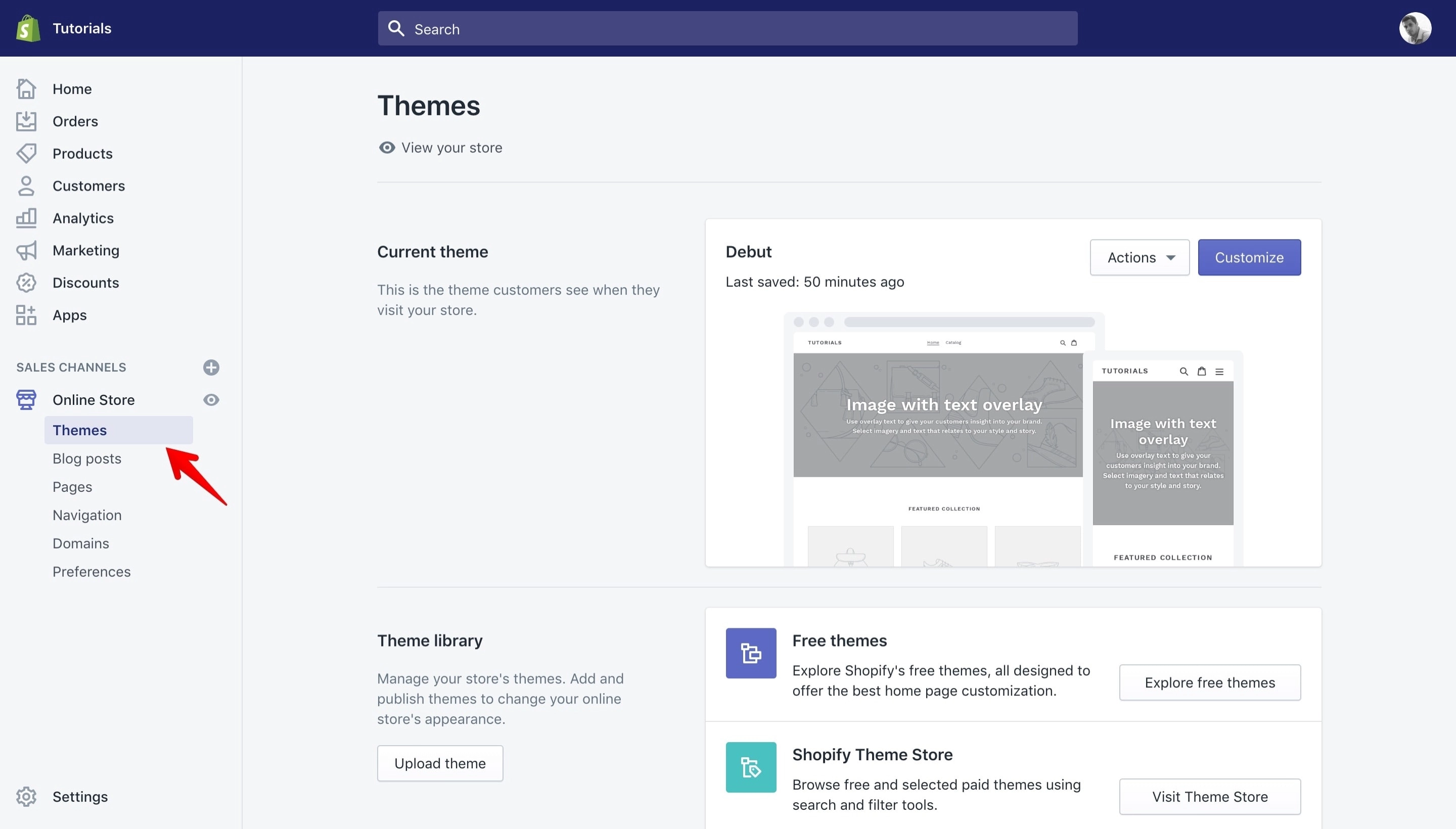
We start with the Debut theme since this one is preinstalled on every new Shopify installation you make.
Removing text method
Global copyright
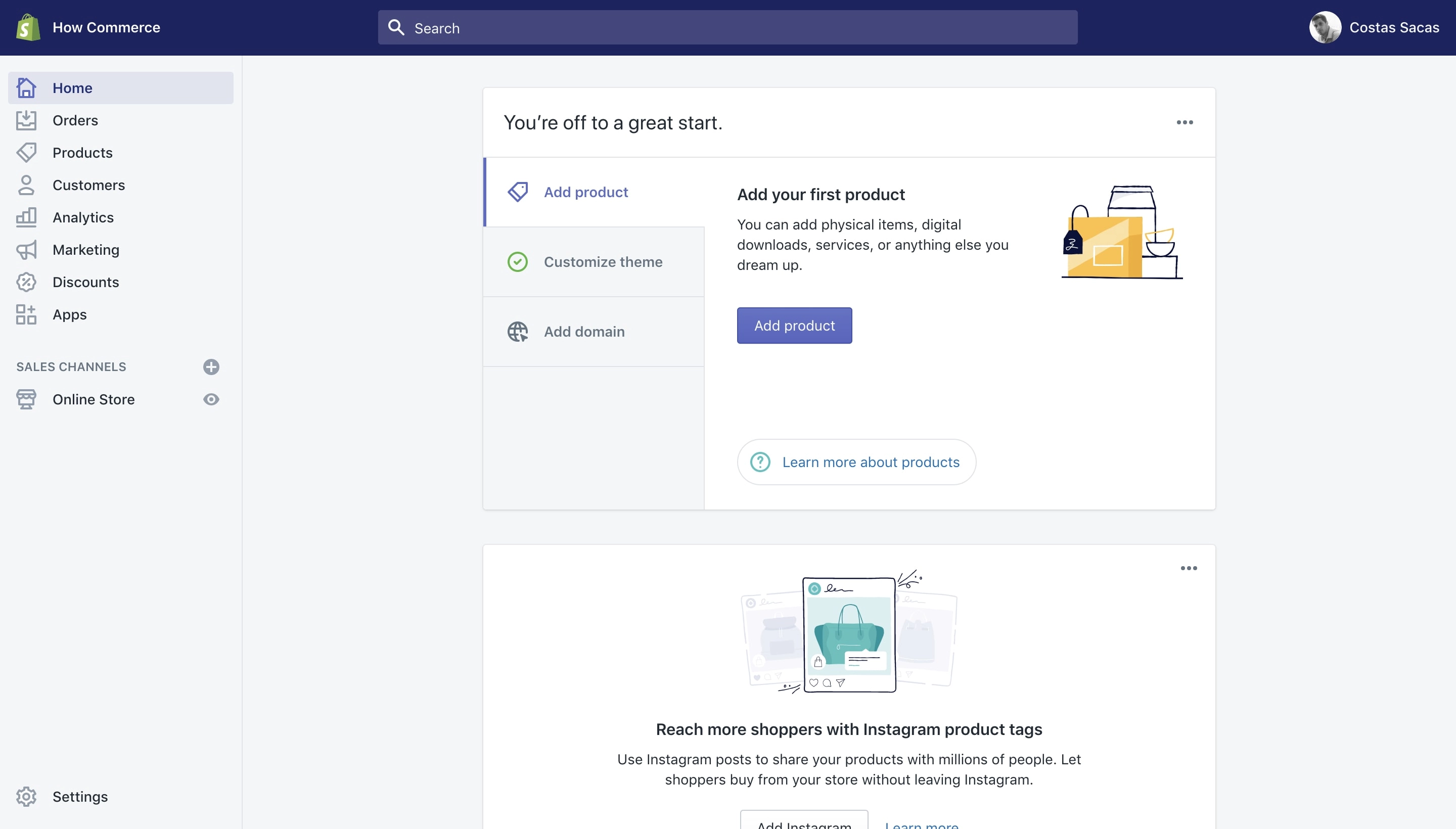
Login in the administration area (back-end) of your Shopify store. Once you are logged inside your shop back-end you should see this:
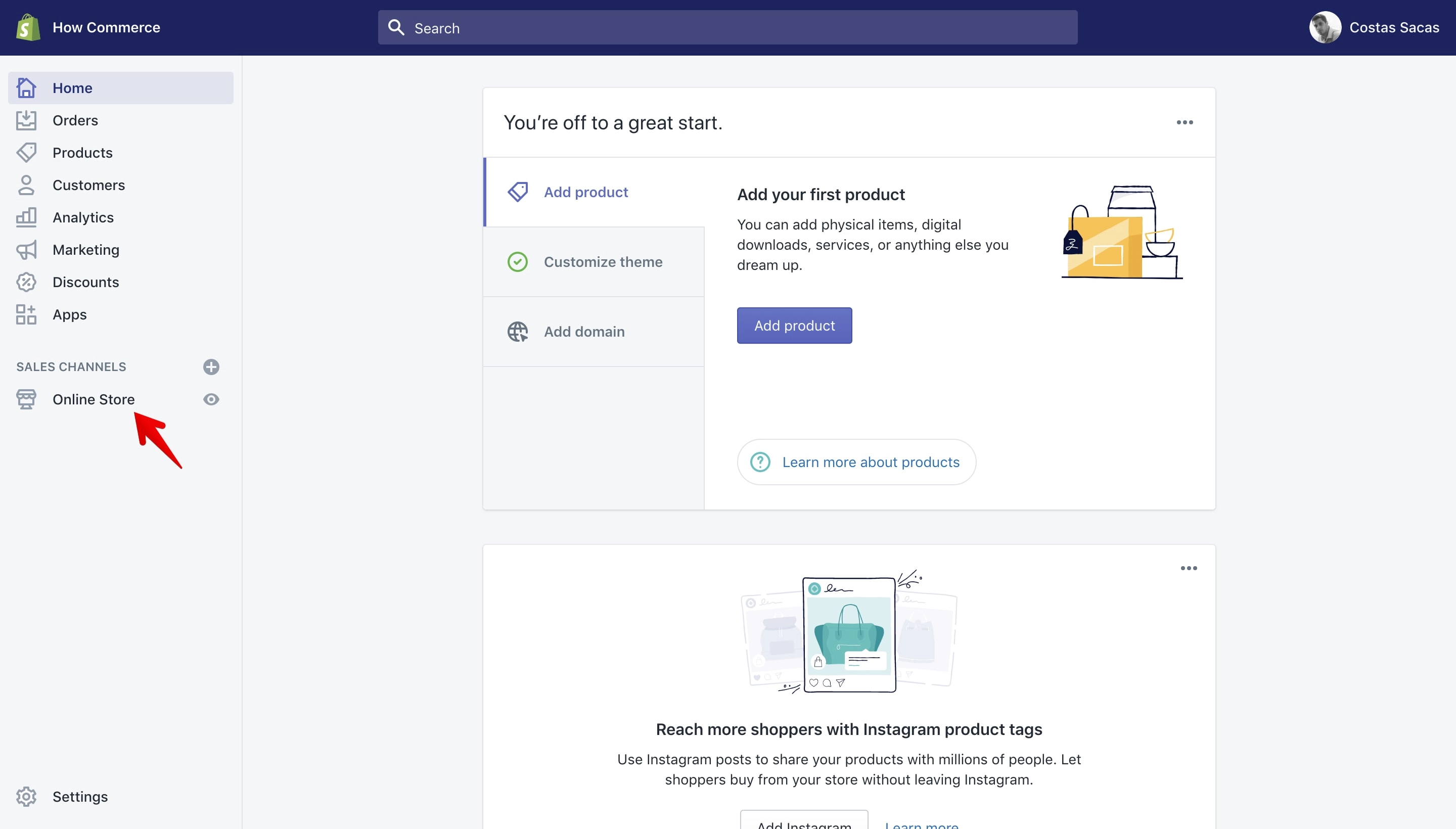
Click on the “Online Store” menu item located in the “Sales Channels” section on the left side of your dashboard:
The “Online Store” drop-down menu will open and you can see multiple options to administer your shop channel and the “Themes” page:
Now click on the “Actions” button to list the drop-down menu and select “Edit Languages”:
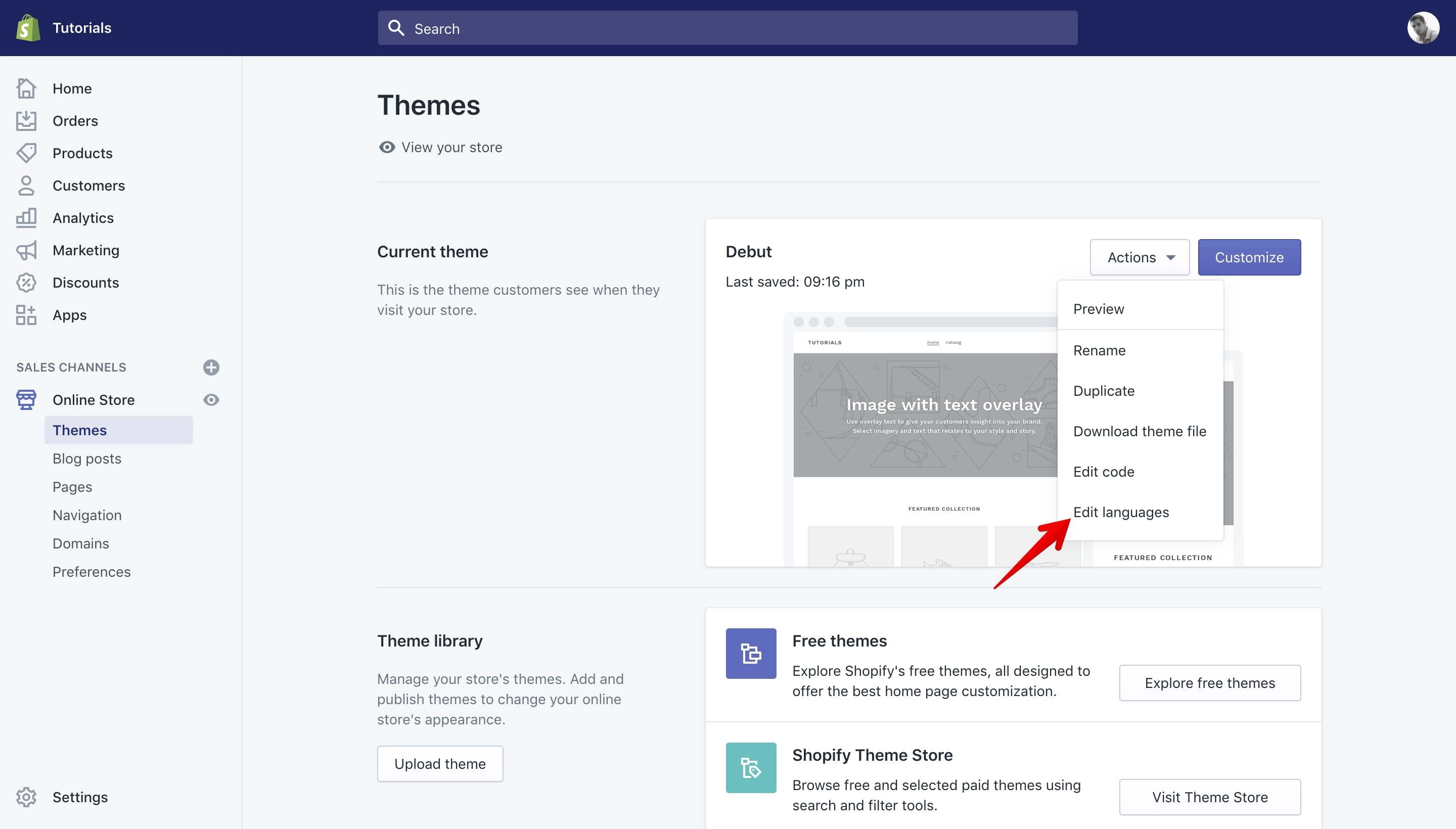
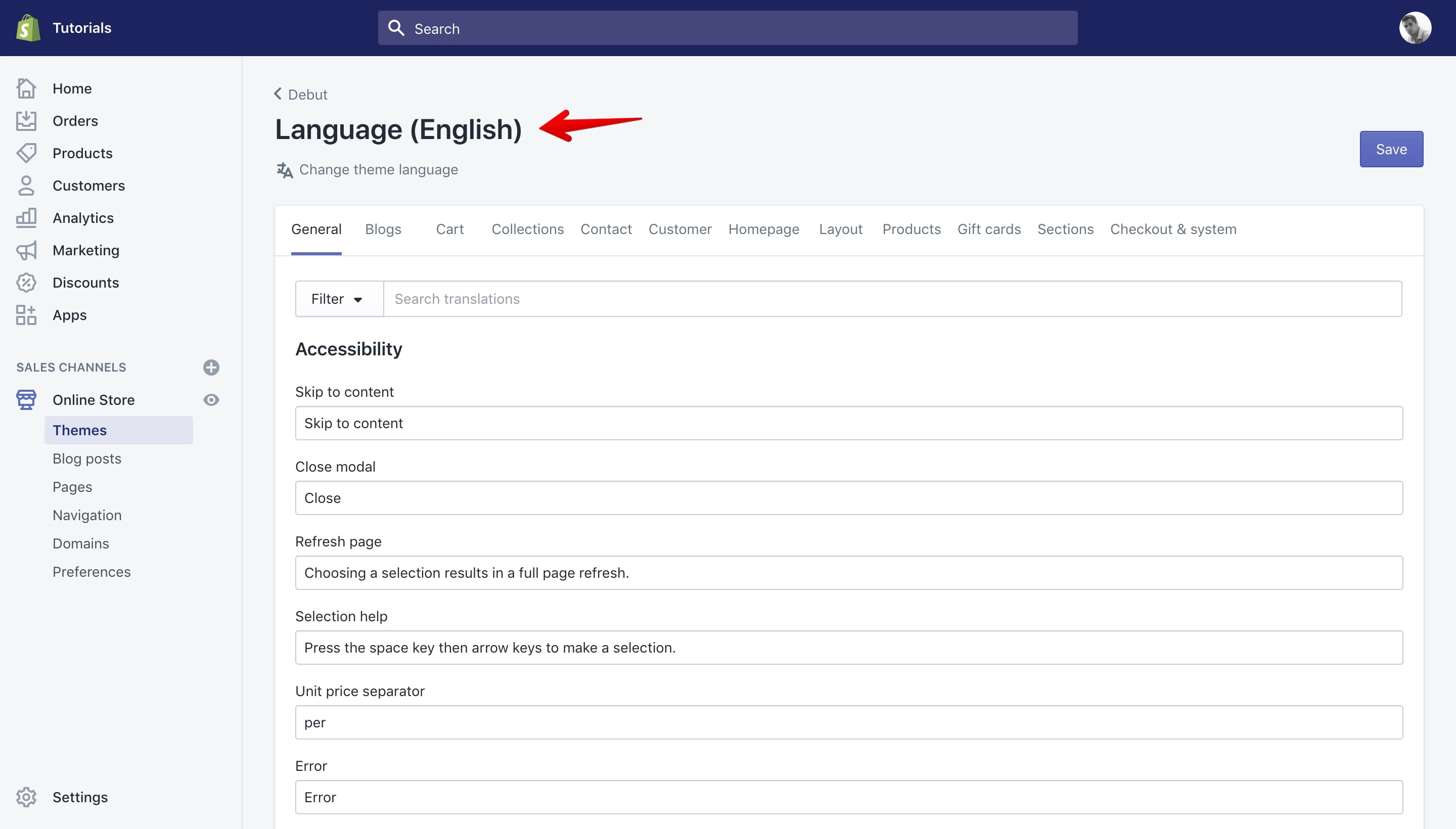
Now you can see the “Edit Languages” page and as you can see I’m on the “English language” settings page:
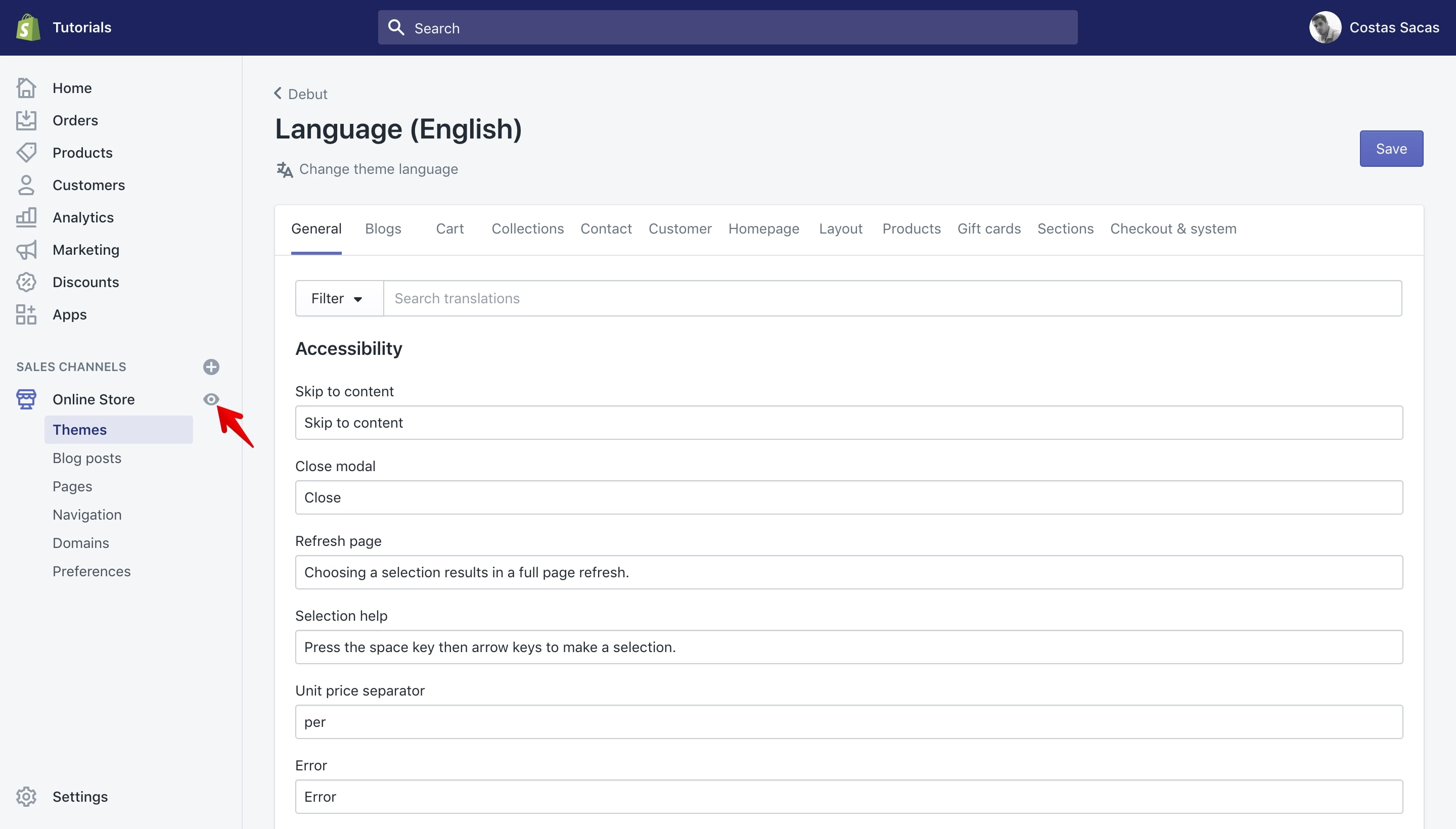
Keep this tab open and open a website preview of your shop by using the small icon located on the right of the “Online Store” channel:
Once you click the preview icon a new tab will open with a preview of your shop. Scroll at the bottom of the page and search for a “Powered by Shopify” text:
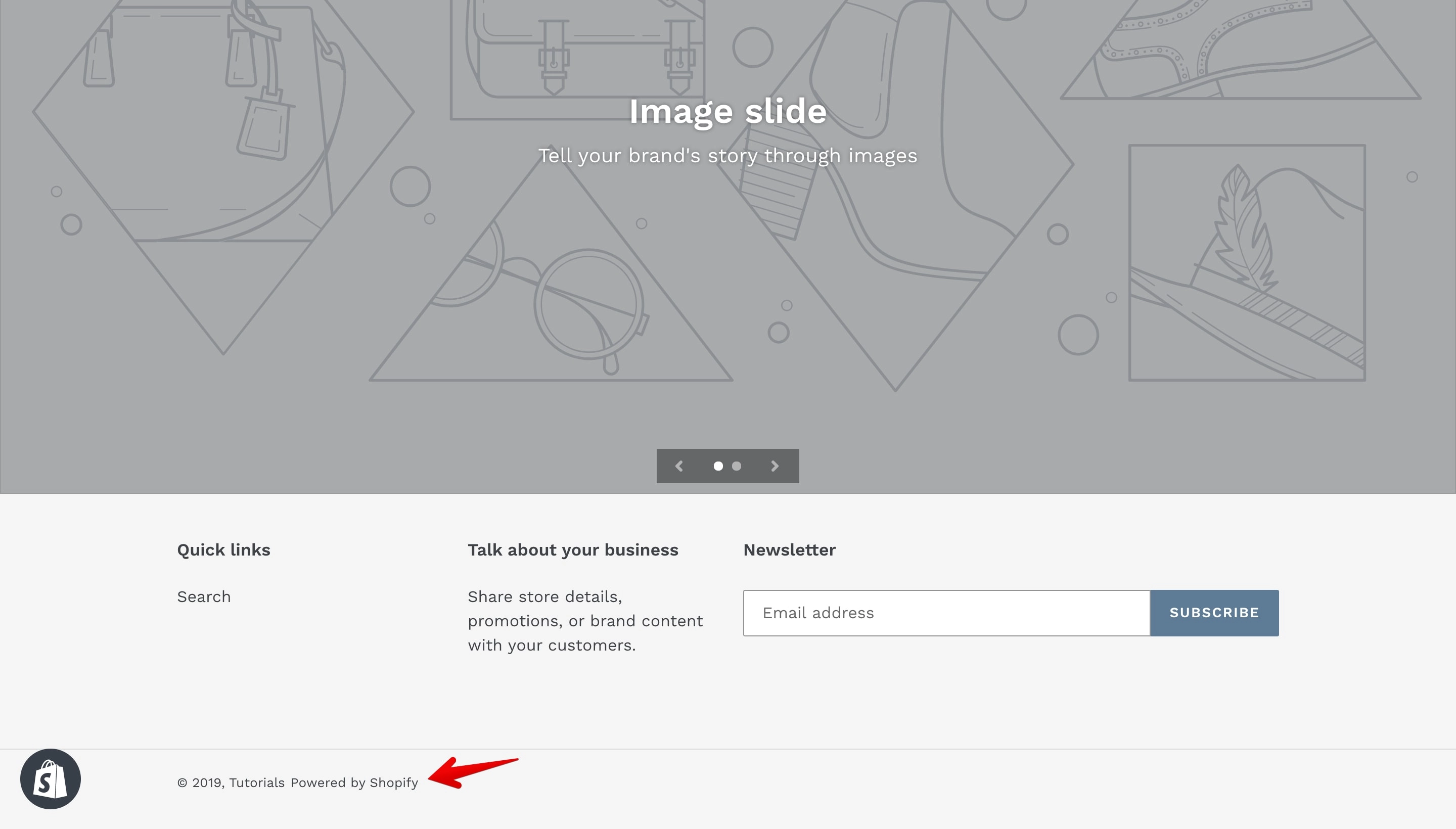
Copy the text as it is and go back to the previous tab that contains the “Language” page. Paste inside the “Filter” the text that you’ve copied “Powered by Shopify”.
You do not need to press enter or do anything after you’ve pasted the text. Just wait a bit, Shopify will now filter the results.
To check if Shopify is working on filtering the results please look at the top of the page for a blue progress line. When the progress bar will reach the end of the window from left to right your search is complete. Please be patient sometimes, very rarely, issues can occur and the bar will load a bit slowly:
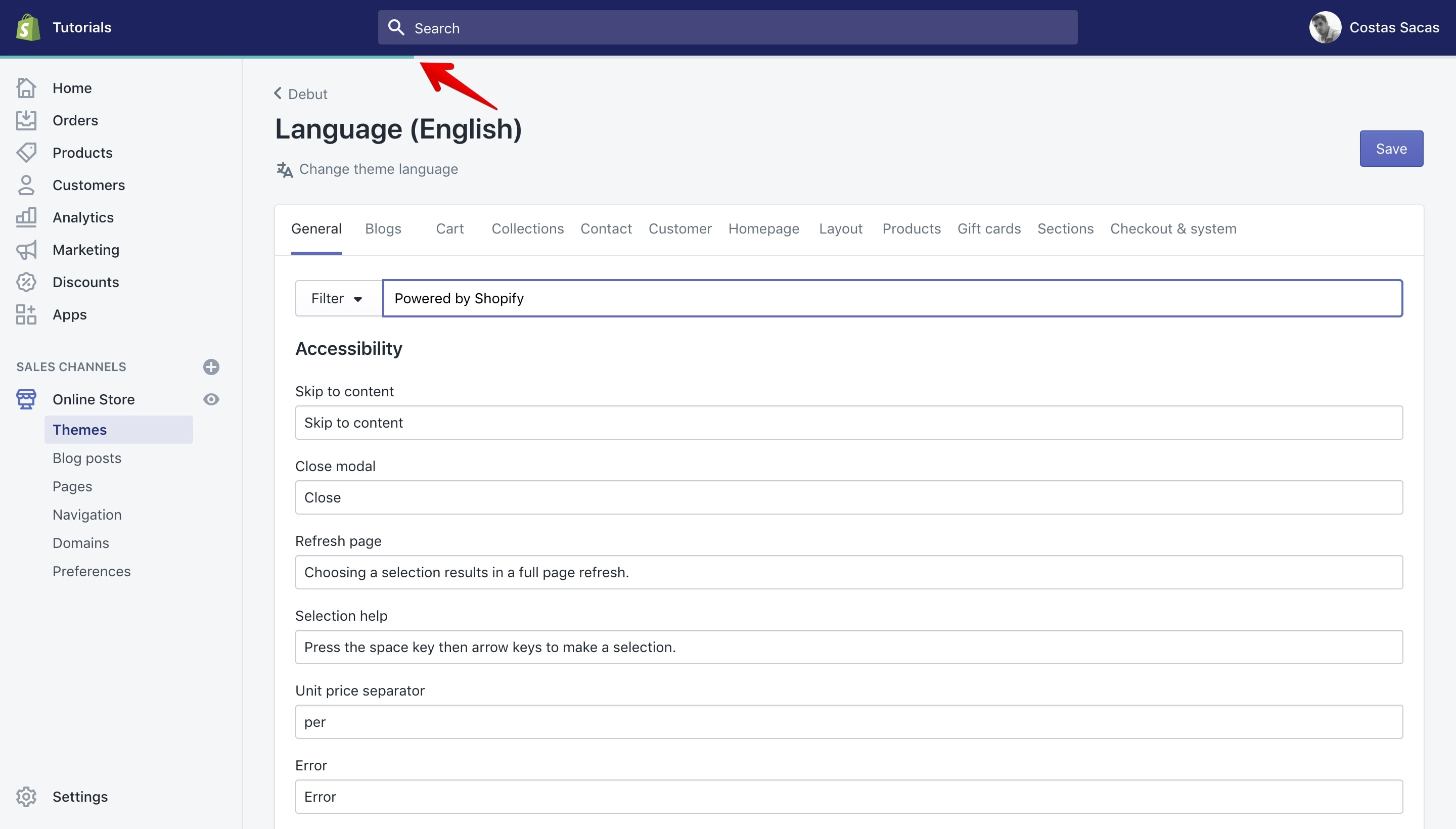
Once Shopify finished filtering you’ll see the following results:
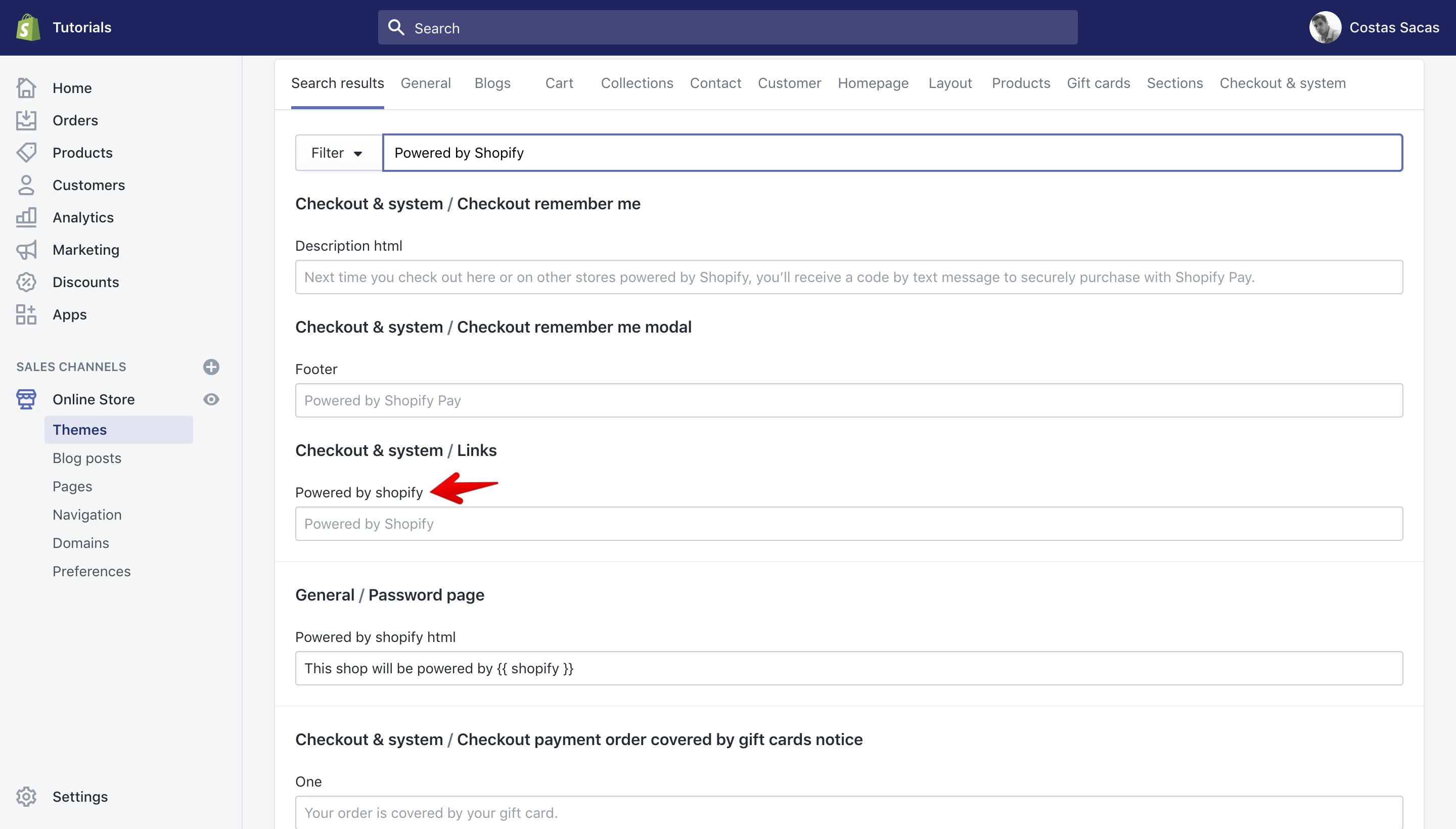
What you see in the box with a light grey color is the placeholder, the default text that you see in the website front-end: “Powered by Shopify”.
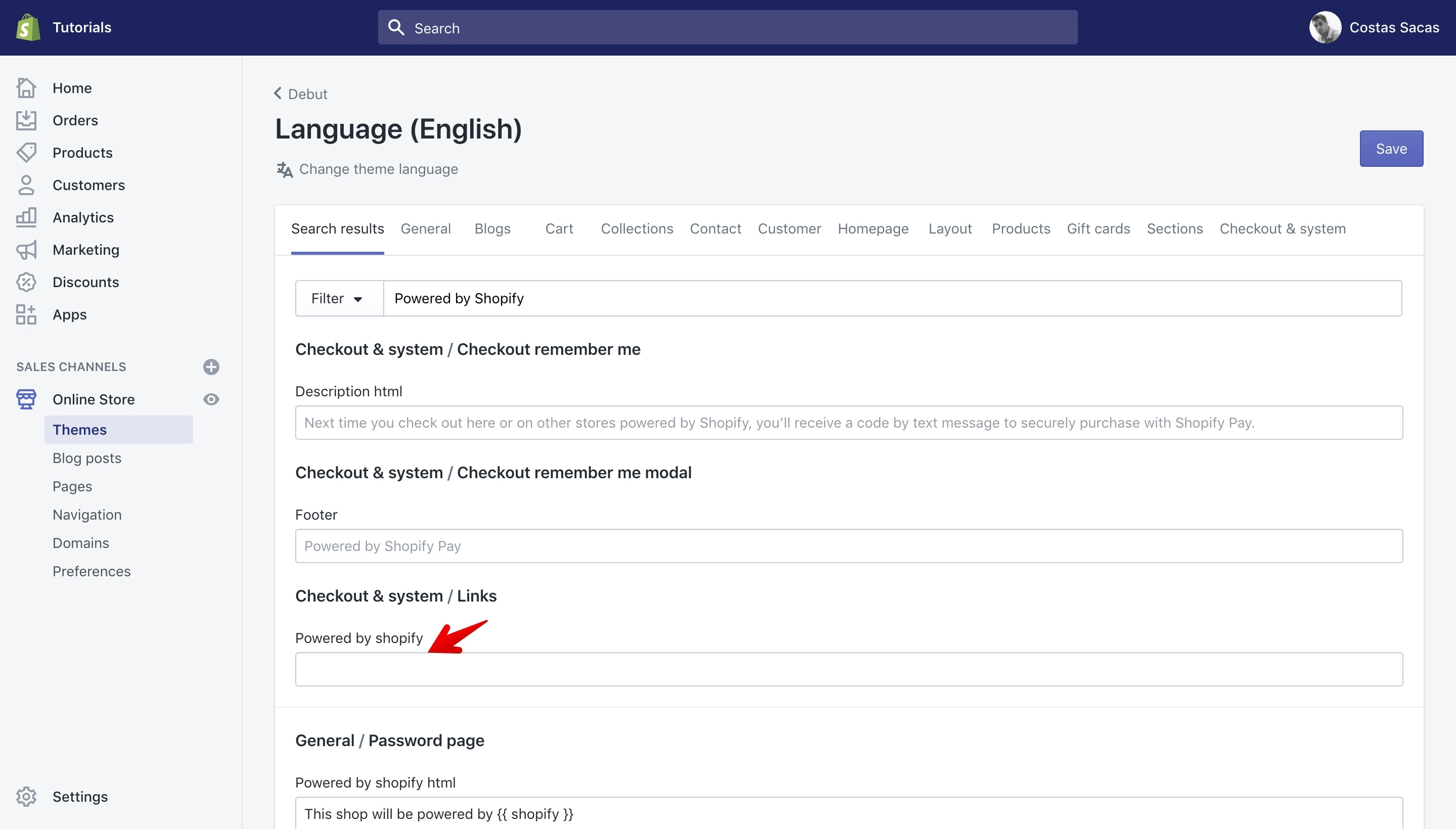
To remove it entirely you need to replace the placeholder “Powered by Shopify” with a space because leaving it empty would just not work since it will always default to the placeholder.
Once you add a “space” your input box will look like this:
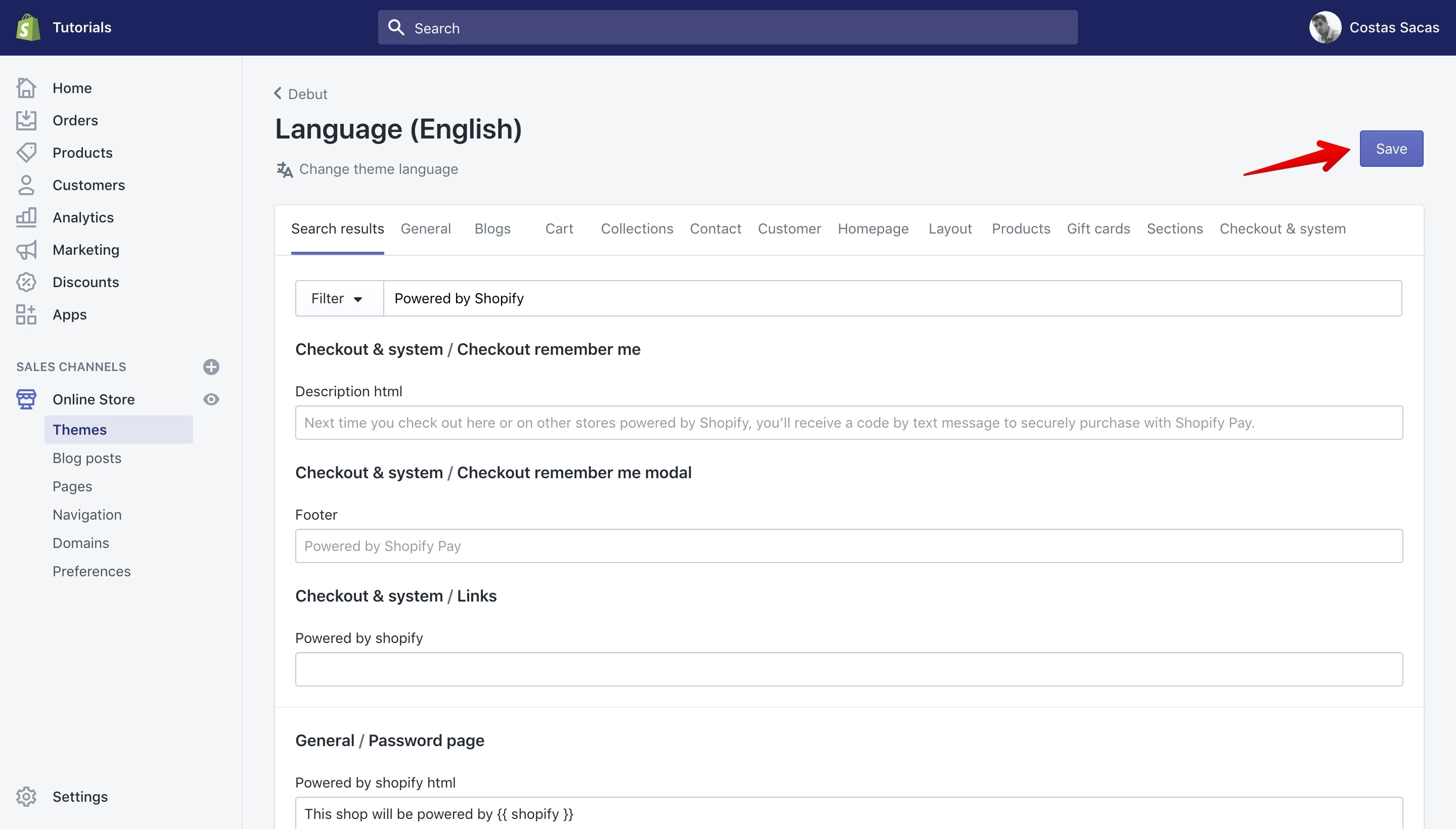
To save your new settings please hit the purple “Save” button on the top right corner:
If you don't want to replace the “Powered by Shopify” with a space you always have the option to add a different text.
Check the copyright in the shop front-end and you’ll see that it is removed.
Offline page copyright
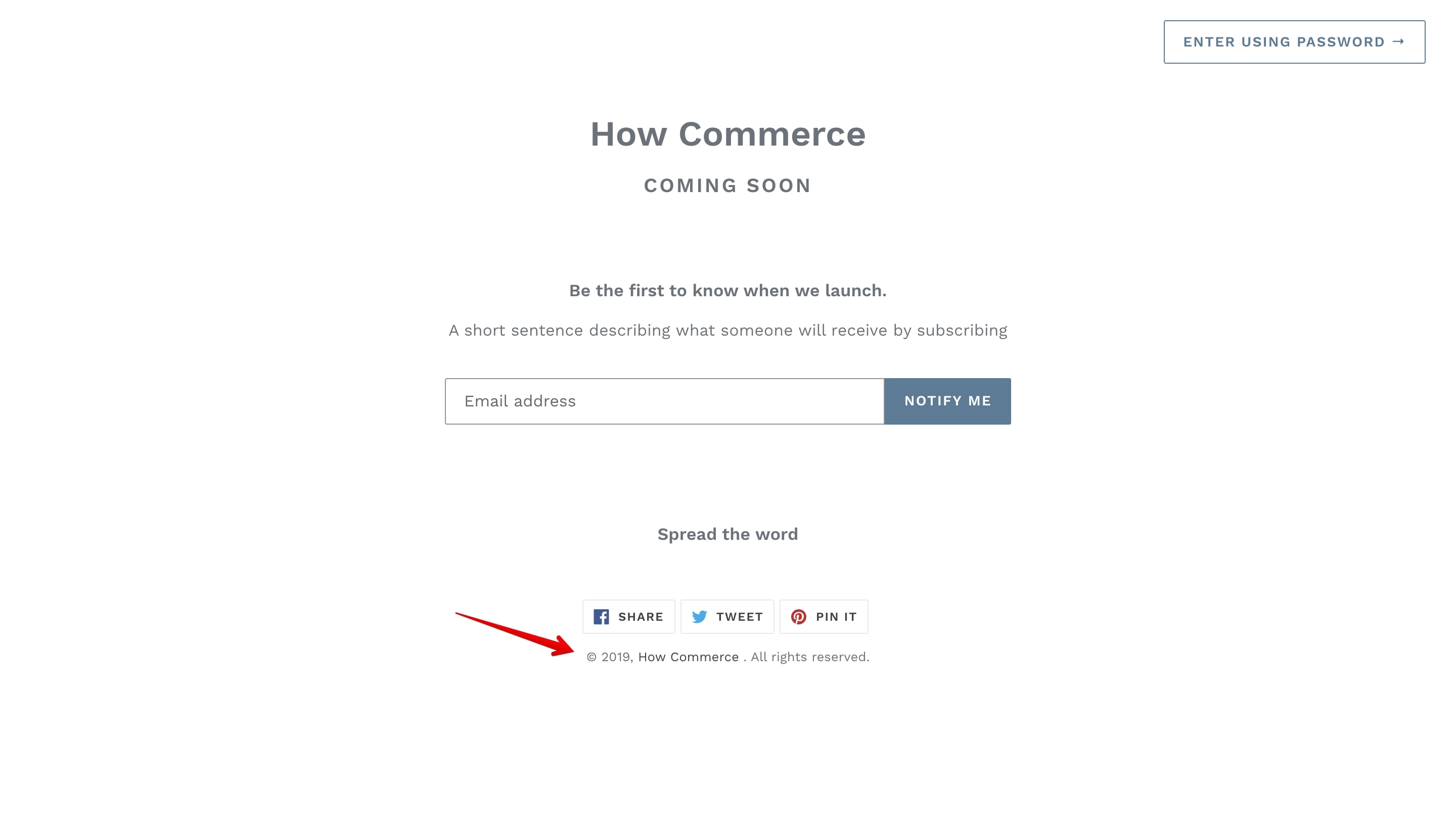
We removed the footer “Powered by Shopify” and now we need to remove the “This shop will be powered by Shopify” on the Offline page:
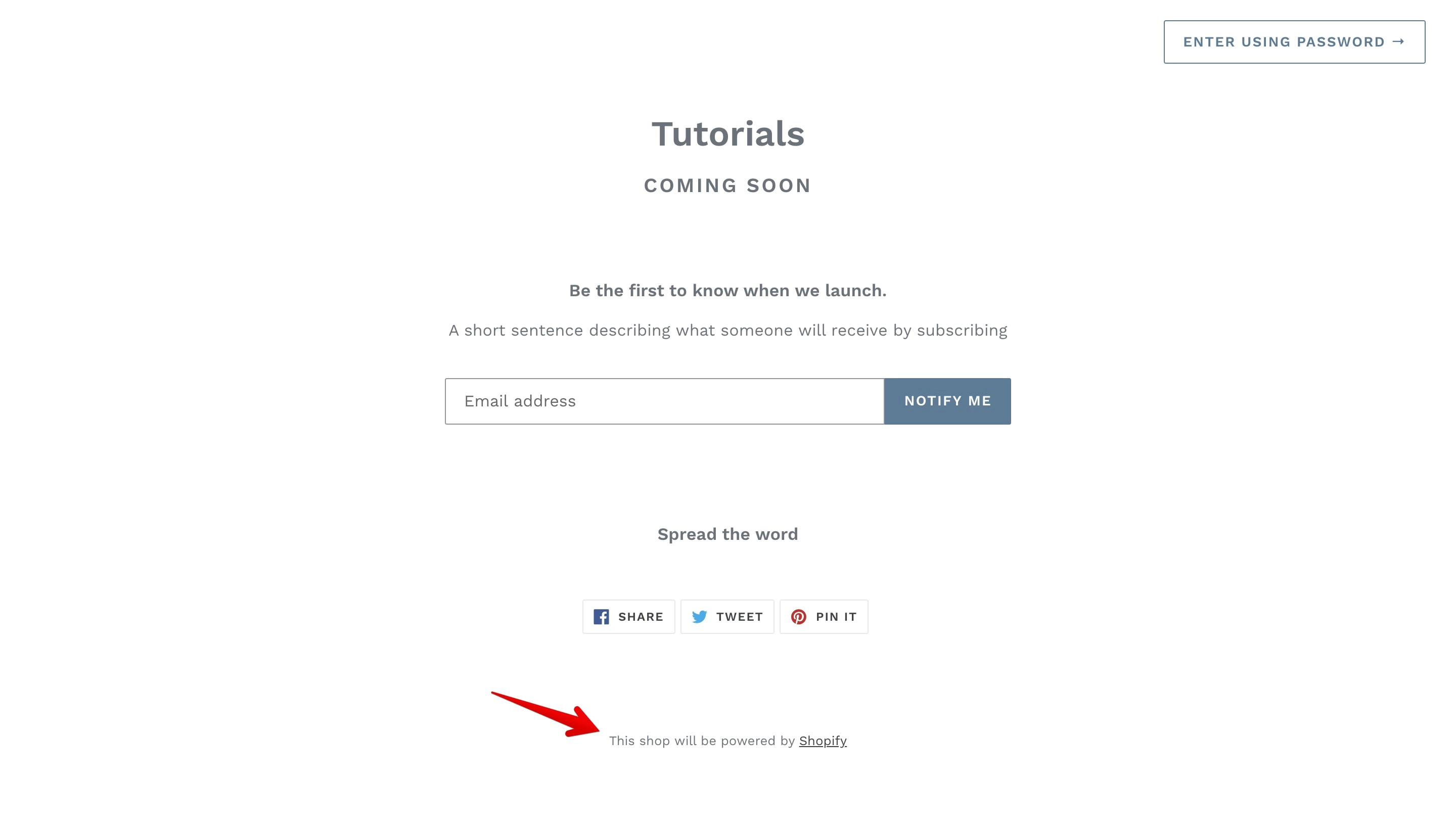
Copy the text “This shop will be powered by Shopify” and go back to the “Edit Languages” page and paste it inside the “Filter” box:
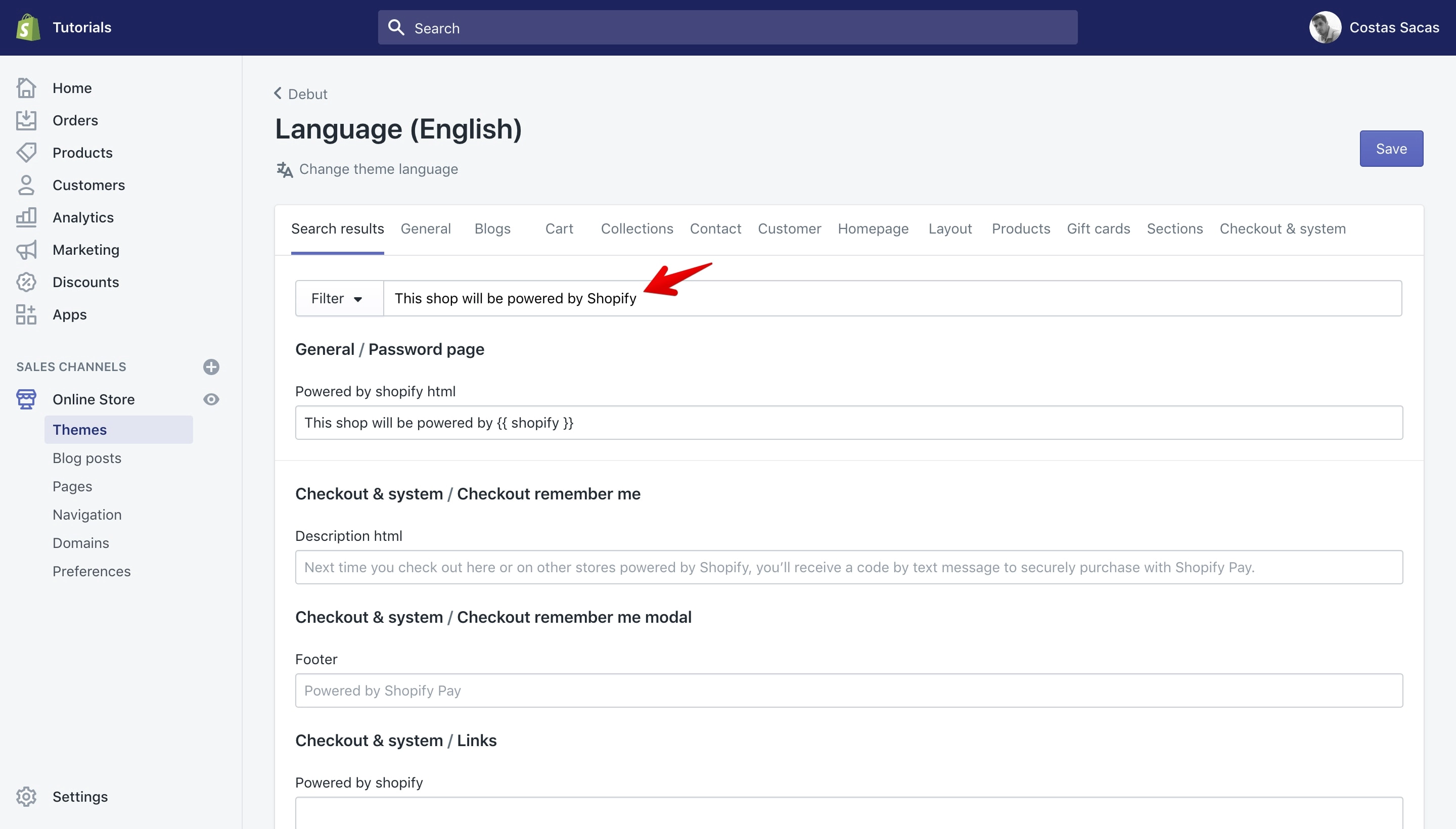
Under “General / Password page” replace the text This shop will be powered by {{ shopify }} with a space to remove it:
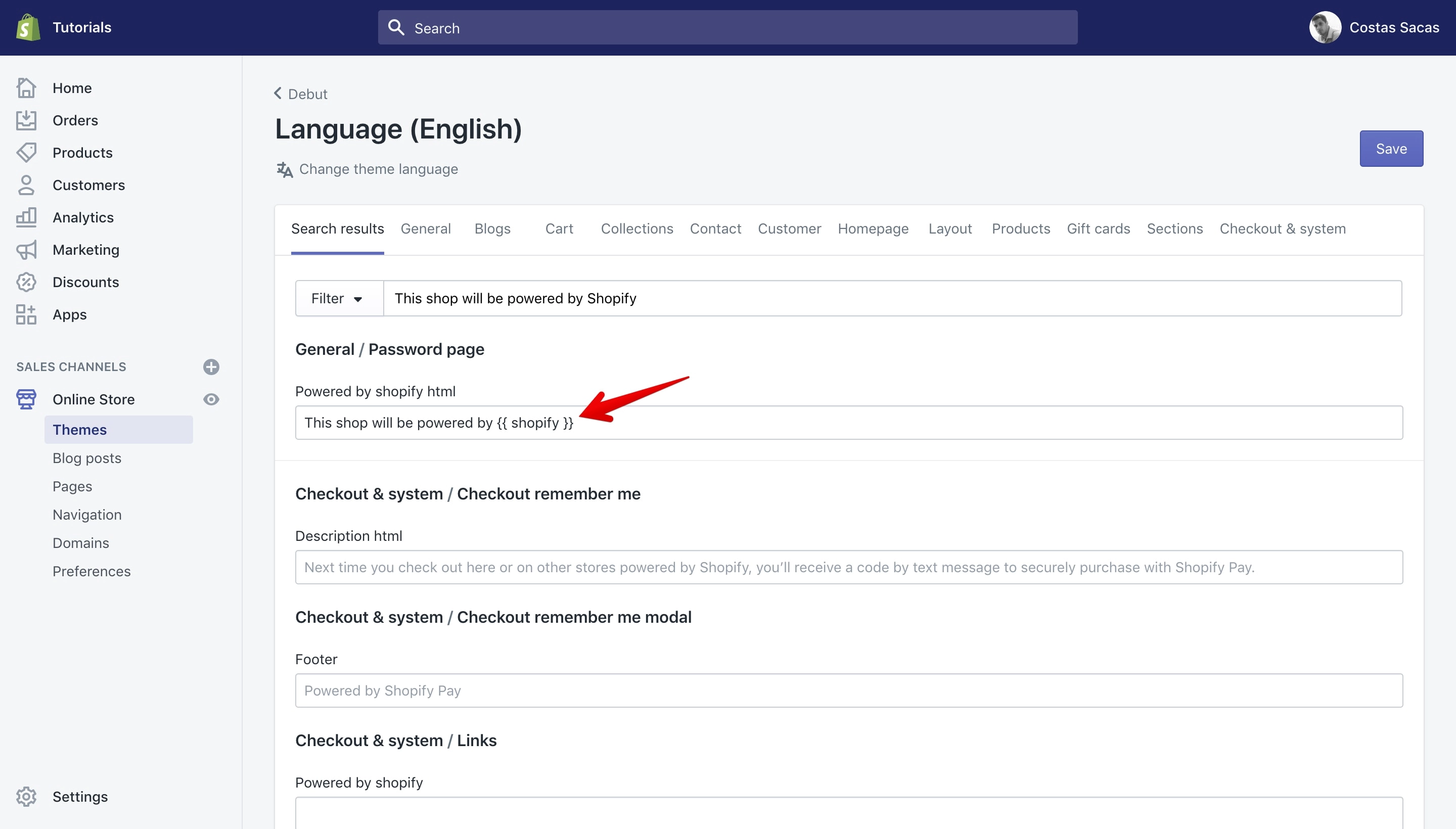
After you add the space it should look like this:
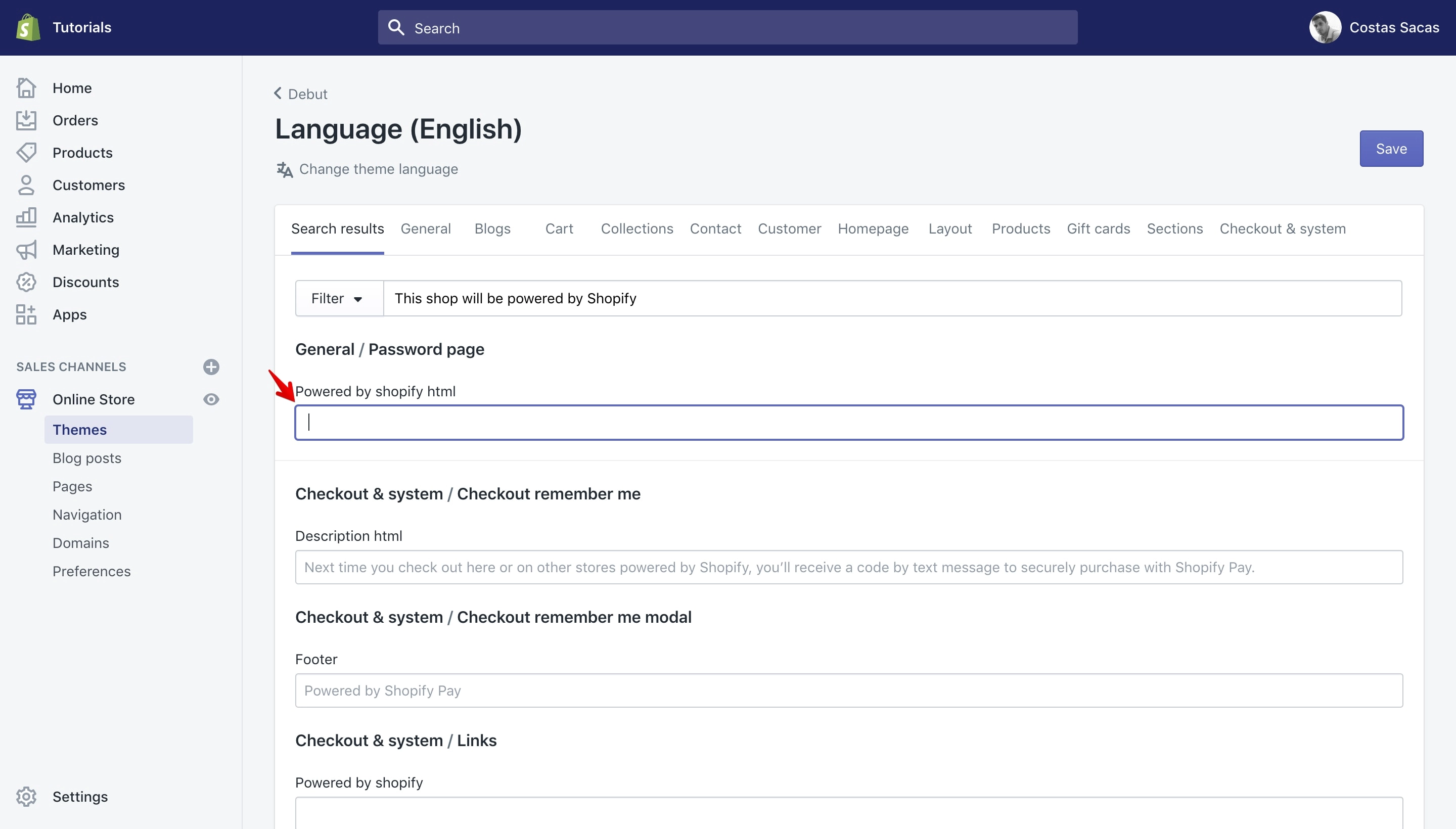
And this is how it will look on the front-end:
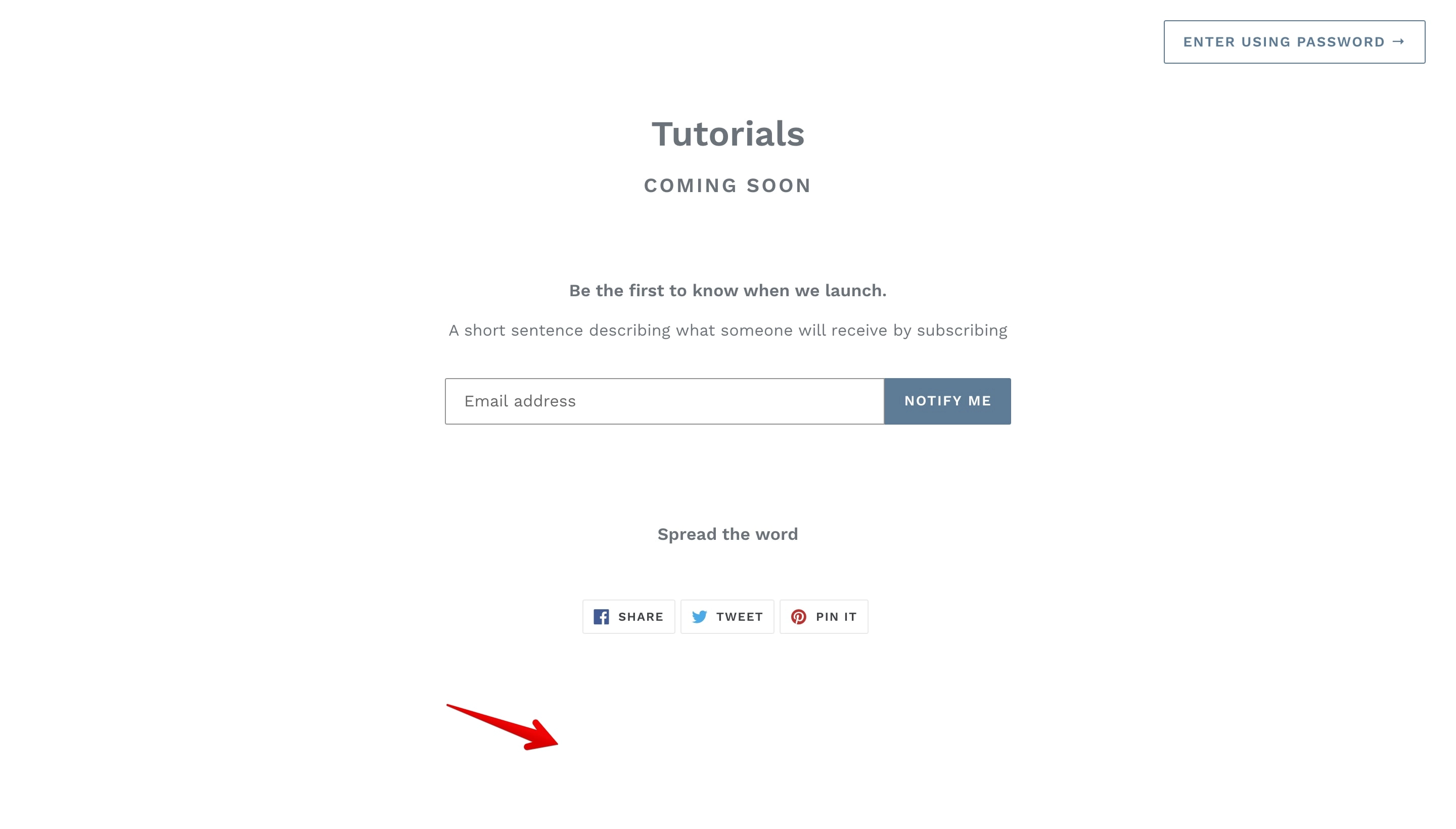
If you don't want to replace the “Powered by Shopify” with a space you always have the option to add a different text.
Removing code method
For me this is the best, easiest and fastest method to remove the “Powered by Shopify” copyright text.
Warning:
Please do not use this method if you do not know how to work with code or you are not a developer. You can delete by mistake code that should not be deleted and this could result in a broken website.
Since the changes are small, for all the examples used in this article I’ll use the Shopify code editor.
Usually I use my code editor for any code changes I make, especially since every change is tracked in Git, plus I have other development tools located in my working directory which is not possible to use with the Shopify code editor.
Global copyright
First we are going to remove “Powered by Shopify” from the website footer:
Let’s access the Shopify code editor. To do that login in your website back-end dashboard and click on the “Online Store” menu item located in the “Sales Channels” section on the left side of your dashboard:
By default the “Themes” page will open. Go on and click on the “Actions” button on the Debut theme and after on the “Edit Code”:
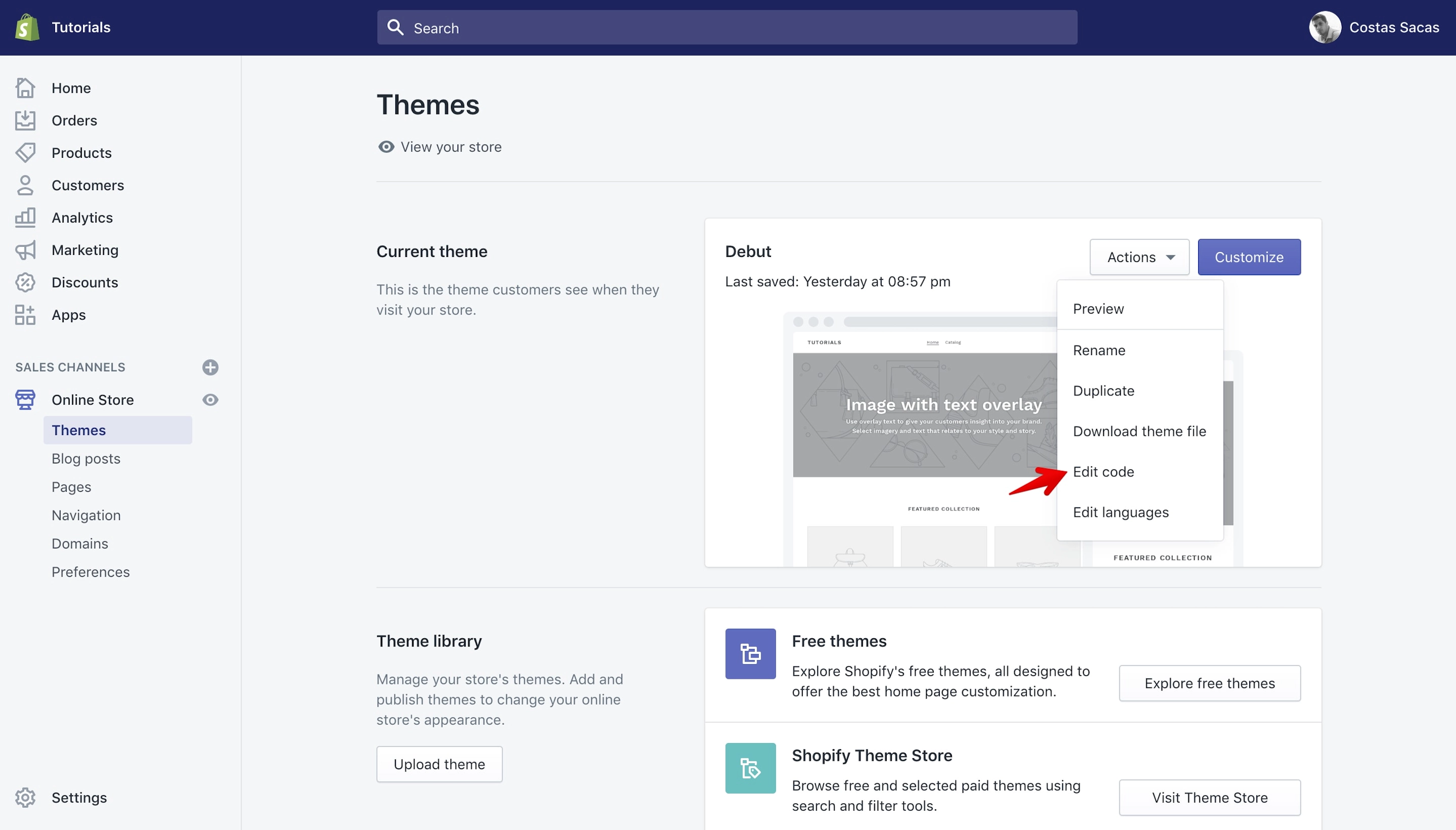
A new page will open that will list the Debut theme files:
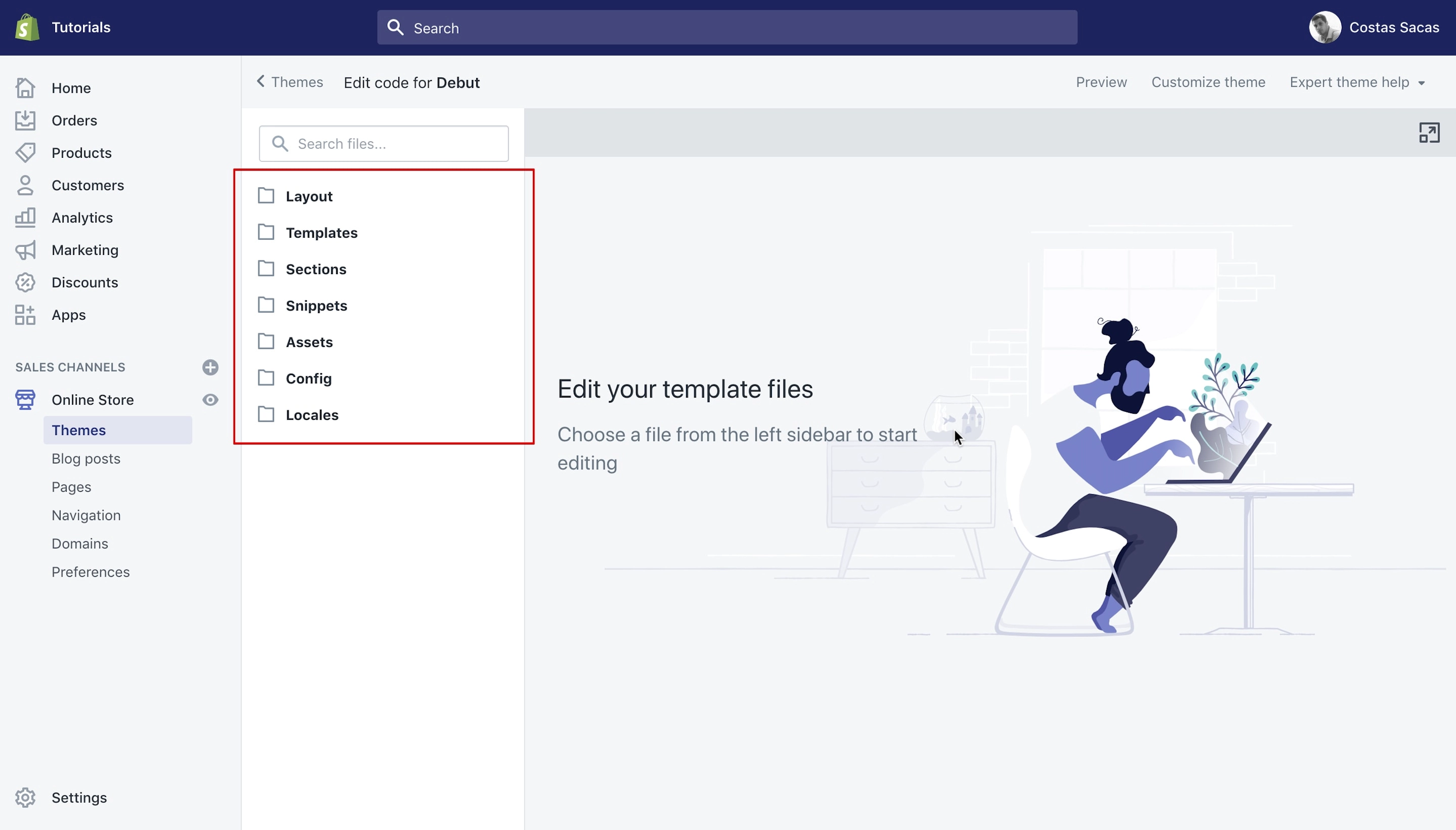
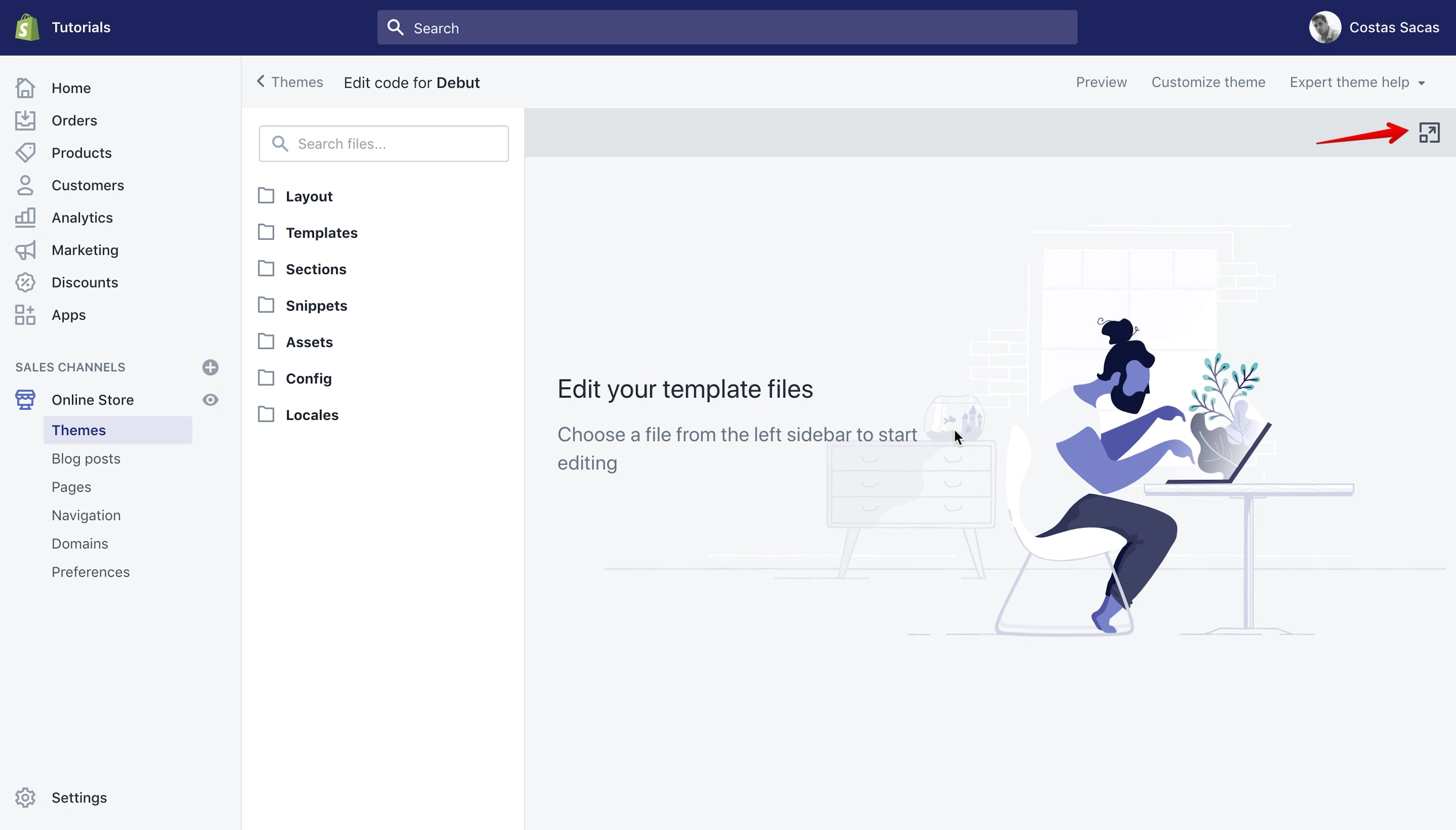
Now let’s maximize the editor, to work in full screen and also let’s use the Dark skin to make it easier on the eyes. Yes, the code editor has a “Dark mode” if you didn’t know.
Click on the “Maximize” icon to adjust the editor to work in full screen:
Once the editor is maximized click on the “Dark” button on the bottom right corner to make the editor use the dark skin:
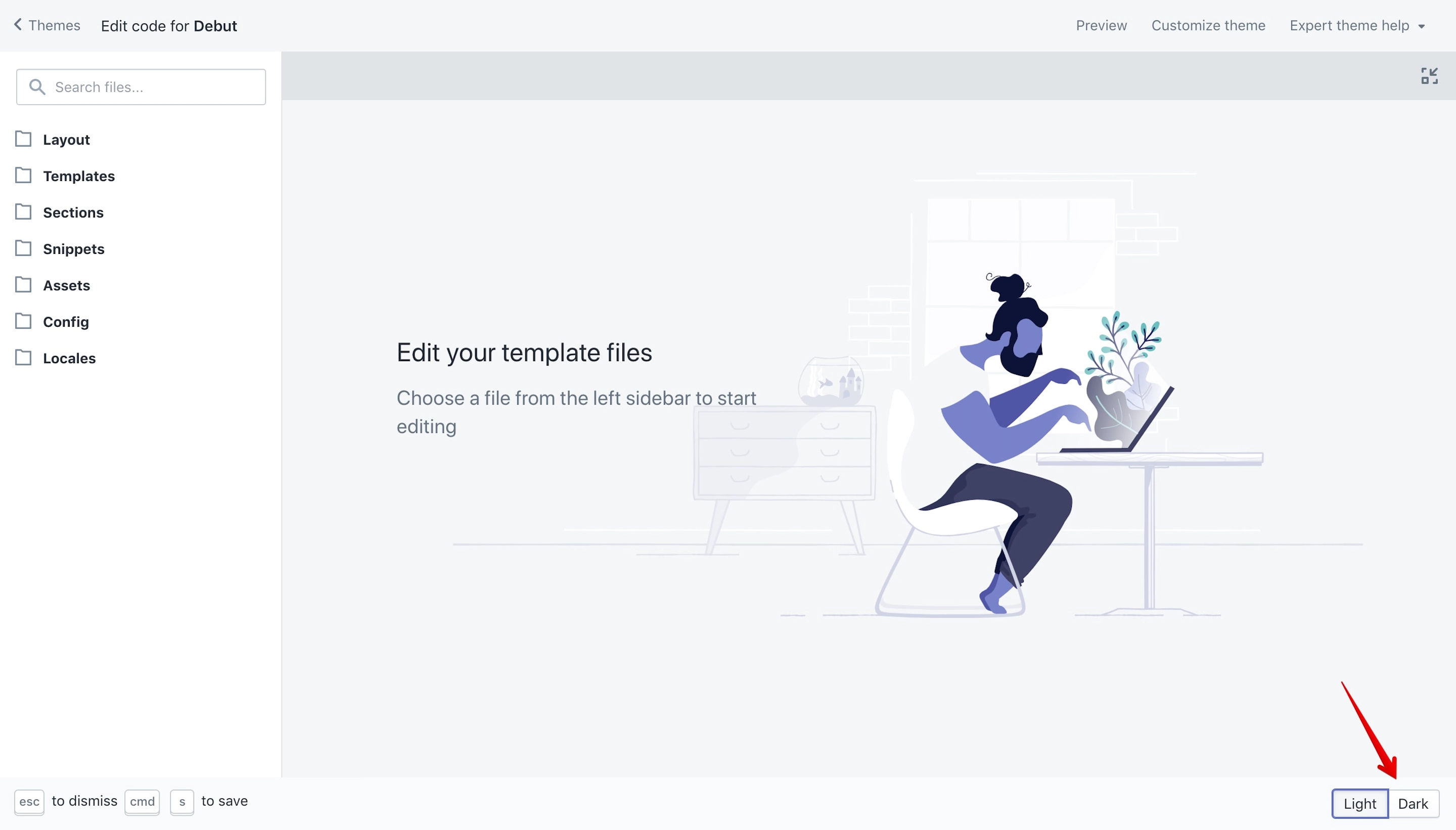
Now your editor should look like this:
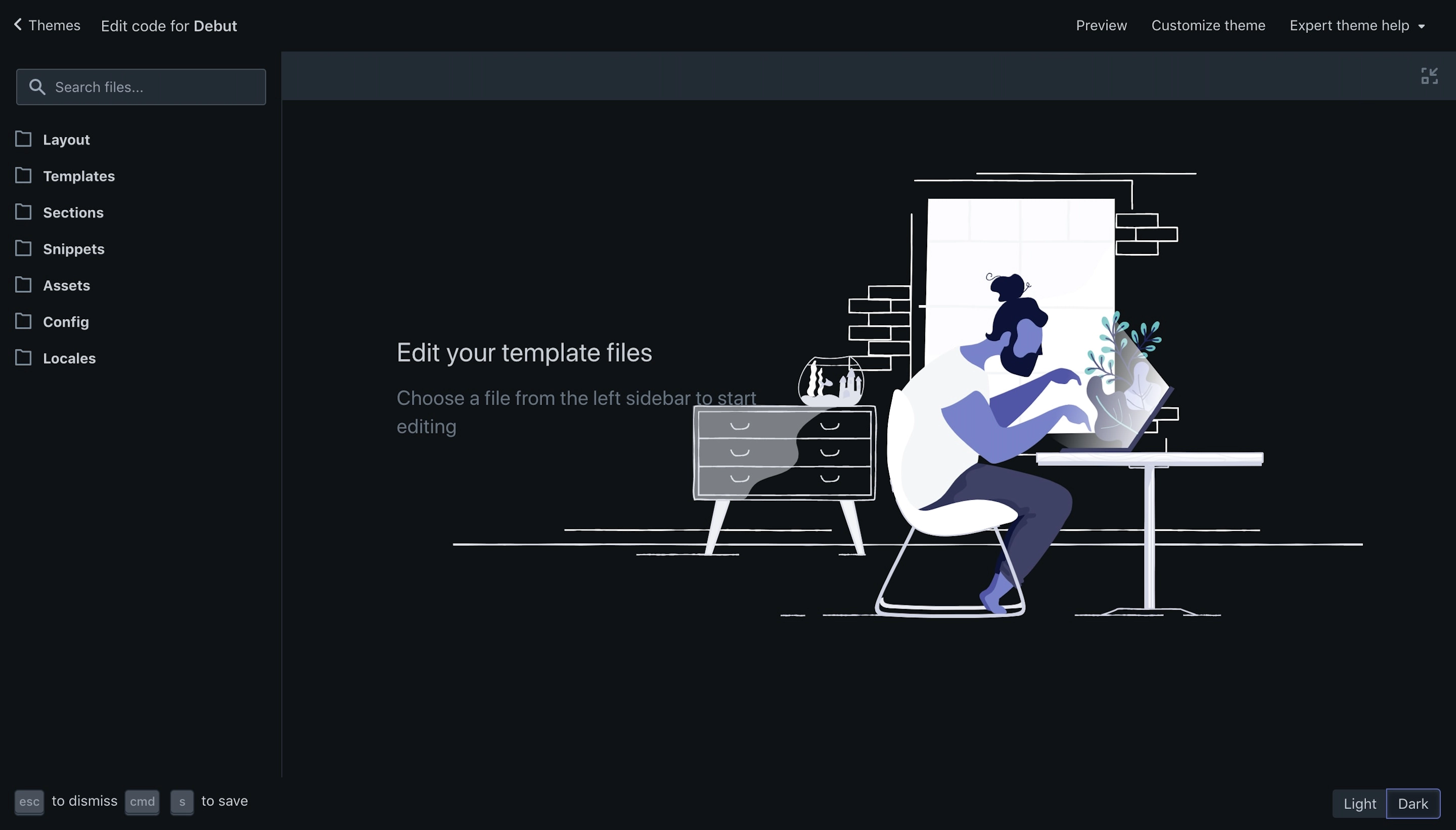
You can get out of full screen by hitting the Esc key on your keyboard. Please note that once you minimize the editor it will revert to light mode. In conclusion the “Dark mode” is working only when the editor is in full screen.
To save your settings after we make changes to the code you can use either your keyboard keys (⌘ + S on Mac or Ctrl + S on Windows) or the “Save” button.
OK. Let’s start editing some code.
To change the “Powered by Shopify” copyright we need to look for the “footer.liquid” file. To do that, type in the “Search files” input box the word “footer”:
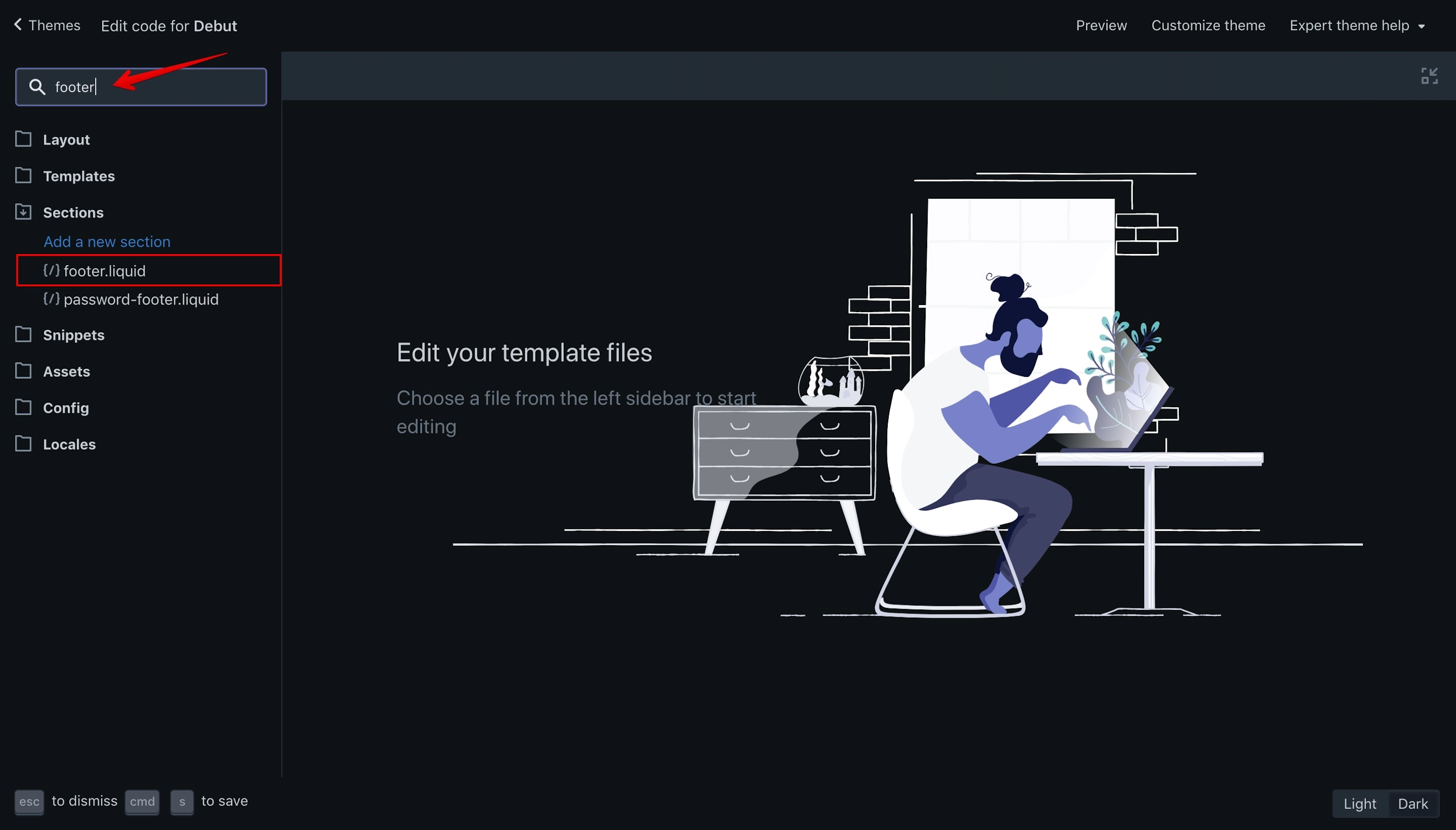
Two files are listed: “footer.liquid” and “password-footer.liquid”. We will remove the copyright on both files but for the moment will work with the “footer.liquid” file so let’s open it.
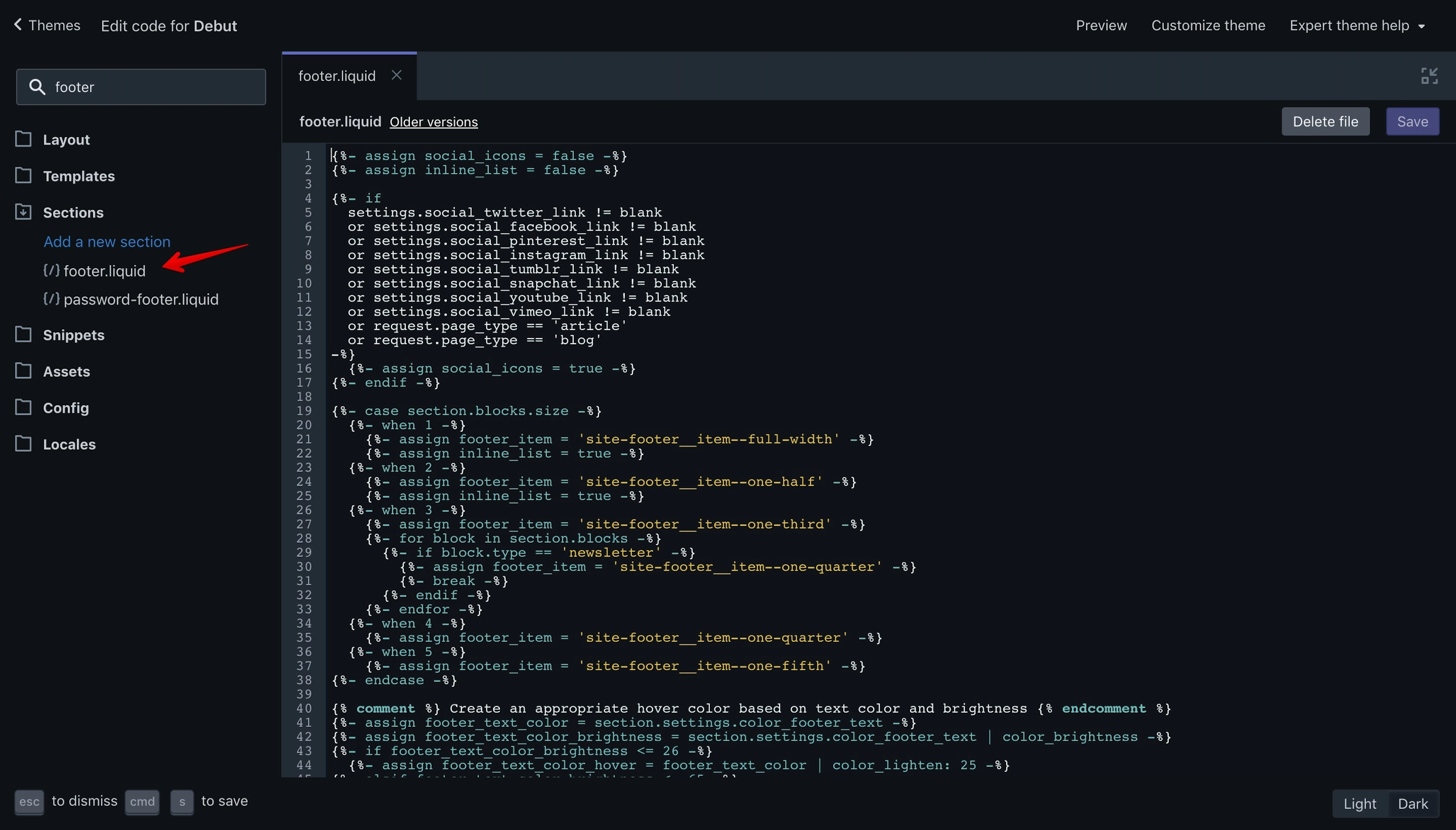
What we are looking for to remove is the variable “powered_by_link”.
The “powered_by_link” is a global system variable, which is the same for every shop hosted on the Shopify platform and because of that it’s definition can’t be found on the theme. You can assign a new value to the variable and I’ll show you how later.
The “powered_by_link” variable is located in 2 places on the Debut theme: one is when the footer doesn’t have social icons displayed and another is when the social icons are displayed.
The code could be improved to display only one time the variable, honestly I’m not sure why Shopify developers chose to do it like this since it is more code than needed.
Type ⌘ + F (Mac) or Ctrl + F (Windows) on your keyboard to open the search box in the code editor and paste the “powered_by_link” variable inside.
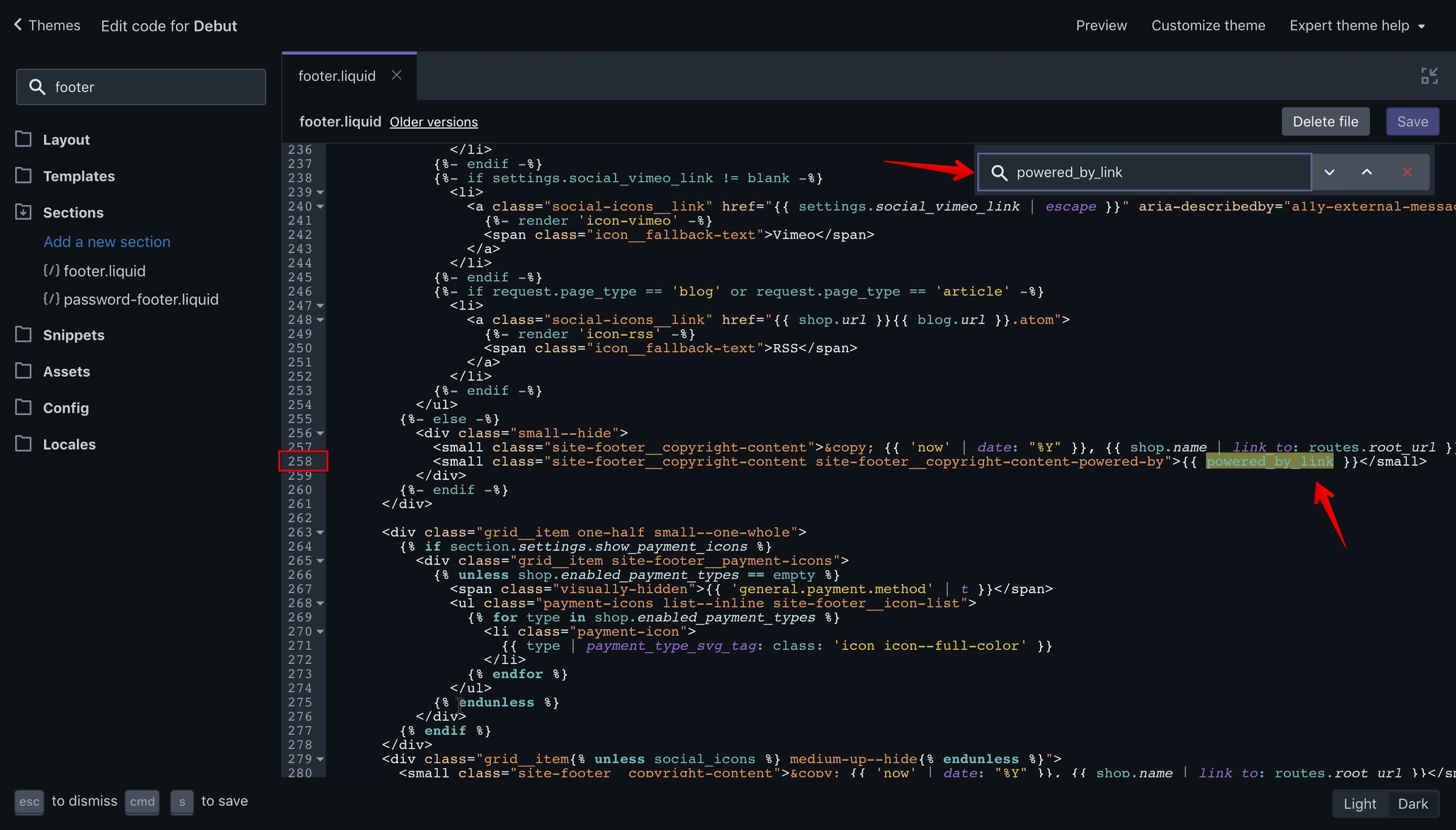
Once you’ve pasted the “powered_by_link” variable the editor will display the first result. You do not have to hit enter, everything happens automatically.
We have this code:
<small class="site-footer__copyright-content site-footer__copyright-content-powered-by">{{ powered_by_link }}</small>The code has a “small” tag and 2 CSS classes: “site-footer__copyright-content” and “site-footer__copyright-content-powered-by”.
The code above needs to be removed entirely so please select it and hit delete.
Let’s proceed with the next piece of code:
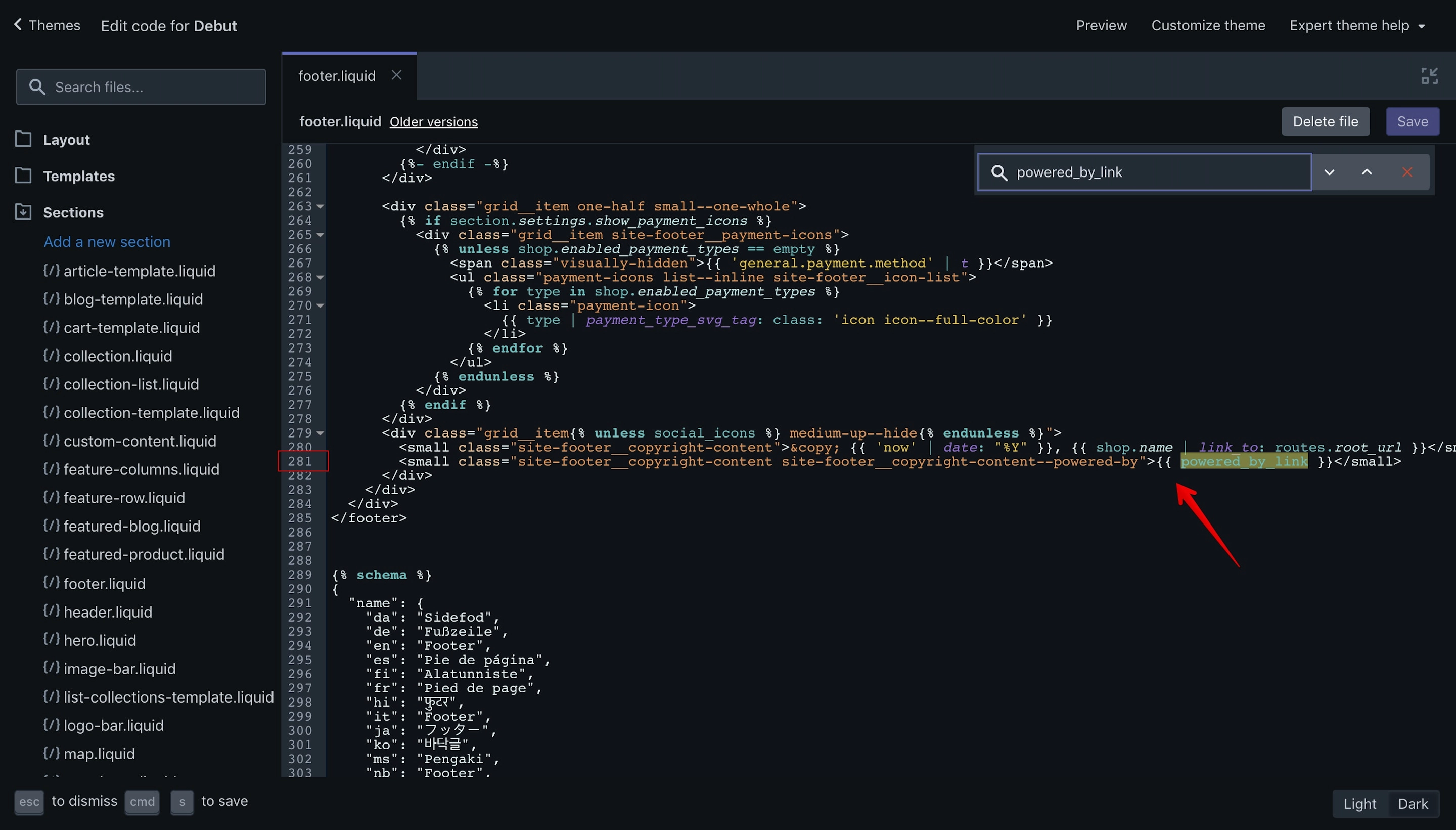
Select all the code below and hit delete:
<small class="site-footer__copyright-content site-footer__copyright-content--powered-by">{{ powered_by_link }}</small>Note: As I see Shopify developers made a small bug here since if a developer were to target the "site-footer__copyright-content-powered-by" class to style the link, the styles will not apply to the second line of code because the classes names are not identical. See the difference:
site-footer__copyright-content-powered-by
site-footer__copyright-content--powered-by
Now hit ⌘ + S (Mac) or Ctrl + S (Windows) or click the “Save” button to save your settings:
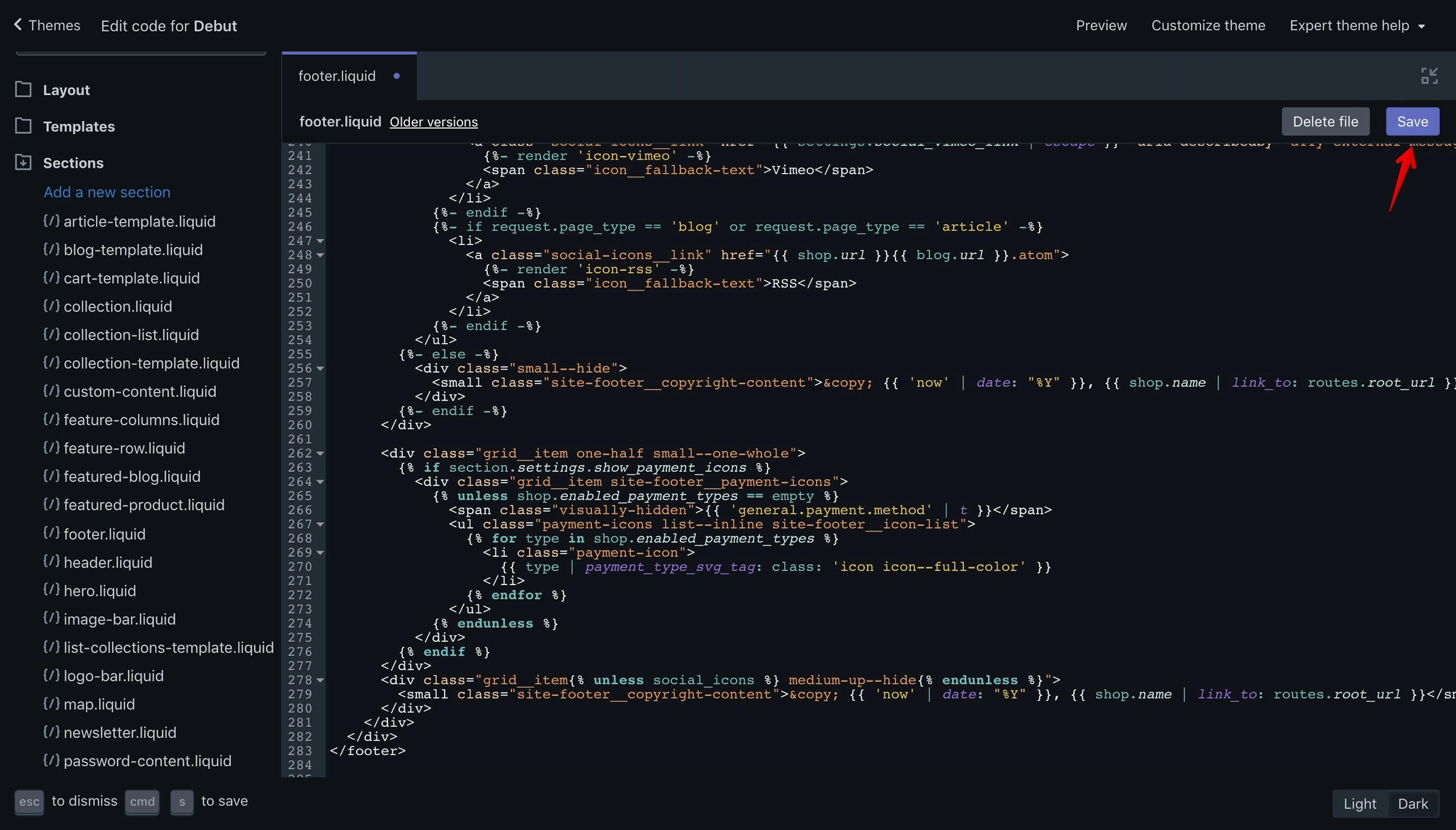
If you check the websiteʼs front-end you’ll see that the copyright is gone.
Offline page copyright
Next step, we need to remove the copyright from the offline page:
Close the “footer.liquid” file and open the “password-footer.liquid” file located in the same folder “Sections”:
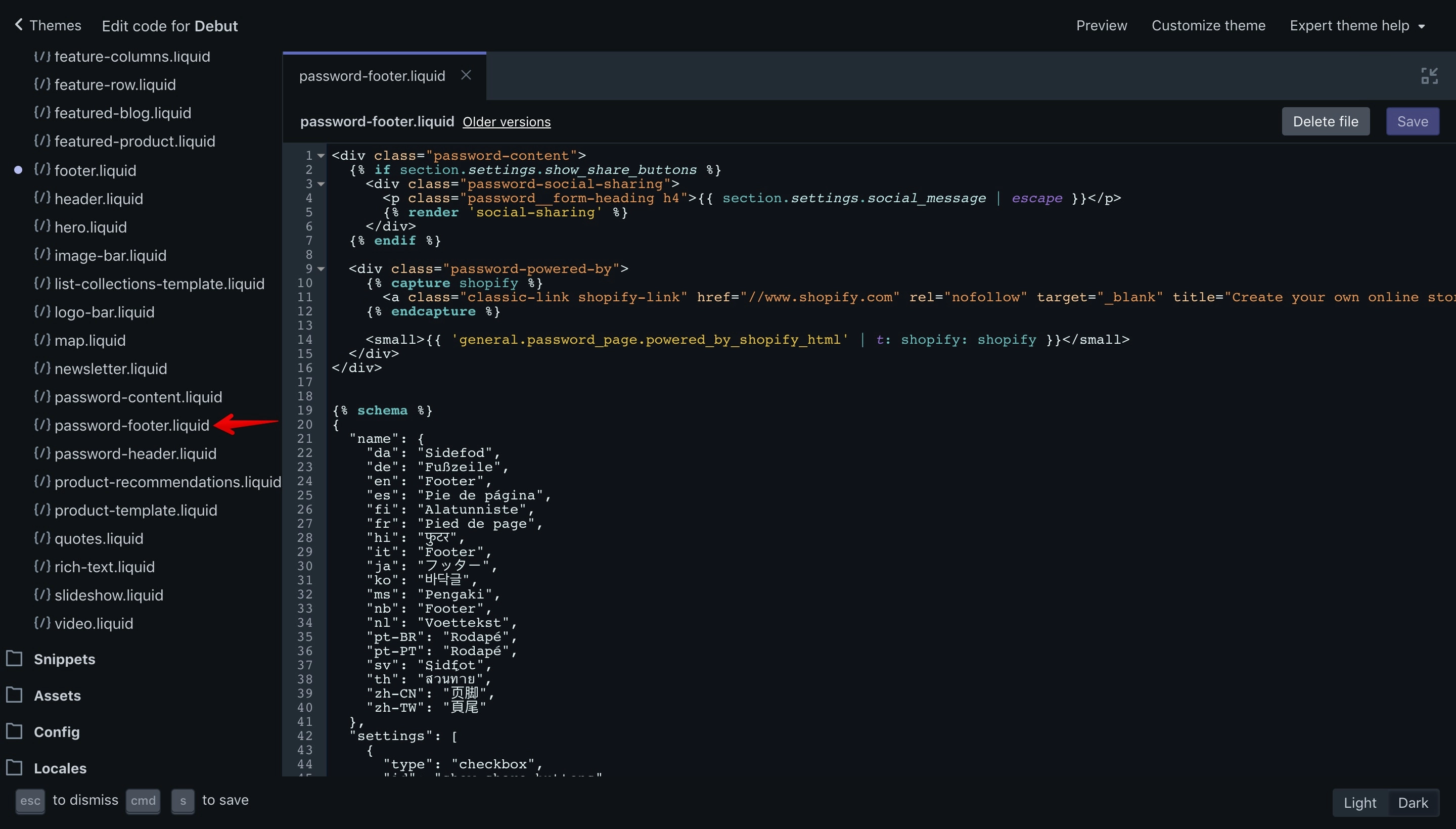
We need to remove the following code:
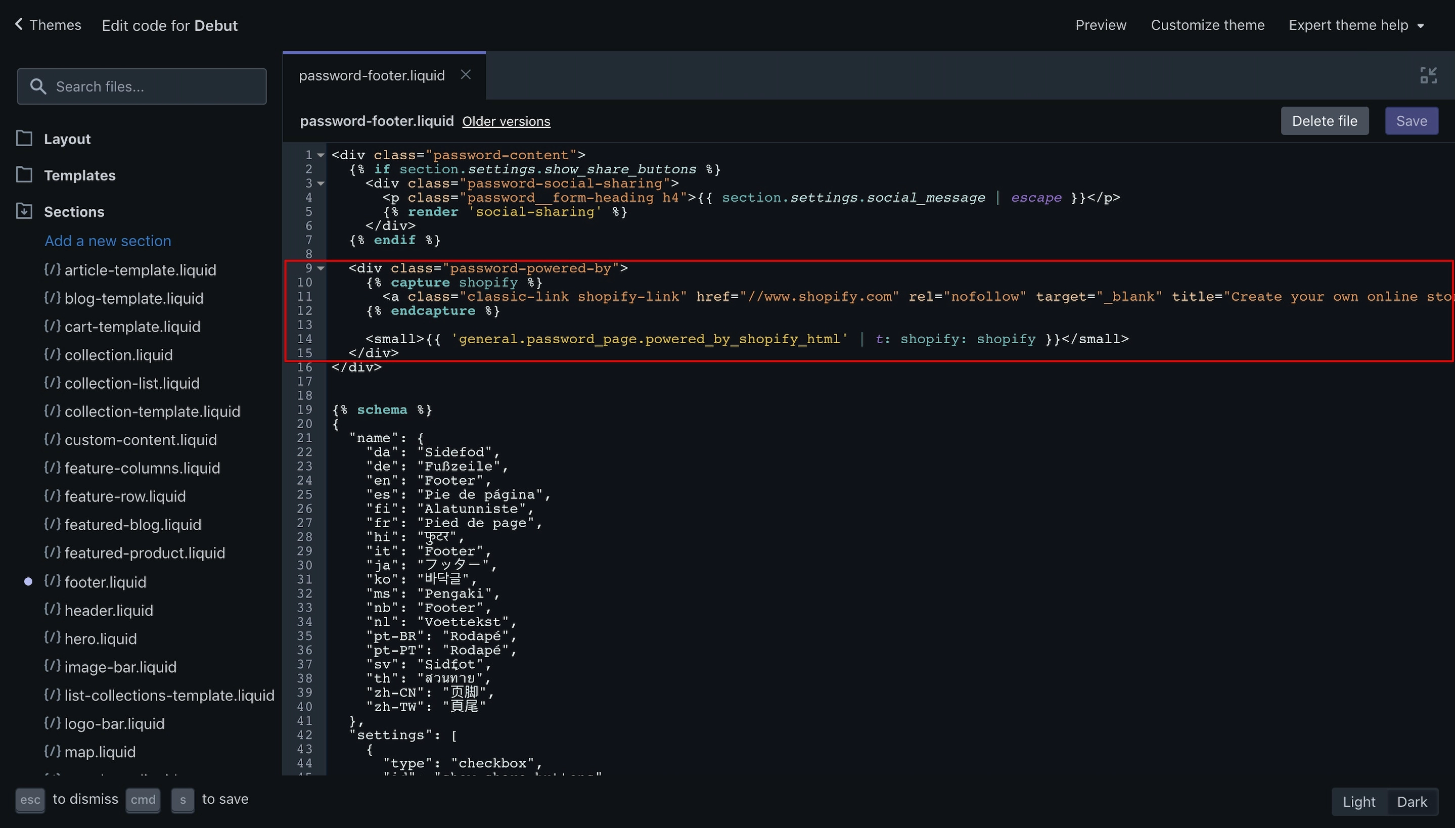
This is the code that you need to remove:
<div class="password-powered-by">
  {% capture shopify %}
    <a class="classic-link shopify-link" href="//www.shopify.com" rel="nofollow" target="_blank" title="Create your own online store with Shopify">Shopify</a>
  {% endcapture %}
  <small>{{ 'general.password_page.powered_by_shopify_html' | t: shopify: shopify }}</small>
</div>
Fold the code by clicking on the little arrow on the editor and delete it:
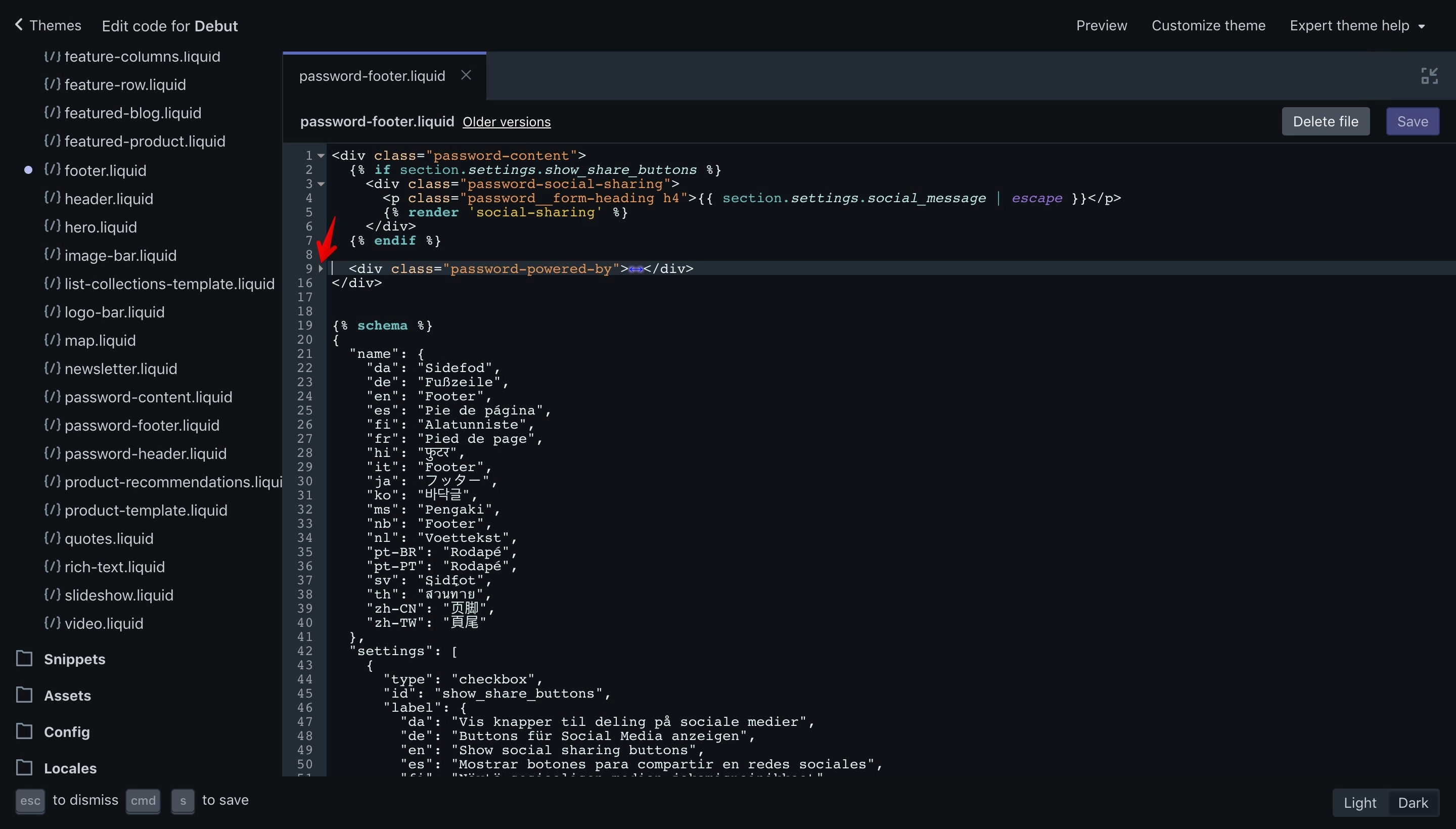
Check the front-end and you should no longer see the copyright: “This shop will be powered by Shopify” line:
Next step is to remove the translation keys. Since we are no longer going to use the copyright at all, it is recommended to also remove the JSON code from the translation files.
Note: I’m going to show you how to remove the code from the “en.default.json” only. The Debut theme supports at the time of writing this tutorial, multiple languages. I’m not going to go through all the translations since the process is the same for every language file.
Close the “Sections” folder and open the languages folder called “Locales” on the Shopify editor:
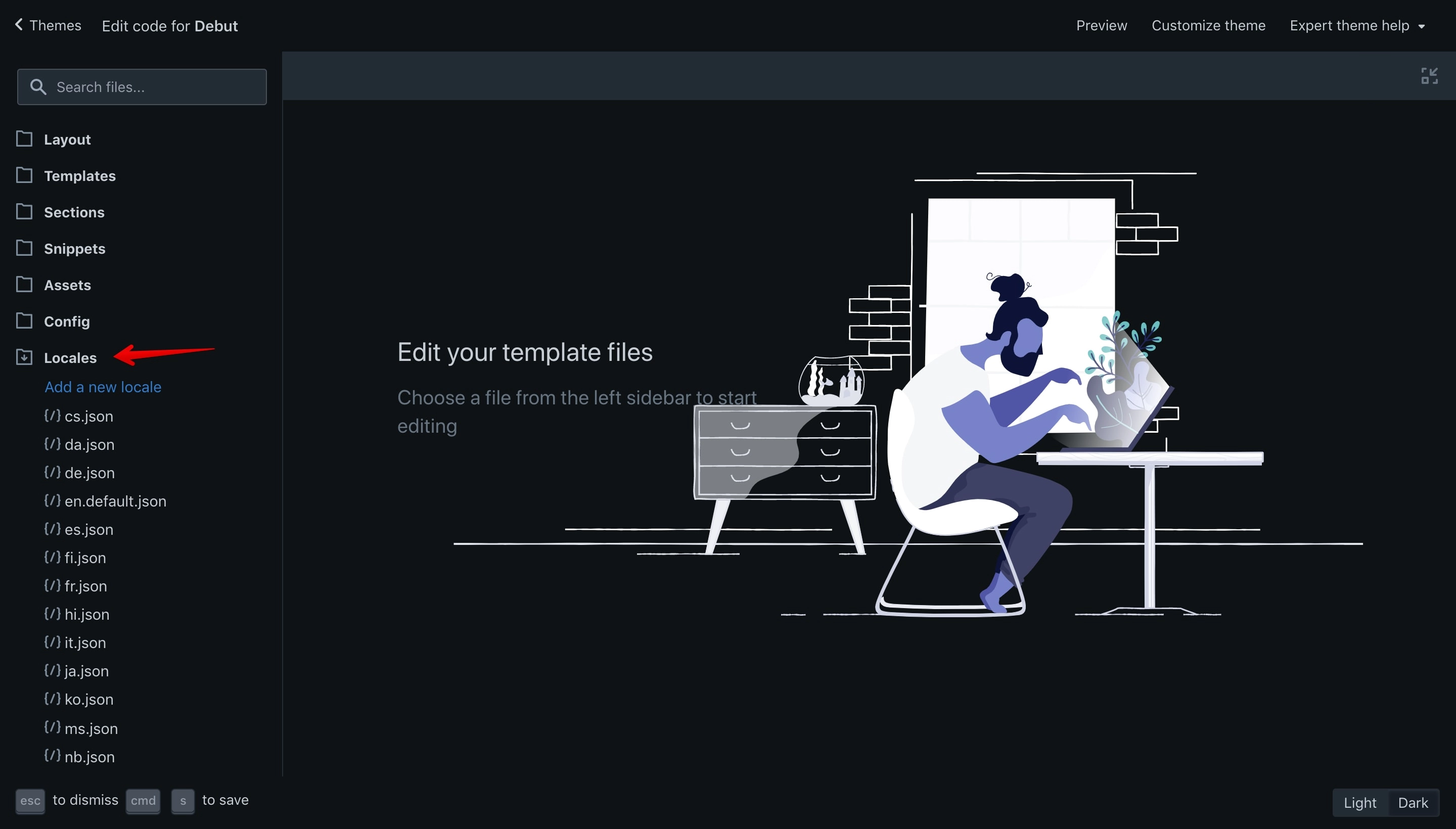
We need to open the “en.default.json” file:
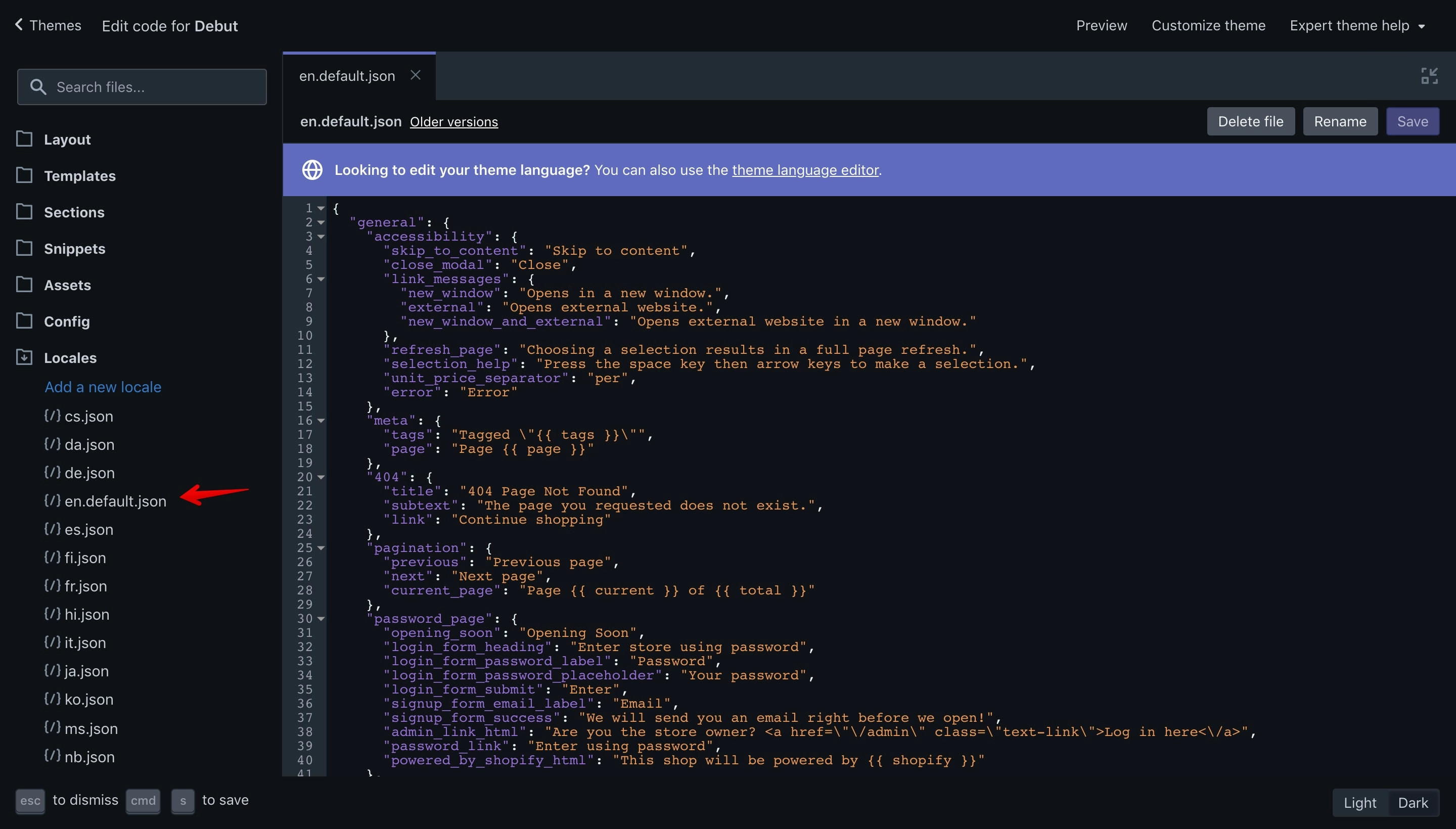
We are going to remove the translation for the “Offline page” only because the other link “Powered by Shopify” is a system link and it can’t be found in the translations file.
Type ⌘ + F (Mac) or Ctrl + F (Windows) on your keyboard to open the search box in the code editor and paste the text found on the “Offline page” in the front-end “This shop will be powered by”:
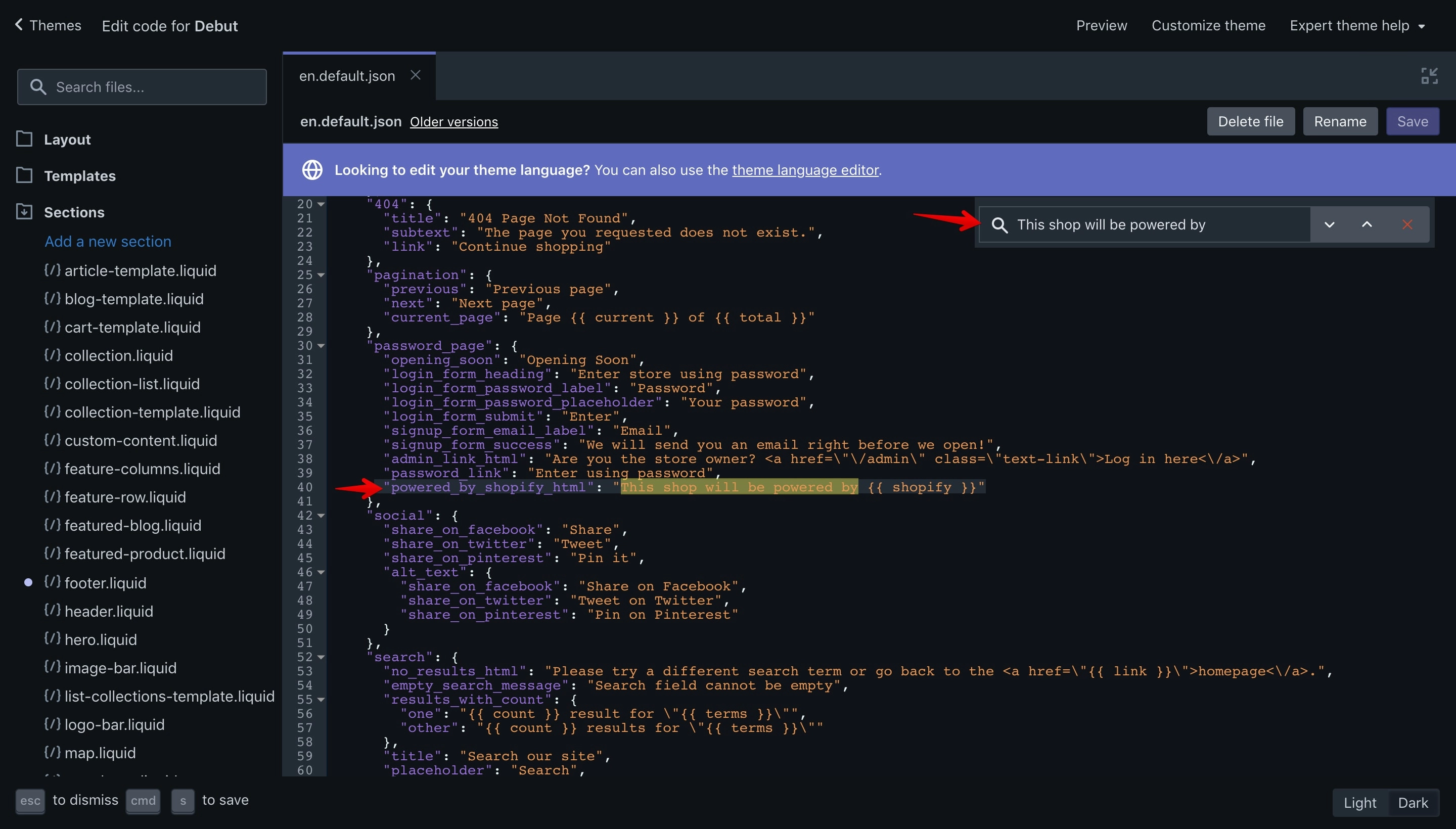
Remove the code:
"powered_by_shopify_html": "This shop will be powered by {{ shopify }}"Also delete the “,” from the line above. If you do not remove the comma you’ll get an error like: “Error: Invalid JSON: unexpected token”. Remove the comma and the error is gone.
If you check the themeʼs back-end you’ll no longer see the “Powered by shopify html” option, because we removed the associated JSON code that generates this.
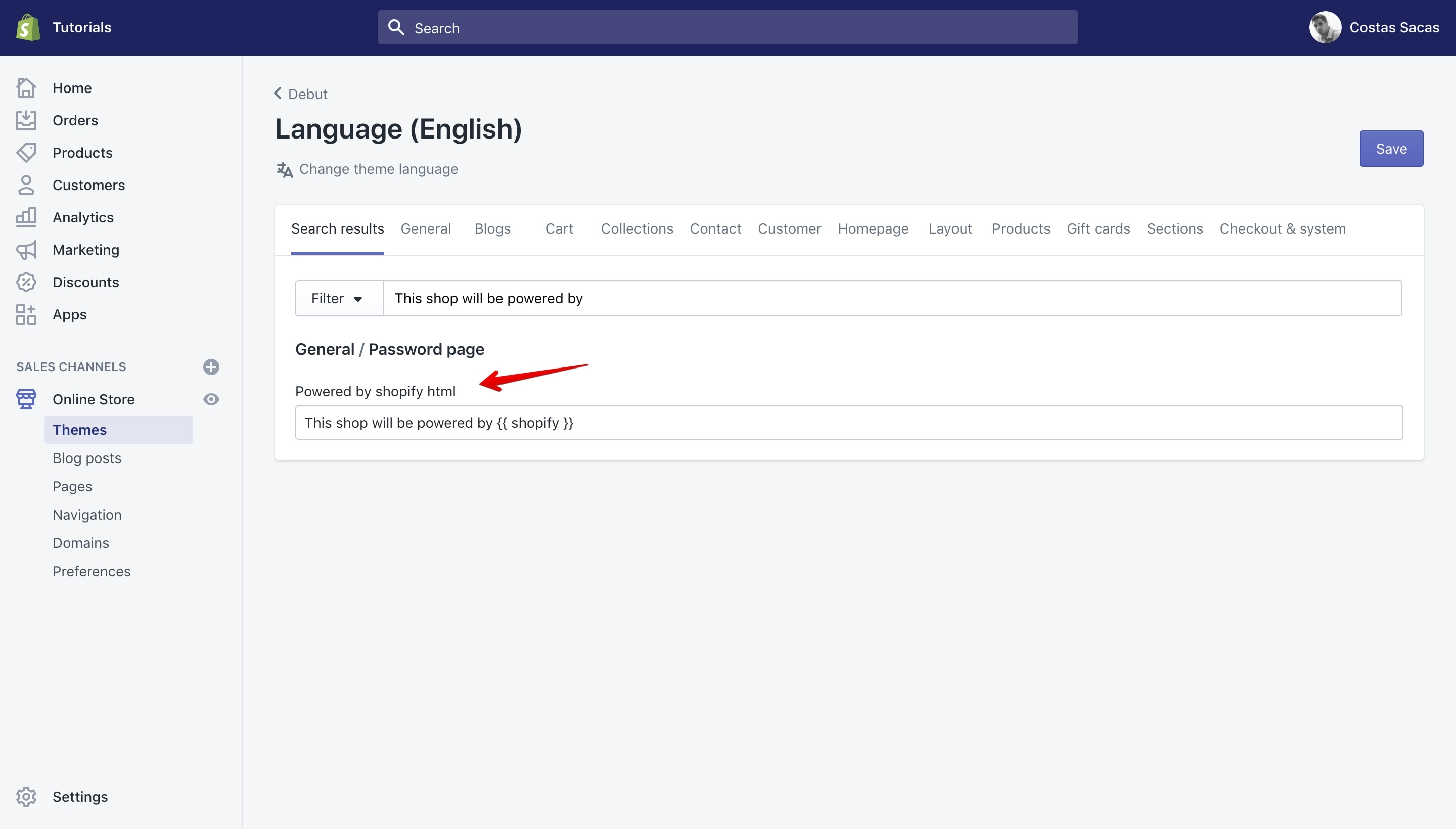
That’s it. We’ve removed all the code related to “Powered by Shopify” copyright in the Debut theme.
Change code method
If you want to change only the copyright text and replace it with your own, this can be done simply from the “Language” panel in the theme back-end without altering the code.
But what if you want to change the entire code and add your own? How do you do that?
Well, this is not possible via the “Language” panel, instead you need to get your hands dirty inside the code editor.
Global copyright
Let’s start first with the footer copyright that is located on all pages:
Let’s say we want to change “Powered by Shopify” to “All rights reserved.” and remove the link.
This is how the code looks inside the footer section of the theme:
<small class="site-footer__copyright-content site-footer__copyright-content--powered-by">{{ powered_by_link }}</small>In order to change it easily later without modifying directly the code we need to add a translation key to the code:
We can modify all the above code as we see fit. I’ll replace the above code with a simple text “All rights reserved.”:
Open the Shopify code editor in full screen and dark mode and search for the “footer.liquid” file located in the “Sections” folder:
Open the “footer.liquid” file:
Search for the “powered_by_link” variable:
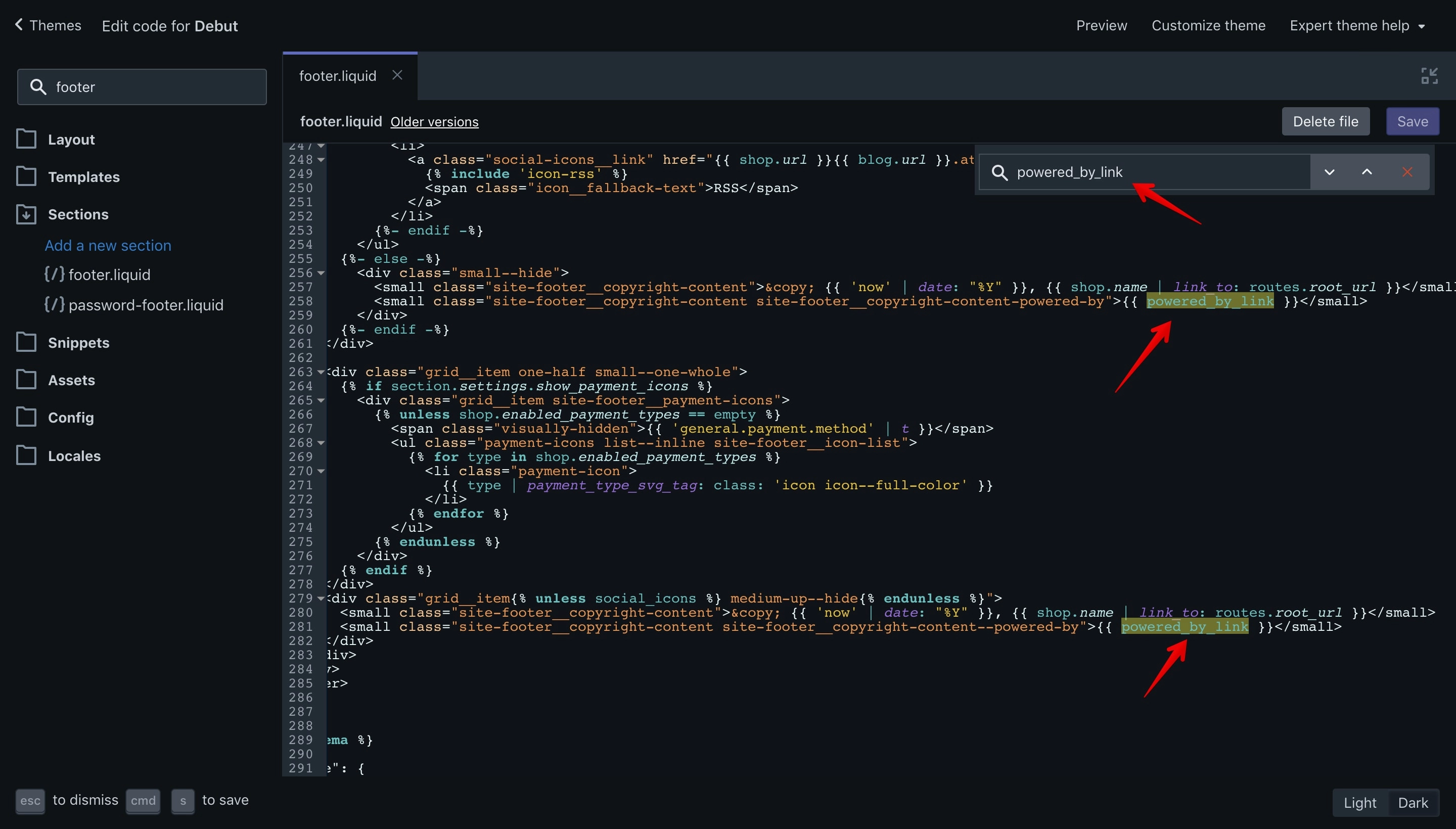
Replace it with the following code:
{{ 'layout.footer.copyright_text' | t }}Please note that you have to replace it in 2 places in the same file:
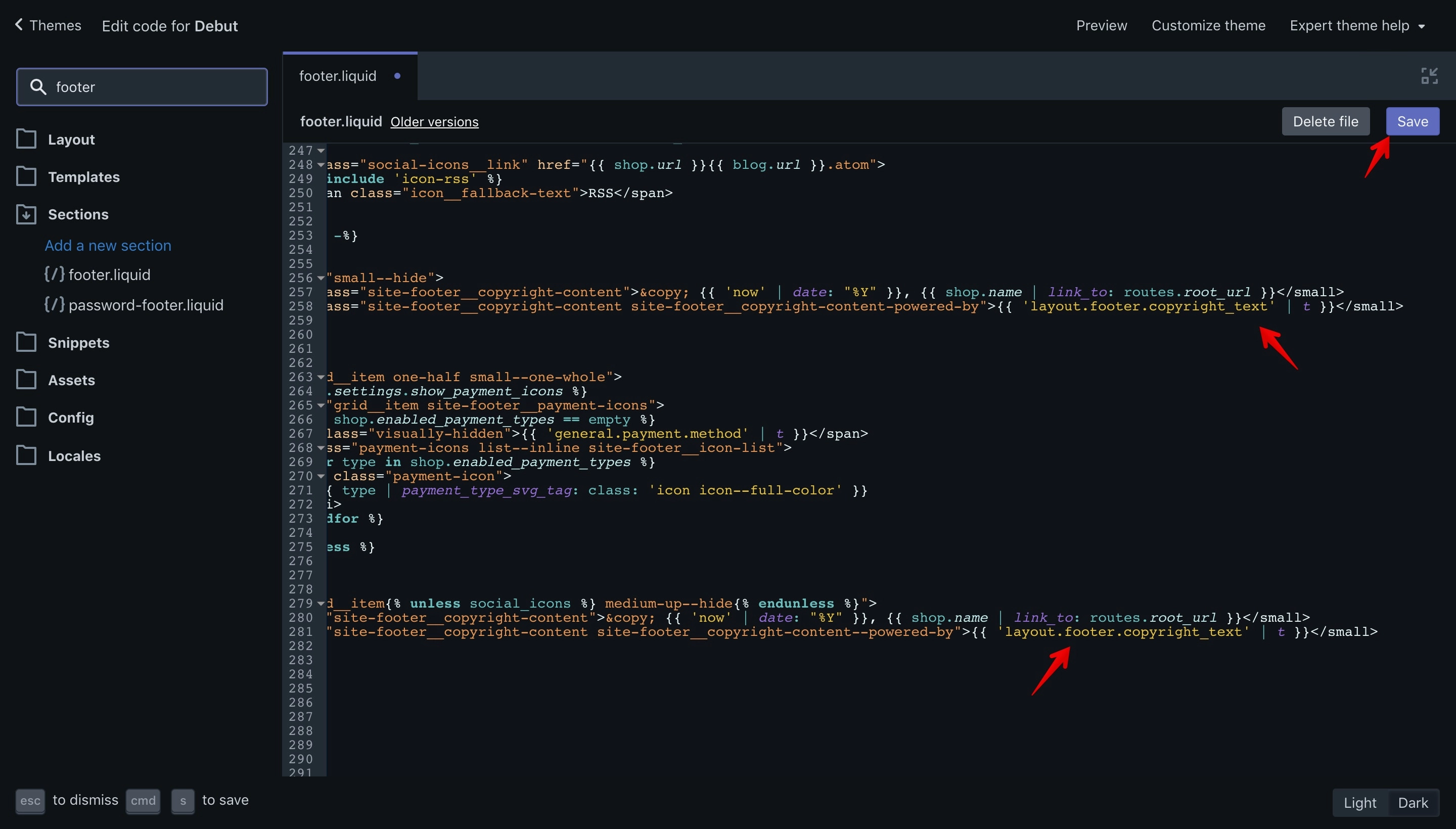
Now hit ⌘ + S (Mac) or Ctrl + S (Windows) or click the purple “Save” button to save your settings.
If you check now in the front-end you’ll see something like this:
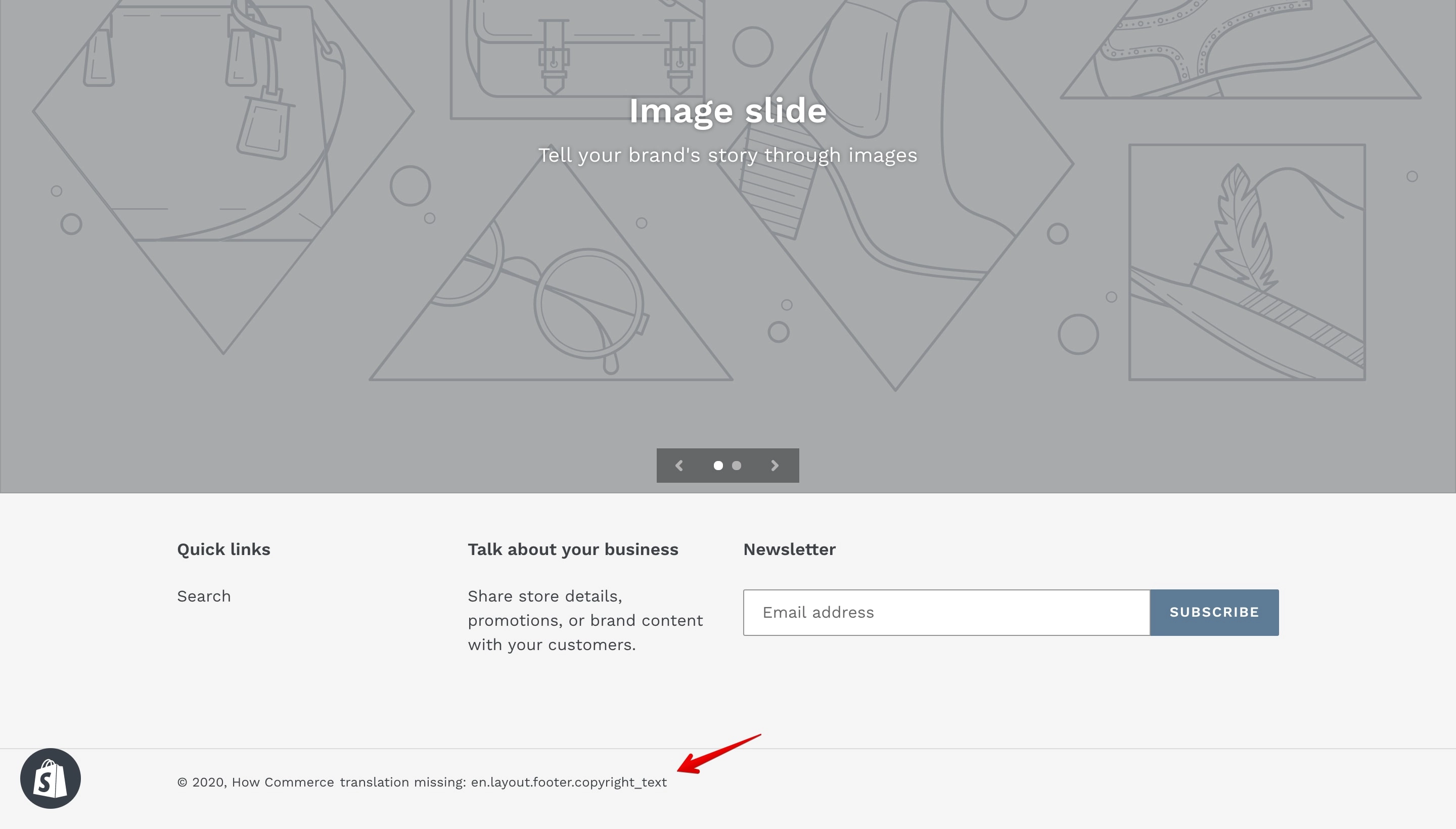
This is because we haven't defined the translation key in the language file.
Let’s do that. Search for the “en.default.json” file:
Search for the “footer” translation key:
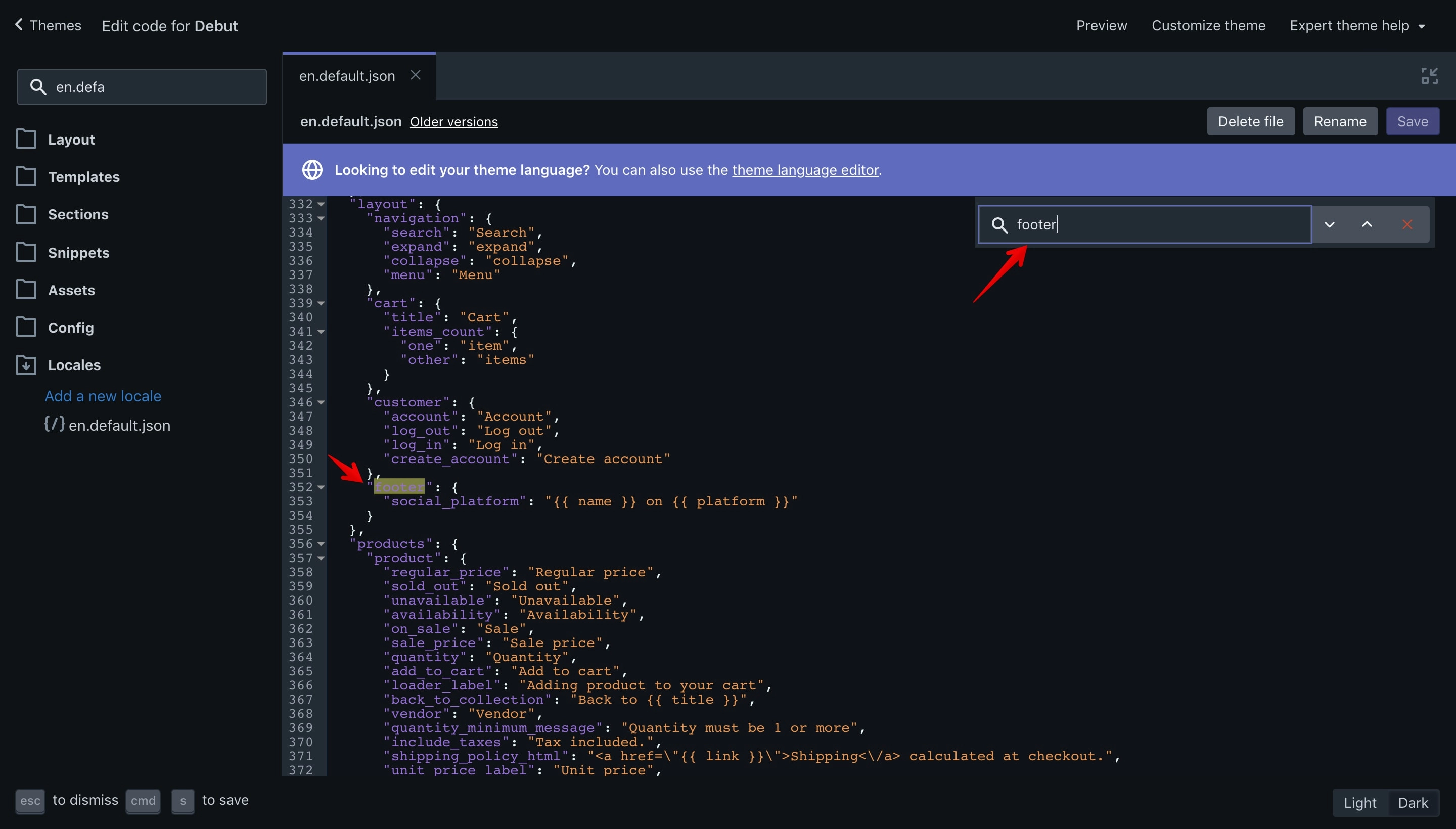
Add this line to the “footer” key:
"copyright_text": "All rights reserved."Make sure you add a “,” (comma) on the previous line.
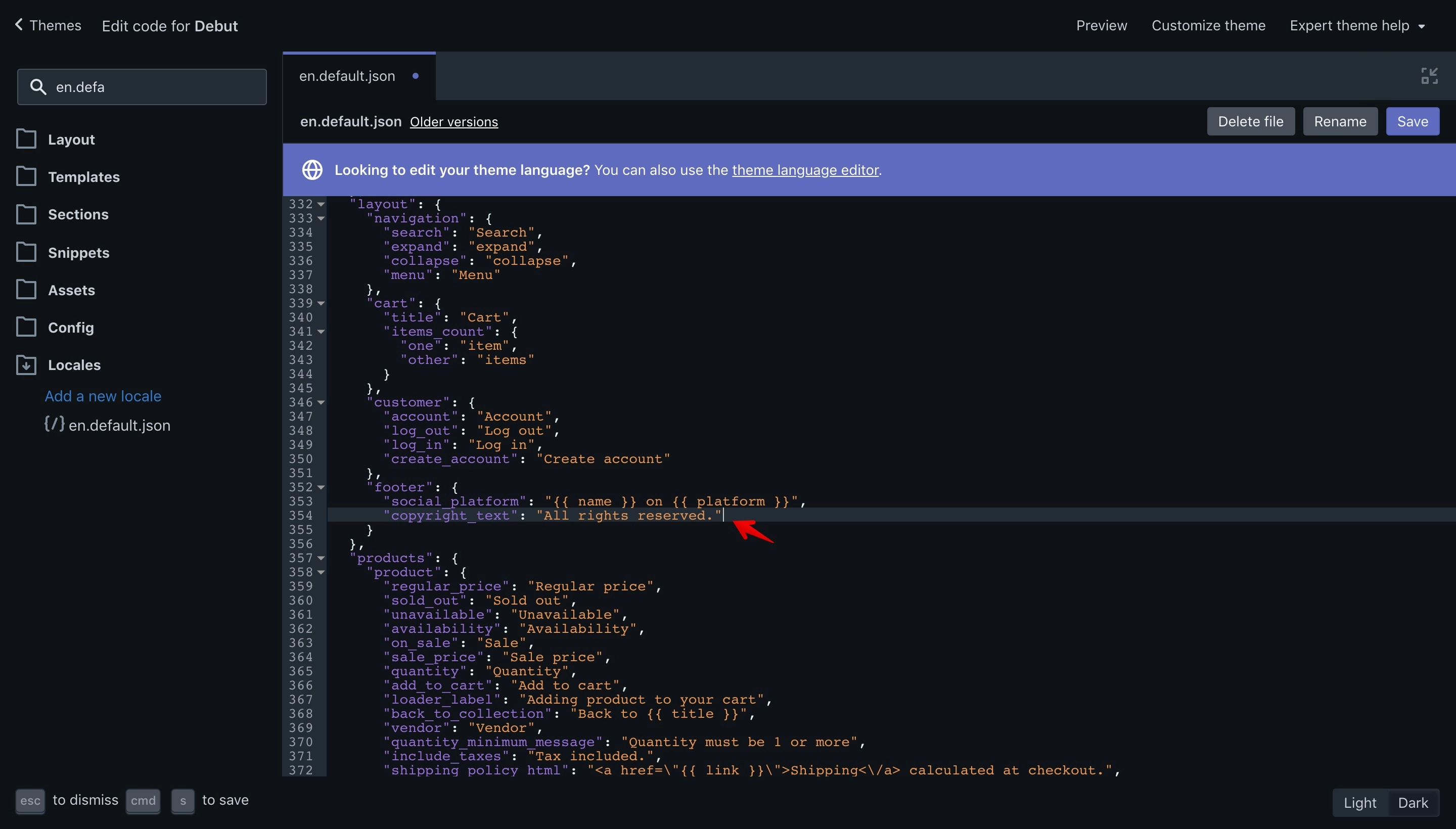
Now hit ⌘ + S (Mac) or Ctrl + S (Windows) or click the purple “Save” button to save your settings.
If you go to your shop front-end and you’ve done everything correctly you should see your new copyright:
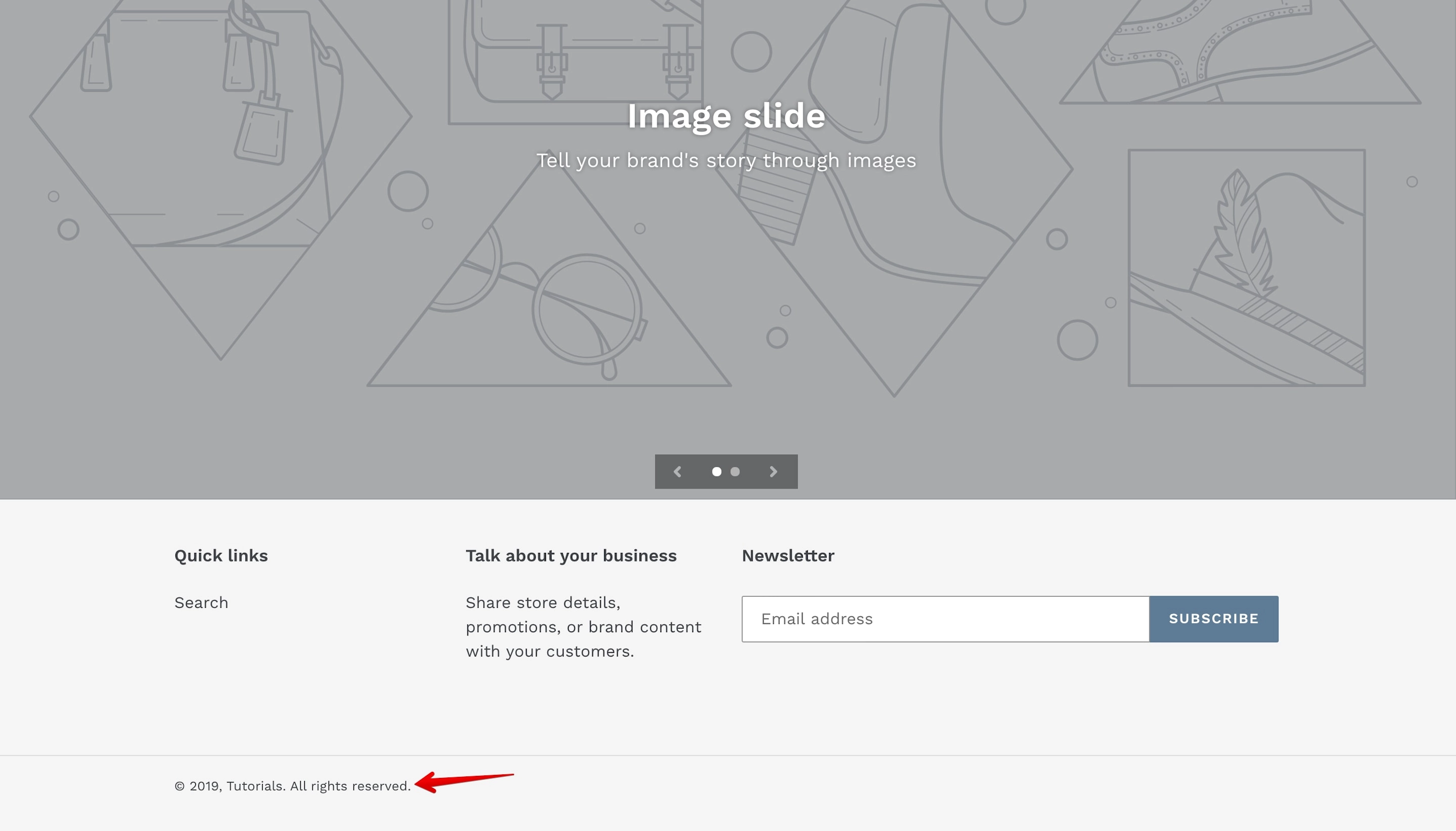
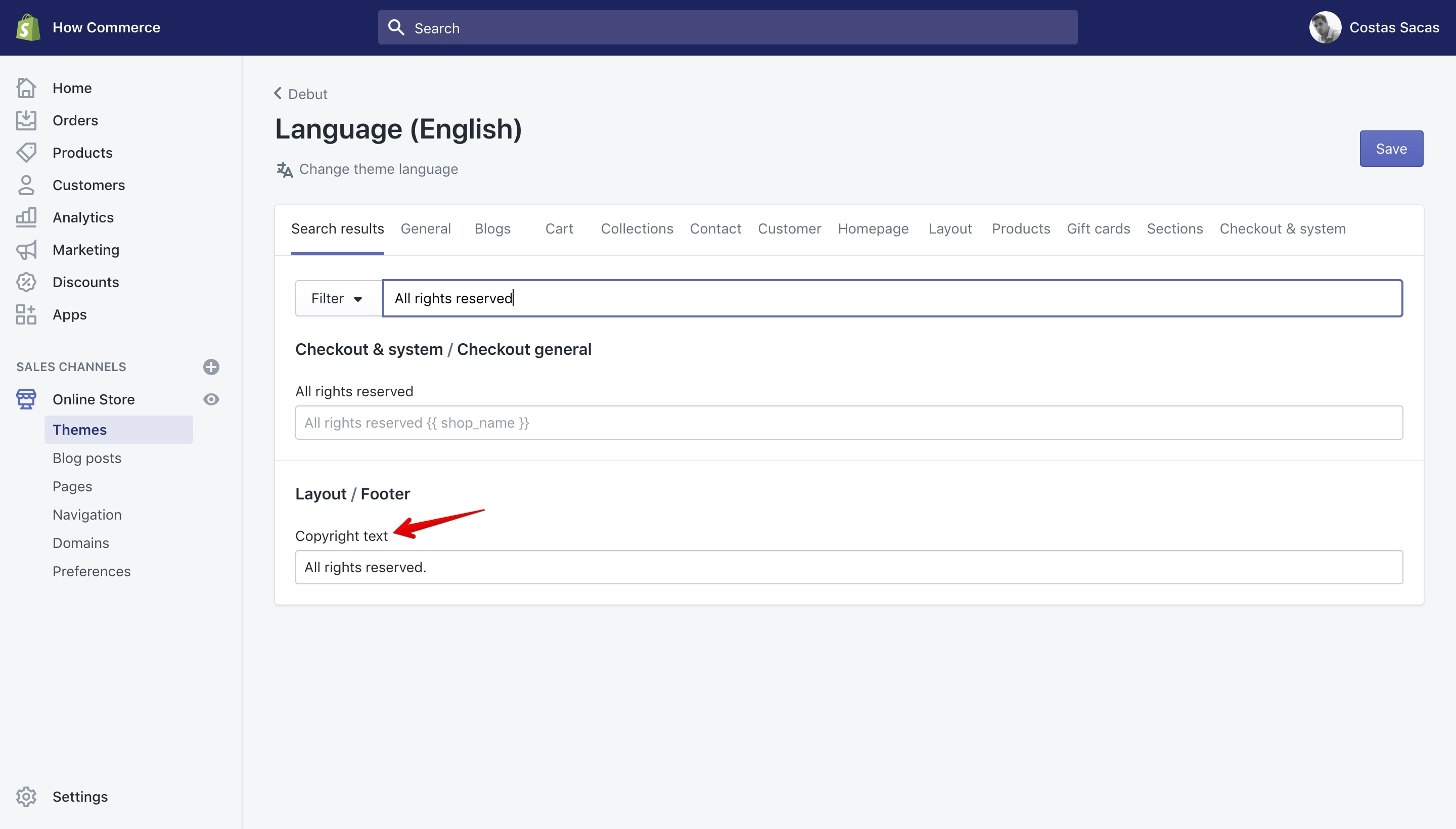
In the future if you or your client require to change the new copyright all you have to do is go in the “Language” administration panel and you can modify the text as you see fit.
Type in the “Filter” box “All rights reserved.” and the new translation key will be displayed.
The new text is under the “Layout / Footer” and is called “Copyright text”:
Offline page copyright
Now let’s change the offline page copyright:
I’ll replace the existing code with: “© 2019, How Commerce. All rights reserved.” You can choose whatever text you like, the process is the same.
Let’s open the Shopify code editor and filter for the “password-footer.liquid” file and open it:
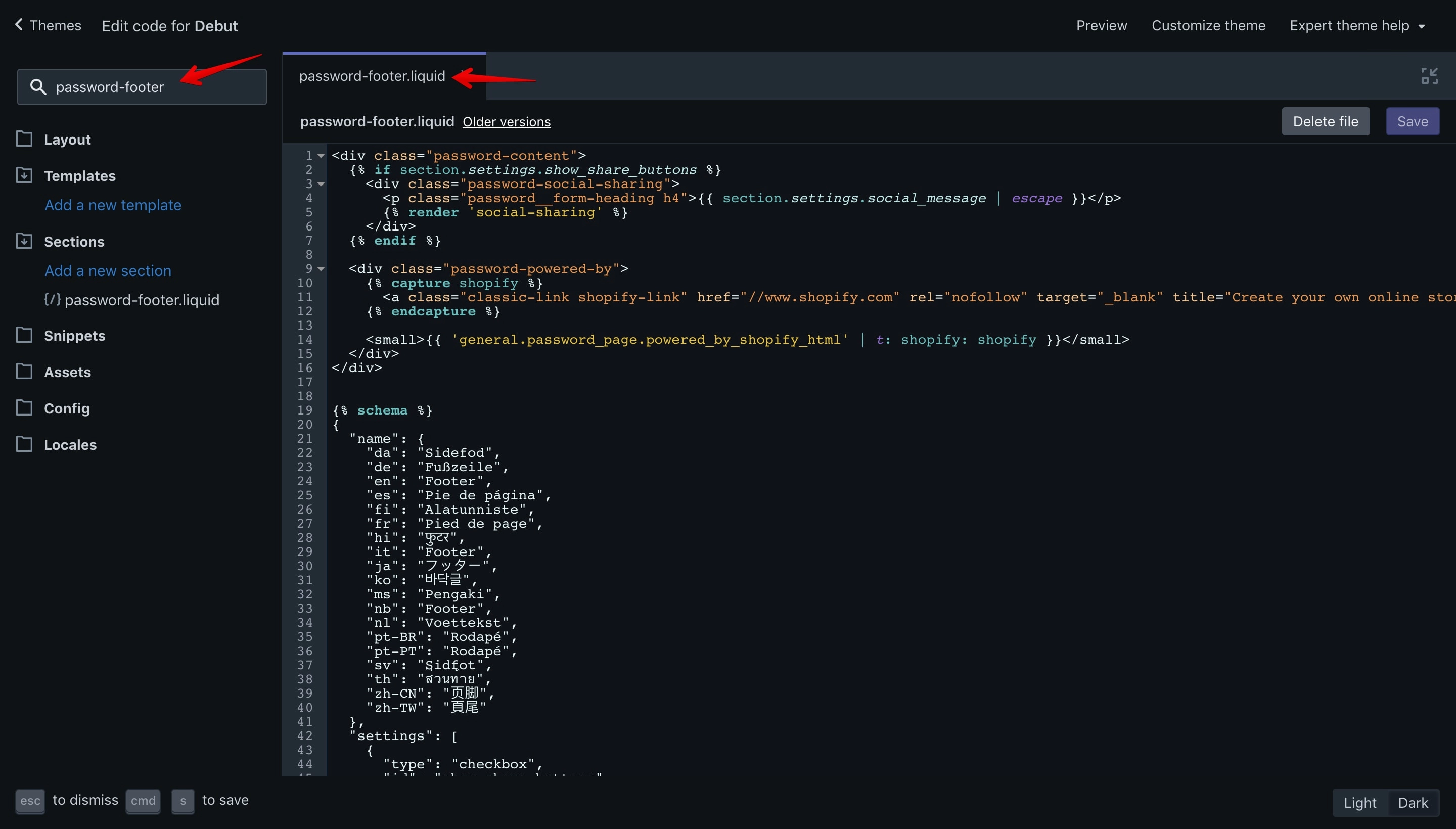
Now let’s search for the following code:
<div class="password-powered-by">
  {% capture shopify %}
    <a href="//www.shopify.com" rel="nofollow" target="_blank" title="Create your own online store with Shopify">Shopify</a>
  {% endcapture %}
  <small>{{ 'general.password_page.powered_by_shopify_html' | t: shopify: shopify }}</small>
</div>
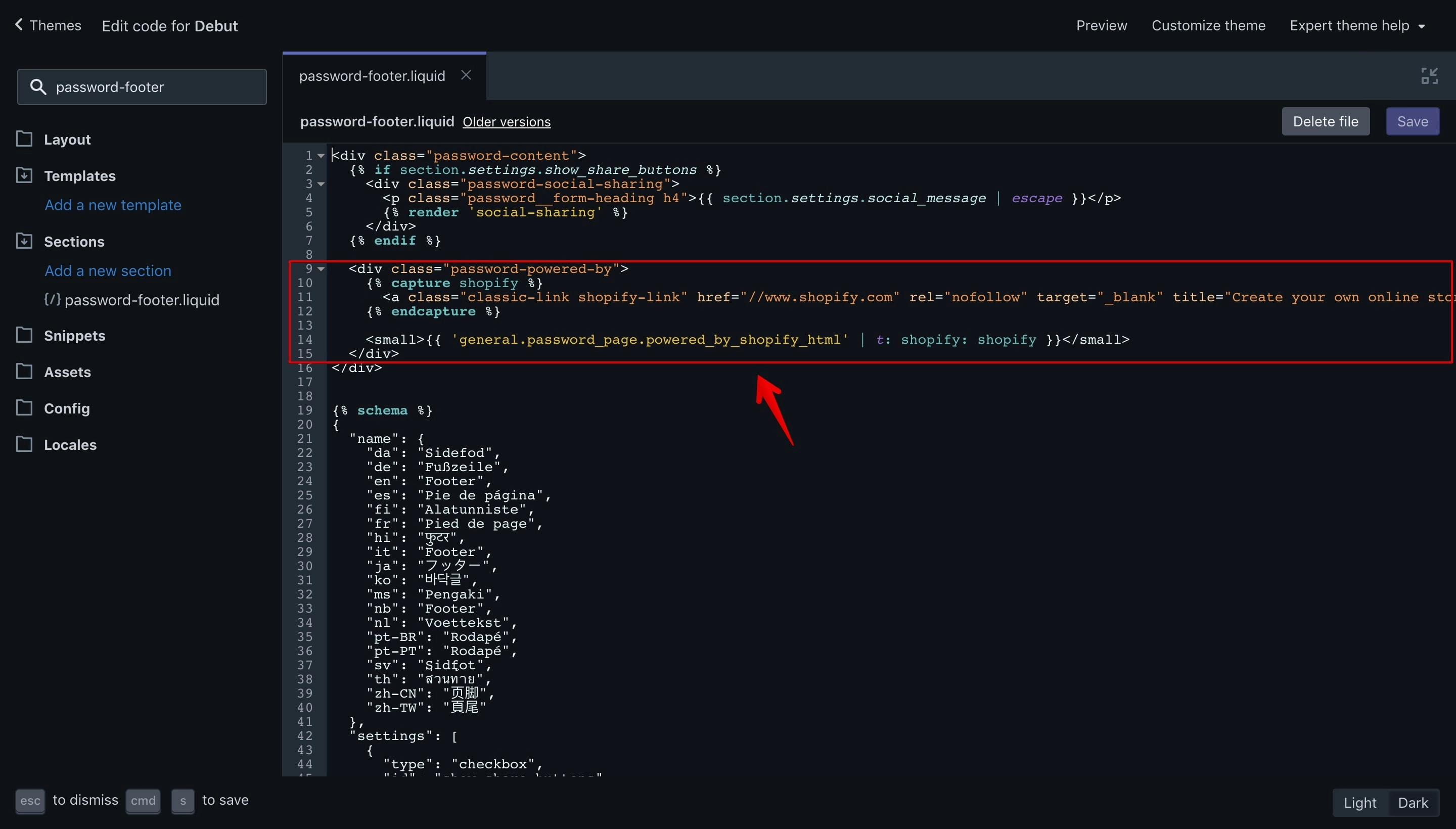
This is how it looks in your code editor:
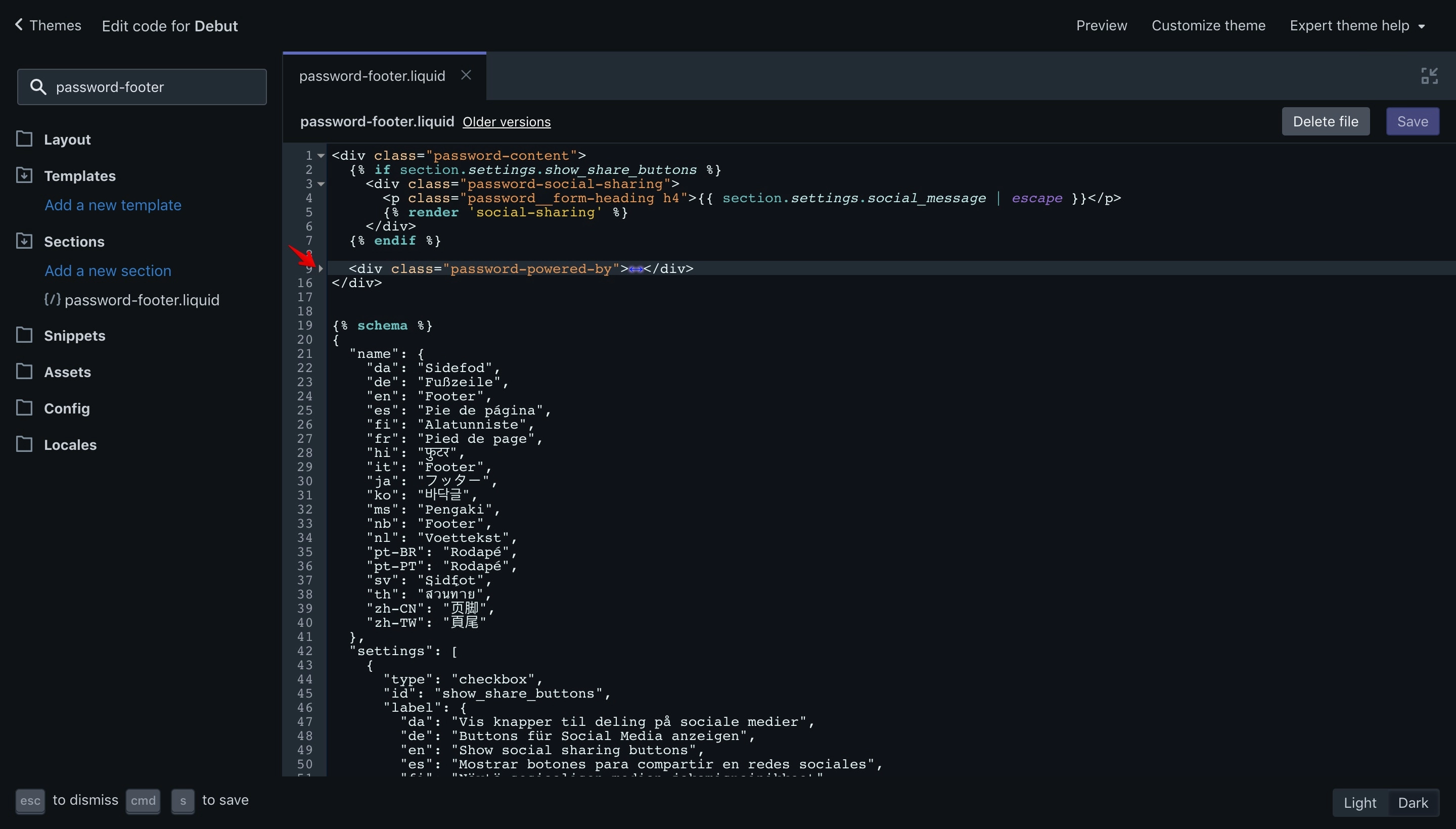
Fold the code by clicking on the little arrow on the editor and delete it:
Replace the code with the following one:
<div class="password-footer">
{% capture copyright_link %}
  © {{ 'now' | date: '%Y' }},
  <a class="copyright-link" href="{{ routes.root_url }}" title="{{ 'general.password_page.copyright_link_title'| t }}">
    {{ shop.name }}
  </a>
{% endcapture %}
<small>
{{ 'general.password_page.copyright_text_html' | t: copyright: copyright_link }}
</small>
</div>I’ll explain the code so you can understand what you are doing.
<div class="password-footer"></div>First is the footer container to which we’ve changed the class.
{% capture copyright_link %}
© {{ 'now' | date: '%Y' }},
<a class="copyright-link" href="{{ routes.root_url }}" title="{{ 'general.password_page.copyright_link_title'| t }}">
{{ shop.name }}
</a>
{% endcapture %}In the code above we have created a new variable called "copyright_link" and assigned to it the code located between {% capture %} and {% endcapture %}. These 2 tags define the content of the variable.
{{ 'now' | date: '%Y' }}
- this shows the current year and the format.
{{ routes.root_url }}
- this is a Shopify object that helps you display dynamic URLs. We use this so we don't have to hardcode the actual link because if we change the URL address, the link will no longer work.
{{ 'general.password_page.copyright_link_title' | t }}
- This is a language key that we'll add later to the languages files or locales. Doing this we'll allow other developers or translators to translate the text. We can also modify the text if needed via Shopify back-end without touching the code.
{{ shop.name }}
- A Shopify global object that helps access your Shop name.
{{ 'general.password_page.copyright_text_html' | t: copyright: copyright_link }}'general.password_page.copyright_text_html' - This is a language key that we'll add later to the languages files or locales. Doing this we'll allow other developers or translators to translate the text. We can also modify the text if needed via Shopify back-end without touching the code.
t - is the Shopify translation filter. The translation filter retrieves the translated content from the locale file for the active language. When a translation key is passed in a template file, the "t" filter uses that key to access the locale file for the active language.
copyright: - is a new variable to which we assign the "copyright_link" variable so we can pass it to the translation key 'general.password_page.copyright_text_html'.
Let’s get back to the Shopify editor and paste the code to replace the deleted one:
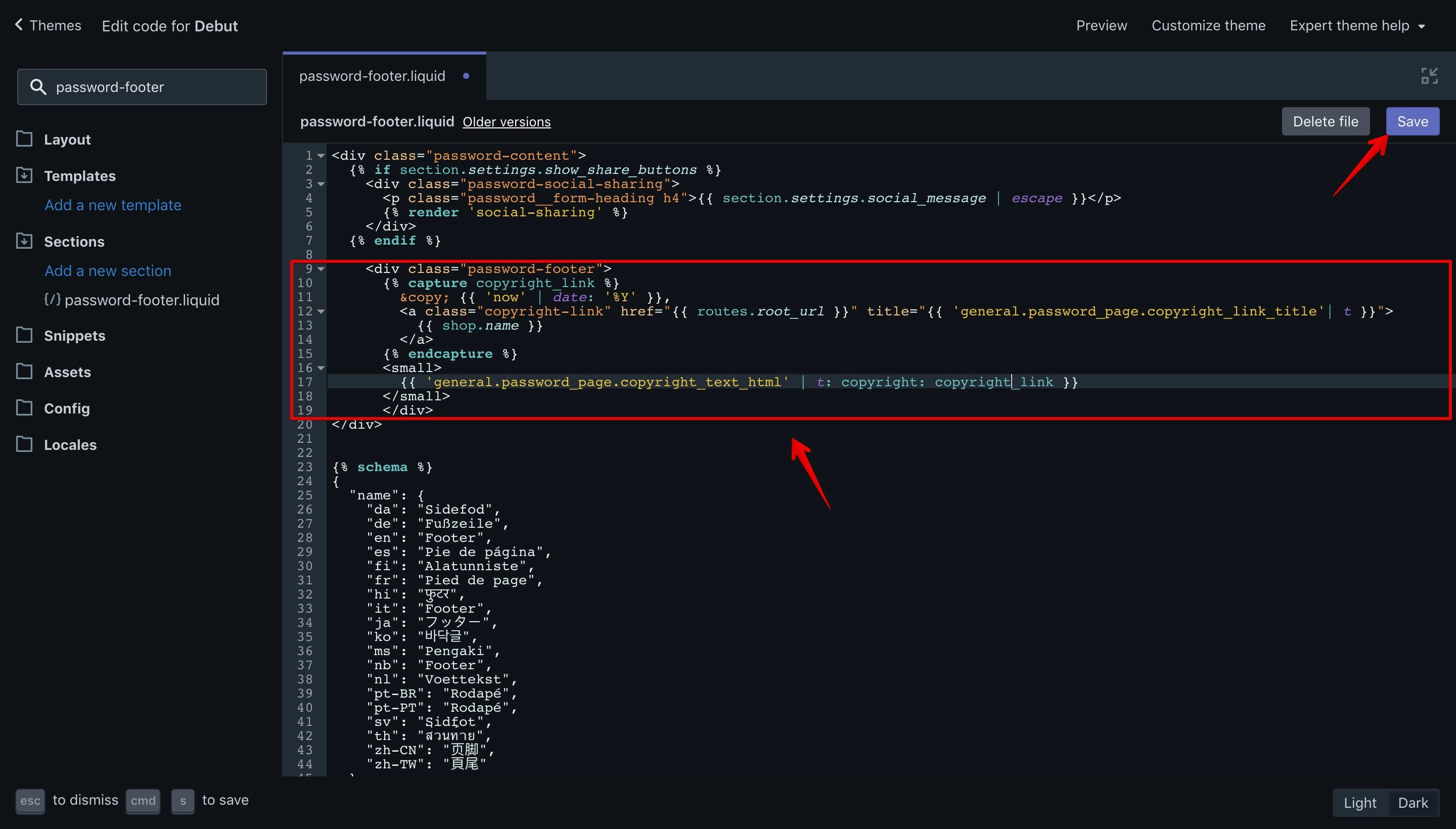
Now save your new changes by hitting the purple “Save” button in the top right corner.
Note:
If you check the website in the front-end you’ll get an error like: “translation missing: en.general.password_page.copyright_text_html” because we didn’t create the language keys yet.
Close the “password.liquid” file and open the “en.default.json” file located in the “Locales” folder:
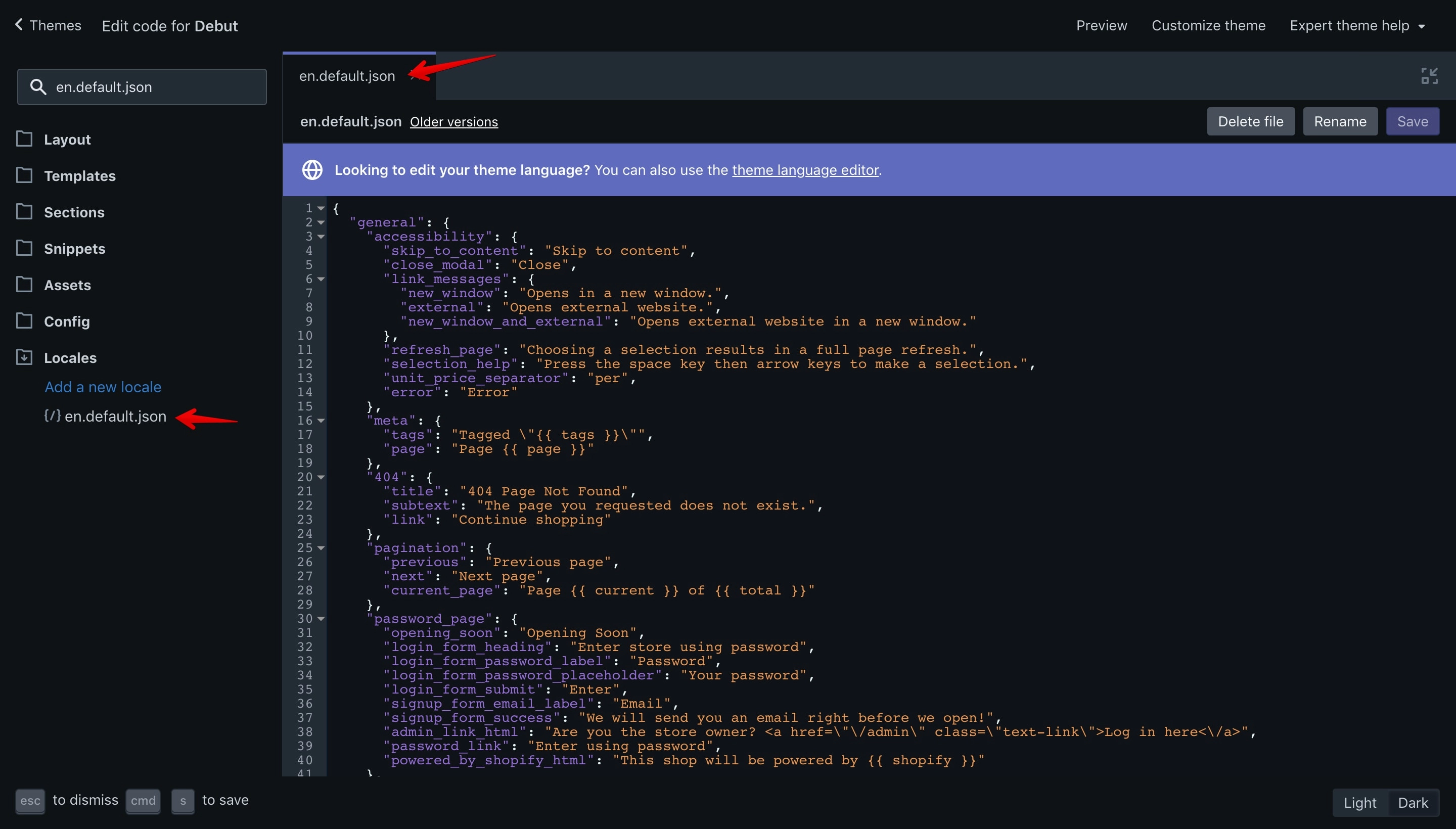
Find this line and remove it:
"powered_by_shopify_html": "This shop will be powered by {{ shopify }}"Add the following lines in the same place:
"copyright_text_html": "{{ copyright }}. All rights reserved.",
"copyright_link_title": "Learn how to build your online Shop the right way!"
"copyright_text_html": "{{ copyright }}. All rights reserved." - On the left side of the “:” we have the translation key copyright_text_html and on the right side the value that we want to display in the Offline page front-end {{ copyright }}. All rights reserved.. As you can see we use interpolation on the key value. The interpolation helps us use the copyright_link variable value inside the language key via {{ copyright }}, which is an argument for the t filter to which we’ve passed the copyright_link variable that we’ve created with all the copyright code in the password.liquid file.
"copyright_link_title": "Learn how to build your online Shop the right way!" - This is the link title that we use for the website link.
This is how your language file will look:
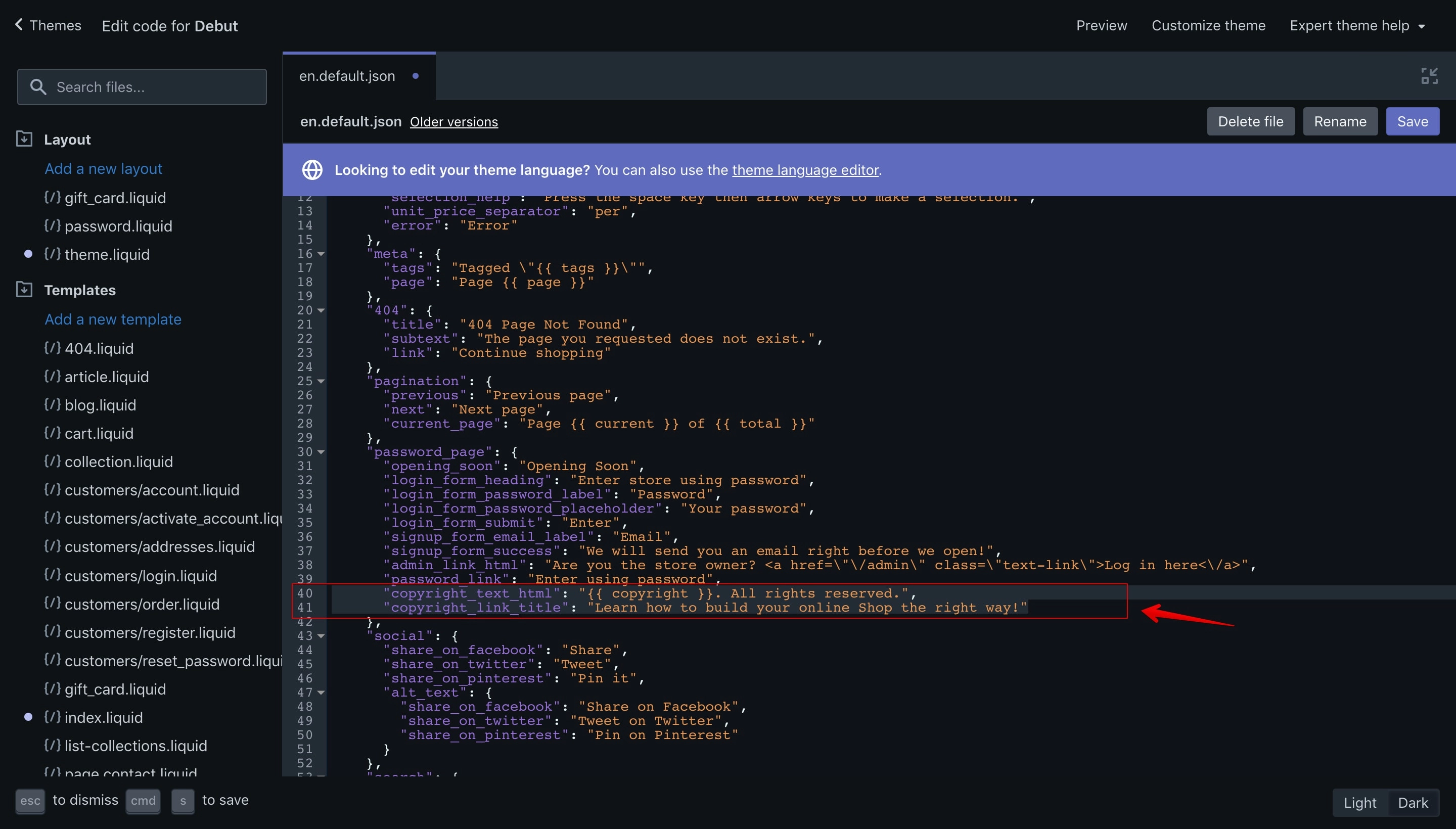
Now save your new changes by hitting ⌘ + S (Mac) or Ctrl + S (Windows) or click the purple “Save” button.
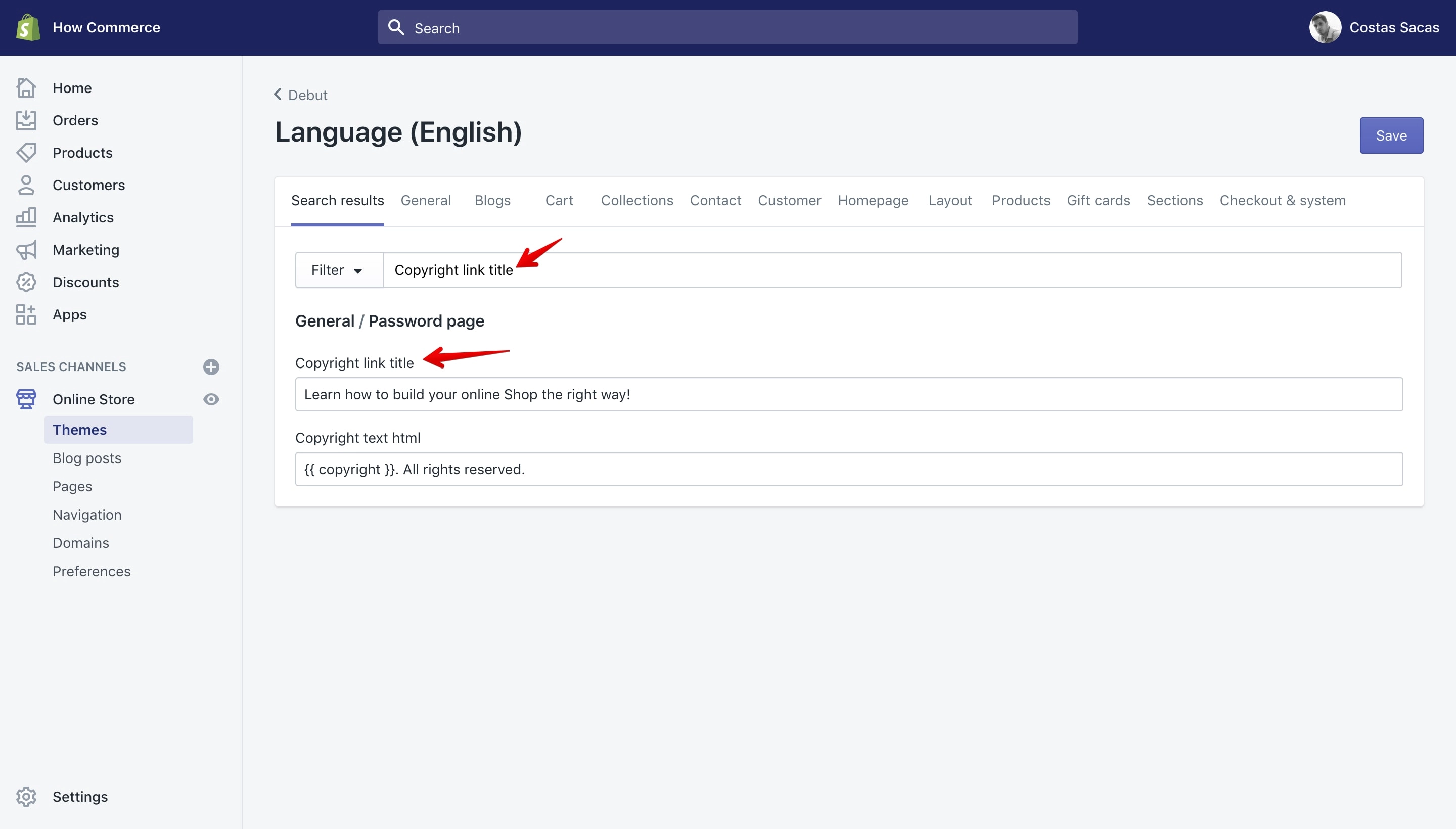
The 2 translation keys can be changed in the “Language” panel if you need so. You have to search for “Copyright text html" and for “Copyright link title”:
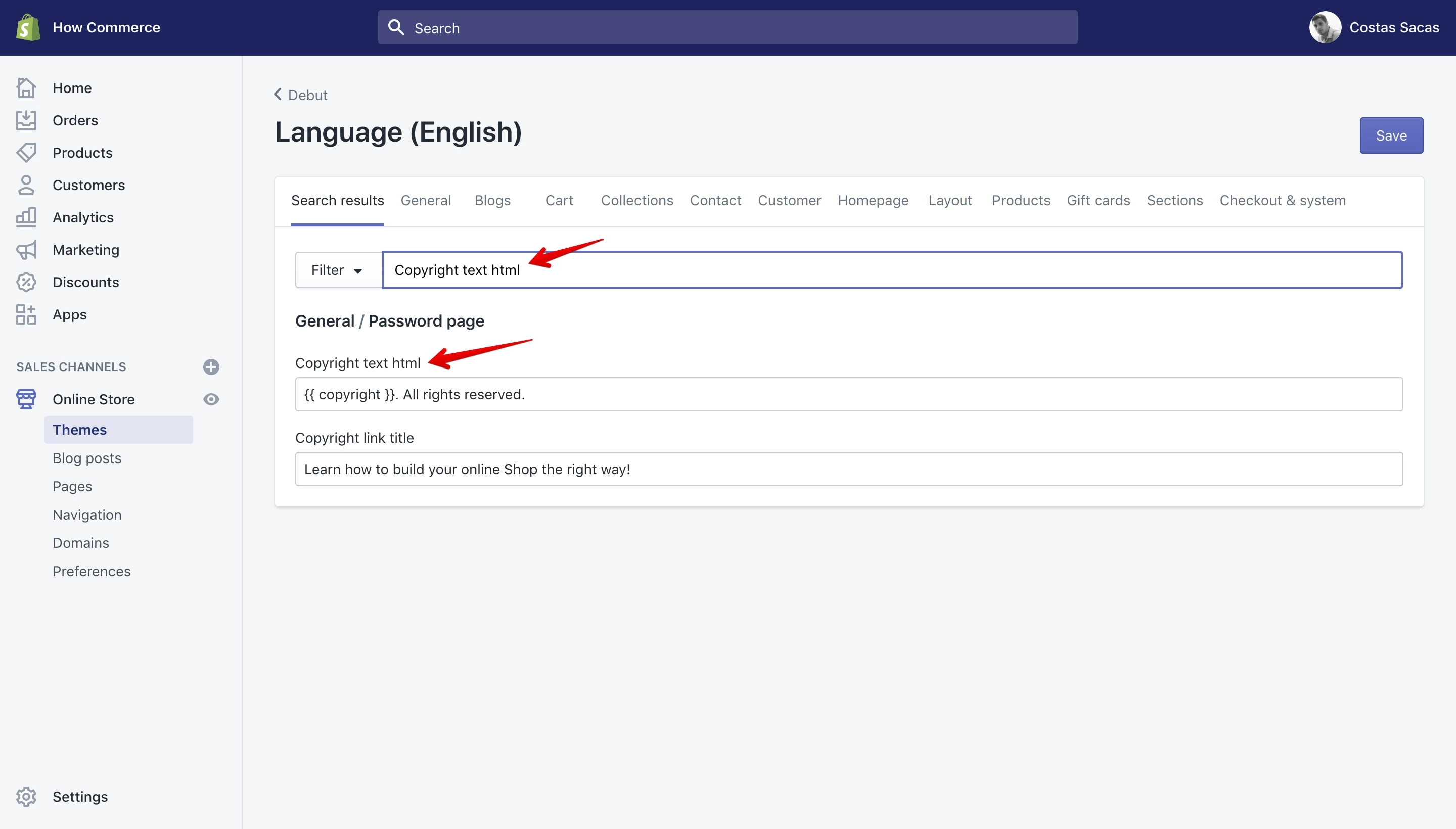
Everything is completed and your new copyright should display in the front-end: